Teams and groups
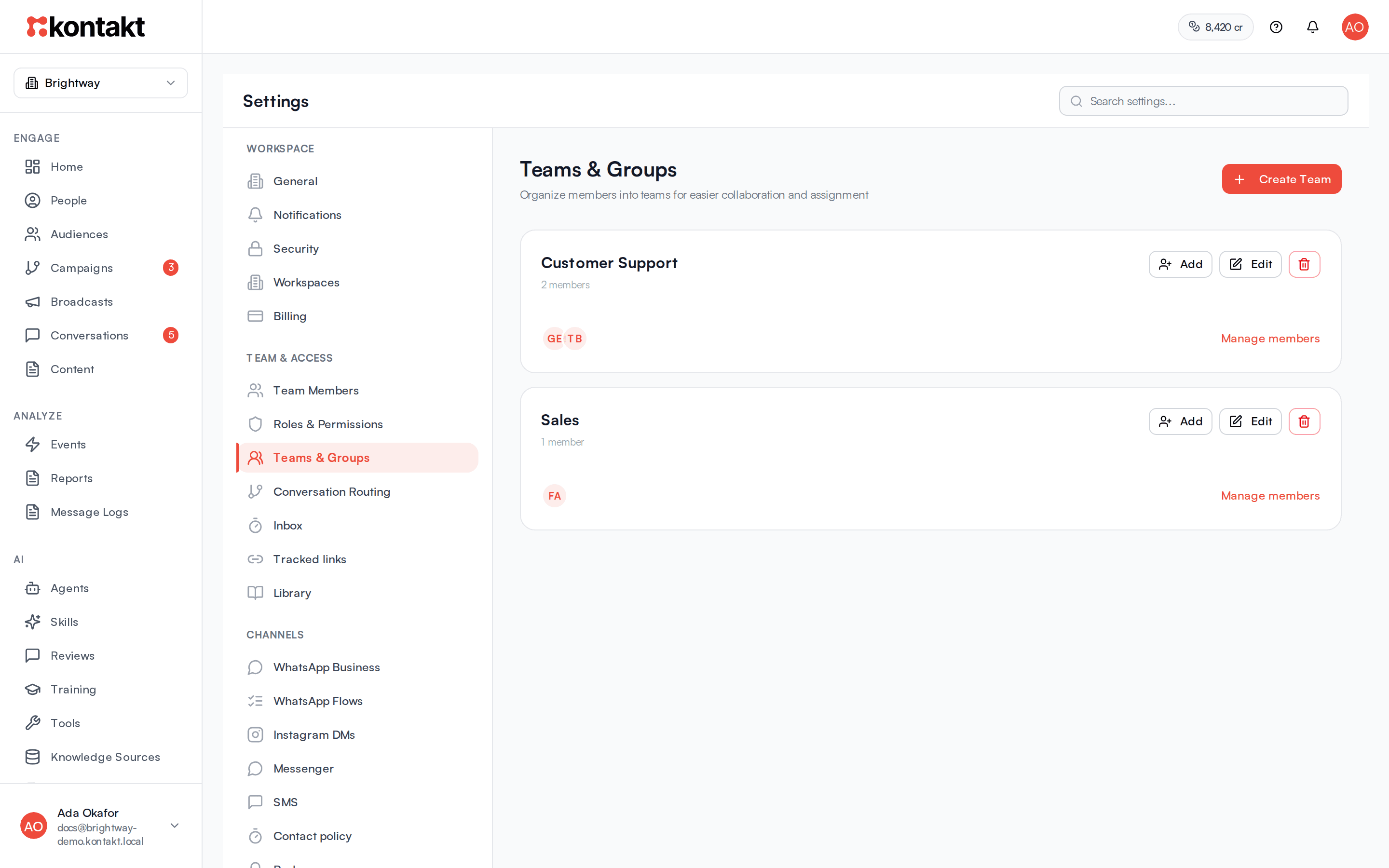
Teams group your members by what they work on, such as Sales or Support. Use them to show each group the right quick replies and files, and to hand journey conversations to the right people.
A team is a named group of workspace members. Teams don't change what anyone is allowed to do. Permissions come from roles. Teams decide who sees which shared content and where handed-off conversations go. You manage them under Settings / Teams & Groups.
Before you start
- You need Update under Settings to create teams and change their members.
- People must already be active members of the workspace before you can add them to a team. See Team members.
Create a team
Open Teams & Groups
Go to Settings / Teams & Groups and click Create Team.
Name it
Enter a Team name, for example "Support". Add a Description (optional) that says what the team handles. Click Create Team.
Add members
On the team's card, click Add. In Add Member to Team, choose someone under Select member and pick their Role in team: Member, Lead, or Manager. Click Add Member. Repeat for each person.
Role in team is a label that shows next to each person in the team. It doesn't change their permissions.
Edit a team
Click Edit on a team card, or Manage members under its member avatars. You can change the name and description, add people with + Add member, and remove people. Click Save Changes when you're done.
To remove someone, click the remove icon next to their name and confirm with Remove. They stay a member of the workspace. They just leave the team.
Delete a team
Click the bin icon on the team card and confirm with Delete Team. The team's members stay in the workspace. Deleting a team can't be undone.
Where teams are used
Quick replies and shared files
When you add a quick reply or a file under Settings / Library, choose a Team scope. Items scoped to Everyone (workspace-wide) show for every member. Items scoped to a team only show for members of that team when they pick from the library in Conversations. See Library.
Journey handoffs
The Handoff step in a journey hands a conversation from the journey to your team. Besides Assign to Team Member, it has Assign to Team, which records the team on the conversation. See Journeys.
Troubleshooting
Someone is missing from Select member
Only active workspace members who aren't already in the team appear. If the person was invited but hasn't accepted yet, or was deactivated, they won't show. If everyone is already in the team, you see No available members.
A teammate can't see a quick reply
Check the reply's Team scope in Library. If it's scoped to a team, add the teammate to that team or change the scope to Everyone (workspace-wide).