Customer.io
Customer.io keeps running your campaigns. Kontakt adds WhatsApp, the inbox, and AI agents, and tells Customer.io what happened on WhatsApp so your campaigns can react.
Customer.io and Kontakt connect in both directions:
| Direction | How | Use it for |
|---|---|---|
| Customer.io to Kontakt | Webhook action calling POST /v1/events | Starting a Kontakt journey, creating or updating the person |
| Customer.io to Kontakt | Webhook action calling POST /v1/messages/whatsapp | Sending one WhatsApp template when the Customer.io campaign decides the timing |
| Kontakt to Customer.io | The Customer.io connection | Opt-outs, opt-ins, replies, and template delivery recorded as events on the person |
| Kontakt to Customer.io | A Send to Customer.io journey step | Any other event, at a point you choose in a Kontakt journey |
Before you start
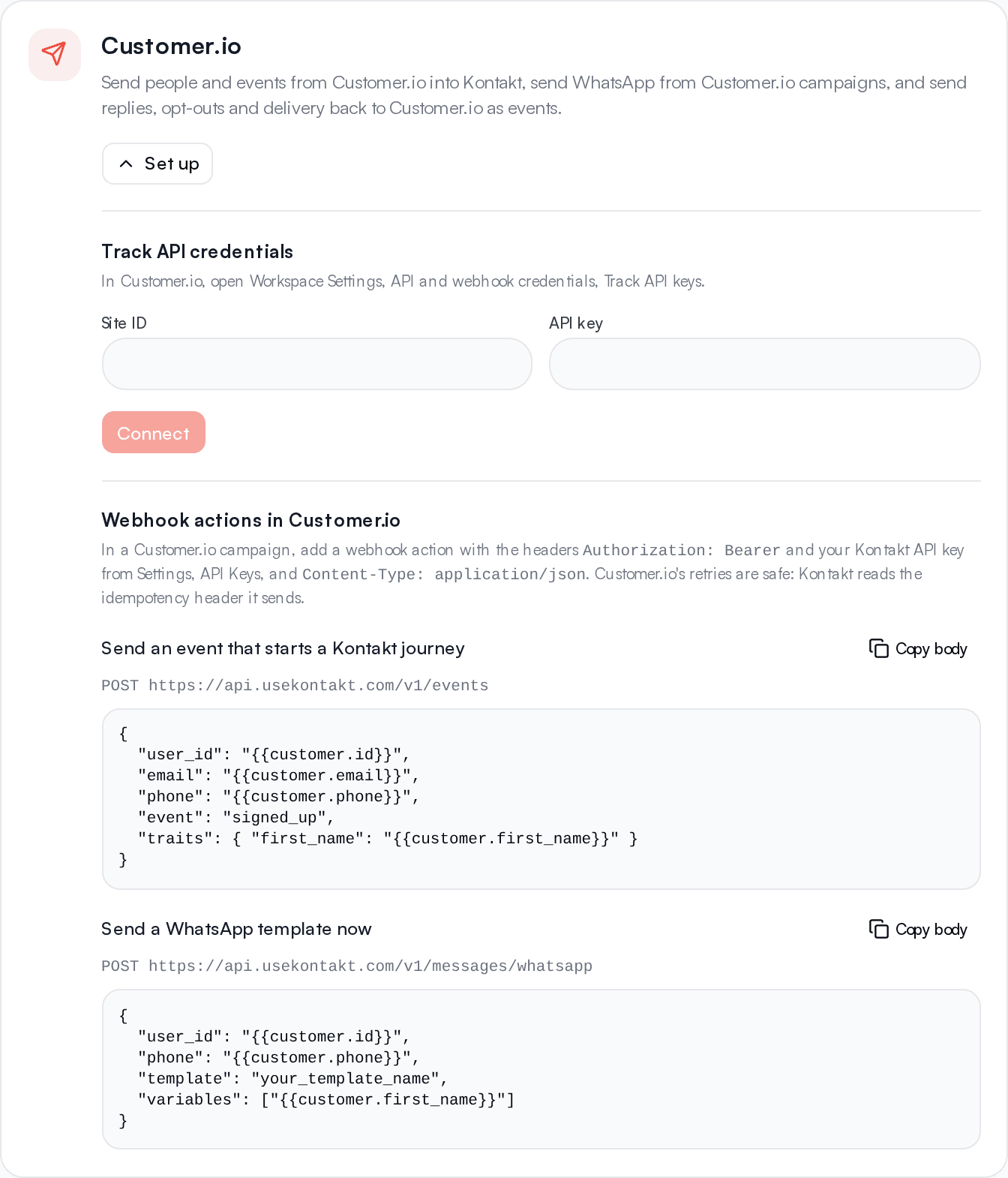
- In Customer.io, your Site ID and a Track API key. Find them under Workspace Settings, API and webhook credentials, Track API keys.
- A Kontakt API key from Settings / API Keys for the webhook actions.
- Agree on the ID both systems use. Send the Customer.io person ID as
user_id, so Kontakt can find the same person in Customer.io later. Kontakt falls back to email when a person has no user ID.
Connect Customer.io
Open the Customer.io card
Go to Settings / Connectors and select Set up on the Customer.io card. Once connected, the button reads Manage.
Enter the credentials
Paste the Site ID and API key, then select Connect. Kontakt checks them with Customer.io and finds your account's region, US or EU, on its own. The key is stored encrypted and is never shown again.
Choose what Kontakt sends back
All three are on by default. Turn off any you don't need.
What Kontakt sends to Customer.io
| Setting | Events | Data |
|---|---|---|
| WhatsApp opt-outs and opt-ins | kontakt_whatsapp_opted_out, kontakt_whatsapp_opted_in | channel, source |
| WhatsApp replies | kontakt_whatsapp_replied | The reply text, template_name, template_category, broadcast_id, campaign_id, seconds_to_reply |
| Template message status | kontakt_whatsapp_sent, kontakt_whatsapp_delivered, kontakt_whatsapp_read, kontakt_whatsapp_failed | template_name, template_category, message_id, broadcast_id or campaign_id, and error_code and error_message when it failed |
How it behaves:
- The person is matched by the user ID Kontakt received, else their email. People with neither are skipped.
- Only template messages send a status: journey, broadcast, and API sends. Replies typed by your team in the inbox don't.
- A reply counts once, against the most recent template or broadcast sent to the person in the last 72 hours.
- No echo. An opt-out that arrived from Customer.io itself, as a
whatsapp_opt_intrait, is not sent back. - Retries are safe. Each event carries an ID, so Customer.io ignores a repeat. Kontakt retries when Customer.io is unreachable.
- Errors show on the card. If Customer.io rejects an event, the error and its time appear on the Customer.io card in Connectors.
In Customer.io, use these events to trigger a campaign, as a campaign's exit condition, or in a segment such as "performed kontakt_whatsapp_opted_out".
Send events into Kontakt
In a Customer.io campaign, add a webhook action. Set the method to POST, the URL to https://api.usekontakt.com/v1/events, and add the headers Authorization: Bearer pk_live_your_key and Content-Type: application/json.
{
  "user_id": "{{customer.id}}",
  "email": "{{customer.email}}",
  "phone": "{{customer.phone}}",
  "event": "signed_up",
  "traits": { "first_name": "{{customer.first_name}}" }
}
Kontakt creates or updates the person and starts any journey triggered by signed_up. Customer.io sends an X-CIO-Idempotency-Key header with each webhook, so a retried call is recorded once. Field details are in Marketing platforms.
Send WhatsApp from a Customer.io campaign
Point the webhook action at https://api.usekontakt.com/v1/messages/whatsapp instead:
{
  "user_id": "{{customer.id}}",
  "phone": "{{customer.phone}}",
  "template": "your_template_name",
  "variables": ["{{customer.first_name}}"]
}
Kontakt sends the approved template, applies WhatsApp opt-outs and your contact policy, and shows the message in the inbox. Replies come back to Customer.io as kontakt_whatsapp_replied. See Send WhatsApp from your systems.
The Send to Customer.io step
In a Kontakt journey, add Send to Customer.io from Actions. Enter the event name and any properties. Values can use Liquid, for example {{ nodes.wait_reply.event_properties.text }} for the reply a Wait for Event step received. The journey ID is always added as kontakt_journey_id.
The step fails, and the journey moves on, when Customer.io is not connected, the person has no user ID or email, or Customer.io rejects the event.
Troubleshooting
Connect says Customer.io did not accept the credentials
Use a Track API key, not an App API key, and the Site ID shown next to it.
Events don't appear on the person in Customer.io
Check that the person in Kontakt has the same user ID as in Customer.io, or the same email if your Customer.io workspace identifies people by email. Check the last error on the Customer.io card under Settings / Connectors.
A reply didn't send kontakt_whatsapp_replied
Only the first reply after a template or broadcast in the last 72 hours counts. Later messages in the same conversation are regular inbox messages.