Team members
Invite the people who work your inbox and run your campaigns, give each one a role, and take access away when they leave.
Team members are the people who sign in to your workspace. Each member has one role, and that role decides what they can see and change. You manage everyone under Settings / Team Members.
Before you start
- You need a role with Manage workspace, team, and billing under Settings. The Owner and Admin roles have it.
- Your plan sets how many seats you have. See Plans for the seat limit on each plan.
- Decide which role each person should have. A new workspace comes with Owner, Admin, and Agent. For other access, create a custom role first.
Invite a team member
Open Team Members
Go to Settings / Team Members and click Invite Team Member.
Enter their email and role
Type their Email address and choose a role under Assign role. Roles that come with Kontakt are marked (System).
Send the invite
Click Send Invite. Kontakt emails them a link to set up their account. The invite expires in 48 hours.
The invite appears in the table with the status Pending invite, who sent it, and when it expires.
What your teammate sees
When they open the link, they see You've been invited to join your workspace, with the role you chose.
- New to Kontakt: they enter First name, Last name, a Password of at least 8 characters, and Confirm password, then click Join followed by your workspace name.
- Already have a Kontakt account with that email: they enter their existing password to join. Your workspace is added to the workspaces they can switch between.
Accepting the invite also verifies their email. If your workspace requires MFA, they set up an authenticator app before they get in.
Manage members
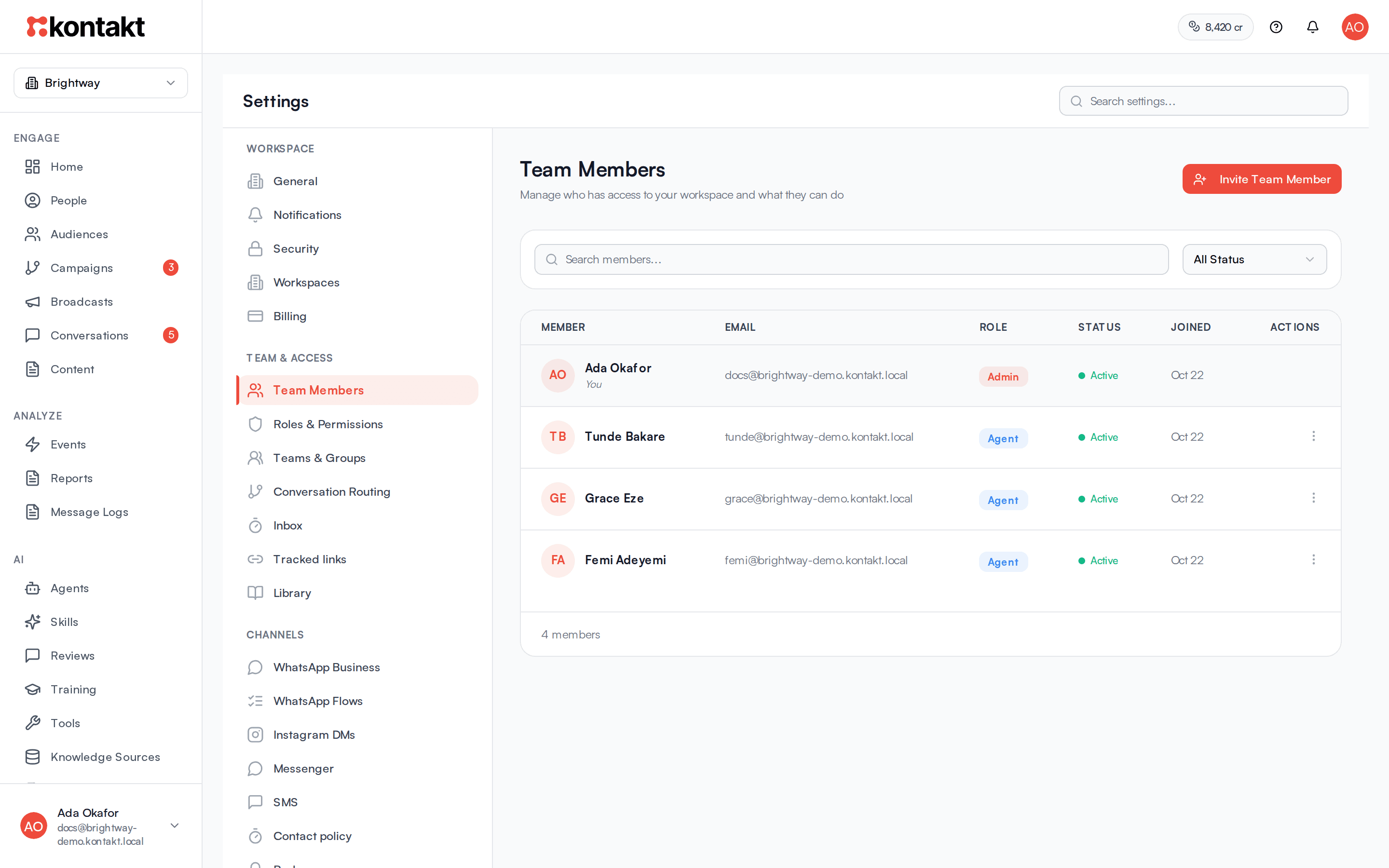
Use the search box and the status filter to find people. The filter offers Active, Pending, and Deactivated. Each row shows the member's role, status, and the date they joined. Open the menu at the end of a row to act on that person. You can't change your own row.
Change someone's role
Choose Change Role, pick the New role, and check the permissions preview. Click Save Changes. Kontakt checks permissions on every request, so the new role takes effect right away.
Deactivate a member
Choose Deactivate. They lose access to this workspace right away but stay in the list with the Deactivated badge. A deactivated member doesn't use a seat, isn't assigned conversations, and gets no notifications from this workspace.
You can't deactivate yourself or the workspace owner.
Reactivate a member
On a deactivated member, choose Reactivate. They get access back with the role they had before. Reactivating uses a seat again, so it fails with a seat limit message if your plan has no seats left.
Remove a member
Choose Remove from Workspace, then confirm with Remove Member. They disappear from the list and can no longer sign in to this workspace. Their Kontakt account still exists, so they keep access to any other workspaces they belong to.
Cancel an invite
On a pending invite, click Cancel, then Cancel Invite. The link stops working and the seat is freed.
How seats work
- Seats are counted per workspace.
- Active members and pending invites that haven't expired both use a seat. Deactivated members, removed members, and expired invites don't.
- When you're at the limit, sending another invite fails with a message telling you how many seats your plan allows. Cancel an unused invite, deactivate someone, or change your plan.
- People from a Kontakt partner who manage your workspace for you don't use your seats. See Partners.
| Plan | Monthly fee | Included credits | Seats | Contacts | Knowledge | Emails / month |
|---|---|---|---|---|---|---|
| Trial | $0 | 500 ($5) | 2 | 500 | 20 MB | None |
| Starter | $79/mo | 1,500 ($15) | 5 | 3,000 | 100 MB | 5,000 |
| Pay as you go | $0 | None, buy as needed | 5 | 3,000 | 100 MB | None |
| Growth | $249/mo | 10,000 ($100) | 15 | 25,000 | 500 MB | 25,000 |
| Scale | $799/mo | 40,000 ($400) | 50 | 100,000 | 2 GB | 100,000 |
Live from the Kontakt price catalog. Enterprise plans are priced per contract.
Troubleshooting
My teammate's invite link says it's invalid
They see Invalid Invitation when the link has expired, was cancelled, or was replaced by a newer invite. Send a new invite. Sending a new invite to the same email cancels the old one.
I can't invite someone who used to work here
If they are still in the list as a deactivated member, Kontakt says a user with this email already exists in the workspace. Use Reactivate on their row instead of inviting them again.
The member list won't load, or inviting fails with a permission error
Your role doesn't include the permissions for it. Viewing the list needs View under Settings or View under Conversations, and inviting or changing members needs Manage workspace, team, and billing under Settings. Ask an Owner or Admin to invite people for you or to change your role.