USSD
USSD lets customers dial a shortcode such as *384*123# and move through menus on any phone, including feature phones. Kontakt runs the menus as a journey.
USSD reaches customers without data or a smartphone. You rent a shortcode from a USSD provider, point it at Kontakt, and build the menu screens as a journey. Each dial starts a short session where the customer reads a screen, types a reply, and gets the next screen.
Before you start
- A USSD shortcode from a USSD provider, and access to its dashboard to set a callback URL.
- Your provider account details: for Africa's Talking, the API Key and Username; for Nalo Solutions, the API Key and Account ID.
- A role with permission to configure USSD.
Connect a shortcode
Open USSD settings
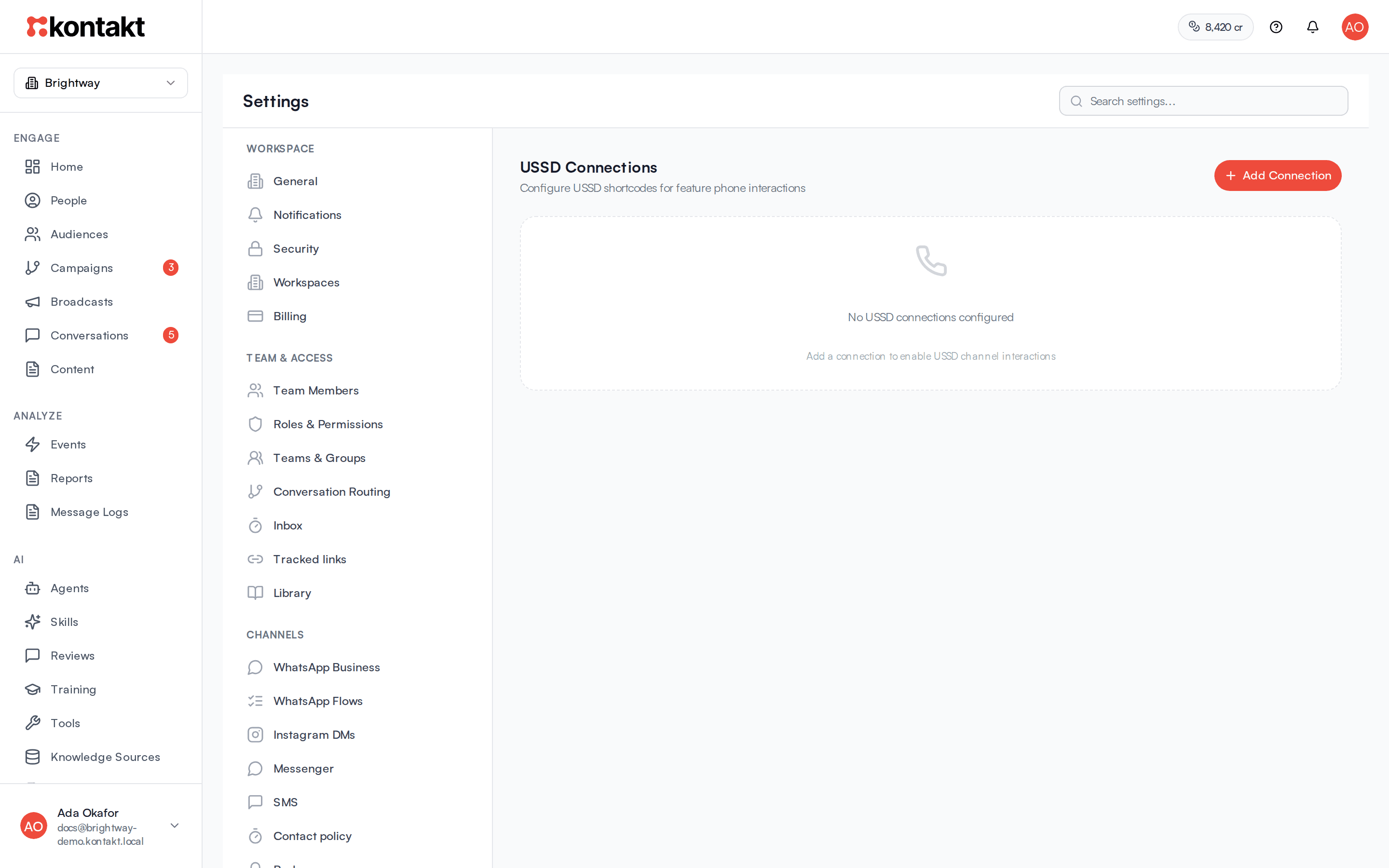
Go to Settings / USSD. The page is titled USSD Connections. Click Add Connection.
Enter the provider and shortcode
In New USSD Connection, choose the Provider: Africa's Talking, Nalo Solutions, or Custom Webhook. Enter the Shortcode, for example *384*123#, and the provider's fields. Click Create.
Copy the webhook URL
The new connection shows a Webhook URL. Click Copy. The URL includes a secret, so keep it private.
Set the callback at your provider
In your USSD provider's dashboard, set the copied URL as the callback for your shortcode.
Activate
New connections start as inactive. Click Activate when your journey is ready. Click Deactivate to stop answering dials.
Build the menus
Start a journey with USSD Session
In Campaigns, create a journey and choose the USSD Session trigger. Pick the USSD Connection, or Any USSD connection.
Choose what starts it
Set Match Type to Any input, Is one of these, Exact match, Starts with, Contains, or Regex, and fill in Match Value. Kontakt matches against what the customer dialled after the shortcode. A plain dial of the shortcode is empty, so use Any input for your main menu.
Add screens
Each Message or Send WhatsApp step becomes one screen. Write the menu in the message text. The customer's reply moves the session to the next step. Other send steps, such as Send SMS, are not shown on USSD.
Branch on the reply
Use Condition Check steps to send customers down different paths based on what they typed. The reply is in the trigger.message_body field. Kontakt stores the text exactly as your provider sends it, and some providers send the whole path of choices, such as 1*2, so test your conditions with a real dial.
End the session
Finish each path with an Exit / Goal step. Its USSD closing message is the last screen the customer sees. Leave it blank to show "Thank you for using our service."
Activate the journey, then activate the USSD connection.
How it behaves
- Screen length. Each screen shows up to 160 characters. Longer text is cut off.
- Supported steps. Message, Send WhatsApp, Condition Check, and Exit / Goal work on USSD. Other steps are skipped.
- One path per screen. After a screen, the session follows the first step connected to it. Put a Condition Check after a menu screen to branch on the reply.
- Which journey runs. If several active journeys match a new session, journeys with specific match text win over Any input, then the oldest journey wins.
- Timeouts. Networks usually end a USSD session after about 60 seconds without a reply. Kontakt closes sessions after 5 minutes of inactivity.
- People. Kontakt finds the person by phone number, or creates them, when a session starts.
- No inbox. USSD sessions don't appear in Conversations, and the AI agent doesn't take part.
- Inactive connections don't answer. Dials to an inactive connection fail at the provider.
Troubleshooting
Customers see "No active service found."
No active journey matches the dial. Check that the journey is active, its trigger points at this connection or Any USSD connection, and its match settings fit what customers dial.
Customers see "Service not configured."
The USSD Session trigger isn't connected to a next step. Connect it to your first message step.
Customers see "An error occurred. Please try again."
Something failed while running the journey. Check the journey's steps, then dial again.
The provider gets an error from Kontakt
Check that the connection is active and that the callback URL in your provider's dashboard is the full Webhook URL you copied, including the secret.
"This connection was removed, so the journey never starts."
The journey's trigger points at a deleted connection. Choose another connection in the trigger.