Tools
Tools are the actions a skill is allowed to take during a conversation. A skill can only call the tools you tick in its Permitted Tools list.
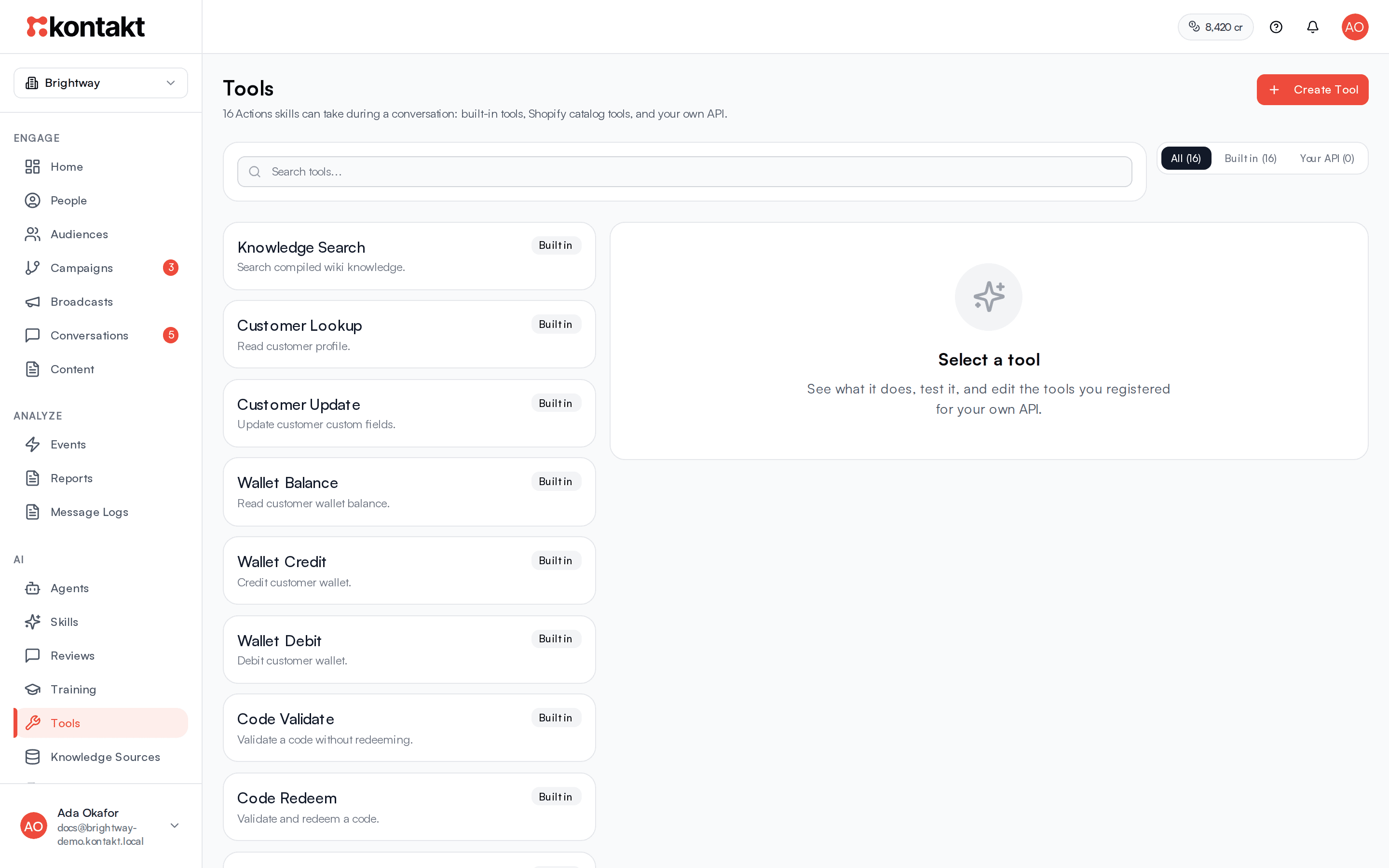
The Tools page lists every tool available in your workspace: built-in platform tools, Shopify tools when your store is connected, and tools you register for your own API. Filter the list with Built in, Shopify, and Your API, and select a tool to open it beside the list, where you can test it and, for your own tools, edit it. Tools do nothing on their own. They become available to the AI only when you tick them on a skill.
Before you start
- You need a role that can change workspace settings.
- To use Shopify catalog tools, connect your store first. See Shopify.
- To call your own system, have the endpoint URL, method, and credentials ready. See Custom API tools.
Built-in tools
These are always listed.
| Tool | What it does |
|---|---|
| Knowledge Search | Searches your compiled knowledge. If a skill has specific knowledge sources linked, only those are searched. Draft, Archived, and Confidential sources are never used. |
| Customer Lookup | Reads the customer's name, phone, email, and custom fields. |
| Customer Update | Updates the customer's custom fields. |
| Wallet Balance | Reads the customer's wallet balance. |
| Wallet Credit | Adds to the customer's wallet. |
| Wallet Debit | Takes from the customer's wallet. |
| Code Validate | Checks a code without redeeming it. |
| Code Redeem | Checks and redeems a code. |
| Fulfillment Disburse | Sends a reward through your fulfillment providers. |
| Counter Operation | Reads, increments, or decrements a workspace counter. |
| Escalate To Human | Hands the conversation to your team immediately. |
| Get Referral Link | Gets or creates the customer's referral code and link for your active referral programme. |
| Send WhatsApp Flow | Sends one of your published WhatsApp Flows as an in-chat form. |
| Send Media | Sends an image, video, audio file, or document after the reply. Only files from your workspace media or links returned by another tool in the same turn are allowed. |
Related guides: Loyalty wallet, Codes, Fulfillment providers, Referrals, and WhatsApp Flows.
When your Shopify store is connected, Shopify Product Search, Shopify Product Details, and Shopify Product Recommend also appear.
Give a skill access to a tool
Open the skill
Go to AI / Skills and select the skill.
Tick the tool
Under Permitted Tools, tick the tools the skill needs. Only tick what the procedure actually uses. A skill that answers questions usually needs Knowledge Search and Escalate To Human.
Tell the skill when to use it
In Procedure markdown, say when to call the tool, for example "Call wallet_balance before telling the customer how many points they have."
Save and test
Select Save Skill, then test in the agent's Playground with Show reasoning ticked to see which tools ran.
Register your own API as a tool
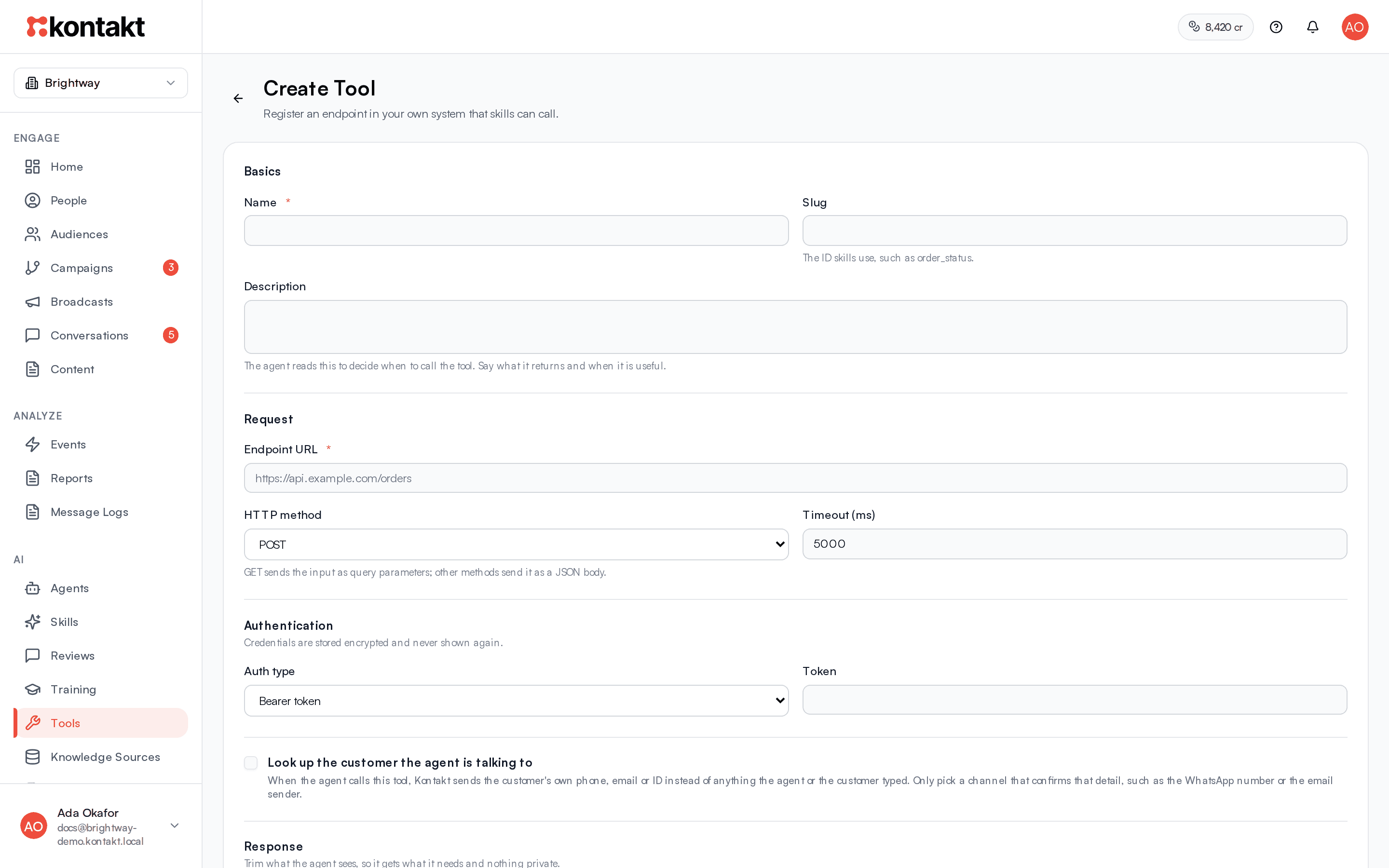
Select Create Tool to register an endpoint in your own system that skills can call.
Basics
Fill in Name, Slug, and Description. The agent reads the description to decide when to call the tool, so say what it returns and when it is useful. The slug can't be changed later.
Request
Enter the Endpoint URL and pick the HTTP method. GET sends the tool input as query parameters; other methods send it as a JSON body. Calls time out after the Timeout (ms), 5,000 by default.
Authentication
Choose Bearer token, API key header, or None, and paste the Token or API key. An API key is sent in the header you name, X-API-Key by default. Credentials are stored encrypted and never shown again. When editing, leave the field blank to keep the saved one.
Response
List fields the agent should never see under Leave out these fields, such as payment references or internal IDs. They are removed wherever they appear in the answer. Items per list keeps only the first few items of each list, such as orders. Tick Hide this tool's output in AI logs for anything personal.
Input and output schema
Open Input and output schema to describe what the tool accepts and returns as JSON Schema. The Test dialog starts from the input schema.
Create it
Select Create Tool. The tool opens on the Tools page and appears in every skill's Permitted Tools list.
For details on request format and connectors, see Custom API tools.
Look up the customer the agent is talking to
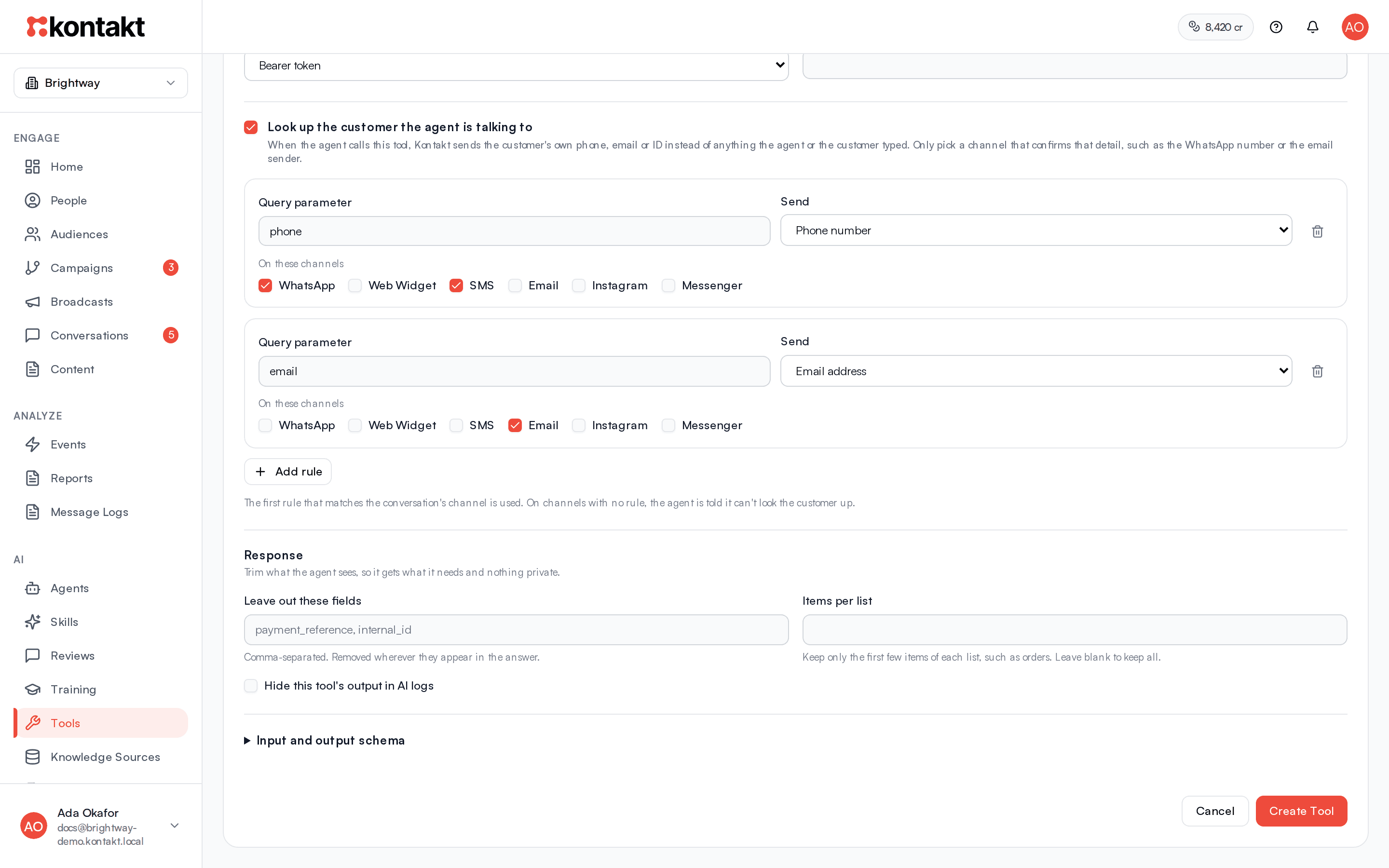
A tool that reads an account, such as orders or a balance, must only ever return the account of the person in the conversation. Tick Look up the customer the agent is talking to and Kontakt fills the request itself, from the customer's own phone, email, or ID, instead of from anything the agent or the customer typed. The agent still decides when to call the tool, so the lookup only runs when the conversation needs it.
Tick the option
Open your tool, or start a new one, and tick Look up the customer the agent is talking to. The tool always uses GET.
Add a rule for each channel
Each rule has a Query parameter, what to Send (Phone number, Email address, or Customer ID in your system), and the channels it applies to. For example, phone with Phone number on WhatsApp and SMS, and email with Email address on Email. On WhatsApp the agent's call then reaches https://your-api.example.com/customers/lookup?phone=%2B2348012345678.
Only pick a channel that confirms that detail, such as the WhatsApp number or the email sender. On web chat anyone can type any email, so a lookup there could show one customer's account to someone else.
Tell the agent when to call it
In the Description, say what the answer contains and when to use it, for example "Call it when they ask about an order or their balance. customer null means they have no account under this number." Then tick the tool on the skills that need it.
The first rule that matches the conversation's channel is used. On a channel with no rule, or when the customer has no phone or email on file, your endpoint is not called and the agent is told it can't look the customer up.
How tools behave
- A skill can call tools up to six times in one turn before it must reply.
- When Escalate To Human is called, the AI stops and hands the conversation to your team. See Agents.
- Outputs from wallet, fulfillment, and customer lookup tools, and from your own tools with Hide this tool's output in AI logs ticked, are hidden in AI logs. Tools that move value, such as Wallet Credit, Wallet Debit, and Fulfillment Disburse, show Sensitive outputs are redacted in logs. on their card.
- Send Media only sends files when Outbound media (autonomous) is on in AI settings. For supervised replies, media is sent on approval only when Outbound media on review approve is on.
- Connector-backed integration tools show "(via connector)" at the end of their description.
Test a tool
Select a tool, then Test, to open the test dialog. Nothing runs until you choose an action.
Fill in the input
Input JSON starts with the fields the tool expects, such as customer_id and amount for Wallet Credit, or the fields in your Input schema JSON for your own tools. Fill in real values, using a test contact.
Check setup
Select Check setup. Kontakt checks the input has every required field and, for wallet and customer tools, that the customer exists. For your own API tools it also checks the Endpoint URL is a valid public address, that its host can be found, the HTTP method, that credentials are saved, and the timeout. Nothing is sent to your endpoint and no data changes.
Run a live call if you need one
Select Run live call to run the tool for real and see its output. A live call needs input: it is not available while Input JSON is empty. For tools that can change data, such as Wallet Debit, Code Redeem, Fulfillment Disburse, Customer Update, and every tool you register yourself that does not use GET, you must first tick I understand that Run live call performs the real action. Tools that only read data, such as Knowledge Search, Wallet Balance, or your own GET tools, run without the tick.
A live test of a tool that looks the customer up sends exactly what you enter, such as an email, so you can try any account. Conversations always use the customer's own details.
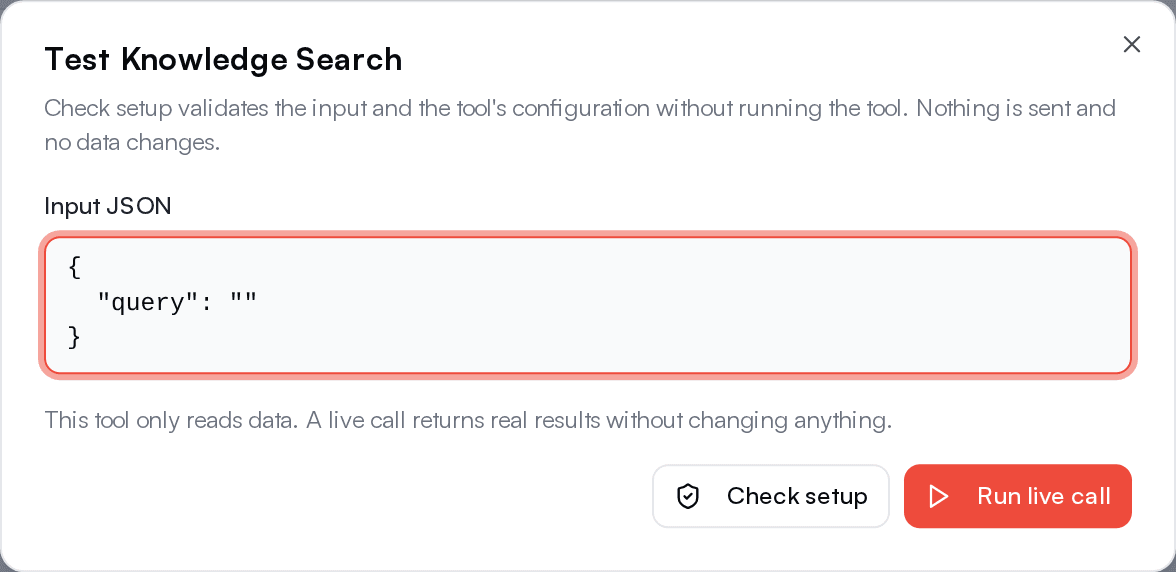
A live Knowledge Search test returns what the AI would use with customers, so Draft, Archived, and Confidential sources are left out.
Troubleshooting
A tool is missing from Permitted Tools
Shopify tools appear only while your Shopify store is connected. Integration tools appear only while they are active. Reload the skill editor after connecting.
The AI never calls my tool
Make sure the tool is ticked on the skill, that the tool description says clearly when it is useful, and that the procedure tells the model when to call it.
My endpoint returns an error
Select Test on the tool card and then Check setup to check the URL, method, and credentials without calling your endpoint. Also check that your endpoint answers within the timeout. If your endpoint returns something that is not JSON, the AI receives the status code and the raw response body.