Contact policy
The contact policy is one workspace rule for marketing messages. It stops the same person from getting too many promotions, or getting them in the middle of the night.
The contact policy applies to messages marked as marketing: journey message steps set to Marketing, WhatsApp broadcasts that use a Marketing template, SMS broadcasts from a promotional sender name, marketing email broadcasts, and proactive AI messages. Replies inside an open conversation and messages marked Transactional are never limited.
Before you start
- You need a role that can change workspace settings. See Roles and permissions.
- Set your workspace timezone, and store each person's timezone on their profile where you know it. Quiet hours use the person's timezone first.
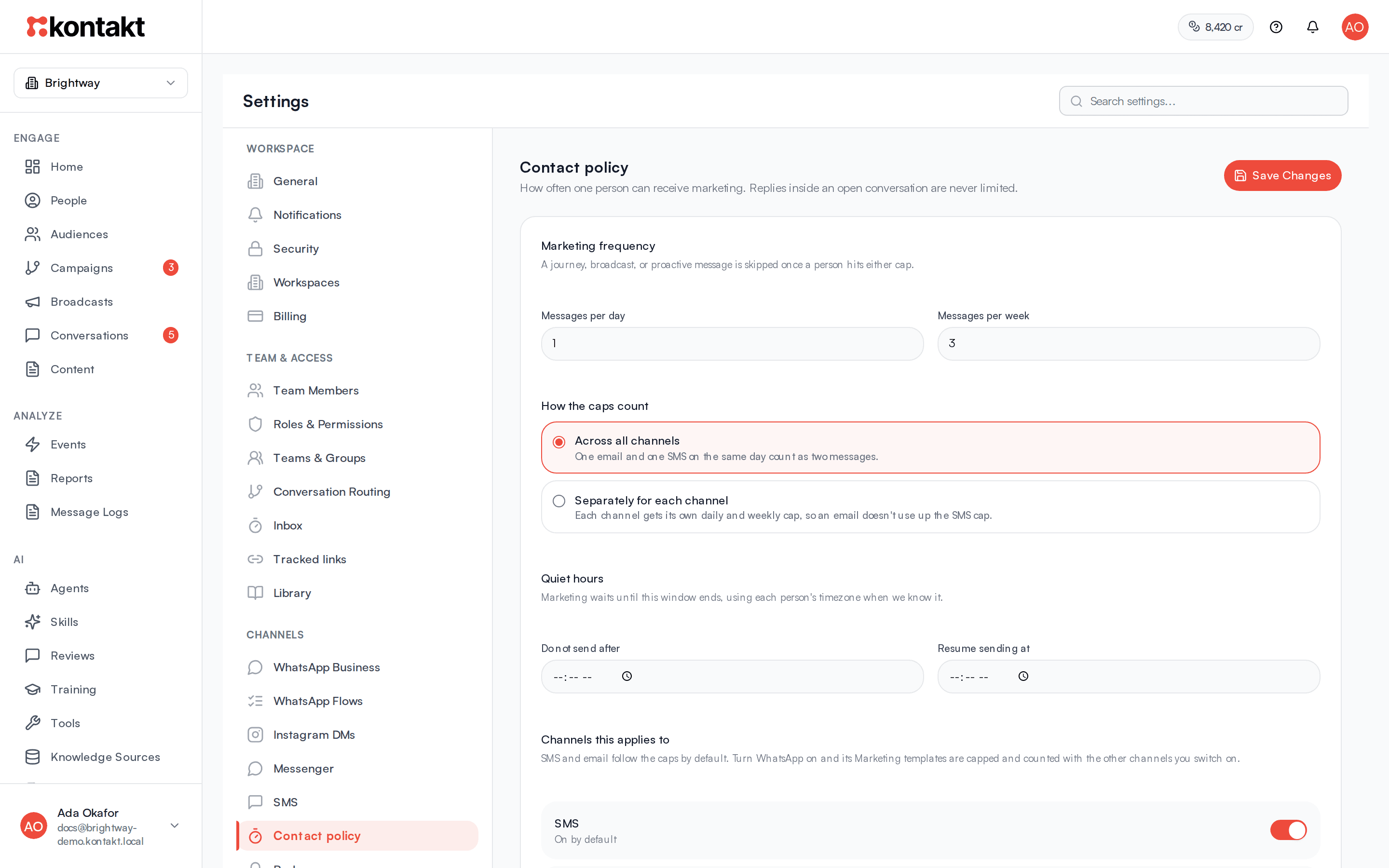
Set your contact policy
Open the settings
Go to Settings / Contact policy.
Set the marketing caps
Under Marketing frequency, enter Messages per day and Messages per week. The defaults are 1 per day and 3 per week. Once a person hits either cap, further marketing to them is skipped.
Under How the caps count, choose Across all channels, where one email and one SMS on the same day count as two messages, or Separately for each channel, where each channel gets its own daily and weekly cap so an email doesn't use up the SMS cap.
Set quiet hours
Under Quiet hours, set Do not send after and Resume sending at. A window that crosses midnight, such as 21:00 to 08:00, works. Marketing due inside the window waits and goes out at Resume sending at. Leave both empty to turn quiet hours off.
Choose the channels
Under Channels this applies to, switch each channel on or off. SMS and Email are on by default. WhatsApp and App push are off until you turn them on.
Save
Click Save Changes.
How it behaves
When a marketing message is about to go out, Kontakt checks, in this order:
- Hold out. If the journey holds people out and this person is in the held-out group, the message is skipped. See Hold out a group.
- Channel switch. If the channel is switched off here, the caps and quiet hours do not apply to it.
- Daily and weekly caps. If the person already received the cap in the last 24 hours or the last 7 days, the message is skipped.
- Quiet hours. If it is inside quiet hours in the person's timezone (or your workspace timezone if theirs is unknown, or UTC if neither is set), the message waits until quiet hours end.
Skipped means not sent. A journey moves on to its next step, and a broadcast marks that recipient as skipped with the reason.
What waiting for quiet hours looks like
- Journeys. The run pauses at the message step and shows as waiting. When quiet hours end, the step runs again: the caps are checked again, and if the person is still under them the message goes out and the journey continues. If the step has fallback channels, the whole step waits rather than switching channel.
- Broadcasts. The recipient stays pending and the message is sent when quiet hours end. The broadcast is marked completed once every held message has gone out.
- Proactive AI messages. The follow-up is queued and sent shortly after quiet hours end.
A journey run that is waiting for quiet hours counts as still in the journey, so the same person does not start a second run of it in the meantime.
What counts towards the caps
The caps count marketing messages already sent to the person on the channels switched on under Channels this applies to: journey messages set to Marketing, WhatsApp Marketing templates from journeys and broadcasts, SMS broadcasts from a promotional sender name, and marketing email broadcasts. With Across all channels, a WhatsApp Marketing template only uses up the shared cap once WhatsApp is switched on, so turning WhatsApp on is what makes WhatsApp and SMS share one limit. Push messages are checked against the caps when you switch push on, but they are not added to the count. People in a journey's hold-out group were not sent anything, so they never count.
WhatsApp Utility and Authentication templates count as transactional in journeys, even when the step's Purpose is Marketing. They are never capped or held for quiet hours.
WhatsApp and the 24-hour window
A journey's WhatsApp message to someone who has messaged you in the last 24 hours is a reply inside an open conversation, so the contact policy does not apply to it.
Consent is separate
Marketing SMS and email also need consent. A person can receive them if they are subscribed on that channel, or if your workspace confirmed it has consent, for example by ticking "I have consent to message these customers on SMS and email." when connecting a Shopify store. A person who unsubscribed never receives marketing on that channel.
On WhatsApp, a person who opted out of marketing does not receive Marketing templates.
Hold out a group
A hold-out group lets you measure whether a journey works. Held-out people go through the journey but receive no marketing messages from it, so you can compare their results with everyone else's.
Open the journey rules
Open the journey in the builder and click Journey rules.
Set the percentage
Under Hold out, enter the percentage of people who should receive no marketing messages.
Compare the results
Open the journey's Analytics. Did the journey work? shows people who reached the goal next to the held-out group.
The same person always lands in the same group for a given setting, so they do not drift between groups across sends. Transactional messages and non-message steps, such as updating a profile or crediting a wallet, still run for held-out people.
Troubleshooting
People are not getting my journey's SMS or email
Open the journey's Analytics, go to Executions, and open a run. A skipped message shows a reason:
- frequency_cap: the person hit the daily or weekly cap.
- holdout: the person is in the hold-out group.
- no_consent: no consent on that channel, or the person unsubscribed.
A run that shows as Waiting at a message step during quiet hours has not been skipped. It sends when quiet hours end.
My broadcast skipped people for frequency_cap
For WhatsApp: you have switched WhatsApp on under Channels this applies to, and the broadcast uses a Marketing template. Switch WhatsApp off, or use a Utility template for genuinely transactional content. For SMS: the broadcast uses a promotional sender name and SMS is on. Use a transactional sender name only for genuinely transactional content.
My broadcast is still sending the next morning
Recipients who were inside quiet hours are held until quiet hours end in their timezone, so the broadcast stays in Sending until the last of them goes out.
Do transactional messages count?
No. Messages marked Transactional skip the contact policy and consent checks, are never held for quiet hours, and do not count towards the caps. Use it only for messages the customer expects, such as receipts, delivery updates, and account alerts.