Webhook sources
A webhook source is a URL that accepts JSON from any system. Kontakt finds the person from one field in the payload and records an event under the name you choose.
Use a webhook source when a system you already use can send webhooks but you don't want to write code against the Kontakt API. Typical senders are form tools, payment and billing systems, product analytics, and marketing platforms. Each post becomes an event on a person's timeline, and any journey triggered by that event name starts.
If you control the sending code, the events API gives you more: traits, timestamps, and idempotency keys.
Before you start
- A role that can edit campaigns.
- A sender that can
POSTJSON with the headerContent-Type: application/json. - One field in the payload that identifies the person: a phone number, an email address, or the ID your own system uses for them.
Create a source
Open Webhook sources
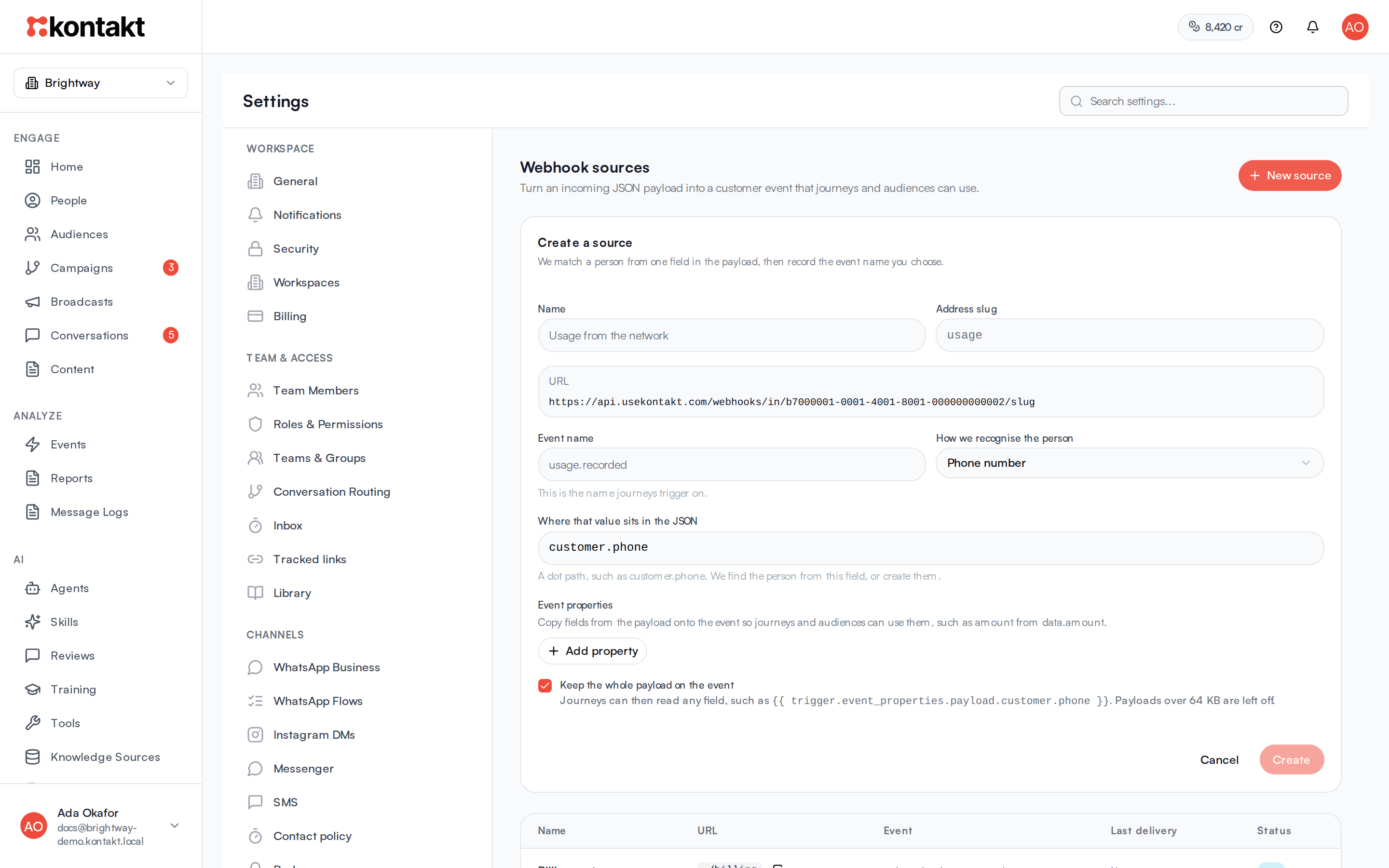
Go to Settings / Webhook sources and click New source.
Name the source and its address
Enter a Name your team will recognise. Kontakt fills in the Address slug from it and shows the full URL below. You can change the slug, but only lowercase letters, numbers, and hyphens are kept. Each source in a workspace needs its own slug.
Choose the event name
Enter the Event name, such as subscription.renewed. This is the name journeys trigger on and the name you see under Events.
Tell Kontakt how to find the person
Under How we recognise the person, pick Phone number, Email, or An id from your system. In Where that value sits in the JSON, enter the dot path to that field, such as customer.phone or data.user.email. For arrays, use the position, such as items.0.email.
Copy payload fields onto the event (optional)
Under Event properties, click Add property for each value your journeys or audiences need. Give the property a name, such as amount, and the path it comes from, such as data.amount. You can add up to 30.
Keep the whole payload on the event is ticked for new sources. It stores everything Kontakt received, so journeys can read any field without you mapping it first. See Use the payload in a journey.
Create
Click Create. The source is live immediately and opens on its Connect tab, ready to copy.
Point your system at the URL
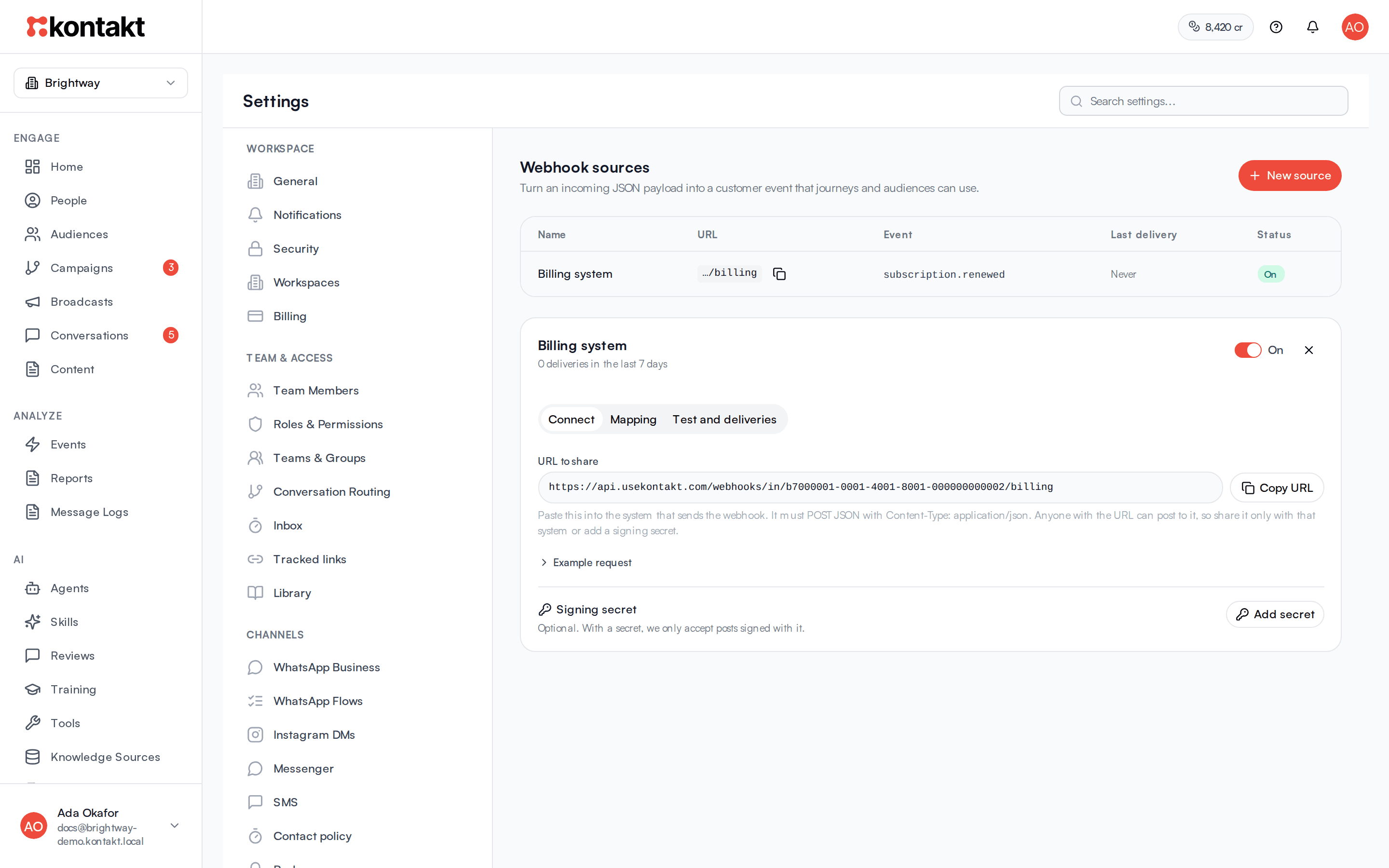
Click a source in the table to open it. On the Connect tab, URL to share shows the full address. Click Copy URL and paste it into the system that sends the webhook. You can also copy it from the table with the copy button next to each source.
The address has this shape:
https://api.usekontakt.com/webhooks/in/<workspace-id>/<slug>Open Example request for a ready-made curl command with a sample payload built from your mapping.
The URL needs no API key. Share it only with the sending system, or add a signing secret so Kontakt accepts only posts signed with it.
Require a signature
On the Connect tab, under Signing secret, click Add secret. Copy the secret straight away: Kontakt shows it only once.
From then on, every post must carry a signature in the X-Kontakt-Signature header: the HMAC-SHA256 of the raw request body, keyed with the secret, written as lowercase hex. A sha256= prefix is accepted. Posts without a valid signature get a 401.
Click New secret to replace it. The old secret stops working at once, so update the sender at the same time. Click Remove to accept unsigned posts again.
Change a source
Open the source and go to the Mapping tab. You can rename it, change the slug, event name, how Kontakt finds the person, and the event properties. Click Save changes.
Changing the slug changes the URL. The old URL stops working, so update the sending system too. Changes apply to posts received after you save; events already recorded keep the values they had, and earlier failed deliveries stay failed until you retry them.
Send a test
Open the source and go to the Test and deliveries tab. Kontakt fills the box with a sample payload built from your mapping. Edit it if you like and click Send test. The result appears next to the button, and the delivery appears under Recent deliveries.
A test runs exactly like a real post, apart from the signature check: it records a real event and can start journeys.
Each delivery shows whether it was Recorded, Failed, or Ignored, the event name, a link to the person it matched, and any error. Click Payload and result to compare what arrived with what Kontakt recorded.
Retry a failed delivery
Kontakt maps each delivery once, when it arrives. If deliveries failed because the mapping was wrong, fix it on the Mapping tab, then click Retry on each failed delivery. Kontakt runs the original payload through the current mapping and updates that delivery. A retried delivery that is recorded starts journeys like any other event.
Example: phone number
Source settings: Event name loan.disbursed, How we recognise the person set to Phone number, path customer.phone, and a property amount from amount.
{
  "type": "disbursement",
  "customer": { "phone": "+2348030000000", "name": "Ada" },
  "amount": 50000
}
Kontakt records loan.disbursed with amount 50000 for the person with phone +2348030000000, creating them if needed. If the phone arrives without a leading +, Kontakt adds one, so send the full international number with its country code.
Example: your own user ID
Source settings: Event name plan.upgraded, An id from your system, path data.user_id.
{ "event": "upgrade", "data": { "user_id": "u_81723", "plan": "pro" } }Kontakt looks for the person whose user ID is u_81723. That is the user_id you send through the API, or a value a webhook source matched before. If nobody matches, Kontakt creates a person with that user ID.
Use the payload in a journey
Start a journey with the source's event name. Each property is available as trigger.event_properties.<name>, in message text as Liquid and in condition fields as a path.
With Keep the whole payload on the event ticked, the payload Kontakt received is under payload. For example:
| You want | Write |
|---|---|
A field you mapped as amount | {{ trigger.event_properties.amount }} |
| Any field in the payload | {{ trigger.event_properties.payload.customer.name }} |
| An item in a list, counting from 0 | trigger.event_properties.payload.items.0.sku |
Payloads larger than 64 KB are not kept; the event gets payload_omitted: "too_large" instead, and your mapped properties are still there. Ticking the box on an existing source applies to posts received afterwards, and to failed deliveries you retry.
Turn a source off or delete it
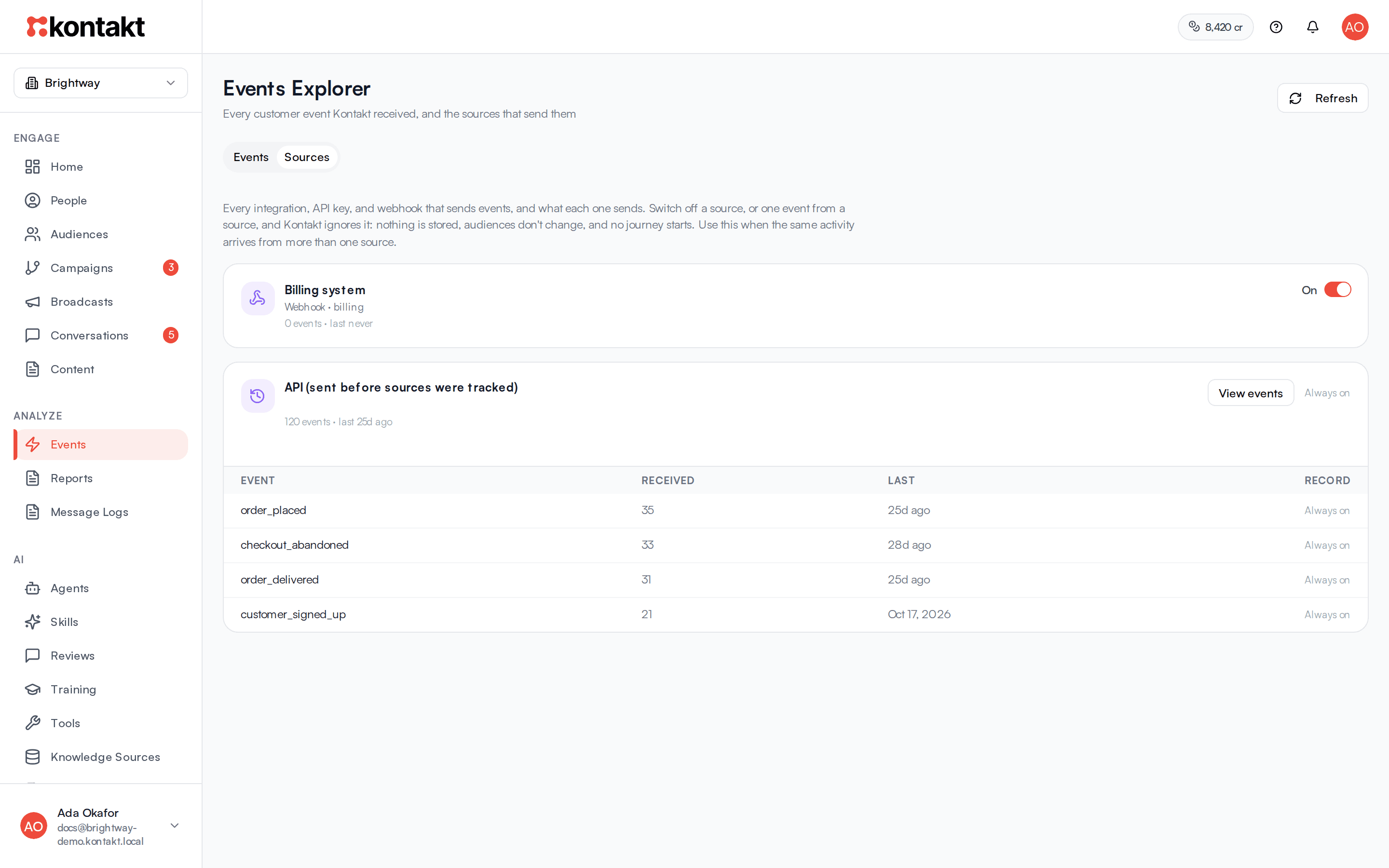
Use the On switch at the top of an open source to stop recording its events. Kontakt still answers 200, but nothing is stored and no journey starts. Switch it back on to resume. The same switch appears under Events / Sources, where you can also turn off a single event from a source with its Record switch. Changes apply within seconds.
To remove a source for good, open the Mapping tab and click Delete source. Its URL stops working straight away and senders get a 404. Events it already recorded stay on people's timelines.
How it behaves
Finding the person. Kontakt first checks values that webhook sources have matched before, then looks for a person with that phone, email, or user ID. If none exists, it creates one. If the field is missing from the payload, the delivery fails with customer_not_resolved and no event is recorded.
What the event contains. The event gets the name you chose, the properties you mapped, the whole payload under payload when you keep it, and the time Kontakt received it. A property whose path is missing from the payload is left out.
Journeys and audiences. Events from webhook sources start journeys, resume journeys waiting for that event, and update audiences, the same way API events do.
Duplicates. Kontakt fingerprints each payload. If the exact same body arrives again at the same source, it is accepted but not recorded a second time. This includes payloads that failed before; use Retry on the failed delivery instead. A test tells you when this happens; change any value and send it again.
Delivery history. Kontakt keeps each delivery for 30 days. The page shows the latest 20, and the table shows each source's last delivery and how many failed in the last 7 days.
Payload size. Bodies up to 1 MB are accepted.
Responses your system receives
| Situation | Status | Body |
|---|---|---|
| Event recorded, or the source is switched off | 200 | {"data": {"ok": true}} |
| Same payload already received | 200 | {"data": {"ok": true, "duplicate": true}} |
| No person could be found or created | 200 | {"data": {"ok": false, "error": "customer_not_resolved"}} |
| Signing secret set and the signature is missing or wrong | 401 | {"error": "bad_signature"} |
| Unknown workspace ID or slug, or a deleted source | 404 | An error body with code NOT_FOUND |
| Body is not valid JSON | 400 | An error body with code INVALID_JSON |
| Body larger than 1 MB | 413 | An error body with code PAYLOAD_TOO_LARGE |
A failed match still returns 200, so check Recent deliveries rather than relying on your sender's retry logic.
Troubleshooting
Every delivery fails with customer_not_resolved
The path doesn't match the payload. Open Payload and result on a failed delivery and compare it with Where that value sits in the JSON, including capitals. Also check that your sender sets Content-Type: application/json. Other content types reach Kontakt as an empty body. Once the path is fixed, click Retry on the failed deliveries to record them.
I fixed the mapping but old deliveries still say Failed
Changing the mapping only affects posts received afterwards. Click Retry on each failed delivery. Resending the same payload from your system doesn't work, because Kontakt treats it as a duplicate.
My test was accepted but nothing new appears
You sent the same body twice. Change any value in the payload and send it again.
My sender gets 401 bad_signature
The source has a signing secret. Check that the sender signs the raw body exactly as sent, with the current secret, in the X-Kontakt-Signature header. If you clicked New secret, the sender needs the new one.
My sender started getting 404
The slug was changed or the source was deleted. Copy the current URL from the Connect tab into the sender.
The person was created twice
The same customer arrived with different phone formats or a different email. Send phone numbers in full international format and keep one identifier per source.
I need several identifiers or custom timestamps
The app does not set these up today. Send the data to the events API instead, or contact support@usekontakt.com.