Journeys
A journey reacts to something a customer does, then sends messages, waits, branches, and updates data for each person who enters. In the app, journeys live under Campaigns.
Use a journey when the same sequence should run for every person who qualifies: a welcome series, an abandoned checkout reminder, a delivery follow-up, a code redemption flow. For a one-time send to a list, use a broadcast instead.
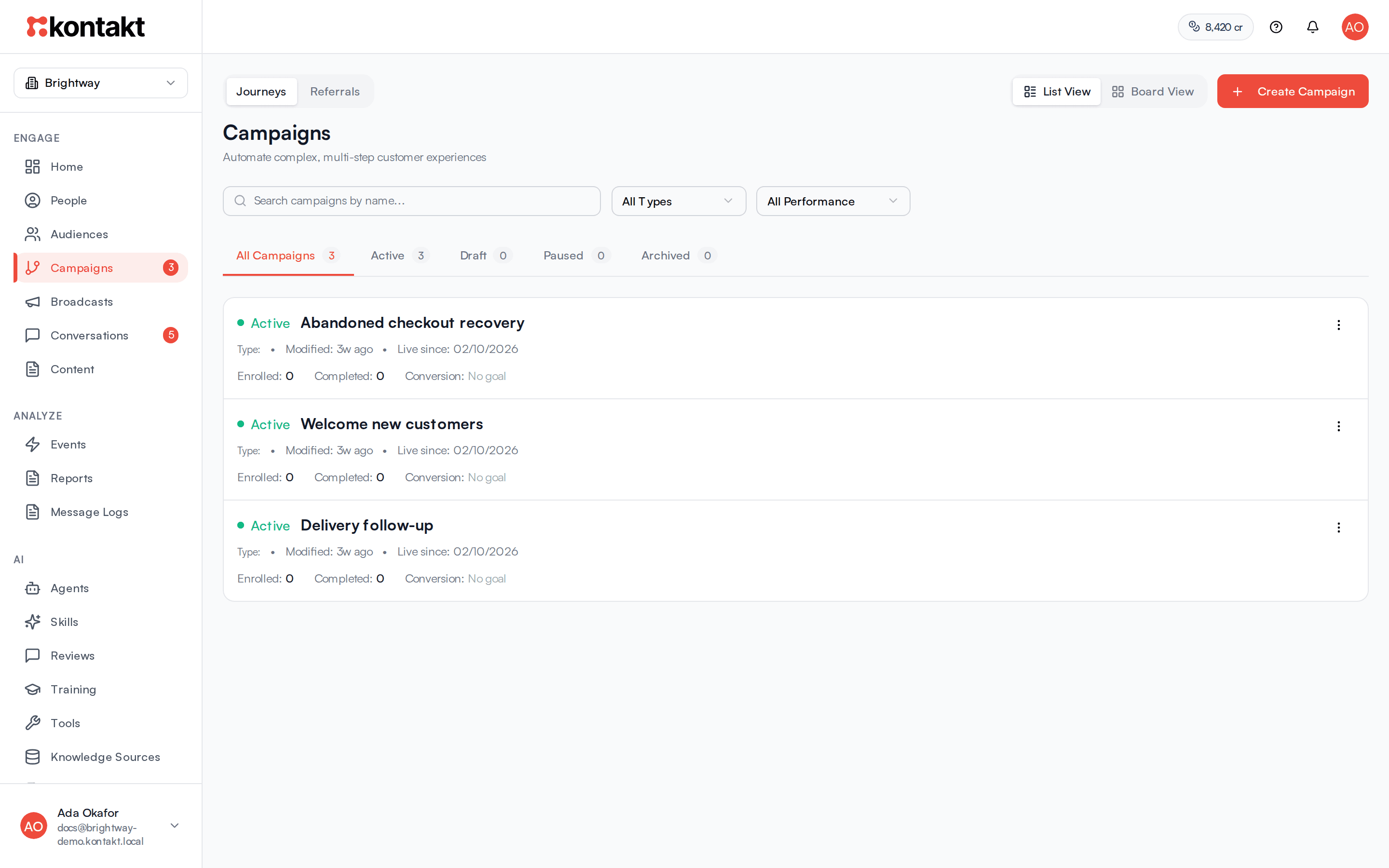
Open Campaigns in the sidebar. The page has two views at the top: Journeys and Referrals. This guide covers Journeys. For referral programmes, see Referrals.
Before you start
- You need a role that can create and edit campaigns. See Roles and permissions.
- Connect the channels you want to send on. See Channels. WhatsApp messages outside an open 24-hour conversation need an approved template, see Content and templates.
- Most journeys start from an event. Make sure the events you need are arriving, for example from Shopify or your own system through ingestion. You can see what has arrived on the Events page.
- Messages a journey sends use credits. See Channel pricing.
Build a journey
Create the journey
Click Create Campaign. Pick a pre-built template, or choose Start from Scratch to open an empty canvas. A new journey starts as a draft called "Untitled Campaign". Click the name at the top to rename it.
Add a trigger
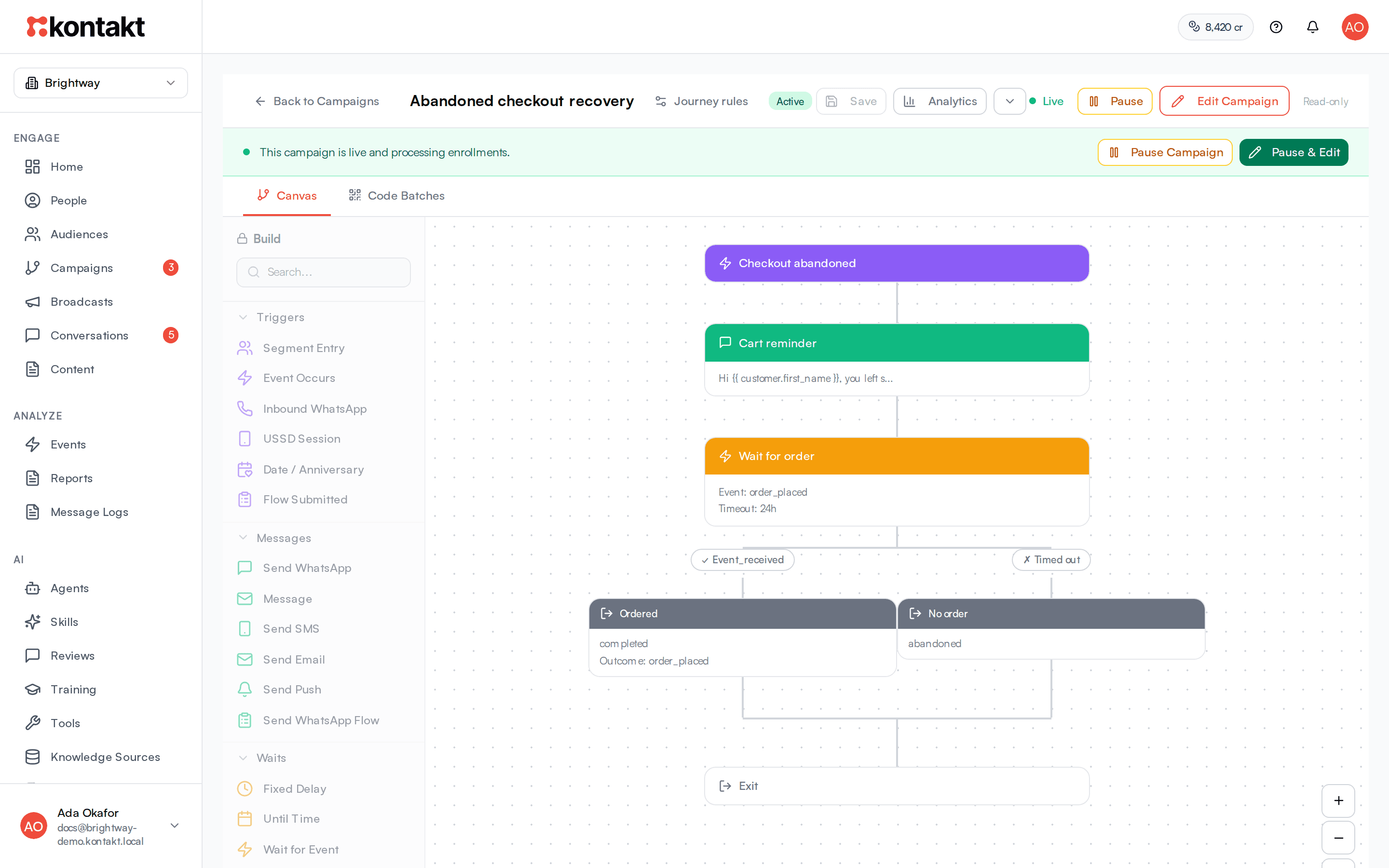
The Build panel on the left lists blocks by section. Drag a block from Triggers onto the canvas where it says "Drag your first block here". Click the block to configure it in the panel on the right.
Add steps
Drag blocks onto the + points between steps. Branching blocks, such as Condition Check or Wait for Event, show one path per outcome. Every journey ends at an Exit / Goal block, which is always shown at the bottom.
Set the journey rules
Click Journey rules in the top bar to choose who can enter, what success looks like, when people leave, and who is held out. See Journey rules below.
Save and publish
Click Save (or press Cmd+S or Ctrl+S). The top right shows how many issues are left, or Ready to publish. Click Publish to save and activate. Publish stays disabled while there are issues.
Lifecycle templates
Three templates are built for apps that send sign-up and activity events from their own backend or a marketing platform such as Customer.io. Each one comes with its journey rules filled in: people enter once, leave when they opt out of WhatsApp, and count as converted when the goal event arrives.
| Template | Starts on | Goal | What it does |
|---|---|---|---|
| Finish sign-up (KYC) nudge | signed_up | kyc_completed | Waits an hour, sends a WhatsApp reminder, and waits a day for a reply. People who reply go to your team with their reply in the note; the rest get a second reminder two days later. |
| First deposit nudge | kyc_completed | account_funded | Sends a prompt a day later and a follow-up three days after that. |
| Win back inactive users | user_inactive | transaction_completed | Sends a win-back message and hands replies to your team. A person can enter again after 30 days. |
After you create one, pick an approved WhatsApp template in each message step, and change the event names to match the ones your system sends. A step that waits for a reply can pass the reply on: {{ nodes.wait_reply.event_properties.text }} is the text the person sent.
Triggers
A journey has exactly one trigger.
| Trigger | Starts the journey when |
|---|---|
| Event Occurs | An event with the name you pick arrives, optionally only when its properties match. For store events you can pick one store or every store. Orders imported before you turn the journey on do not start it. |
| Segment Entry | A person joins the audience you pick. To also enter everyone already in it, turn on Also enter people already in the segment: they enter in batches the first time the journey goes live. For a one-time send, also turn on Only people already in the segment, so people who join later don't enter, and optionally set Start at to enter them at a later date and time. See Audiences. |
| Inbound WhatsApp | A customer sends a WhatsApp message that matches: Any message, Is one of these words, Exact match, Contains text, Starts with, or Regex pattern. Journeys that match specific text win over ones set to Any message. |
| Date / Anniversary | A date on the profile comes round, either as an Anniversary or on the Exact Date, with an optional offset in days. Dates are checked every 15 minutes, and each person enters at most once per day. |
| Flow Submitted | A customer submits a WhatsApp Flow, optionally only when their answers match. See WhatsApp Flows. |
| USSD Session | A USSD session starts on a connection you pick. See USSD. |
Events Kontakt records for you
Besides the events you send, Kontakt records these, so Event Occurs, Wait for Event, goals, and exit rules can use them:
| Event | Recorded when | Properties |
|---|---|---|
whatsapp.replied | A person replies on WhatsApp within 72 hours of a template, journey message, or broadcast. Only the first reply to each message counts. | text, message_type, template_name, template_category, broadcast_id, campaign_id, seconds_to_reply |
opted_out | A person opts out of WhatsApp marketing, by replying STOP, through the API, or when WhatsApp reports they stopped marketing messages | channel, source |
opted_in | A person who had opted out opts back in, for example by replying START | channel, source |
whatsapp.delivered | A WhatsApp message sent by a journey is delivered or read. Once per message. | message_id, campaign_id, step_id, template_name |
whatsapp.failed | A WhatsApp message sent by a journey fails, for example because the number isn't on WhatsApp | message_id, campaign_id, step_id, template_name, error_code, error_message |
message.clicked | A person taps a tracked link in an email, SMS, or WhatsApp message you sent. Once per link in each message. | channel, url, link_label, message_id, broadcast_id, campaign_id, execution_id, step_id |
email.opened | A person opens an email you sent, or clicks a link in it. Once per email. | message_id, subject, broadcast_id, campaign_id, execution_id, step_id |
Clicks are only recorded for tracked links: email links, and SMS and WhatsApp messages with Track link clicks on. Link previews and email security scanners are ignored. Opens are an estimate: some email apps open every email on their own, and others block the images that detect an open, so wait on a click when you can.
For example, after a KYC reminder add Wait for Event on whatsapp.replied with a 2 day timeout: people who reply go to an agent, and the rest get a second nudge.
Wait for Event can also wait for WhatsApp flow submitted (flow_submitted), which happens when the person submits any WhatsApp Flow. To wait for one Flow, add the condition flow_id equals that Flow's ID. The event properties hold flow_id, flow_name, submission_id, and each answer by its field name, so later steps can read them, for example {{ nodes.<step id>.event_properties.reason }}. To start a journey from a submission instead, use the Flow Submitted trigger.
Steps you can add
Messages. Send WhatsApp, Send SMS, Send Email, Send Push, Send WhatsApp Flow, and Message, a single block where you choose the channel.
Waits. Fixed Delay (minutes, hours, or days), Until Time (a time of day, optionally on chosen days, in the person's timezone, the workspace timezone, or UTC), Wait for Event (continues on Event Received or Timed Out; under Or any of these events add up to 10 more events, each with its own conditions, and whichever arrives first counts), and Wait for Condition (checks on an interval and continues on Condition Met or Timed Out). If nothing is connected to Timed Out, people who time out leave the journey. After a Wait for Event with more than one event, a Condition Check on event that arrived tells you which one it was. When several waits lead to the same Condition Check, use Last event a wait received instead: it holds the event that ended the most recent Wait for Event, and is empty after a timeout. Turn on Count events from earlier in the journey to let a Wait for Event take Event Received straight away when the person already did it after entering the journey, for example while an earlier wait was running.
Conditions. Condition Check, Multi-Way Split, A/B Test (a random 50/50 split), and Random Branch.
Actions. API Call, Data Lookup, Update Customer, Add to Segment, Add Tag, Record Event, Send to Customer.io, Handoff to Inbox, Link WhatsApp Sender, and Invoke Skill. Send to Customer.io needs a Customer.io connection. Assign Account Manager sits under RM Handoffs. Handoff to Inbox works in any journey: when the journey didn't start from a conversation, it uses the person's latest conversation, or opens a WhatsApp conversation on your most recently connected number if they have a phone. Loyalty and reward steps are covered in Loyalty wallet and Codes.
Every step has a Step name and a Step ID. Later steps can read a step's result with {{ nodes.<step id>... }}, for example the response of an API Call.
Remind people until they act, then reward them
A step placed after a branching step is where its paths join again. To nudge someone until they buy or answer a survey, then credit them once:
- Add Wait for Event for the action, for example an order, with a 3 day timeout.
- Under its Timed Out path, send a reminder, then add another Wait for Event for the same action. Repeat for each reminder, on whichever channel you like, and end the last Timed Out path with an Exit.
- Below the first Wait for Event, add the reward, such as Credit Shopify Store Credit or an API Call, then the message telling them about it.
Whichever wait the action arrives at, the person continues to the reward. Your contact policy still limits how often marketing reminders go out.
To stop the reminders when either of two things happens, for example a survey answer earns the credit but an order just ends the journey, add the second event under Or any of these events on every wait. Then, below the first wait, add a Condition Check on Last event a wait received equals the survey event: Yes goes to the reward, and No to an Exit. Turn on Count events from earlier in the journey on each wait, so an answer or order that arrived during an earlier step, such as a delay after an SMS, is not missed and no reminder goes out after it.
Fall back when WhatsApp isn't delivered
Kontakt records whatsapp.delivered or whatsapp.failed for every WhatsApp message a journey sends. To text or email people whose WhatsApp didn't arrive:
- Right after the WhatsApp step, add Wait for Event on WhatsApp message delivered with the condition
message_idequals{{ nodes.<step id>.message_id }}, using the WhatsApp step's ID. Under Or any of these events, add WhatsApp message failed with the same condition. A few hours is a sensible timeout. - Connect both paths to a Condition Check on event that arrived equals
whatsapp.delivered. A timeout counts as not delivered. - Under No, send an SMS or email. To bring them back to a WhatsApp Flow, include a click-to-WhatsApp link with the person's link code, such as
https://wa.me/<your number>?text=FEEDBACK-{{ customer.link_code }}. Add a second journey with an Inbound WhatsApp trigger set to Starts withFEEDBACK, then a Link WhatsApp Sender step, then the step that sends the Flow. When they submit it, a Wait for Event onflow_submittedin the first journey picks it up.
If the WhatsApp step was skipped, for example because the person has no phone number, there is nothing to wait for. Put a Condition Check on nodes.<step id>.status equals success before the delivery wait, and send the email on both paths.
If you wait before following up on that path, use a Wait for Event on the Flow submission with Count events from earlier in the journey turned on, rather than a Fixed Delay, so people who already answered from the link don't get the follow-up.
Follow up with people who didn't click
To send an email first and a WhatsApp message only to people who didn't act on it:
- After the Send Email step, add Wait for Event on Clicked a link in a message (
message.clicked) with a timeout, for example 2 days. - Turn on Only messages this run sent, so a click on a broadcast or another journey's message doesn't count. To wait for one link, add the condition
urlcontains part of that link. - Under Timed Out, send the WhatsApp message, with SMS under If WhatsApp cannot send. Under Event Received, add an Exit.
Only messages this run sent also works for Opened an email and the WhatsApp delivery events. To end the wait on a purchase as well as a click, add the order event under Or any of these events.
Link people who reply from a new number
A message from a WhatsApp number you don't know creates a new profile. Someone you only knew by email who taps your WhatsApp link therefore arrives as a stranger, and their answers don't reach the journey that sent the link.
To fix this, put {{ customer.link_code }} in the link's message text, as in the example above. The code is unique to each person and can't be guessed from their details. In the journey their message starts, add Link WhatsApp Sender straight after the trigger. It reads the code and, when the sender is a profile WhatsApp just created (no email and no user ID), moves it into the person the code belongs to: the conversation, events and running journeys move over, and their profile gets the WhatsApp number. If their profile already had a different number, the old one is kept in the previous_phone field. Without a valid code, or when the sender is already someone else, the journey carries on with the person who wrote in.
Message settings that matter
- Purpose. Marketing or Transactional. Marketing follows your contact policy and needs consent. Transactional messages, such as receipts and delivery updates, do not. New message steps default to Marketing. A WhatsApp Utility or Authentication template is always treated as transactional.
- Send to. Email and SMS steps go to The customer in this journey, or Someone else, e.g. their referrer. For someone else, choose Find them by (Email, Your user ID, Phone, Shopify customer ID, or Kontakt customer ID) and a value, usually a field from an earlier API Call step such as
{{ nodes.lookup.response.referrer.email }}. They must already be a customer in Kontakt, or the step is skipped. In the message,{{ customer.first_name }}is that person, and{{ nodes... }}still reads this journey's steps. WhatsApp and push fallbacks are skipped for someone else. - WhatsApp outside the 24-hour window. If the customer has not messaged you in the last 24 hours, WhatsApp only delivers templates. Pick Template as the Message Type for those steps. Under Template Variables, fill each placeholder with Data or Fixed text. For Data, search and pick a field: customer details, your custom fields, the message that started the journey, or a code from the step's batch. Template Preview shows the template's text with each placeholder filled the way the step fills it, using sample data. A template that isn't approved yet still previews, with a warning: the step fails until WhatsApp approves it.
- If WhatsApp cannot send. List fallback channels in order. The journey tries each until one is accepted for sending. A WhatsApp message that is accepted but never delivered does not fall back; see Fall back when WhatsApp isn't delivered above. On a template step with SMS as a fallback, write what the SMS says under SMS text, using Liquid such as
{{ customer.first_name }}rather than the template's numbered placeholders. - If an agent is in the conversation. Wait until they're done (recommended), Skip this message, or Send anyway. An agent counts as in the conversation while it is open and a teammate took it over from the AI or replied in the last 24 hours. A conversation left open after an old handoff doesn't hold messages back. Wait checks again every 30 seconds and skips the message if the agent is still there after 24 hours. Resolving the conversation or handing it back to the AI lets the message go straight away. While it waits, the teammate sees it in the conversation. See Messages held while a teammate is chatting.
- SMS sends only after your workspace has an approved sender for the person's country. SMS sender appears on SMS steps and on steps with SMS as a fallback. Leave it on Pick automatically to use the newest approved sender for each person's country and network, or choose one of your approved sender names that matches the step's purpose (promotional for marketing). A chosen sender is never swapped for another: people it isn't approved for are skipped. To reuse saved copy, pick one under Start from an SMS template. Its text is copied into Message, and placeholders such as
{first_name}become customer fields. Fill in any other placeholder with Data or Fixed text, or click Insert variable to add a field where the cursor is. Variables in Message use double braces, such as{{ customer.first_name | default: "there" }}. One typed with single braces is sent exactly as written, so the step warns you, and Use double braces fixes it. Email needs an email address on the profile. Push needs a registered device. - Email. Choose the sender, where replies go, and for marketing the topic. Under How the email is built choose Design it in your brand to use the email designer, Use a saved email template, Plain text, or Your own HTML. Your own HTML doesn't get an unsubscribe link added, so include one. Email counts against your plan's monthly email allowance. See Email sending.
- Track link clicks. On SMS steps, steps with SMS as a fallback, and WhatsApp steps. On by default. Links in the message open through a short link, so the journey's Analytics can show who clicked. See Tracked links.
- Discount code in this message. Orders that use the code are credited to this message. See Tracked links for how orders are credited.
Journey rules
Click Journey rules to open the panel.
Who can enter. Every time they qualify (one run at a time for each person), Once, ever, or Once every few days with Days before they can enter again.
Count entries per. The person, or Each order or item. For orders, set What makes each entry unique, for example {{ trigger.event_properties.order_id }}, so the same person can run the journey once per order.
Success looks like. Click Add a goal and pick an event. When it happens, the person is marked as converted and leaves the journey. If they are at a Wait for Event step waiting for that event, they take Event Received instead, so the steps after it, such as a reward, still run, and they still count as converted. You can limit it with Count it if it happens within N days of entering.
Leave the journey when. Click Add an exit rule to remove people when an event happens, for example an order placed while they wait for a reminder. As with goals, someone at a Wait for Event step waiting for that event takes Event Received instead of leaving.
Hold out. A percentage of people receive no marketing messages from this journey, so you can compare them with people who did. Transactional messages and non-message steps still run for held-out people.
Run and edit a live journey
While a journey is live, the canvas is read-only and a banner reads "This campaign is live and processing enrollments."
- Click Pause & Edit to pause and make changes.
- When paused, click Save & Activate to save and go live again, Resume to go live without saving, or Keep Paused to save only.
- Pausing stops new people entering. It does not cancel runs already in progress. To stop one person's run, open Analytics, go to Executions, and click the cancel icon on a Running or Waiting row.
From the journey list you can also Duplicate a journey, Copy to workspace… (it arrives as a draft, and API keys, signing secrets, and store choices are not copied), and Archive it. Delete only appears on draft and archived journeys. To delete a live or paused journey, archive it first.
Results
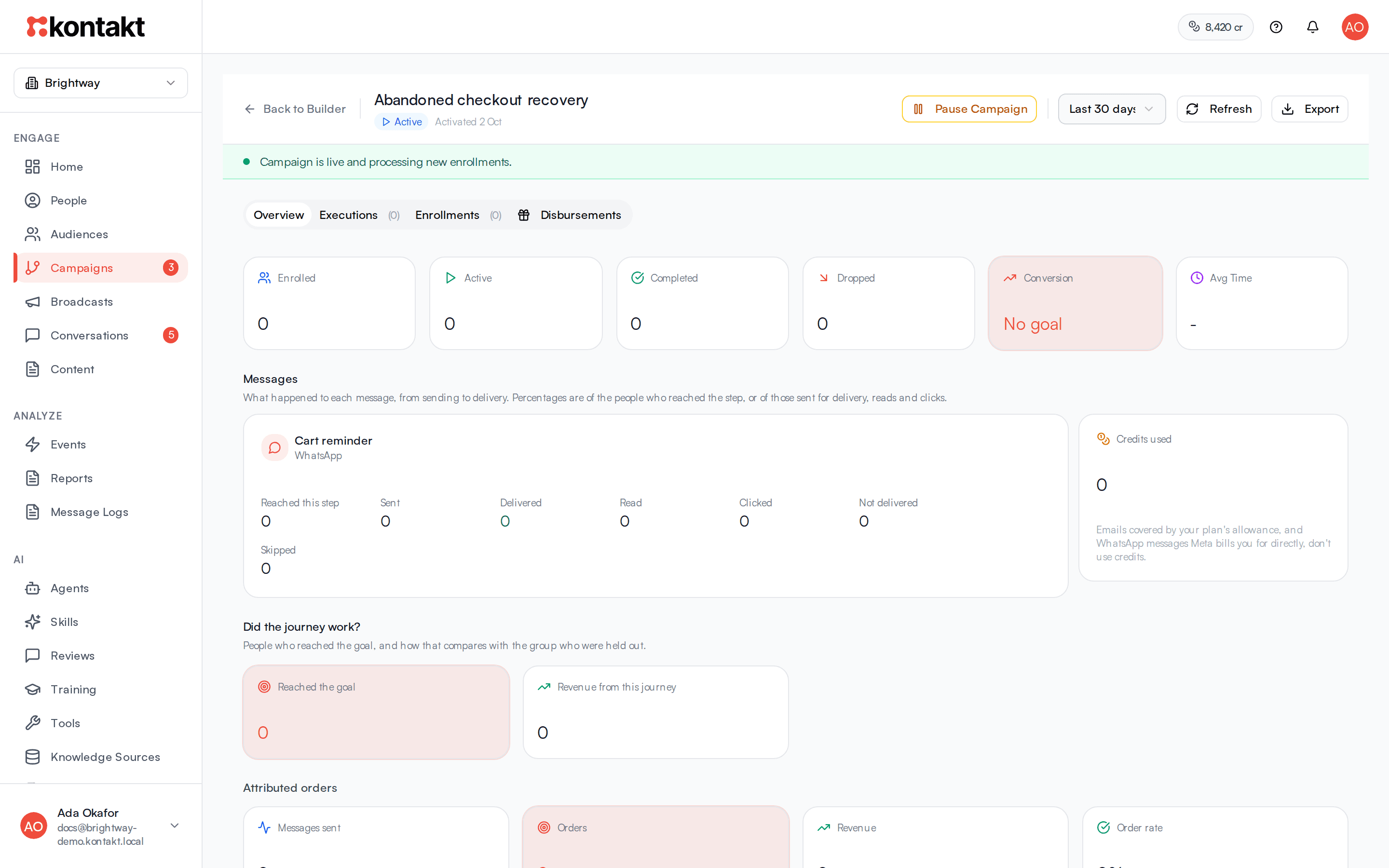
Click Analytics in the builder, or View Analytics from the list. Overview shows Enrolled, Active, Completed, Dropped, Conversion, and Avg Time for the period you pick, along with daily entries, how many people reached each step, and the steps where runs failed. The journey list shows the same all-time numbers. Each entry counts once, so a person who enters twice counts twice. Active is runs still in progress or waiting, and Dropped is runs that failed or were cancelled. Conversion is the share of entries that reached the journey's goal or an exit step set to count as a conversion. A journey with neither shows No goal. Messages shows each message step since the journey started: Reached this step, Sent, Delivered, Read for WhatsApp, Opened for email, Clicked, Not delivered, and Skipped, with the reasons. Next to it, Credits used shows the credits the journey has used, by channel. Did the journey work? compares people who reached the goal with the held-out group. Attributed orders shows Messages sent, Orders, Revenue, and Order rate. Once SMS or WhatsApp steps have sent tracked links, Link clicks (SMS and WhatsApp) shows Messages with links, People who clicked, Clicks, Click rate, and a table of each link. Executions lists each person's run, and clicking one shows the Node Execution Trace. Once the journey has sent email, an Email tab shows clicks, replies, unsubscribes, bounces and clicks by link.
Troubleshooting
The journey is not starting
- Check that the journey is Active, not Draft or Paused.
- For Event Occurs, check the event name matches exactly on the Events page, and that any property filters match.
- For Segment Entry, only people who join after the journey goes live enter, unless Also enter people already in the segment was on the first time it went live. With Only people already in the segment on, nobody joins later, and resuming a paused journey enters the members who hadn't entered yet.
- Check Who can enter. With Once, ever, people who already ran the journey are skipped. With Every time they qualify, a person who is still in the journey does not start a second run.
A message was not sent
Open Executions, click the person's run, and read the trace. A message step that is skipped does not stop the journey; it moves to the next step. Common reasons:
- The person is in the hold-out group or hit the marketing cap. See Contact policy. A marketing message due inside quiet hours is not skipped: the run waits at that step and sends when quiet hours end.
- Marketing SMS or email without consent, or the person unsubscribed. For email, also an unsubscribe from the step's topic, or an address on your Do not email list.
- A WhatsApp marketing template to someone who opted out of marketing.
- No approved SMS sender for the person's country or network, no email address, or no registered device for push.
- A teammate was in the conversation and the step was set to wait, then skip.
- Not enough credits. See Credits and top-ups.
Publish is disabled
The builder lists the issues. A journey needs exactly one trigger and at least one exit, every branch of a condition needs a path, and every step except an exit needs a next step.