Copilot
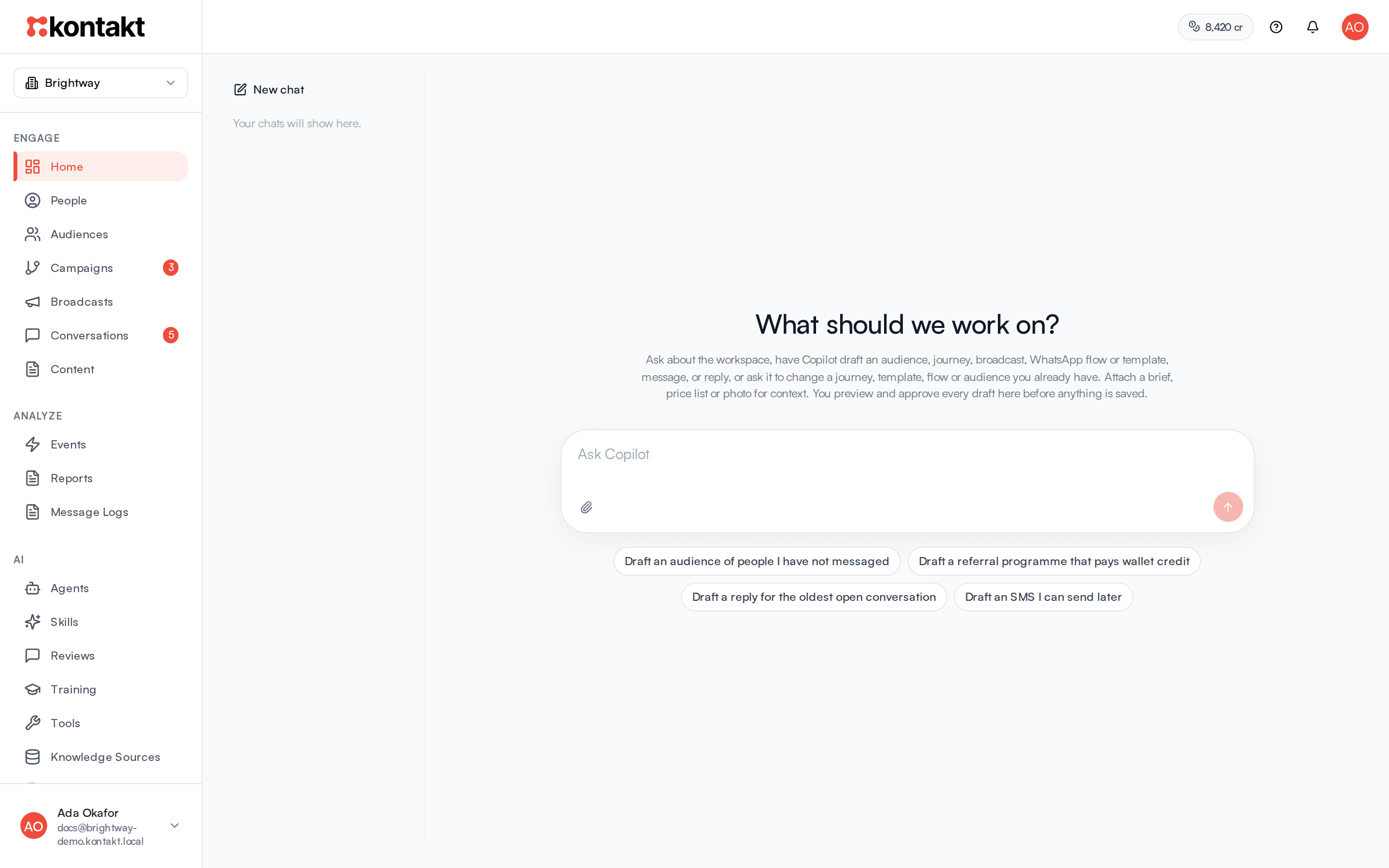
Copilot is the assistant on your Home page. It answers questions about your workspace, drafts new work, and drafts changes to what you already have. You can attach files, such as a brief or a product photo, for context. Nothing is saved until you approve it, and every chat is kept so you can come back to it.
Copilot is for your team, not your customers. Ask it how things stand, such as how many conversations are open or whether your store sync is healthy, ask it to draft something, or ask it to change a journey you already have. It replies in plain language, and when it drafts something it shows a card you can approve or dismiss.
Copilot is separate from your customer-facing agents. It does not answer customers or send messages.
Before you start
- To chat with Copilot, you need permission to view campaigns.
- To approve a draft, you need permission to create campaigns.
- To rename Copilot, you need a role that can change workspace settings.
Ask Copilot for something
Open Home
Select Home in the sidebar. You see What should we work on? and a message box. Copilot may show suggested prompts under the box, based on your workspace, such as drafting an audience of repeat buyers when a store is connected. A suggestion may also appear above the heading. Select it to put it in the message box.
Ask
Type your request in the box and send it. For example: "Draft an audience of people who bought more than once", "Draft an SMS I can send later", or "How many open conversations do we have?" To give Copilot more to go on, such as a brief, a price list, or a product photo, attach files to the message. Copilot shows Thinking… while it works.
Review the draft
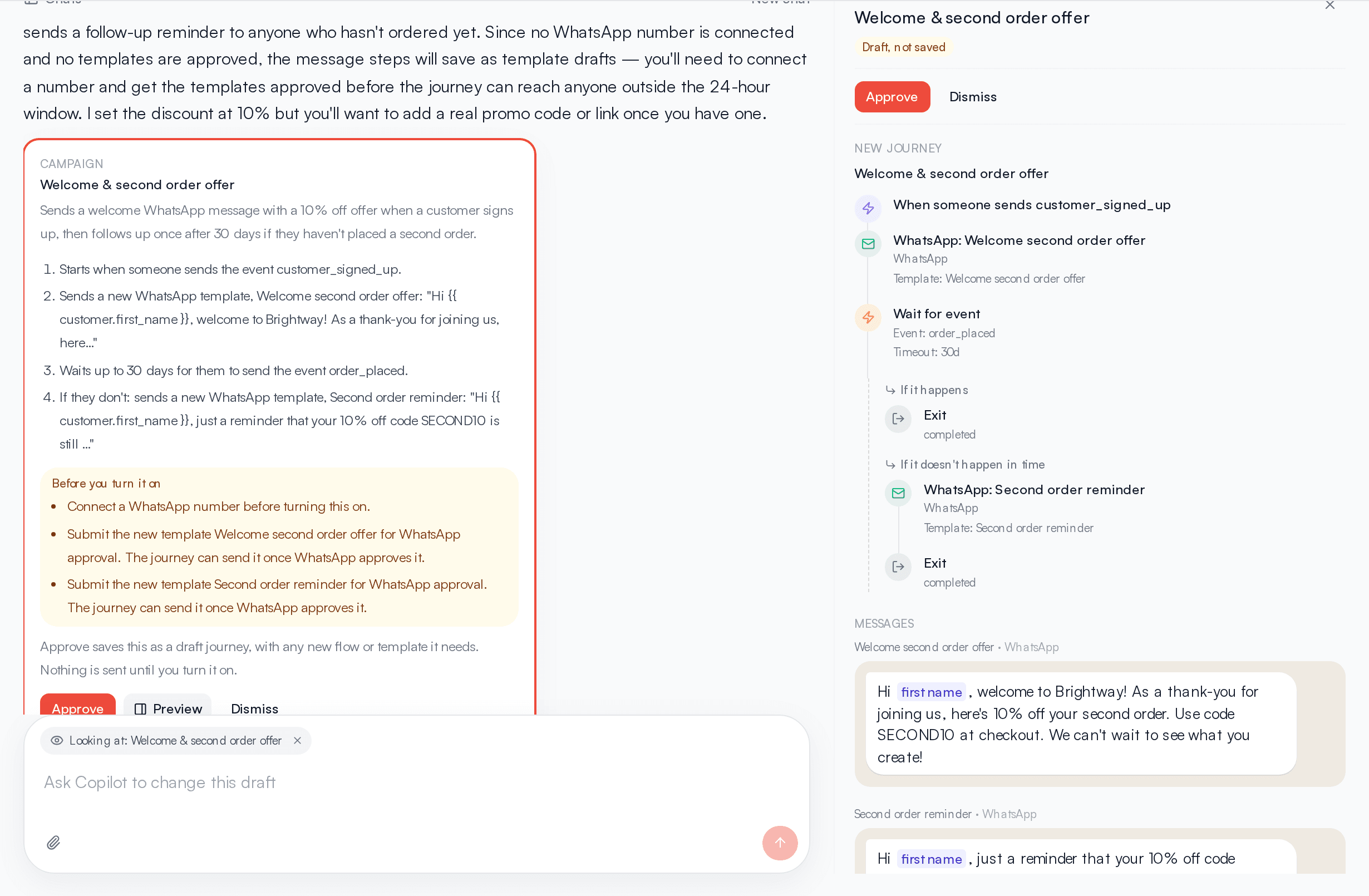
If Copilot drafted something, a card appears under its reply with the draft's name, summary, and details. Select Preview to see it drawn out beside the chat: a journey's steps and branches, each message as the customer sees it, and who an audience reaches. See Preview a draft.
Approve or dismiss
Select Approve to save the draft. You stay in the chat, and the card shows a button to open what was saved in a new tab. Select Dismiss to discard the draft.
You can go to another page while Copilot is thinking. The reply still arrives: a notification says Copilot replied, with Open chat to go back to it, and Home in the sidebar shows how many replies are waiting. Coming back to Home opens the chat you were in. If you close or reload the tab before the reply arrives, Copilot still finishes and saves it, so open the chat again to see it.
Preview a draft
Select Preview on a draft card to open it beside the chat. On a smaller screen it slides in from the right. The preview shows:
- Journeys: each step in order, with branches such as If it happens and If it doesn't happen in time drawn under the step they leave from. In a change to an existing journey, steps are marked New or Changed, and removed steps are listed and crossed out.
- Messages: a WhatsApp message as a chat bubble with its header, footer, and buttons, an SMS as a bubble, and an email as it will look, with its subject. Personal details such as the customer's first name show as a highlighted placeholder.
- Audiences: the filters in plain words and how many people match now.
- WhatsApp Flows: each screen with its questions, choices, and closing message.
While the preview is open, the message box shows Looking at: and the draft's name. Anything you ask, such as "make the wait 3 days" or "add a reminder by SMS", changes that draft. Copilot replies with a new card, the old card is marked Replaced by a newer draft., and the preview switches to the new draft. Select × on Looking at or close the preview to ask about something else.
You can Approve or Dismiss from the top of the preview. After you approve, the preview shows Saved and buttons to open what was saved. Those open in a new tab, so your chat stays where it is.
In the mobile app, tap Preview on a card. Tap Ask for changes to go back to the chat with Looking at above the message box, then type what to change.
Attach files
Attach files when Copilot needs more than you can type: a campaign brief, a price list or menu, a screenshot of a message you like, or a product photo.
Add the files
Select the paperclip in the message box and choose files, drag files onto the box, or paste an image into it. Each file shows in the box while it uploads. Select × on a file to remove it before you send.
Say what you want
Type what Copilot should do with the files, for example "Draft a WhatsApp broadcast for the new prices in this list" or "Write an SMS like the message in this screenshot", then send. You can also send files without typing anything.
You can attach up to 5 files to a message, each up to 10 MB. Copilot accepts:
- Images: JPEG, PNG, WebP, and GIF. Copilot looks at them.
- Documents: PDF, Word (.docx), Excel (.xlsx and .xls), CSV, text, Markdown, and JSON. Copilot reads the text in them. Older Word files (.doc) aren't accepted, so save them as .docx first.
Copilot treats what a file says as something you told it, so a draft can use the prices, dates, codes, and links in it. It doesn't add anything the file doesn't say. A screenshot of a message or design is used as a guide for wording and layout, not put in the message.
Files stay in the chat they were sent in, and you can select one to open it. Copilot keeps reading files from recent messages, so you can ask follow-up questions without attaching them again. In a long chat, attach a file again if Copilot stops referring to it.
In the mobile app, tap the paperclip, then Photos or Files.
Use an attached image as a template header
Attach a JPEG or PNG and ask for a WhatsApp template that uses it, for example "Draft a WhatsApp template announcing this product, with this photo as the header". The card's Header shows the name of the file you attached, and approving saves the template with that image, ready to submit for WhatsApp approval. An attached PDF can be a document header in the same way. WhatsApp doesn't accept WebP or GIF images as headers.
Your chats
Every conversation with Copilot is saved as a chat. Your chats are listed on the left of Home, newest first, grouped by when you last used them. On a narrow screen, select Chats at the top to see them.
- Start a new chat: select New chat. Coming back to Home from another page opens the chat you were last in.
- Go back to a chat: select it in the list. You see the whole conversation, including draft cards and whether you approved them, and you can carry on where you left off. Copilot remembers its latest draft in that chat, so you can ask for changes.
- Rename a chat: a chat is named after your first message. Hover over it, select the ⋯ menu, then Rename.
- Delete a chat: select the ⋯ menu, then Delete. Anything you already approved from that chat stays where it was saved.
Each chat has its own link, so the browser's back button and bookmarks work. Your chats are private: other people in your workspace don't see them.
In the mobile app, tap the menu icon at the top of Copilot to see your chats, tap one to open it, and press and hold one to delete it.
What Copilot can draft
When you select Approve, Copilot creates the item as a draft. You stay in the chat, and the card shows buttons to open what it saved so you can finish it:
| You ask for | What approving creates |
|---|---|
| An audience | A dynamic audience with the filters Copilot suggested. See Audiences. |
| A campaign | A draft journey with every step Copilot planned, with an exit on every path. If Copilot suggested a new audience to start it, that audience is saved too. If the journey needs a WhatsApp Flow or template that doesn't exist yet, those are saved as drafts and already linked to the journey. See Journeys. |
| A broadcast | A draft broadcast on WhatsApp, SMS, or email to the audience you named. A WhatsApp broadcast gets the number, the approved template and its variables, or a new template draft when none fits, plus Failover to SMS and what to do for people a teammate is chatting with, if you asked for them. An SMS broadcast gets the text and sender ID. An email broadcast gets the subject and your text laid out as a design, and opens in the email editor. See Broadcasts. |
| A multichannel broadcast | A draft multichannel broadcast that reaches the people in an audience once, on several channels, one after another or all at once, with follow-ups only for people who didn't open or click. See Send across channels. |
| A WhatsApp template | A draft template, with the customer's name and other details turned into numbered variables with sample values. WhatsApp reviews the template with those samples, so Copilot makes each one look real, such as a link in the same shape as your referral links. Check them under Variables before you submit. It can have a header, a footer, and buttons: one that opens a Flow if you asked for one, a Copy offer code button for a discount code, links you gave it, and quick replies. If you asked for an image, it is set as the header for you to upload after approving, or saved with the template if you attached it. See Content and templates. |
| A WhatsApp Flow | A draft Flow with the screens and questions Copilot wrote. If you will send it to people who haven't messaged you recently, Copilot also drafts a template whose button opens it. See WhatsApp Flows. |
| An SMS or email | A draft message in Content, with the subject for an email. For an SMS, the card's Next steps says how many SMS parts it sends as and flags characters, such as emoji, that make each part shorter. See Content and templates. |
| A reply | A draft reply in that conversation. See Conversations. |
| A referral programme | A draft referral programme. See Referrals. |
| A webhook source | A webhook source, created and switched on, with its event name, the field that identifies the person, any payload fields copied into event properties, and, unless you ask otherwise, the whole payload kept on the event. Ask Copilot to change an existing source, such as "also copy the plan from data.plan", and approving updates it. See Webhook sources. |
After approval the card shows a button for each thing it saved, such as Open journey, Open flow, Open template, Open audience, Open broadcast, Open conversation, Open programme, or Open webhook source. A journey that came with a new Flow and template shows all three. Each opens in a new tab, so the chat stays where it is.
Journeys
Describe the whole journey in one message and Copilot drafts each part as a step. For example: "Draft a campaign for lapsed one-time buyers that sends them a WhatsApp flow asking why they stopped buying, and gives them Shopify store credit when they submit it."
A journey can start when someone joins an audience, when a store or custom event happens, or when someone submits a WhatsApp Flow. Copilot can add these steps:
- A WhatsApp, SMS, or email message, or an approved WhatsApp template. A WhatsApp message can send an SMS instead when WhatsApp can't deliver it, and an SMS can come from a sender ID you name.
- A WhatsApp Flow, sent through a template whose button opens that Flow.
- A wait for a set time, or a wait until the person submits a Flow or an event happens, with what to do if they don't. A wait for a click, an email open, or a WhatsApp delivery or failure only counts the messages this journey sent them.
- Shopify store credit, given at most once per person, or Kontakt wallet credit.
- A tag.
WhatsApp only delivers free text and Flow messages to people who messaged you in the last 24 hours. Everyone else needs an approved template. So when a journey reaches people outside that window:
- If the Flow you asked for doesn't exist, Copilot writes it, with its screens and questions, and the card lists what it asks.
- If there is no approved template for a message or a Flow, Copilot drafts one from the message text, with a button that opens the Flow where there is one.
Approving saves the journey with those drafts already linked. Copilot uses your existing audiences, Flows, templates, and stores when one fits. It never invents one that isn't in your workspace.
The card lists the steps in order. Under Before you turn it on it lists what is left for you to do. Usually that means checking and publishing the new Flow, then submitting the new template for WhatsApp approval. It can also include setting the store credit amount. The journey can send a template only once WhatsApp approves it.
A journey that starts from an audience enters people who join the audience after you turn the journey on. If you ask for the people already in it too, Copilot turns on entering current members, and the card says who enters and when.
Multichannel broadcasts
Ask for a one-off send on several channels, for example "Send the Black Friday offer to VIPs on WhatsApp, then email anyone who doesn't click within a day, then SMS anyone who doesn't open it". Copilot drafts a multichannel broadcast: the same kind of journey the Several channels option in Broadcasts builds. It reaches the people in the audience when you turn it on, once each, and ignores people who join later. You can also give a start time. The card is titled Multichannel broadcast and lists each message and wait in order.
WhatsApp Flows and templates
You can also ask for a Flow or a template on its own. For example: "Draft a WhatsApp Flow that asks customers why they stopped buying" or "Draft a WhatsApp template thanking first-time buyers by name". The card shows each screen of a Flow with its questions and choices, or the whole template: header, full text, footer, and each button. Approving saves it as a draft in Content, and Open flow or Open template takes you straight to it.
Copilot never puts placeholders like "[Screenshot]" in the text, and it only adds links, prices, dates, phone numbers, or codes you gave it, in the chat or in a file you attached. For a template with an image header, unless you attached the image, the card's Next steps list reminds you to open the template, upload the image, and submit it for WhatsApp approval. WhatsApp won't review it without the image.
Copilot keeps Flows short, with one or two screens, and offers choices where it can. Check the wording before you publish. A template with a Flow button can only be submitted once that Flow is published.
Change what you already have
Copilot can also change journeys, templates, WhatsApp Flows, and audiences that already exist. Name the journey, or ask in the chat where Copilot drafted or saved it. For example: "In the win-back journey, make the store credit last 6 months", "Replace the WhatsApp thank-you template with a plain message and add a confirmation email after it", or "Only send the follow-up to people who left a comment".
Copilot reads the whole journey before it drafts a change: every step, its settings, how the steps connect, and the templates, Flows, and audience it uses. It can:
- Change any step's settings, such as an amount, a wait, a message, or a condition.
- Add a step of any type the journey builder offers, remove a step, or reconnect steps, including branches.
- Rename the journey or change its goal, entry rules, or exit rules.
- Change a template's text, footer, button, or sample values, and fill any new variables on the steps that send it.
- Change a Flow's questions or closing message, keeping the answer names your journeys already read.
- Rename an audience or change its filters.
- Build a new journey with branches, conditions, API calls, or any other step, saved as a draft. A WhatsApp step that needs a new template gets one: approving saves it as a template draft, already linked to the step.
- Pay rewards, such as airtime, through your reward provider in its currency, and cap them across everyone. For example, ask for "200 airtime to each survey respondent, once each, for at most 2,000 people". Copilot uses a counter that starts at 2,000 and counts down before each payout. A failed payout still uses its place, so that person can be paid on a retry; ask Copilot if you'd rather add it back. If the counter doesn't exist yet, the card's Next steps says approving creates it.
The card is titled Journey changes, Template changes, Flow changes, or Audience changes. It lists each change in plain words, such as Change "Store credit": expires days 30 to 183, and under Next steps what is left for you to do. A brand-new journey is titled New journey and lists its steps in the order people reach them, with each branch, such as "Wait 60 days": if it happens, go to "Bought again"; if it times out, go to "Credit 5%". Copilot also says in its reply any choice you didn't specify, such as how long a credit lasts, so you can change it.
If you ask for the same change in more than one journey, such as "add the dashboard link to the thank-you messages in both win-back journeys", Copilot shows one card per journey. Approve or dismiss each one separately.
A reply has at most one card for each journey, audience, template, or flow. When you ask for changes to one of several drafts, Copilot only redrafts that one, and the other cards stay as they were. Each time Copilot redrafts something, any earlier card for it that you haven't approved is marked Replaced by a newer draft. That leaves you one card to approve per item. Copilot won't draft a new journey or audience with the same name as one you already have. It drafts a change to the existing one instead.
What approving does
Approving a change checks it the same way the journey builder checks a save, then saves it.
- A live journey is paused first. The changes are applied and the journey stays paused, so you can check it in the builder and resume it when you are ready. Draft and paused journeys keep their status.
- People already in the journey stay where they are. Copilot won't remove a step while people are waiting at it. Change that step instead.
- WhatsApp templates: only draft or rejected templates can change, because WhatsApp doesn't allow edits to an approved one. Copilot drafts a new template instead. After approving, submit the template to WhatsApp again.
- Flows: only draft Flows can change. Publish the Flow after approving.
- Audiences: when the filters change, the audience is updated straight away. Live journeys that start from it enter people who now match.
- API keys: Copilot never sees saved keys or signing secrets, only
••••••••. It keeps them as they are, and it can reuse the key of an API call step in another journey without showing it. Don't paste keys into the chat; add them in the builder.
When a draft has problems
If a change would break the journey, for example a step that can no longer be reached, a connection a step doesn't have, or a setting the step needs, Copilot tries once to fix it. If problems remain, the card lists them under This draft can't be saved yet and Approve is turned off. Reply in the chat, for example "fix these problems", to get a corrected draft.
Copilot also checks that a journey does what you asked, not just that it saves:
- Reminders reach the right people. Steps after a wait run for people who did the thing. A reminder for people who haven't must sit on the "if they don't" path, with the next reminder after the next wait on that path.
- Looked-up values have a lookup. A message that shows something from your own system, such as a personal referral code, needs an API call step before it. Copilot builds those journeys with one.
- New WhatsApp templates don't start or end with a placeholder, which WhatsApp rejects.
- Caps can be reached. A counter used to cap a step must exist or be created on approval, and must count down. Counting up never reaches the limit.
- Every exit is one the builder offers: Completed, Goal reached, Failed, or Dropped. Copilot fixes any other exit in the journey it is editing, even one you didn't ask about.
What Copilot does not do
Approving saves a draft or a change. It does not send a broadcast, schedule, turn on, or resume a campaign, publish a Flow, submit a template to WhatsApp, send a reply, connect a store, or delete anything other than journey steps you approved removing. You do those yourself from the item, which the card's open buttons take you to. Two exceptions: a webhook source starts accepting events as soon as you approve it, and approving a change to a live journey pauses it.
For a referral programme with a review amount, Copilot will not draft a reward above that amount unless review is turned on.
What Copilot knows
Each time you send a message, Copilot gets a summary of your workspace: number of people, connected stores and their sync status, active campaigns, draft broadcasts and content, open conversations, SMS senders, referral programmes, webhook sources and recent failed deliveries, abandoned checkouts in the last 7 days, and whether store credit sync is on. It also gets the names of your audiences, WhatsApp Flows, WhatsApp numbers, approved SMS sender IDs, approved WhatsApp templates, templates it may still change, stores, journeys, webhook sources with their mappings, counters with their values, and reward providers with their currency, so it can use them in drafts. It sees the events your workspace receives, with the property names of the latest one of each, so a journey reads the right fields. When an event names more than one person, such as a referrer and the friend they referred, it sees whose profile the event is on, because waits and audiences only count events on the person's own profile. It also sees the API call steps in your journeys whose saved key it can reuse. It sees the last few messages of your chat, the files attached to them, its latest draft, the draft you have open in the preview, and a list of its earlier drafts in the chat, with which ones you approved.
For the journeys, templates, Flows, and audiences a chat is about, it reads everything: each step and its settings, how the steps connect, template text, Flow questions, and audience filters. A chat remembers what it is working on, so you don't have to name the journey again in every message. Saved API keys and secrets are always hidden from it.
It does not read individual customer records or message history beyond that summary, so ask it for drafts and overviews rather than details about one person.
Rename Copilot
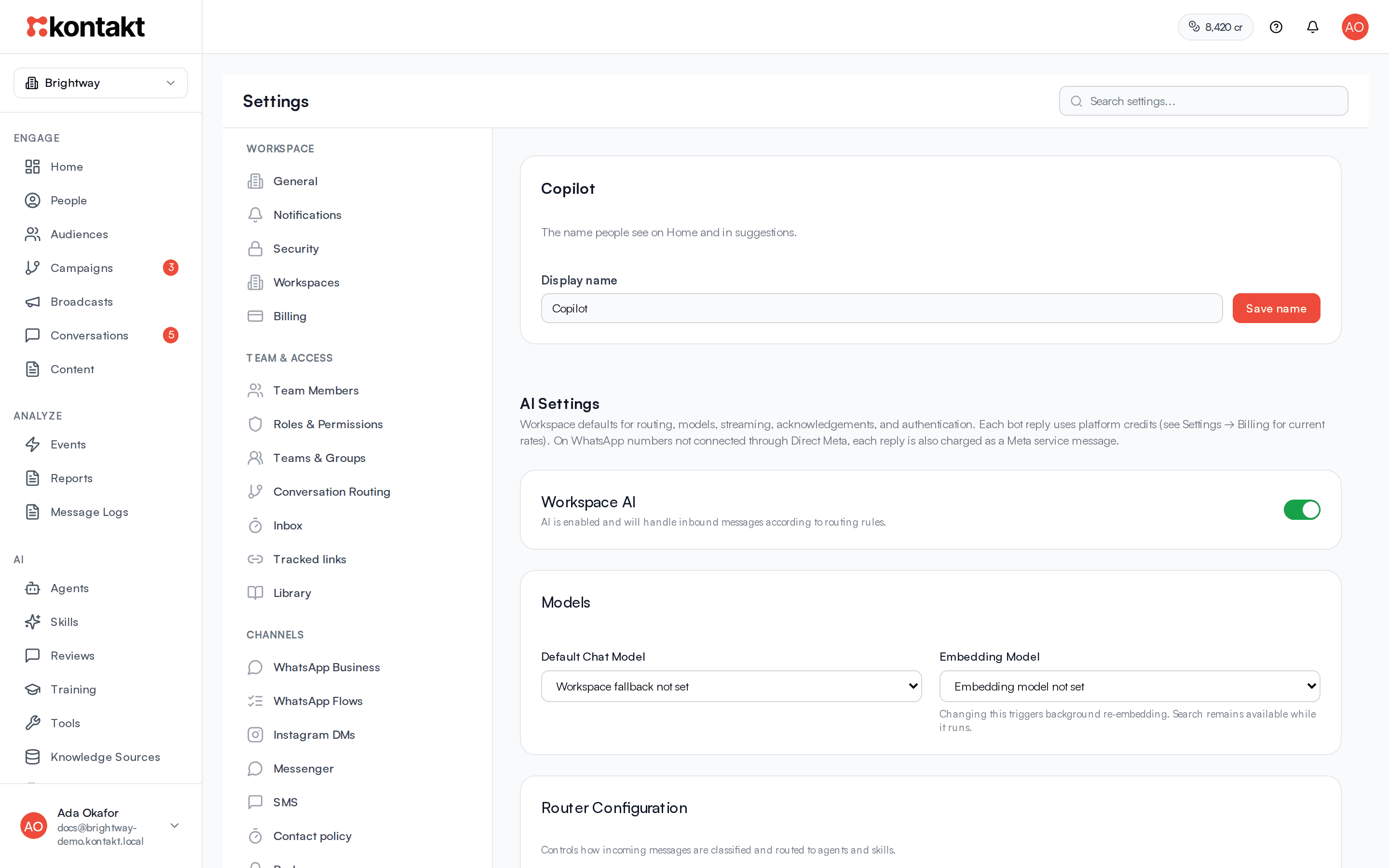
Go to Settings / AI Settings. In the Copilot card, change Display name and select Save name. The new name appears on Home, in the message box, and on Copilot's replies.
What it costs
Chatting with Copilot is not charged as an AI reply. What you create and later send, such as a broadcast or a reply, is charged at the normal rates for that channel. See Billing.
Troubleshooting
Copilot replied but there is no draft card
Copilot only shows a card when it drafted something. Ask more directly, for example "Draft a broadcast on WhatsApp that says...". If Copilot says it drafted a change but could not put it in a form you can approve, ask again in the same chat.
When one message asks for several long journeys, the reply can run out of room. Copilot then asks for the missing drafts again before it answers. If one is still missing, the reply says so; ask for that journey on its own.
A file won't attach
Check that it is one of the file types Copilot accepts and no larger than 10 MB, and that the message has no more than 5 files. Save older Word files (.doc) as .docx.
Copilot says it couldn't read a file
A scanned PDF or a photo of a page is an image, not text, so there is nothing for Copilot to read in the document. Attach it as a JPEG or PNG image instead, or paste the text into the message. Copilot reads about the first 25,000 characters of each document, roughly 10 pages, and says when it left part of a long file out.
Approve fails with a message about a conversation
Reply drafts need a specific conversation, and Copilot only sees a summary of your workspace, not individual conversations. If a reply draft cannot be approved, dismiss it and write the reply from the conversation in your inbox.
The draft is not quite right
Ask for the change in the same chat, for example "make the credit 5,000". Copilot revises its latest draft, or the one open in the preview, and shows a new card. The old card is marked Replaced by a newer draft. You can also approve it, open it, and edit it there. Once a journey is saved, keep asking in the same chat: Copilot drafts changes to the saved journey.
Copilot says a template or Flow can't change
WhatsApp only allows changes to draft or rejected templates and to draft Flows. Ask Copilot to draft a new template or Flow, approve it, submit or publish it, then ask Copilot to point the journey step at it.
My journey was paused
Approving a change to a live journey pauses it so nothing runs half changed. Open the journey, check the changes, and select Resume when you are ready.
The journey won't turn on
Open it and check the steps listed under Before you turn it on on the card. A journey can't go live while a step is missing something it needs, such as the Flow in a Send WhatsApp Flow step. A template Copilot drafted must be approved by WhatsApp before the journey can send it.
Approve says to connect a WhatsApp number first
Every Flow belongs to a WhatsApp number, so Copilot can't save a Flow until one is connected. Connect a number in Settings / WhatsApp Business, then approve the draft again.
I can't find an old chat
Chats are private to the person who started them, so you only see your own. Chats you deleted can't be brought back, but anything you approved from them is still in the workspace.