Reports
Reports let you ask your own questions of your workspace data, save the answer, and run it again whenever you need it.
Open Reports in the sidebar to see the built-in reports, the ready-made templates, and your saved reports. Each saved report picks a data source, applies filters, and either lists raw rows or summarises them with counts, sums, and averages grouped by any field. Results show as a table or chart and can be exported.
Before you start
- Viewing and running reports needs permission to read reports. Creating, editing, and deleting need the matching report permissions. See Roles and permissions.
- Reports are shared across the workspace. Everyone with access sees the same list.
- Billing templates and the Credit charges data source also need permission to view settings and billing. People without it don't see them, and can't run or export a report that uses them.
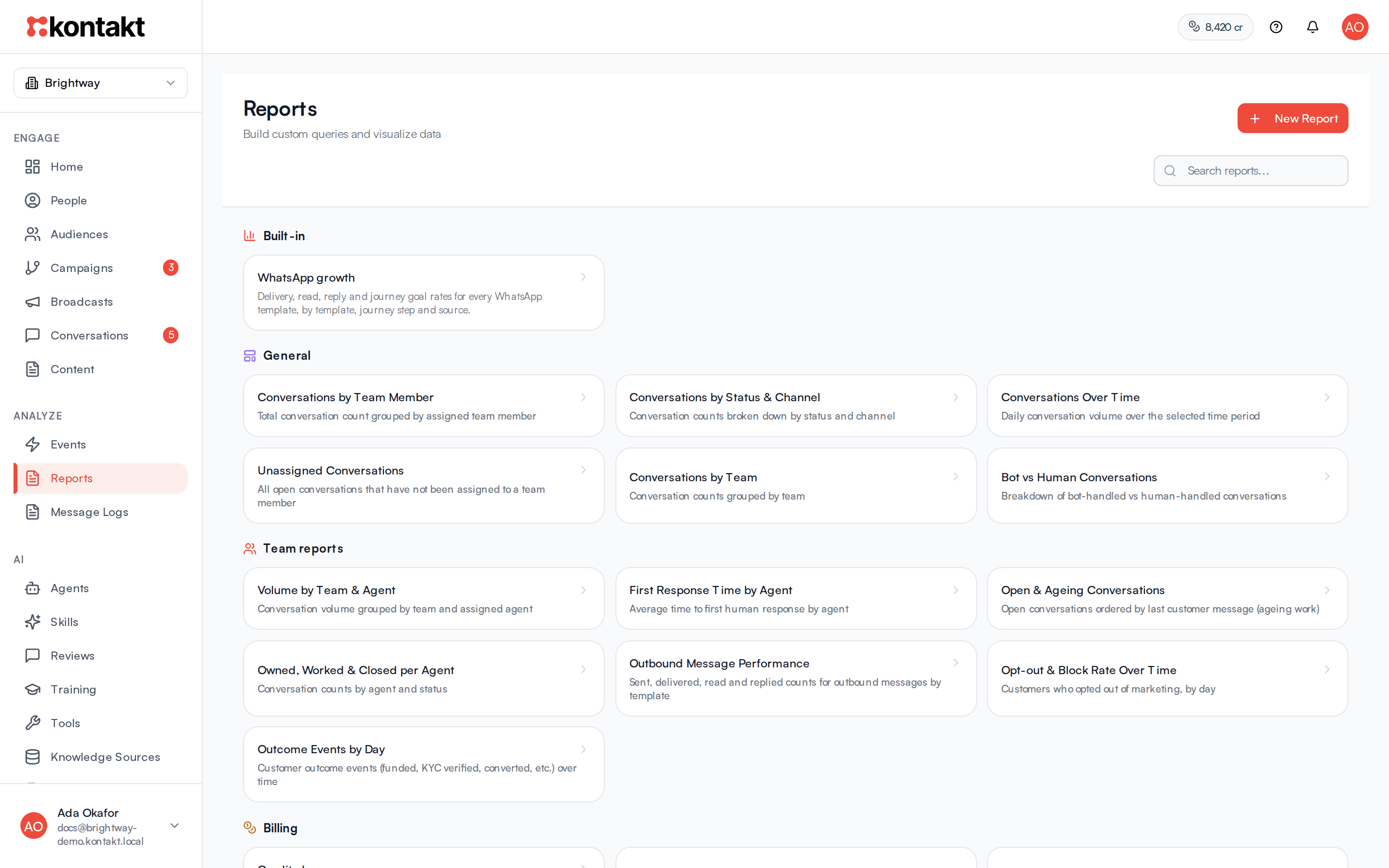
Built-in reports
Built-in reports are ready to read, with nothing to set up. They sit at the top of the Reports page under Built-in.
WhatsApp growth
WhatsApp growth brings together every WhatsApp template you sent from broadcasts, journeys, the API, and the inbox. For each one you see how many were sent, delivered, read, and replied to, and how many people went on to reach the goal of the journey that sent it. Use it to compare templates, find the journey step where people drop off, and check that messages sent through Customer.io or the API perform as well as the ones you send from Kontakt.
Only WhatsApp template messages count. Free-form replies sent inside the 24-hour window are not included.
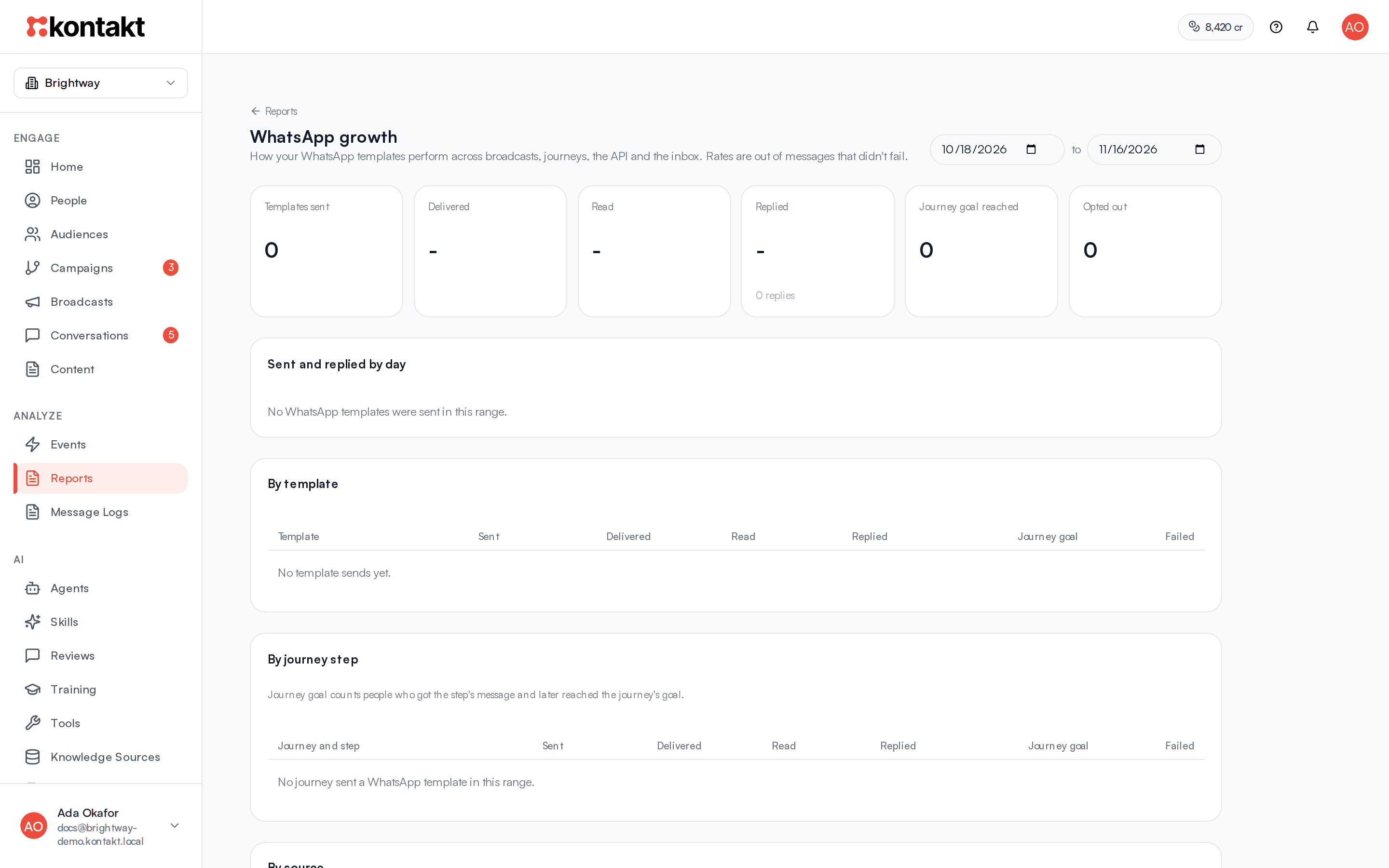
It shows the last 30 days. Change the two dates at the top to pick another range of up to a year. Both dates are included, and days follow UTC.
| Card | What it shows |
|---|---|
| Templates sent | Every template message sent in the range, including ones that failed. |
| Delivered | The share that reached the person's phone. |
| Read | The share the person opened. People who turned off read receipts count as delivered but not read. |
| Replied | The share the person replied to, with the number of replies underneath. |
| Journey goal reached | Journey messages whose person later reached the journey's goal, with the share of journey sends underneath. |
| Opted out | People who opted out of WhatsApp in the range, from any source. |
Delivered, read, and replied are worked out from messages that didn't fail, so a batch of failed sends doesn't drag the rates down. Failures are listed separately in each table.
- By template lists each template with its category, so you can compare a marketing template against a utility one.
- By journey step lists each WhatsApp step in your journeys. Click the journey name to open it in the builder. Journey goal counts people who got that step's message and later reached the journey's goal. A step appears once it has sent a WhatsApp template in the range, and goals only count for journeys that have a goal set.
- By source splits sends between Broadcasts, Journeys, API, and Inbox. Messages sent through Customer.io with the WhatsApp send API count as API.
How replies are counted. A reply counts once, against the most recent template or automated message sent to that person in the 72 hours before the reply. If someone replies three times, only the first reply counts. A reply to a broadcast also counts against that broadcast. The same reply is recorded as a whatsapp.replied event, which journeys can trigger or wait on. See Journeys.
A template or journey deleted after it sent messages shows as Deleted template or Deleted journey. Its numbers are kept so your totals stay correct.
Start from a template
Templates are grouped under General, Team reports, and Billing.
| Template | What it shows |
|---|---|
| Conversations by Team Member | Conversation count for each assigned teammate. |
| Conversations by Status & Channel | Counts by status and channel. |
| Conversations Over Time | Conversations started per day. |
| Unassigned Conversations | Open conversations with no assignee, most recent message first. |
| Conversations by Team | Counts by assigned team. |
| Bot vs Human Conversations | Conversations handled by an AI agent versus by people. |
| Volume by Team & Agent | Counts by team and teammate. |
| First Response Time by Agent | Conversations with a first human response, counted by teammate. |
| Open & Ageing Conversations | Open conversations, oldest last message first. |
| Owned, Worked & Closed per Agent | Counts by teammate and status. |
| Outbound Message Performance | Outbound messages by template and delivery status. |
| Opt-out & Block Rate Over Time | People who opted out of WhatsApp marketing, per day. |
| Outcome Events by Day | Events per day by event name. |
| Credit charges | Every credit charge, newest first, with its type, channel, category, country, recipient, customer, journey, broadcast, and credits. |
| Credits by Channel & Category | Number of charges and credits used for each type, channel, category, and country. |
| Credits by Journey | Messages, customers, and credits for each journey, by channel and category. |
| Credits by Broadcast | Messages and credits for each broadcast, by channel and country. |
| Credits Used per Day | Credits used each day, split by type. |
Pick a template
Click a template card. Create from Template opens.
Adjust it
Change the Report Name if you like. Set From and To to limit it to a range of days. Both dates are included and follow your workspace time zone. The note under the dates says which date the range applies to: when a record was created for most templates, when the charge was made for billing templates, the event time for Outcome Events by Day, and the opt-out date for Opt-out & Block Rate Over Time. Leave both empty for all time. The dates are saved as filters you can change in the builder. Team reports also offer Channels, where you can keep All channels or narrow to specific inboxes.
Create
Click Create Report. The report is saved and opens in the builder, ready to run.
Billing reports
The Billing templates show what your credits paid for. Each charge records:
- Type: what the credits paid for, such as
channel_sendfor a channel message orai_reply_turnfor an AI reply. - Channel, Category, and Country or market: the price that was used, for example WhatsApp,
marketingorfree_form(a service reply inside the 24-hour window), andNG. See Channel pricing. AI replies from the playground show the channeltest. - Recipient and Customer: who received the message. Recipient is a phone number or email address, so it is empty for Instagram and Messenger customers who have neither. Join Customer to see their name.
- Journey or Broadcast: what sent it, when a journey or broadcast did.
- Credits used: the credits taken from your balance.
Set From and To when you create the report to cover a billing period, then click Export and Export CSV (full) to keep a copy. To build your own, pick Credit charges as the data source and join Customer, Journey, Broadcast, or Message.
Charges made before 26 October 2026 show the channel, category, and country. The recipient, customer, and journey are recorded from that date on, except for AI replies and broadcast messages, which have them for earlier charges too. Top-ups, included credits, and other additions are in Credit charges too, with Credits used at zero. The templates leave them out.
Build a report
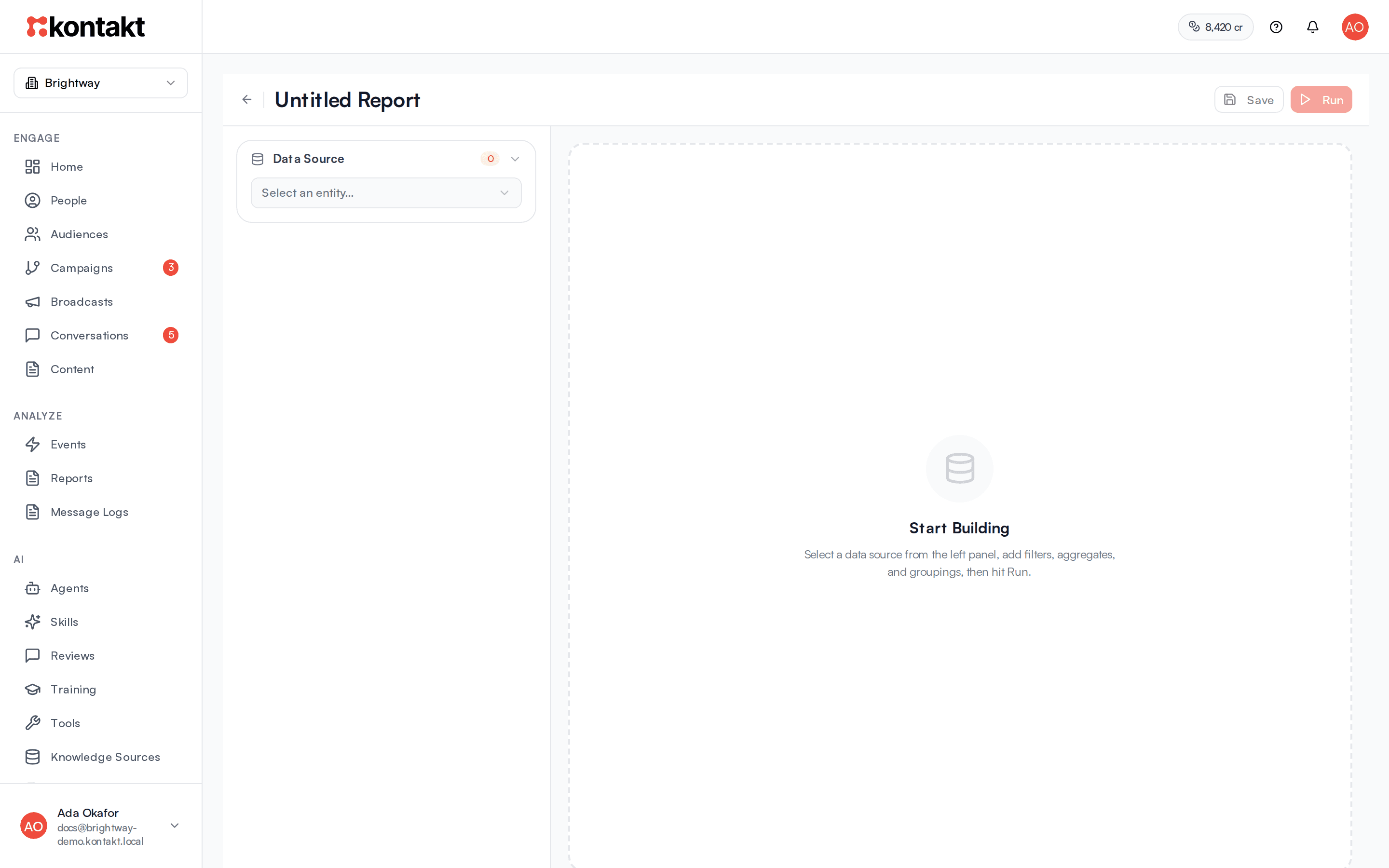
Open the builder
Click New Report. Click the report name at the top to rename it.
Choose a Data Source
Pick what to report on, such as Conversations, Messages, Customers, Customer Events, Broadcasts, Campaigns, Message Logs, Wallet Transactions, Orders, or Credit charges. Under Joins, click a related source to add its fields, for example Assignee or Team on conversations.
Scope by channel
Under Channels, keep All channels or pick specific channels or inboxes.
Add filters
Under Filters, click Add filter, then pick a field, an operator, and a value. Operators depend on the field type. Text fields offer equals, contains, starts with, in, is empty, and similar. Number fields offer comparisons such as > and <= plus between. Date fields offer before, after, on or before, on or after, and between. A date means the whole day in your workspace time zone, so on or before 9 November includes everything on 9 November. For in and not in, separate values with commas, for example sms, whatsapp.
Summarize and group
Leave Summarize empty to list raw rows. To total things up, click Add aggregate and choose Count, Count Distinct, Sum, Average, Min, or Max. Then use Group By and Add grouping to split the totals by a field. Date fields can be grouped by Hour, Day, Week, or Month.
Sort and limit
Open Sort to order results, and Limit to cap rows. The default is 1,000 and the maximum is 10,000.
Run and save
Click Run. A new report is saved the first time you run it, and later runs save your changes first. Click Save to save without running. Unsaved shows next to the name while you have changes.
Read and export results
The results header shows the row count, how long the query took, and Truncated if the result hit your limit.
For summarised results, switch between table, bar, line, and pie views. Kontakt picks one for you: line for results grouped by time, pie for a single grouping with eight rows or fewer, and bar otherwise.
Click Export to download:
- Download CSV: the rows on screen, straight from your browser.
- Export CSV (full) and Export JSON: run the saved report again on the server and download the full result. These need the report to be saved.
Manage reports
On the Reports page, search with "Search reports...". Each card shows the source, whether it is Aggregated or Raw, when it was last updated, and who created it. Use the card menu to Open, Edit, or Delete a report. Delete takes effect straight away, with no confirmation.
How it behaves
- Queries time out. A run stops after 30 seconds and an export after 60. Add filters or a date range to large reports.
- Template date ranges are fixed. The From and To you set when creating from a template are saved as filters. Edit the filters in the builder to change them later.
- Changing the data source clears the query. Joins, filters, aggregates, groupings, and sorting reset when you pick a different source.
- Team means assigned team. Team templates group by the team a conversation is assigned to. Conversations without a team are left out of Conversations by Team.
Troubleshooting
My report shows Truncated
The result reached your Limit. Raise it up to 10,000, add filters, or use Export CSV (full).
The report took too long and failed
Narrow the date range or add filters, then run again.
"Save the report first to export via server"
Click Save, then use Export CSV (full) or Export JSON.
Conversations by Team is empty
None of the conversations in range have an assigned team. Team assignment is set by journey handoffs. See Routing.