Google Drive
Connect a Google account once, then pick files from Drive to use as knowledge. Each file becomes its own knowledge source and stays in sync when someone edits it.
Keep your policies, price lists, and FAQs where your team already edits them. When you add a Drive file as a knowledge source, Kontakt reads its content, compiles it into your knowledge base, and watches the file. When the file changes in Drive, Kontakt syncs it again, so agents answer from the latest version.
Before you start
- A role that can change workspace settings.
- A Google account that can open the files you want to add.
- Kontakt asks for read-only access to Drive, plus your email and basic profile to label the connection. It never edits or deletes your files.
Supported files
| In Drive | How Kontakt reads it |
|---|---|
| Google Docs | As plain text |
| Google Sheets | As CSV |
| Google Slides | As plain text |
PDF, Word (.docx, .doc), Excel (.xlsx, .xls) | The file's content |
| CSV, plain text, HTML, JSON, XML | The file's content |
Folders, files in the trash, and other Google file types such as Forms or Drawings cannot be added. Pick individual files.
Add Drive files as knowledge
Open Add Knowledge Source
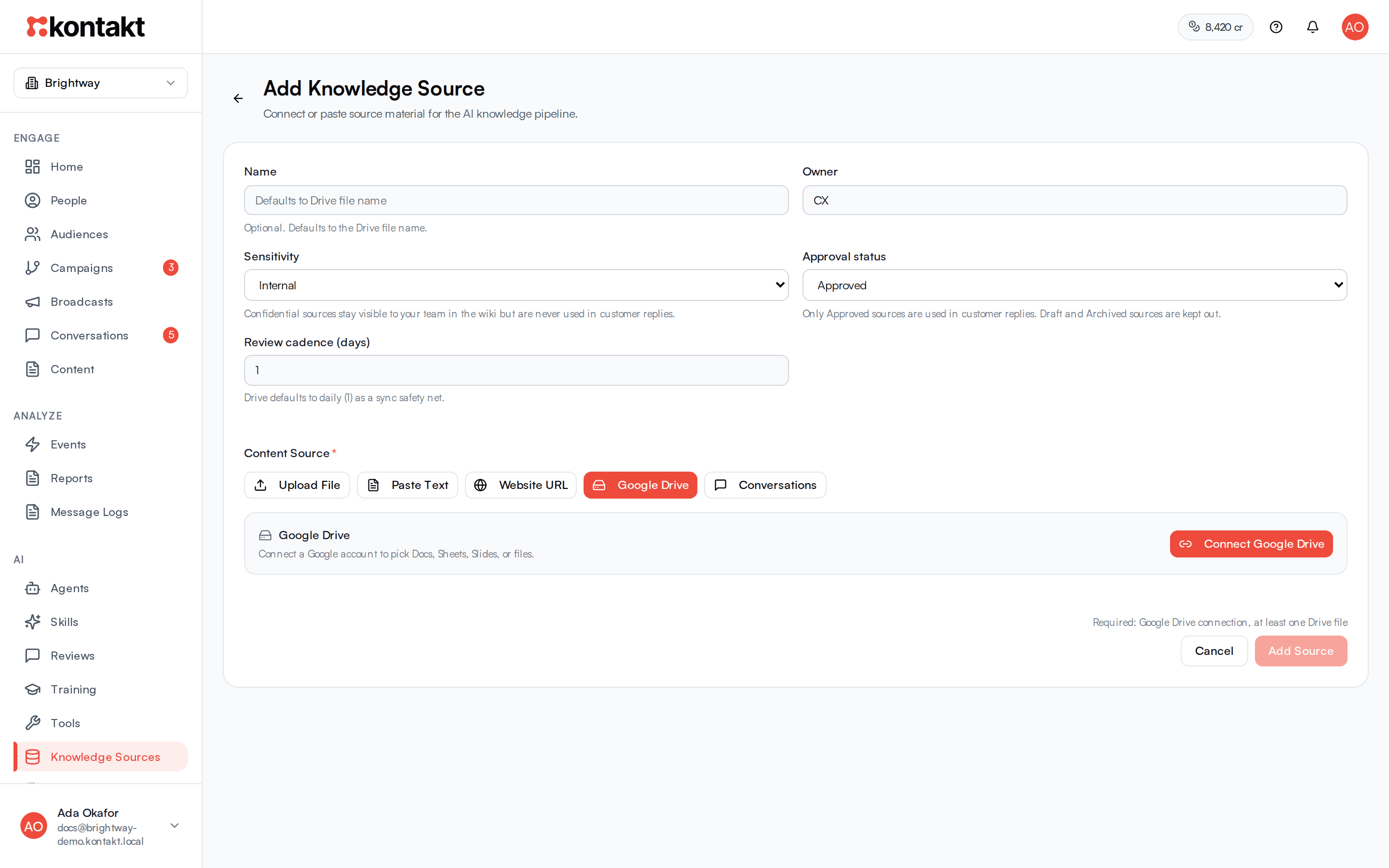
Go to AI / Knowledge Sources and click Add Source. Under Content Source, choose Google Drive.
Connect your Google account
Click Connect Google Drive, sign in to Google, and allow access. You return to Kontakt with the account's email shown as connected. You only do this once per workspace.
Pick files
Under Drive files, search by name and select one or more files. Use Load more to see more results. Each file you select becomes its own knowledge source.
Set the details
- Name is optional. It defaults to the file name.
- Set Owner, Sensitivity, and Approval status as you would for any knowledge source. Files marked Draft, Archived, or Confidential are not used in customer replies. See Who sees a source.
- Review cadence (days) defaults to 1 for Drive files. Kontakt re-checks the file at least this often, as a safety net in case a change notice from Google is missed.
Add
Click Add Source. Kontakt downloads the file and compiles it. The source shows its status and, once synced, an Open in Drive link.
How sync works
- On change. Kontakt asks Google to notify it when the file changes, and renews that request automatically. When a notice arrives, Kontakt fetches the file and recompiles it.
- On a schedule. Kontakt also checks each Drive source on its Review cadence (days). If the file hasn't changed since the last sync, Kontakt skips the download.
- On demand. Click Sync on the source in AI / Knowledge Sources. After a failure, the button reads Retry.
- Access tokens. Kontakt refreshes the Google access token in the background. If Google revokes it, for example because the password changed or access was removed, the connection shows that the token expired. Click Reconnect on the Add Knowledge Source page to restore it.
For which knowledge tasks use credits, see How billing works.
Disconnecting
To disconnect, open the Add Knowledge Source page, choose Google Drive, and click Disconnect. This stops change notices for every Drive source that uses it. Those sources keep their last synced content, but they show an error asking you to reconnect and sync. Reconnect, then click Retry on each source.
To stop using a single file, delete its knowledge source. Kontakt stops watching that file.
Troubleshooting
A file is missing from the search
Search matches file names. Check that the connected Google account can open the file, that it isn't in the trash, and that it is not a folder.
I get an error that a source already exists for this file
Each Drive file can be added once per workspace. Open the existing source instead.
The sync failed with an unsupported file type
The file type isn't in the table above. Export it from Drive as PDF, DOCX, or CSV, upload that copy to Drive, and add it.
Agents still give old answers after I edited the file
Check the source's Last Sync time in AI / Knowledge Sources. Click Sync to force a refresh. If the source shows an error, reconnect Google Drive and click Retry.