How billing works
You pay for two things in Kontakt, a plan and the usage your workspace runs on top of it. Usage is paid in credits from one balance.
Kontakt has a simple model: a plan sets your limits and can include monthly credits, and credits pay for metered usage such as AI replies and paid messages. Everything is priced in USD. This page explains how the two fit together and where to see what you spent.
The two parts of your bill
| Part | What it covers | How you pay |
|---|---|---|
| Plan fee | Your plan's seats, contacts, knowledge base, channel allowances, and any included credits | Monthly, by card or local checkout. Pay as you go has no fee. |
| Credits | AI replies, paid channel messages, and some AI tasks | Included credits from your plan first, then credits you buy as top-ups |
Add-ons (extra WhatsApp channels through 360dialog, phone numbers, and connected email inboxes) are billed monthly with your plan fee, not from credits. See Add-ons.
Compare plans on the Plans page or at /pricing.
What a credit is worth
One credit costs $0.01. Every price on the rate card is converted to credits, counted to two decimal places, so you always see the same unit in Credit activity, whether the charge was an AI reply or a WhatsApp template. When you top up, your dollar amount buys credits at this price, rounded down to whole credits.
What uses credits
- AI replies. Each reply your AI agent sends to a customer costs 3 credits ($0.03). This applies on every channel, including the web widget. When the customer's latest message is an image or sticker, an extra Image understanding charge is added to that reply. You are only charged when the reply is actually sent.
- WhatsApp messages on 360dialog numbers. Template messages (marketing, utility, authentication) and free-form replies inside the 24-hour service window are charged at Meta's rate for the recipient's country, plus Kontakt's margin. This includes AI replies, which pay the AI reply charge and the message charge.
- SMS from journeys. Charged per message at the rate for the destination and route, when the rate card lists a price for it.
- Knowledge and training tasks you start. Website crawls (per page), knowledge compiles, and training imports (per conversation).
See Channel pricing for how message prices are set and converted to credits.
What does not use credits
- Messages your customers send you. Inbound is never charged.
- WhatsApp numbers connected through Direct Meta (Cloud API). Meta bills you directly for those messages.
- Instagram and Messenger messages. They are listed at 0 credits on the rate card. AI replies on these channels still pay the AI reply charge.
- Email messages from connected inboxes.
- Scheduled knowledge refreshes and Google Drive syncs.
- Your plan fee and add-ons. Those are paid by card or local checkout, not from your balance.
Platform credits are not the loyalty Wallet
Credits pay Kontakt for usage. The Wallet & Points feature in Settings / Wallet & Points holds loyalty points that your customers earn and redeem. The two balances never mix: topping up credits does not add customer points, and paying out points does not spend credits. See Loyalty wallet.
Where to see your balance and charges
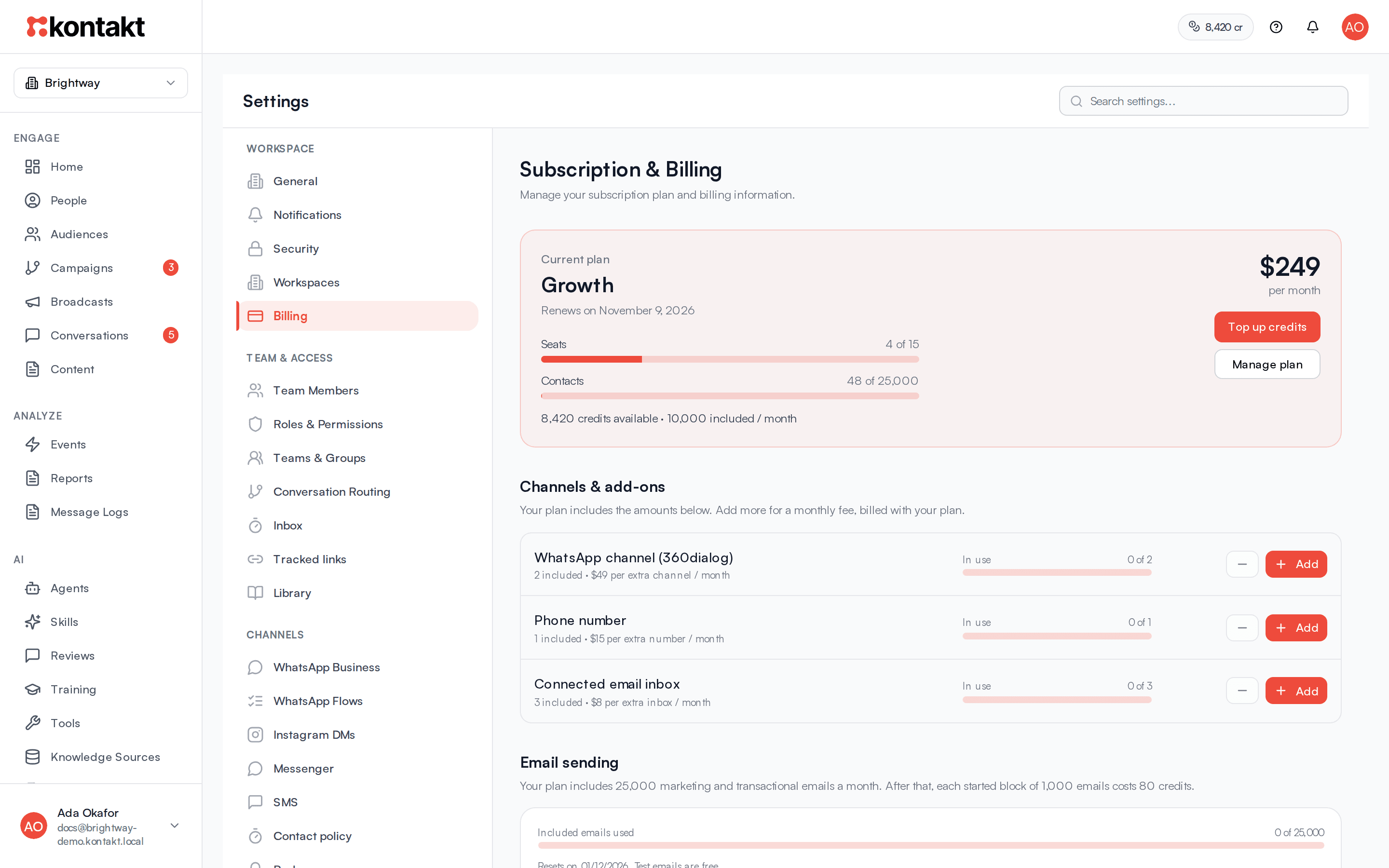
Go to Settings / Billing. The page is titled Subscription & Billing and has these sections, top to bottom:
- Current plan: your plan, renewal date and amount, saved card, seat and contact usage, and credits available. The Top up credits and Manage plan buttons are here.
- Channels & add-ons: how many WhatsApp channels, phone numbers, and inboxes your plan includes and how many are in use.
- Available plans: plan cards with Upgrade or Downgrade buttons.
- Pricing overview: every rate your workspace pays, in credits and USD, with filters and a Download button.
- Billing history: receipts for every payment.
- Credit activity: every credit added or spent, with the balance after each entry.
- Billing profile: the company details printed on receipts.
Your available credits also show in the header of every page. The chip turns amber when the balance is low and red at zero. Click it to open Billing. See Credits and top-ups.
Who can manage billing
Anyone whose role can read Settings can open Billing and see the balance. To buy credits, change plans, buy add-ons, or edit the billing profile, your role needs the Settings permission set to Update. See Roles and permissions.
Low-balance, failed-payment, and plan-ended emails, and payment receipts, go to the workspace owner and to members whose role can update settings.
If a Kontakt partner manages your workspace, Billing shows Billing is handled by your partner's name instead of checkout buttons. Contact your partner to change your plan or add credits. See Partners.