Events
Events are things your customers do, such as placing an order or signing up. The Events Explorer shows what has arrived and where it came from.
Events drive a lot of Kontakt. They start journeys, feed computed fields, and decide who is in an audience. Events Explorer lets you check that events are arriving, look at their properties, and control which sources Kontakt listens to.
Open it from Events in the sidebar. It has two tabs: Events and Sources.
Before you start
- You need permission to read people to open the Events Explorer. See Roles and permissions.
- Events come from a connected store, your own systems through the API, or webhook sources. If none are set up, the page is empty. See Shopify, Ingestion, and Webhook sources.
Look at recent events
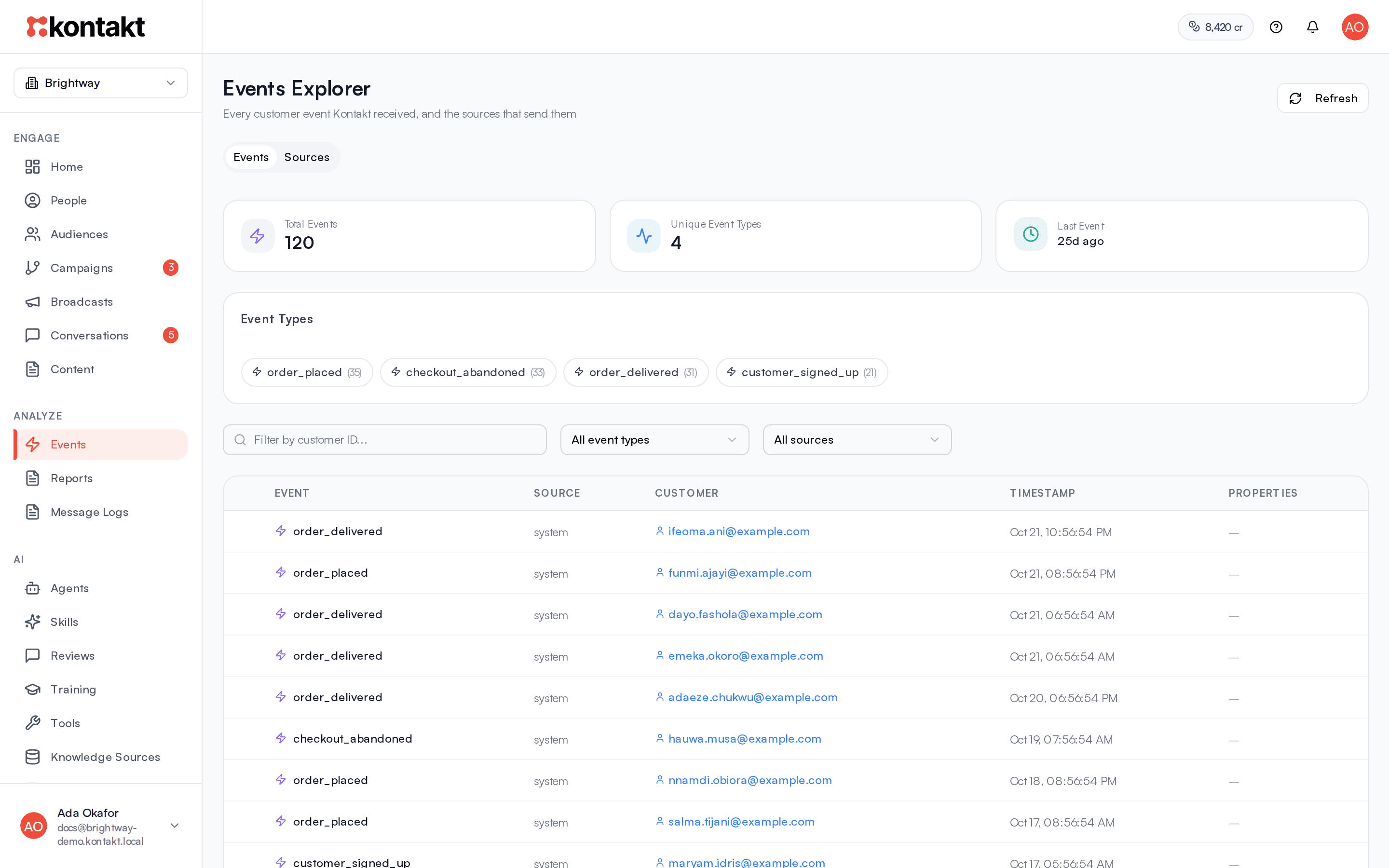
The cards at the top show Total Events, Unique Event Types, and Last Event. Under Event Types, each chip shows an event name and how many times it has arrived. Click a chip to filter to that event, and click Clear filter to undo.
The table lists the 50 most recent events that match your filters:
| Column | What it shows |
|---|---|
| Event | The event name, such as order_placed. |
| Source | Where it came from. |
| Customer | The person it belongs to. Click to open their profile. |
| Timestamp | When the event happened. |
| Properties | How many properties it carries. Click it, or the arrow at the start of the row, to see them in full under that row. |
Filter events
By event type
Pick a name from All event types, or click a chip under Event Types.
By source
Pick a source from All sources.
By person
Paste the person's ID into Filter by customer ID.... Use the full ID from the end of the person's profile address in your browser. Part of an ID, a name, or a phone number won't work.
Click Refresh to load events that arrived after you opened the page.
Manage event sources
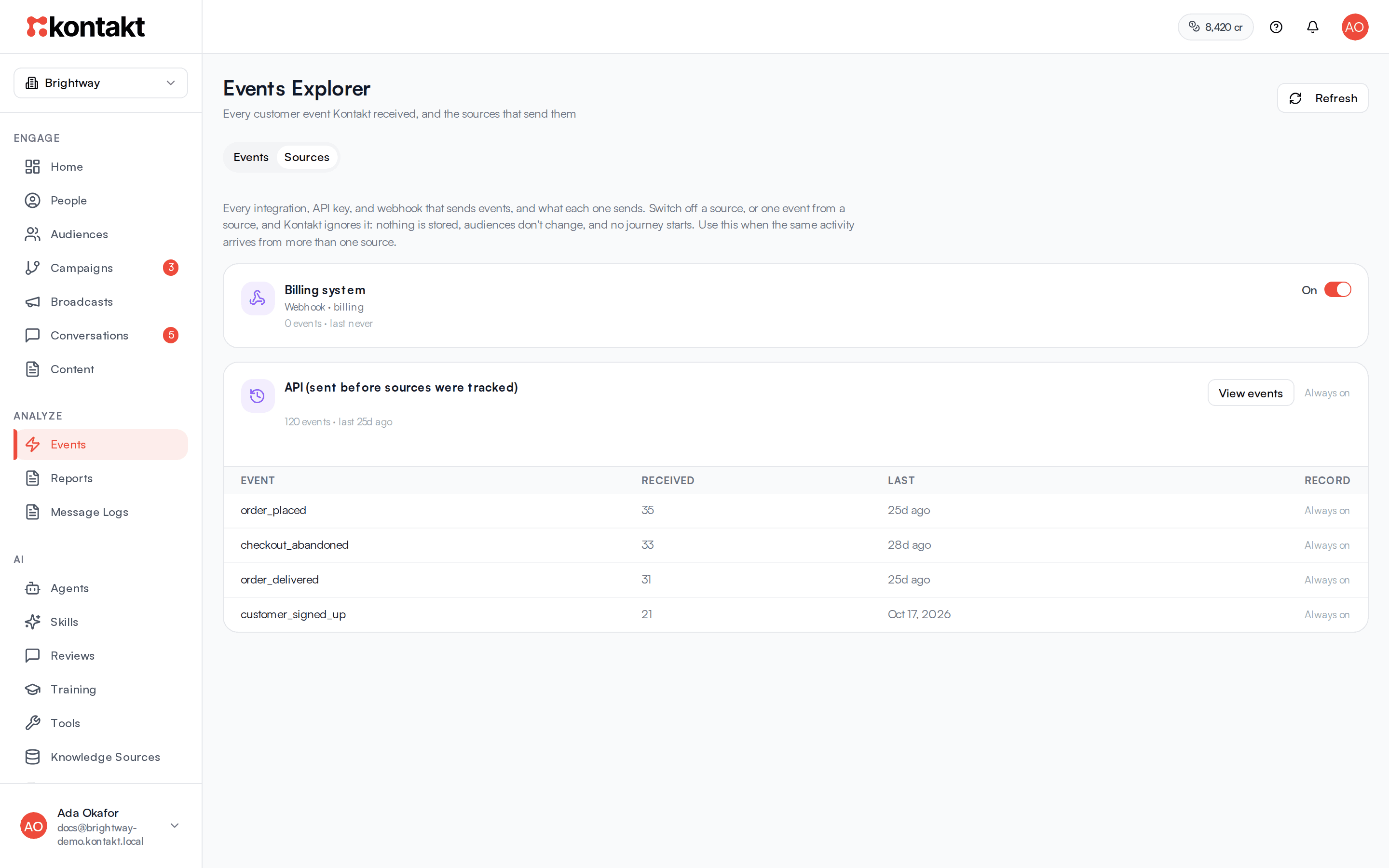
The Sources tab lists everything that has sent events, with a count and when the last one arrived.
| Source | Shown as | Can be switched off |
|---|---|---|
| Connected store | The store name | Yes |
| API key | API key and the start of the key | Yes |
| Webhook source | Webhook and its address name | Yes |
| Kontakt | Recorded by Kontakt, for events Kontakt creates itself | No, Always on |
| Older events | (sent before sources were tracked) | No |
A source that has since been removed shows as Deleted API key, Deleted webhook, or Removed store. A deactivated key shows Key deactivated, and a paused webhook shows Webhook paused.
Switch a source off
Find the source
On the Sources tab, find the store, API key, or webhook.
Turn it off
Use the switch on the source. The source shows "Off. Kontakt ignores every event this source sends."
Turn it back on
Use the same switch when you want events again.
Switch off a single event
Expand a source to see each event name it has sent, with Received and Last times. Turn off Record for an event to ignore just that event from that source. Other events from the same source keep arriving.
Click View events on a source to jump to the Events tab filtered to it.
How it behaves
- Ignored events leave no trace. While a source or event is switched off, Kontakt doesn't store what it sends. Audiences don't change and no journeys start because of it. Turning it back on doesn't bring back events sent in the meantime.
- Switching a source off doesn't disconnect it. The store, API key, or webhook stays set up. Only its events are ignored.
- The table is a recent view. It shows the latest 50 matching events, with no further pages. Use filters to narrow it, or Reports with the Customer Events source for history.
- Every person keeps their own timeline. The Events Timeline tab on a profile shows that person's events. See People.
Troubleshooting
"No Events Yet"
Nothing has been received. Click Get API Key to create a key and send events from your systems, or connect a store or webhook source.
Events stopped arriving from one source
Check the Sources tab. The source or the event may be switched off, the API key may be deactivated, or the webhook may be paused.
The customer ID filter shows an error
Use the full person ID from the profile address, not part of it or a phone number.
An audience or journey didn't react to an event
Check that the event name matches exactly, including capitalisation, and that Record is on for that event.