Audiences
An audience is a saved group of people. Dynamic audiences follow rules and stay current. Static audiences hold exactly the people you add.
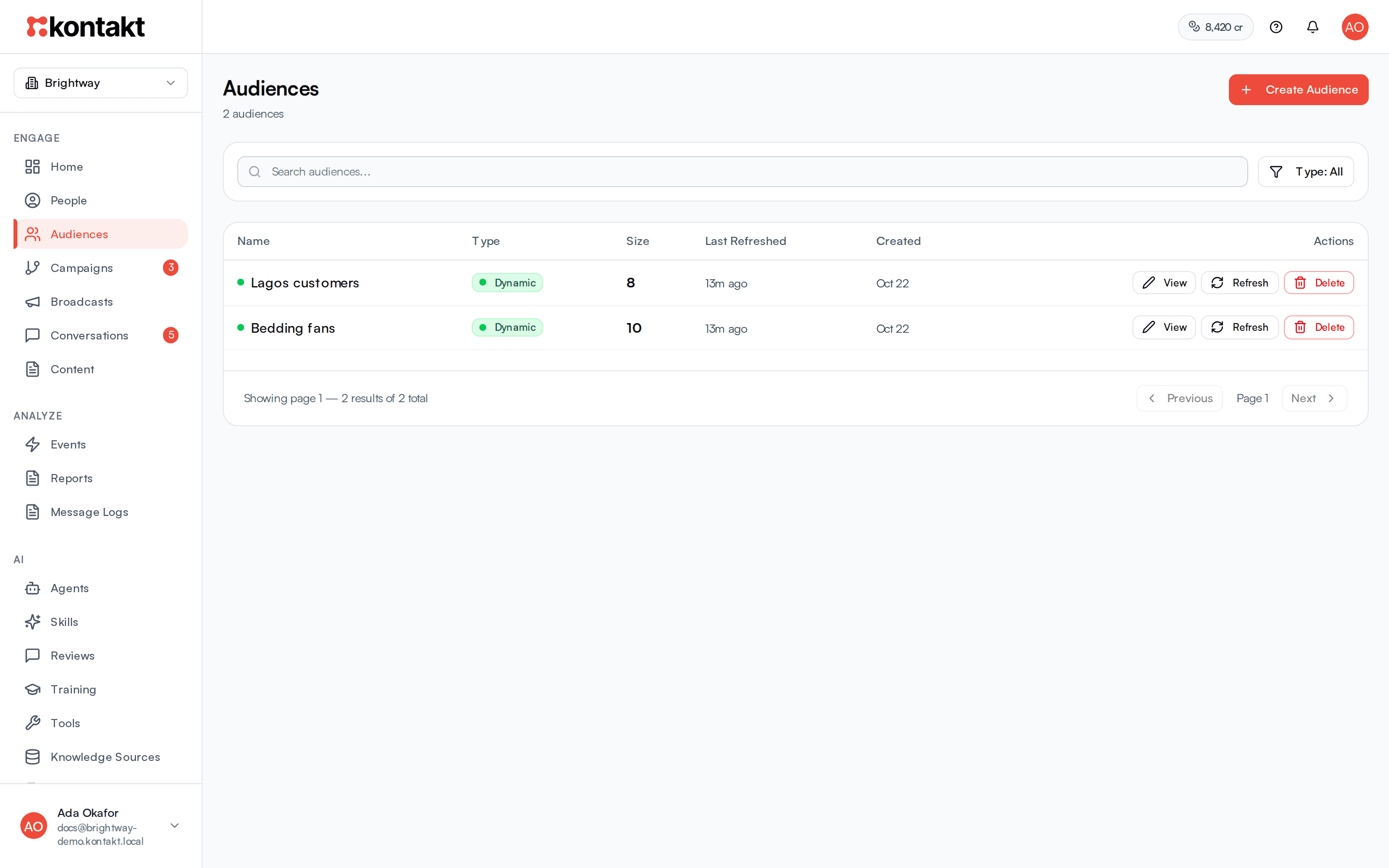
Audiences, also called segments, decide who receives a broadcast or enters a journey. Open Audiences in the sidebar to see them all, with their size and when they were last refreshed.
There are two types:
- Dynamic: membership comes from filter rules, such as "status is active and has tag VIP". People join and leave as their details change.
- Static: you add and remove people by hand. Rules don't apply.
Before you start
- Creating, editing, refreshing, and deleting audiences need the matching audience permissions. See Roles and permissions.
- Rules can use custom fields, computed fields, tags, and events, so set those up first if you need them. See Fields and tags and Events.
Create a dynamic audience
Start
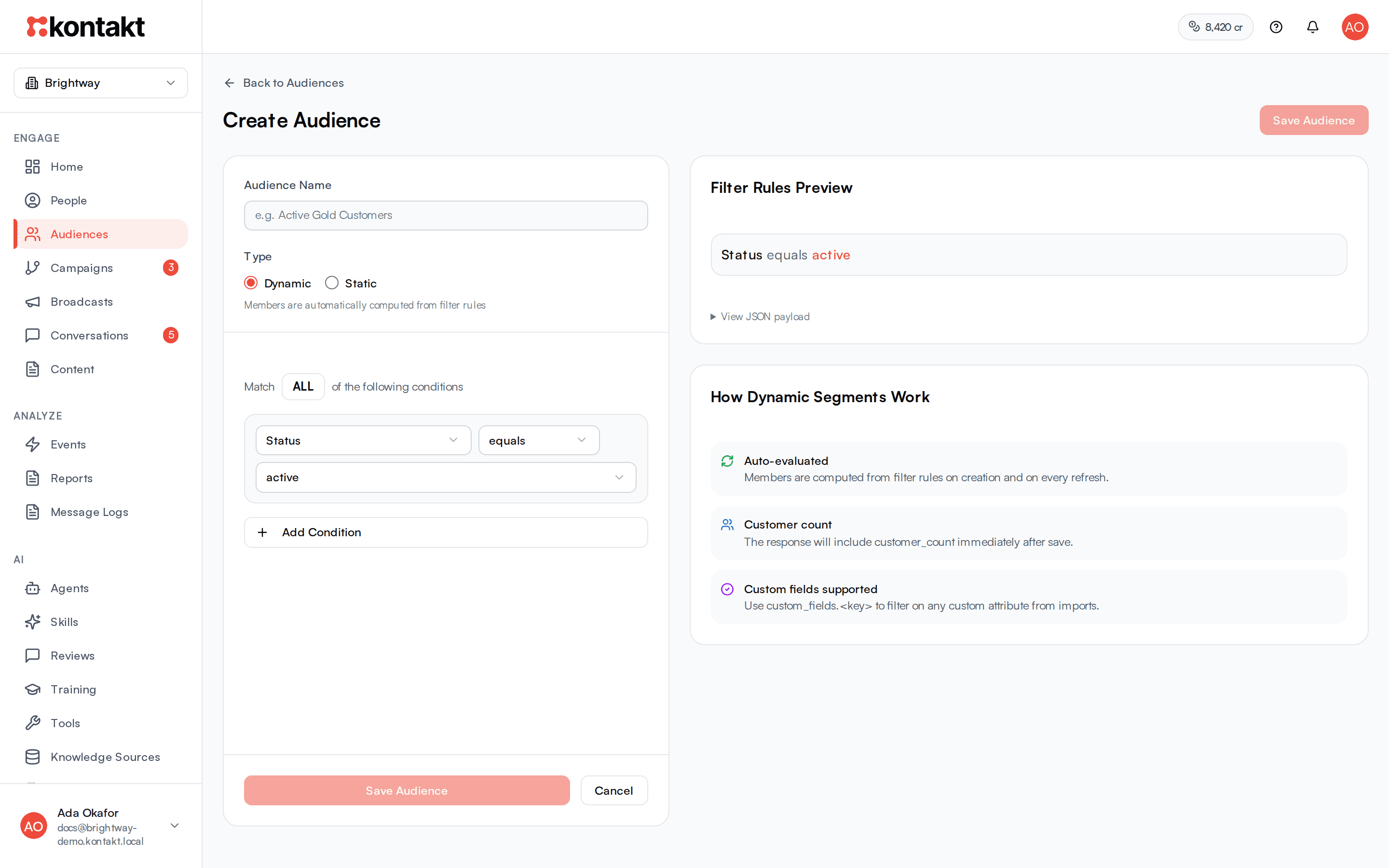
In Audiences, click Create Audience.
Name it
Enter an Audience Name, for example "Active Gold Customers", and leave Type on Dynamic.
Add conditions
Each condition has a field, an operator, and a value. Click Add Condition for more. Set Match to ALL to require every condition, or ANY to accept people who meet at least one.
Check the preview
Filter Rules Preview on the right shows your rules in plain words. Open View JSON payload to see the rules as data, which is useful when working with the API.
Save
Click Save Audience. Kontakt works out the members straight away and opens the audience.
Fields you can use
| Group | Fields |
|---|---|
| Standard Fields | Status, Phone, Email, Source, Created At, Last Activity At, Tags |
| Engagement & Wallet | Wallet Balance, Lifetime Points Earned, Lifetime Points Burned, Has Redeemed Code, Redeemed from Batch, Redemption Count, your computed fields, events your workspace has received, and purchase events from a connected store |
| Location | Country, Region, City, Area |
| Custom Fields | Every custom field in your workspace |
Operators depend on the field. Text fields offer equals, not equals, contains, and exists. Numbers offer equals, not equals, greater than, less than, at least, at most, and exists. Dates offer before, after, on or before, and on or after. Tags offers contains and does not contain, with a picker of your tags. Exists asks whether the person has any value at all, answered Yes or No.
Event conditions
Pick an event and choose performed or not performed.
- At least: the minimum number of times. Leave empty for once.
- Within days: only count events from the last N days. Leave empty for no limit.
- Add a property filter: only count events where a property equals a value, for example
amountequals100.
Last-occurred computed fields use "days ago, at least" and "days ago, at most", so you can find people whose last order was more than 30 days ago.
Target everyone you can reach
Set Match to ANY and add two conditions: Email exists Yes, and Phone exists Yes. For an email newsletter, keep only the Email condition. Don't use Status for this: many people have no status, and they would be left out. Sends already skip people who unsubscribed from that channel.
Starter audiences
If you have a store connected, ready-made starters appear above the list with their current size: Purchased once, Purchased at least 2 times in 90 days, and First purchase in the last 30 days. Click one to open it in the builder with the rules filled in, then save. See Shopify.
Create a static audience
Create it
Click Create Audience, enter a name, set Type to Static, and click Save Audience.
Add members
On the audience page, click Add Members. Search by name, email, or phone, tick people, and click Add N Members.
Remove members
On the Members tab, tick people and click Remove from Audience.
Manage an audience
Click an audience name or View to open it. The page shows Segment Size, Type, and Created, with two tabs:
- Overview: the audience's Filter Rules. Click Edit Rules to change them. While editing, the count under the rules shows how many people match. Click Save Rules to apply.
- Members: everyone currently in the audience, with search.
Other actions:
- Refresh (dynamic only): recalculate membership now.
- Use in a campaign: start a campaign aimed at this audience. See Journeys.
- Rename: click the pencil next to the name, or use the more menu.
- Delete: from the more menu or the list. This can't be undone.
How audiences update
Dynamic audiences are recalculated:
- When you save the audience or its rules.
- When you click Refresh or Refresh Now.
- For one person, whenever that person changes: they are created, edited, imported, tagged, send an event, and similar.
- In a background sweep across all dynamic audiences every 15 minutes.
When someone newly joins an audience, Kontakt starts any journeys that are triggered by entering it. Static audiences never add or remove people on their own.
To send to an audience, pick it when you set up a broadcast or journey. See Broadcasts and Journeys. The Copilot on Home can also draft an audience for you to review. See Copilot.
Troubleshooting
The audience size looks out of date
Click Refresh on the audience. Sizes also update in the 15-minute sweep.
Saving says a field or operator can't be used
Kontakt checks every rule before saving, so an audience never runs with a rule it can't apply. The message names the field and lists what it accepts. This mostly affects rules sent through the API or drafted by the Copilot; fix the rule and save again.
My custom field is missing from the field list
A field appears once at least one person has been saved with it. See Fields and tags.
A tag condition matches nobody
Tag conditions look at tags on people, not on conversations. Check that the people have the tag on their profile.
Event conditions match fewer people than expected
Within days counts back from now, and At least counts every matching event. Check the event name in Events, including capitalisation.