Importing contacts
Upload a CSV, match its columns to Kontakt fields, and import up to 50,000 people at a time. Existing people are updated, not duplicated.
Use a CSV import to bring in a customer list from another tool or spreadsheet. The import runs in four steps: Upload File, Map Fields, Validate, and Review & Import.
Before you start
- You need permission to create customers. See Roles and permissions.
- Save your file as CSV with a header row. UTF-8 encoding is recommended.
- The file can be up to 10 MB and 50,000 rows.
- Every row needs a phone number or an email address.
- Write phone numbers in international format with
+and the country code, for example+2348030000000.
Import a file
Open the importer
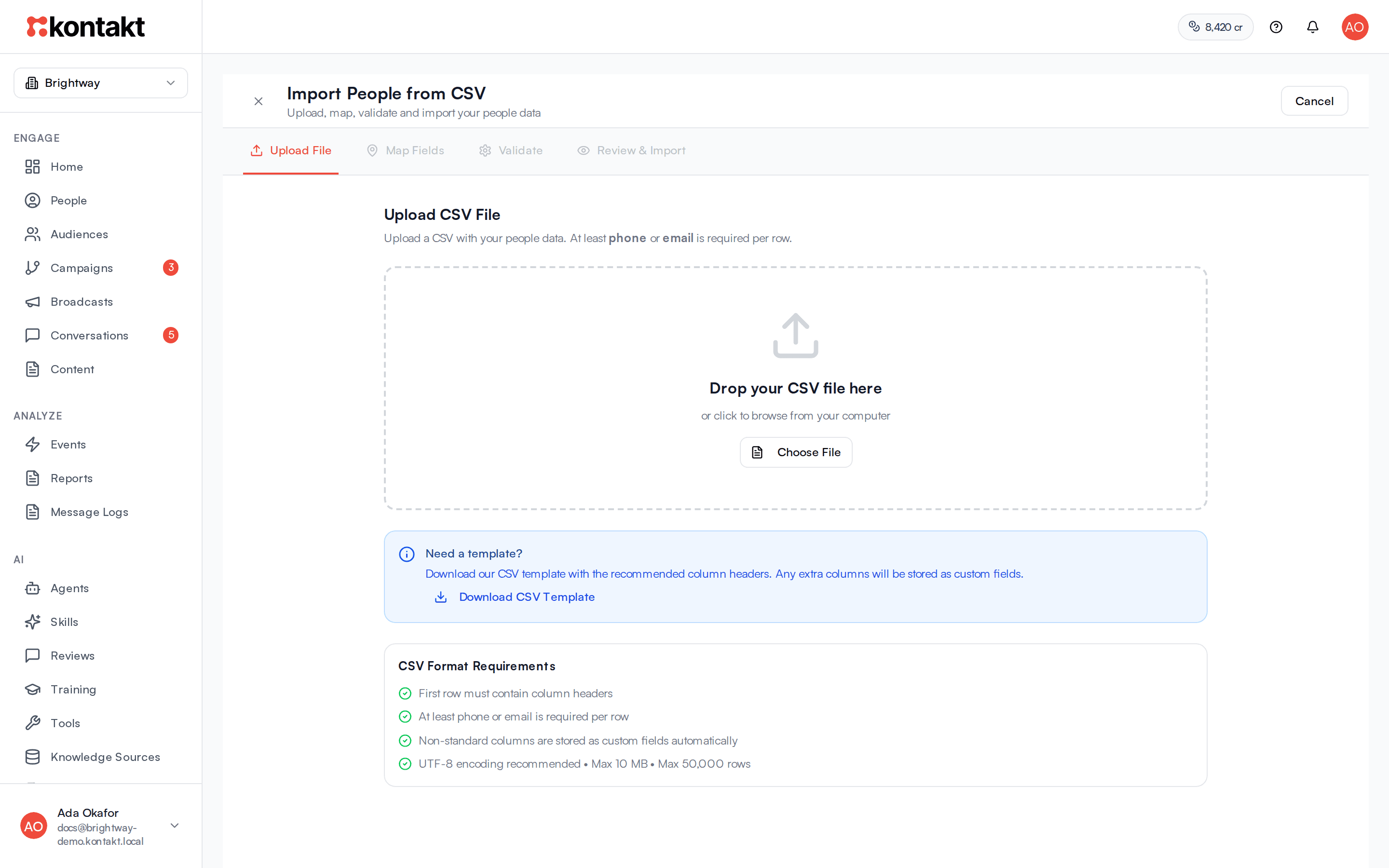
In People, click Add Person, then Import from CSV. The Import People from CSV page opens.
Upload File
Drop your CSV on the page or click Choose File. Kontakt shows the file name, row count, and column count. Click Download CSV Template for a file with the recommended headers. Click Next.
Map Fields
Each CSV column is matched to a Kontakt Field. Common headers are matched for you, and the page shows how many columns were mapped. Check each one and change it if needed:
- A standard field: Phone, Email, First Name, Last Name, External ID, or Status.
- Custom field (auto-created): stores the column as a custom field named after the header.
- Skip: leaves the column out.
You must map at least one column to Phone or Email. Click Validate.
Validate
Kontakt checks your rows and shows Total Rows, Valid Rows, Errors, and Warnings. Warnings about the whole file, such as email addresses that can't receive email or shared inboxes like info@, show Whole file instead of a row number. Fix any errors in the file and upload it again, or go back and change the mapping. Click Re-validate after changes, then Next.
Review & Import
If you mapped an Email column, answer How did these people agree to get email from you? first: They signed up to hear from us, They are existing customers, or I'm not sure. The first two give everyone in the file email marketing consent, unless they already unsubscribed. I'm not sure adds them without it. See Email deliverability.
Check the Import Summary and the first five rows. To tag everyone in this import, click Select Tags under Tag Imported People, tick tags, or type a name and click Create. Then click Import N People.
When it finishes you see Import Complete! with counts for Created, Updated, and Failed, and the first 20 row errors. Click Import More to start another file or View People to go back to the list. Keep the page open until the result appears.
Column reference
These headers are recognised automatically. Matching ignores case, spaces, dashes, and underscores.
| Kontakt field | Headers matched automatically |
|---|---|
| Phone | phone, phone number, mobile, msisdn |
| email, email address | |
| First Name | first name, fname, first, given name |
| Last Name | last name, lname, last, surname |
| External ID | external id, customer id, id |
| Status | status |
Status accepts active, inactive, at-risk, or unsubscribed. Any other value, or an empty cell, is saved as active.
Account manager. A column headed exactly account_manager that contains a teammate's email address sets that teammate as the person's account manager. Leave the column mapped to Custom field (auto-created). The teammate must be an active member of the workspace, otherwise the cell is ignored.
Everything else becomes a custom field. A column called loan_tier is stored as custom_fields.loan_tier and appears in profiles, filters, and audiences. See Fields and tags.
Tag with the picker, not a column
The Tags field expects tag IDs, not tag names. To tag the people in a file, use Tag Imported People on the last step instead.
How matching works
For each row, Kontakt looks for an existing person in this order:
- The same phone number.
- If there is no phone match, the same email address.
If a person is found, they are updated:
- First name, last name, email, and phone are replaced only where the CSV cell has a value. Empty cells keep what is already saved.
- Custom fields in the file are added to the person's existing custom fields. Fields not in the file are kept.
- Status is set from the Status column, or to
activeif the file has no status for that row. - External ID is not changed.
If no person is found, a new one is created with the source Imported and status from the file or active. To list everyone a CSV import created, choose Imported under Source in the People filters, or add a Source is Imported condition to an audience.
If the same phone or email appears twice in one file, the first row creates the person and later rows update them.
After the import, each imported person is checked against your dynamic audiences, so they join matching audiences and any journeys triggered by those audiences.
Troubleshooting
"You must map at least one column to Phone or Email"
None of your columns is mapped to Phone or Email. Change the mapping for the column that holds phone numbers or emails.
Rows failed with "Missing phone and email"
Those rows have neither a phone nor an email after mapping. Fill them in, or remove the rows.
The validation passed but some rows failed on import
Validation checks the first 100 rows. Problems in later rows only show on the result screen. Read the row numbers listed under Import Errors, fix those rows, and import them again. Rows that already imported are matched and updated, not duplicated.
Imported people didn't match existing ones
Phone numbers must match exactly after spaces and punctuation are removed. +2348030000000 and 2348030000000 count as different numbers. Use the same international format everywhere.
Statuses were reset to active
Matched people are set to the status in the file, or active if the row has none. Include a Status column if you want to keep other statuses.
"File size exceeds 10 MB limit"
Split the file into smaller files and import them one at a time.