Agents
An agent decides which of your channel connections the AI answers, how it introduces itself, and whether replies are sent straight away or reviewed first.
An agent is the container customers talk to. It holds a persona, a mode, the channel connections it answers, and the skills it can use. You can run one agent for everything or several agents, for example one for your WhatsApp sales number and one for website support.
Before you start
- You need a role that can change workspace settings. Workspace admins can.
- Connect at least one channel first, such as WhatsApp, Instagram, Messenger, or the web widget and hosted chat. An agent only answers live traffic on connections it is bound to.
- Have at least one active skill. An agent with no skills mounted does not reply.
Create an agent
Open Agents
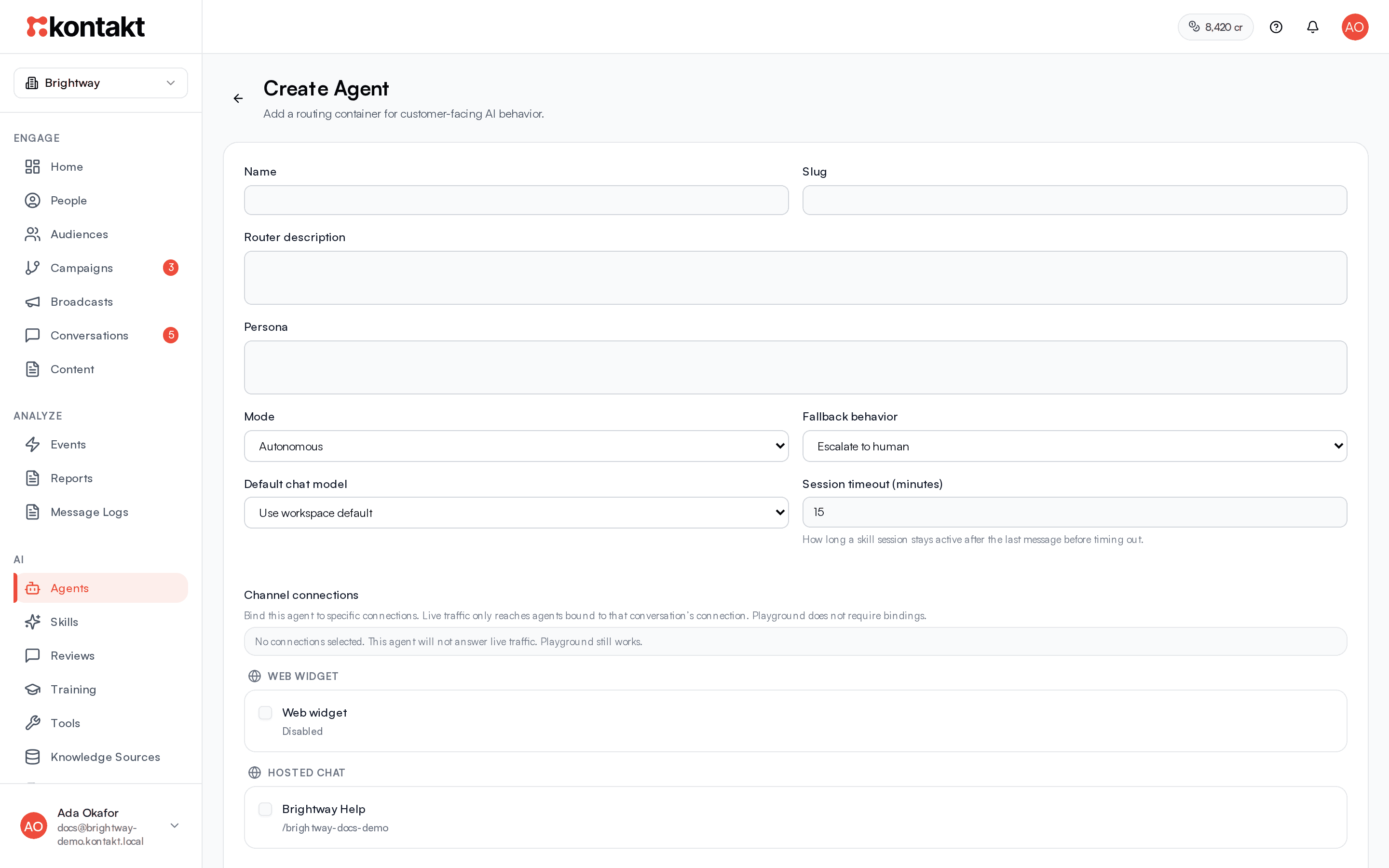
Go to AI / Agents and select Create Agent.
Name and describe it
Fill in Name. The Slug fills in from the name. Write a Router description that says what kinds of questions this agent handles. The router reads it when it decides which agent should answer, so be specific, for example "Delivery, returns, and product questions from shoppers".
Set the persona and mode
Write a short Persona, such as "Friendly, brief, and practical. Writes like a helpful shop assistant." If you leave it empty, the agent describes itself as a helpful assistant for your workspace.
Choose a Mode:
- Autonomous sends replies straight to the customer.
- Supervised sends every reply to AI / Reviews for a person to approve first.
Choose a model and session timeout
Leave Default chat model on Use workspace default unless this agent needs a different model. Session timeout (minutes) sets how long a skill conversation stays open after the customer's last message. It accepts 1 to 120 minutes and defaults to 15.
Bind channel connections
Under Channel connections, tick the WhatsApp numbers, Instagram accounts, Messenger pages, web widgets, and hosted chat pages this agent should answer. Connections already used by another agent show Bound to another agent. If you bind the same connection to two agents, both are considered when routing messages on it.
If you have no connections yet, select Open Channels to connect one.
Save
Select Create Agent. The agent opens on its Configure tab.
Mount skills
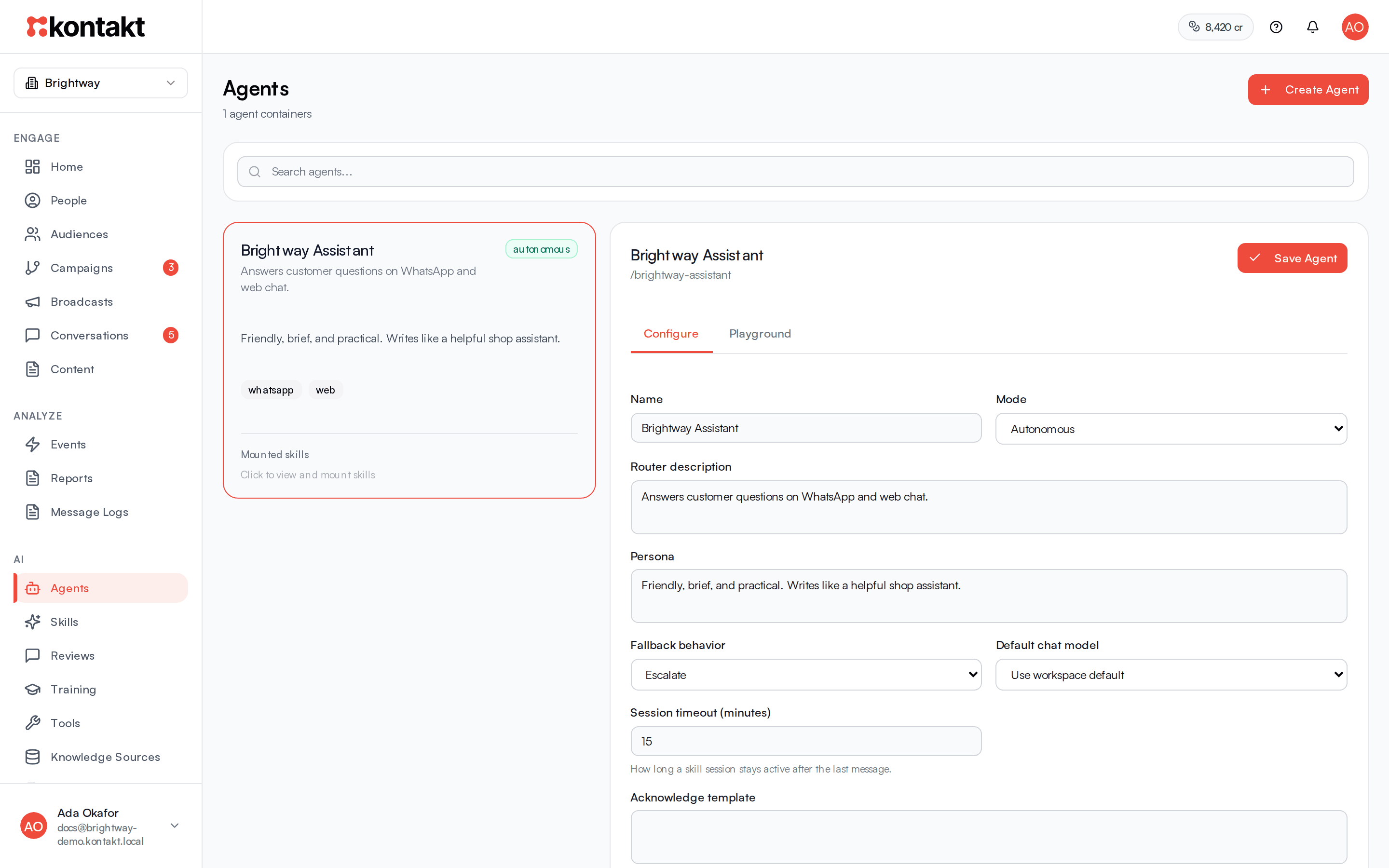
Skills are what the agent actually does. On the agent's Configure tab, find Mounted Skills and select Add Skills. In the Skill Library, pick each skill you want, set its priority, and select the Mount button. It shows how many skills you picked, for example Mount 2 Skills.
- Priority decides which skill wins when the router cannot tell them apart. The skill with the higher number is used.
- To change a skill's priority later, edit it in the list and select Update. To remove it, use the trash icon. Removing a skill from an agent does not delete it from the library.
Mounted skills are used for both customer messages and follow-ups.
Test in the Playground
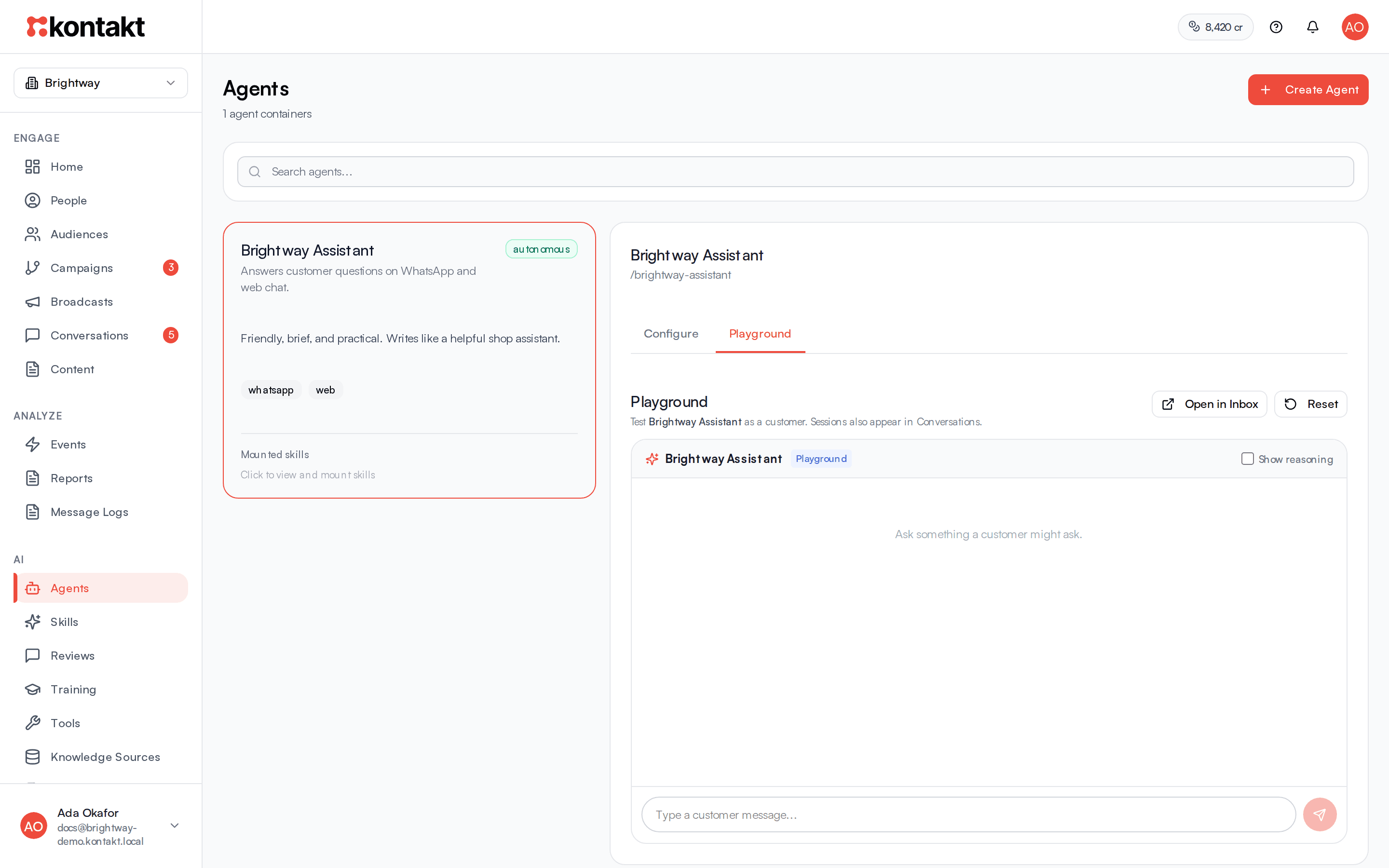
Open the agent and switch to the Playground tab. Type a message as a customer would and press send. The agent routes and answers exactly as it would on a live channel, using the same skills, knowledge, and tools.
- Playground works even when the agent has no connections bound and even when workspace AI is turned off.
- The router's confidence threshold is not applied in the Playground, so a vague message that would go to a person in live traffic may still get an answer here.
- Tick Show reasoning to see how the message was routed and which tools ran.
- Select Open in Inbox to see the test conversation in Conversations. Playground conversations carry a Playground badge there.
- Select Reset to start a fresh test customer.
- If no reply comes back, the Playground tells you why: the message was acknowledged without a reply, the agent has no active skills mounted, the agent handed off to a human, or the AI skipped the message.
Rate each reply with the control under it. Failed replies can be added to your quality suite so you can retest them later. See Agent health.
Playground replies use credits
Playground replies are charged like live AI replies, at $0.03 each. See Billing.
How the agent decides
When a message arrives on a bound connection, Kontakt:
- Waits briefly to collect any follow-on messages, then answers them together.
- Considers only active agents bound to that connection and the active skills mounted on them.
- Picks a skill. With one mounted skill, that skill is used. With several, the router model chooses using the agents' router descriptions, the skills' descriptions, and the Routing Instructions in AI settings. If the router is less confident than the Routing Confidence Threshold, the conversation goes to your team instead.
- Keeps the customer in that skill for later messages until the session times out. If the customer clearly changes topic, Kontakt can switch to a better skill. A message that asks about several things can be answered by up to three skills, merged into one reply.
Escalation to your team
The AI hands a conversation to people when:
- The skill calls the Escalate To Human tool.
- The router is not confident enough to pick a skill.
- A reply fails a guardrail check, or the AI cannot produce a safe answer.
When that happens the conversation moves to the Open tab in Conversations, may be assigned according to your routing rules, and shows a banner saying the AI handed off. The AI stays paused on that conversation until it is resolved.
Human takeover
A teammate can take over at any time by replying. As soon as a person sends a message, from the Kontakt inbox or from the WhatsApp or Instagram app on their phone, the AI stops replying to that conversation and the inbox shows Handed to a teammate. If the AI was halfway through writing a reply, that reply is dropped.
To give the conversation back to the AI, resolve it. Select Resolve from the conversation menu, or move it to Resolved. The next message from the customer is handled by the AI again. See Conversations.
Follow-ups and messaging rules
Under Follow-ups, an agent can message customers first. Select Add follow-up, give it a Name, and choose When to message: They stayed quiet, After an event, or Joined a group. Choose the connection under Send on, optionally a skill under Which skill to use, and write Instructions for the agent. On WhatsApp, pick a WhatsApp template for customers who last wrote more than 24 hours ago. Select Save follow-up. When editing a follow-up you can Preview it against a customer ID without sending.
Messaging rules limit follow-ups from this agent: quiet hours with a Timezone, Messages per customer / day and Messages per customer / week, what to do If a chat is already open, and whether to skip customers a teammate took over or who unsubscribed. An agent can be stricter than the workspace defaults but not looser. Messages due during quiet hours wait until quiet hours end.
Follow-ups only run when the agent's mode is Autonomous. Follow-up messages written by the agent are charged as AI replies.
Deactivate or delete an agent
In the agent's Danger zone, select Deactivate to stop it answering without losing anything. Select Reactivate to turn it back on.
Delete agent asks you to confirm and offers Deactivate instead. If you select Delete permanently, Kontakt hands any active customer conversations with this agent to your team, removes its Playground history, and unmounts its skills. The skills stay in your library. Its hosted chat pages stay enabled but are unlinked, so assign them a new agent.
Troubleshooting
The agent does not reply to real customers
Check, in order: Workspace AI is on in Settings / AI Settings; the agent is active; the connection the customer wrote to is ticked under Channel connections; at least one active skill is mounted; the conversation is not handed off or taken over by a teammate; and your workspace has credits.
It works in the Playground but not live
The Playground skips channel bindings, the workspace AI switch, and the routing confidence threshold. Bind the connection, turn workspace AI on, and if replies still go to your team, lower the threshold or improve the router and skill descriptions.
The wrong skill answers
Make each skill description say clearly what it handles and what it does not. Add Routing Instructions in AI settings, and raise the priority of the skill that should win ties.