Conversations
Conversations is the shared inbox for WhatsApp, Instagram, Messenger, email, and web chat. AI agents and your team work from the same threads.
Open Conversations in the sidebar to see every chat in your workspace. Each customer has one continuous thread per channel and connected number or inbox, so the full history stays in one place even after a chat is resolved and the customer writes again weeks later.
Before you start
- Connect at least one channel. See Channels.
- You need a role that can read conversations. Replying, assigning, and changing status need the matching conversation permissions. See Roles and permissions.
- Replies that cost credits draw from your balance. See Channel pricing.
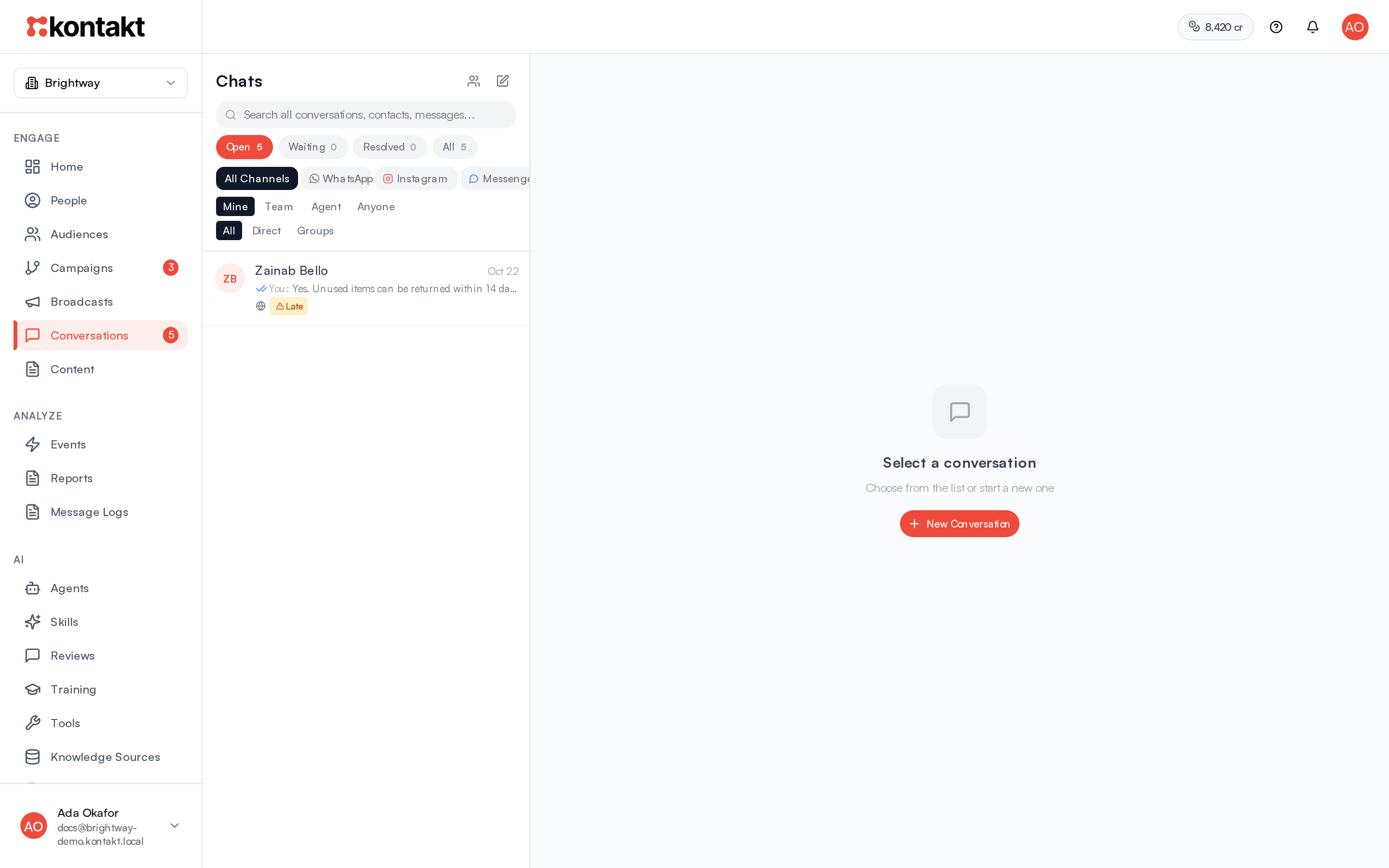
Find a conversation
The list on the left is headed Chats and shows a badge with your total unread messages.
Status tabs. Every conversation sits in one tab:
| Tab | What it holds |
|---|---|
| Open | Conversations requiring action or a response. |
| Waiting | Waiting for the customer to respond or pending next steps. |
| Resolved | Completed and resolved conversations. |
| All | All conversations across all statuses. |
Channel pills. All Channels, WhatsApp, Instagram, Messenger, and Email. Click an active pill again to clear it.
Type. All, Direct, or Groups (WhatsApp groups).
Owner. Mine, Team, Agent, or Anyone.
- Mine shows chats assigned to you, plus unassigned chats a person should pick up. Chats an AI agent is handling, and chats assigned to teammates, are left out.
- Team shows chats a person should handle: not being handled by an AI agent and not waiting on an AI reply. Pick a teammate or Unassigned from the dropdown that appears under it.
- Agent shows chats an AI agent is handling or is about to answer.
- Open starts on Mine. The other tabs start on Anyone.
- In the mobile app, the same choice is under More filters, where Mine is called Mine and unassigned.
Search. Type in "Search all conversations, contacts, messages..." to search names, phone numbers, emails, previews, and message text. Search runs across every status, shown by the line "Global search across all statuses". Click Clear to go back to the tab you were on.
The list loads 50 conversations at a time. Scroll down and click Load more for the next batch. Your tab, channel, owner, and teammate choices are kept in the page address, so you can bookmark or share a filtered view.
What the chips on a row mean
- Unread dot and count: messages nobody on your team has read yet.
- Priority: shown when a chat is Urgent or High.
- Late: the chat has waited longer than your Late threshold. See Routing.
- Escalated: an AI agent handed the chat to a person.
- Handed to a teammate: someone on your team took over from AI.
- Pending review: an AI draft is waiting for approval.
- AI handling: shown when the owner filter is Agent and an AI agent is handling the chat.
- A campaign, ad, or source chip shows where the conversation came from.
Reply to a customer
Open the thread
Click a conversation. The header shows the customer, the status, any Late badge, priority, the number or inbox it came in on, and who it is assigned to.
Write your reply
Type in the composer. Press Enter to send, or Shift+Enter for a new line. To attach a file, use the paperclip and pick Image, Document, Audio, or Video, paste a copied image or screenshot into the composer, or drag a file onto the thread. Add a caption, and send. One attachment goes per message.
Use saved content
Click the book icon, or type / in an empty composer, to open your Library of quick replies and files. On WhatsApp you can also click Send template to send an approved template, or send a WhatsApp Flow form while the chat window is open. Insert tracked link adds a link that carries the customer and conversation IDs, so a form or order on your site can be credited back to this chat. See Tracked links.
Check delivery
Outbound messages show Sending, Sent, Delivered, Read, or Failed. A failed message shows the reason under the bubble.
When you send a reply, the conversation is assigned to you, even if a teammate owned it before, and it moves to Waiting until the customer answers. The change is recorded in Activity. The conversation stays in the list you're on, marked Moved to Waiting, until you open another conversation or change a filter.
Attachments and images
Images can be JPG, PNG, GIF, or WebP. Video can be MP4 or 3GP. Documents can be PDF, Word, Excel, CSV, or plain text. Each file can be up to 25 MB. A file that doesn't fit these rules is rejected before it is sent, with the reason.
Click an image in the thread to view it full size. Use the arrows or the left and right arrow keys to move through the other images in the conversation, and Open original to open it in a new tab. You can also click the preview of an image you're about to send.
On email, choose Reply, Reply all, or Forward. Forward asks for "Forward to (comma-separated emails)".
Messages sent outside Kontakt
Replies sent outside Kontakt appear in the thread labelled "Sent from WhatsApp", "Sent from Instagram", "Sent from Messenger", or "Sent outside Kontakt". A reply sent from the WhatsApp Business app on a connected number counts as a human takeover, so AI stops answering that chat until it is resolved.
Start a new conversation
Click the New Conversation icon at the top of the list. You can also start from a person: click Start Conversation on their profile, or Send Message in their row menu under People. The same steps open with that person already picked.
Pick a channel and sender
Choose WhatsApp, SMS, or Email, then the number or inbox under Send from. A number marked Not Registered can't send yet.
Pick the recipient
Choose Existing Person and search by name, email, or phone, or choose New Recipient and enter a first name and a phone number with country code (or an email address for email). A new person record is created when you start the conversation.
Choose a template or free text
WhatsApp requires an approved template to start a conversation. If the customer messaged you in the last 24 hours, you see "24-hour messaging window is open" and can click Start with free text instead. Fill in any template variables, then click Start Conversation.
Work alongside AI agents
AI agents reply in the same threads. Their messages are labelled Bot. While an agent is working you may see "AI collecting messages…" or "AI thinking…".
Take over. Send any reply yourself and the AI stops answering that conversation. The banner reads "Handed to a teammate" and the chat shows the same chip in the list.
Escalations. When an agent decides a person should help, the thread shows "AI escalated this conversation to a human" and AI pauses. Auto-assignment, if it is on, picks a teammate. See Routing.
Hand back. Resolve the conversation, or move it to Resolved. Resolving releases the takeover, so AI can answer the customer's next message.
Supervised replies. If a skill needs approval before sending, the thread shows a Pending AI Review banner with the draft. Edit it if needed, then click Approve to send or Reject to discard. These conversations sit in Open until you act. See Reviews and training.
Messages held while a teammate is chatting
While you are chatting with a customer, journeys and broadcasts can hold their messages back so they don't interrupt you. You count as chatting when the conversation is open and a teammate took it over or replied in the last 24 hours.
When something is waiting, the thread shows "1 automated message is waiting for this chat to end", with the journey or broadcast and what happens if you are still chatting:
- Journey steps set to Wait until they're done are skipped after 24 hours.
- Broadcasts set to Wait until the chat ends, then send send anyway after 24 hours.
Resolve the conversation when you're done. Held journey steps then send within a minute, and broadcast messages within 10 minutes. The banner shows on the web app and the mobile app. Messages set to skip aren't listed, because they were never held. To resolve chats that go quiet automatically, see Resolve quiet chats.
Organise conversations
Use the icons on the right of the thread to open Info, Tags, Notes, Activity, and AI Trace (plus Participants in groups).
- Assign: from the more menu, choose a teammate or Unassign in "Assign Conversation". The teammate gets a push notification.
- Set Priority: Urgent, High, Normal, or Low.
- Add Tags: tick workspace tags to add them. Remove a tag with the X in the Tags panel. To create new tags, see Fields and tags.
- Notes: the Internal Notes panel. Type in "Add an internal note..." and click Add Note. Notes show the author and time and are never sent to the customer.
- Activity: a timeline of assignments, tag changes, notes, status moves, and priority changes.
- Move to: the Open, Waiting, and Resolved buttons move the chat between tabs.
- Archive: from the more menu. Archived chats leave the active tabs.
- Mark as unread: from the more menu. The thread closes and the chat shows as unread for everyone on the team, so it stands out until someone opens it again. In the mobile app, press and hold a chat in the list.
To act on many chats at once, hover a row and tick its checkbox. The bar that appears offers Assign, Resolve, and Archive, and its more menu offers Mark as unread and Mark as read.
How it behaves
- The customer writes again: the conversation moves to Open. If it was resolved or archived, it reopens in the same thread and any takeover is cleared.
- You reply: the conversation moves to Waiting, unless you moved it by hand.
- You move it by hand: the move sticks until the customer writes again. Moving a resolved chat to Open or Waiting reopens it.
- Reopen and Resolve: Resolve appears in the more menu for open chats and Reopen for resolved ones.
- Live updates: new messages arrive in real time. If the live connection drops, the inbox checks for updates every few seconds.
Channel windows
WhatsApp allows free-form replies for 24 hours after the customer's last message. After that, the thread shows "24-hour messaging window has expired" and the text box changes to "Select a template to message this customer...". Click Send a template to continue. Attachments and Library are hidden until the customer replies. WhatsApp groups don't have this limit.
Instagram and Messenger: between 24 hours and 7 days after the customer's last message, the thread shows "Outside the standard 24-hour window". You can still reply as a person, but AI replies wait until the customer writes again. After 7 days you see "Messaging window expired" and can't reply until the customer messages you.
Paid replies
On some WhatsApp numbers, Meta charges for service replies. When that applies, a line under the composer tells you how many credits each reply uses. It doesn't show for groups. See Channel pricing for rates.
Opted-out customers
If a customer opted out of WhatsApp marketing, choosing a marketing template shows "This person opted out of WhatsApp marketing messages." In the inbox this is a warning, so you can still send. Broadcasts and journeys skip marketing templates for that person. See People.
Troubleshooting
My message shows Failed
Read the reason under the bubble. It is the error Meta sent, with its code, and some codes have a short note below. Common ones:
- Code 131047: the WhatsApp window closed. Send a template.
- "Message undeliverable (131026)": Meta doesn't say why. The number may not be on WhatsApp, or the person may not have accepted WhatsApp's latest terms or updated their app. Check the number in the person's profile.
- "User's number is part of an experiment (130472)": Meta held back a marketing template for an experiment. Retrying won't send it.
See Common WhatsApp failure codes for more.
For the full delivery history of a message, see Message logs.
The AI isn't answering a customer
Check the thread for "Handed to a teammate" or an escalation banner. AI stays paused until you move the conversation to Resolved. On Instagram and Messenger, AI also waits if the customer's last message was more than 24 hours ago.
I can't find a conversation in Open
Open starts on Mine, which hides chats assigned to teammates. Mine and Team both hide chats an AI agent is handling. Switch the owner filter to Anyone, or search, which covers every status.
A chat you replied to moves to Waiting. It stays in the list while it's open, then leaves Open when you move on. Look in Waiting or All.
I can't type in the composer
The WhatsApp 24-hour window has closed. Send a template to re-open the conversation.