Shopify
Shopify connects at two levels. The catalog lets AI agents search your products. Customer and order sync brings buyers, orders, and checkouts into Kontakt as events your journeys can use.
A Shopify connection has two parts, and you can use the first without the second:
- Catalog. Agents can search products, read product details, recommend products, and send product images in conversations. This needs a Storefront API token.
- Customer and order sync. Shopify customers become people in Kontakt, and orders, payments, fulfilments, refunds, and checkouts become events. This also powers abandoned checkout journeys, store credit, discount codes created in Shopify, and sales attribution. This needs Admin credentials from a Shopify app.
Before you start
- A role that can change workspace settings in Kontakt.
- Admin access to the Shopify store.
- Your store's
*.myshopify.comaddress. Find it in Shopify under Settings / Domains. Use the myshopify address, not your custom domain. - For customer and order sync, an app created in the Shopify Dev Dashboard for this store, installed on the store, with these Admin API scopes:
| Scope | Needed for |
|---|---|
read_customers | Customer sync and marketing consent |
read_orders | Orders, payments, fulfilments, refunds, and checkouts |
read_all_orders | Importing orders older than about 60 days. Without it, Shopify only returns recent orders. |
write_discounts | Creating code batches in the store |
write_store_credit_account_transactions and read_store_credit_accounts | Crediting and reversing store credit |
Connect your store
Open Connectors
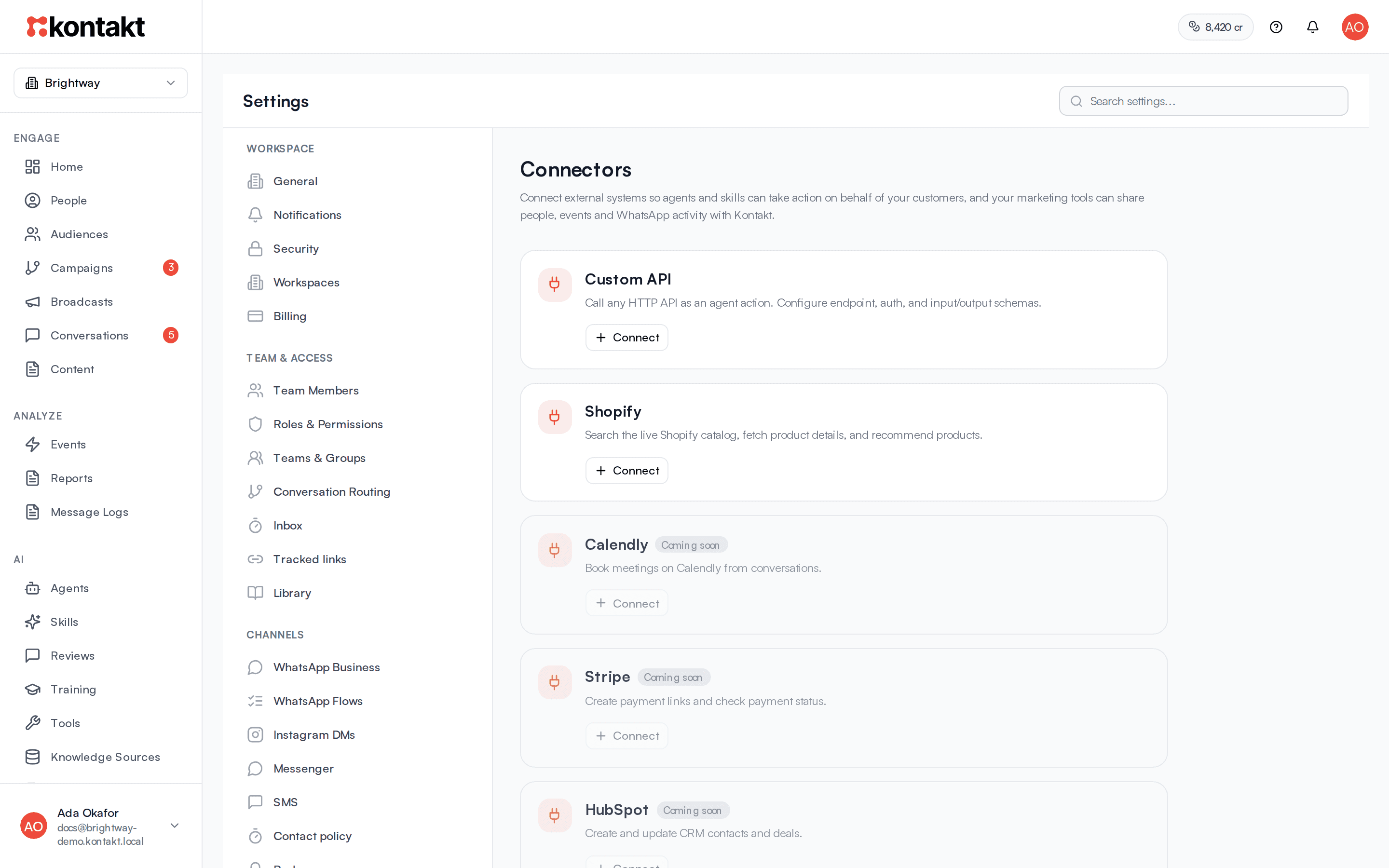
Go to Settings / Connectors and click Connect on the Shopify card. If a store is already connected, the button reads Add another store.
Create a Storefront API token
In Shopify, install the Headless sales channel and create a storefront. Copy the public access token. Do not use the private token or an Admin API token that starts with shpat_. Under the Storefront API permissions, enable product access and save.
Fill in the catalog fields
- Display name: a label your team sees in Kontakt.
- Shop domain: the
your-store.myshopify.comaddress. - Storefront API public access token: the token from the previous step. It is stored encrypted and never shown again.
- Primary domain (optional): your public store domain, used to build product links.
Add Admin credentials for customer and order sync
Under Customer and order sync, paste the Admin client ID and Admin client secret from your Shopify Dev Dashboard app. Kontakt refreshes the Admin token for you. Leave both blank to keep a catalog-only connection.
Use Legacy Admin token only if the store already has a static Admin API token.
Set Order history to the number of months of orders to import. The default is 24 and the maximum is 60.
Tick I have consent to message these customers on SMS and email. only if that is true. When ticked, people whose consent is unknown can receive marketing on SMS and email. People who unsubscribed are never messaged.
Connect
Click Connect Shopify. Kontakt checks the Storefront token first. If Admin credentials are present, it then registers webhooks with Shopify and starts importing customers and orders.
Turn on catalog tools for your agents
After connecting, the Use your catalog in conversations panel lists the active conversational skills on your primary agent. Kontakt first runs a quick catalog test. Choose the skills, optionally keep Add a short catalog step to the procedure, and click Enable on N skills, where N is the number you picked. Click Do this later to skip. This allows Search catalog, Get product details, Recommend products, and Send media on those skills. The tools read products only. They cannot see orders or change anything in Shopify.
What syncs
| From Shopify | In Kontakt |
|---|---|
| Customers | People, matched by phone or email. Kontakt only fills empty fields: first name, last name, email, phone, country, region, and city. The phone comes from the customer's phone, then their default address, then the billing address on their orders. It also sets a time zone when none is set. |
| Email and SMS marketing consent | Channel consent for email and SMS. If someone unsubscribed in Kontakt, for example with an email unsubscribe link or by replying STOP, they stay unsubscribed even while Shopify still shows them as subscribed. |
| New orders and order updates | commerce.order_placed |
| Paid orders | commerce.order_paid |
| Fulfilled orders | commerce.order_fulfilled |
| Cancelled orders | commerce.order_cancelled |
| Refunds | commerce.order_refunded |
| Checkouts | commerce.checkout_started, then commerce.checkout_abandoned if no order follows |
| New customers | commerce.customer_created |
| Store credit spent at checkout | A matching debit from the person's Kontakt wallet, when the balance covers it |
Order events carry these properties for journey conditions and messages: source, store_id, store_name, external_order_id, amount, currency, discount_codes, and landing_site.
Kontakt also creates these computed fields for every person: Orders, Total spent, Average order value, First order, and Last order. Use them in audiences and journey conditions.
What does not sync: products into the knowledge base (agents read the catalog live), Shopify customer tags into Kontakt tags, and test orders. Test orders are stored but never create events.
How sync behaves
Live updates. After the first import, Shopify sends changes to Kontakt as they happen. Kontakt also runs a daily catch-up that re-reads recent changes, in case a webhook was missed.
Historical orders do not start journeys. Orders and customers imported from history update people, computed fields, and audiences, but they never start journeys, count toward goals or referrals, trigger AI follow-ups, or get attributed to a message. Only new activity does.
Import size. Each import reads up to 2,000 customers and 3,200 orders from the order history window. Anything beyond that still reaches Kontakt as it is created or updated in Shopify.
Matching people. Kontakt adds the country code to a Shopify phone number saved without one, using the country in the customer's default address. If the address has no country, it uses your workspace's country for local phone numbers. It then looks for a person with that phone or the same email. If none exists, it creates one. A Shopify customer with neither phone nor email is not linked to anyone.
Conflicts. Sometimes a customer's phone belongs to one person in Kontakt and their email to another. If only one of the two was imported from the store, for example the phone belongs to someone who messaged you on WhatsApp, Kontakt merges the store copy into that person. Their orders, audiences, consent, and wallet move across, and the second email or phone stays on the person so later messages still find them. If both came from the store, typically two customers sharing a number, Kontakt links neither and counts the customer under need a look. Edit or delete one of the two people in People, then click Sync now to re-match.
Status on the Connectors page. Each store shows Up to date with when it last synced, Syncing customers and orders..., or Sync failed, plus the time of the last order and how many customers need a look. Sync now re-imports the store. While it runs the button reads Syncing..., and when it finishes a message shows how many customers and orders were checked. If the store was connected without Admin credentials, the card says it is catalog only.
Uninstalling the app. If you uninstall the Kontakt app from Shopify, the connector is marked disconnected.
Abandoned checkouts
When a buyer starts a checkout with an email or phone, Kontakt records commerce.checkout_started. If no order completes that checkout within 60 minutes, Kontakt records commerce.checkout_abandoned. Build a journey triggered by commerce.checkout_abandoned to follow up. See Journeys.
If the buyer accepted marketing at checkout, Kontakt subscribes their email and phone.
Avoid double reminders
Turn off Shopify's own abandoned checkout emails so customers only get the reminder from Kontakt.
Store credit and discount codes
Shopify holds store credit balances. Kontakt adds and reverses credit through two journey steps:
- Credit Shopify Store Credit adds credit to the customer in the journey, or to someone else such as their referrer. Pick the Store, the Amount and Currency, and optionally Credit once per, Expires after (days), a Reference, and a Description. Balances are kept per currency. Messages after the step can show what was given:
{{ nodes.<step id>.amount_display }}is the amount with its currency symbol, such as ₦300, and{{ nodes.<step id>.expires_on }}is the expiry date, such as 26 April 2027. In a WhatsApp template step, fill a variable with Fixed text set to one of these. - Reverse Shopify Store Credit finds an earlier credit by its Reference and takes it back, for example after a refund.
You can also mirror a Kontakt wallet balance to Shopify store credit with Mirror balance to store credit in Settings / Wallet & Points, and create code batches in Shopify with Also create these codes in a store so Shopify accepts the same codes as discounts. See Loyalty wallet and Codes.
These features need the discount and store credit scopes listed above. If they are missing, the store shows Store needs reinstall for codes and credit.
Attribution
Kontakt credits each new order to at most one message sent in the 7 days before it, checking in this order:
- Code: the order used a discount code Kontakt sent.
- Link: the order's landing page came from a Kontakt tracked link or carries the campaign tag.
- Influenced: otherwise, the latest marketing message in the window.
Refunds and cancellations remove the conversion. A person's Purchases card shows each order with its attribution. See Tracked links and Reports.
Troubleshooting
The card says customer and order sync didn't start
The catalog connected, but the Admin credentials failed. Check that the Admin client ID and Admin client secret belong to the same app, that the app is installed on this store, and that it has the scopes above. Click Edit, paste them again, and save. Store credit, discount codes, and order events do not work until sync starts.
Shopify reports more orders than Kontakt imported
Shopify returns only about the last 60 days of orders unless the app has read_all_orders. Add the scope in the Shopify Dev Dashboard, reinstall the app on the store, then click Sync now. Imports are also limited to the Order history window and the import size above.
Fewer people have a phone number than in Shopify
Click Sync now to re-import the store, which picks up numbers saved on customers' addresses and orders. Kontakt never replaces a phone a person already has, and a number already used by another person is counted under need a look. Customers not updated within the Order history window, or beyond the import size, are not re-imported.
If the gap is still large, open your app in the Shopify Dev Dashboard and check that its protected customer data access includes phone and address. Without it, Shopify sends only the basic customer fields.
A customer's orders don't appear on their profile
The Shopify customer had no phone or email, or their phone and email matched two different people imported from the store. Check need a look on the store, edit or delete one of the two people in People, and click Sync now.
My journey didn't start for an imported order
Historical orders never start journeys. Only orders created after the connection do.
Catalog tools aren't offered for a skill
Only active conversational skills mounted on your primary agent are offered. If the catalog test shows Couldn't reach your catalog, check the Storefront token's product access and click Retry.