Message logs
Message logs record each step a message goes through, so you can see exactly what happened to it and why.
Message Logs is a technical history of your messages. Every time Kontakt queues, sends, or receives a message, or the channel reports that a message was delivered, read, or failed, a row is added. One message usually has several rows, one for each step.
Use it when a customer says they never got a message, when a broadcast shows failures, or when you need the exact error a channel returned.
Before you start
- You need permission to read conversations. See Roles and permissions.
- Logs only cover messages from your current workspace.
Read the log
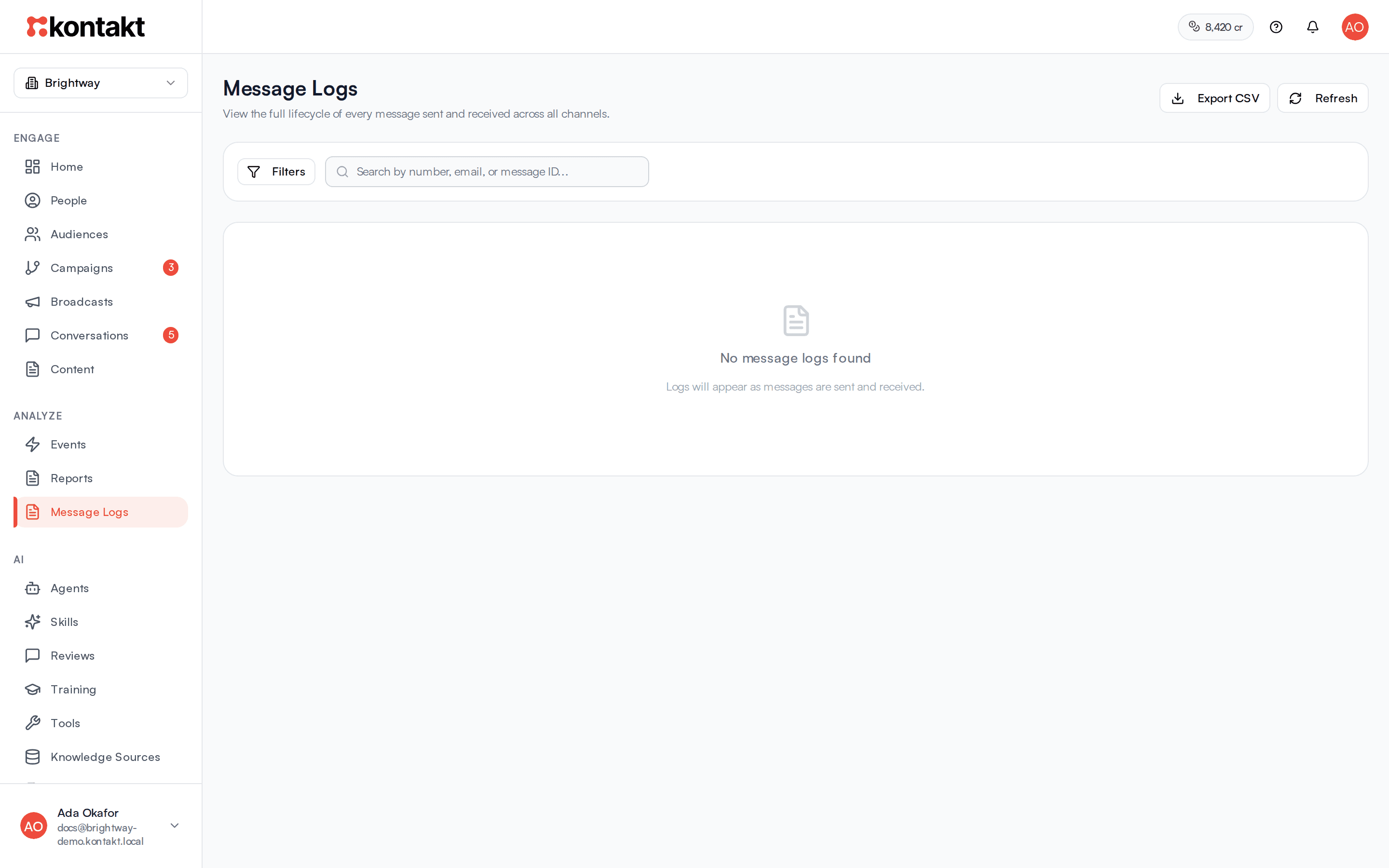
Open Message Logs in the sidebar under ANALYZE. The newest rows come first, 50 per page. Use Previous and Next to page through. The footer shows the total number of rows that match your filters.
| Column | What it shows |
|---|---|
| Time | When this step was recorded. |
| Direction | Outbound for messages sent to customers. Inbound for messages customers sent you. |
| Channel | The channel: WhatsApp, SMS, Email, Instagram, Messenger, or Web chat. |
| Number or email | The person's phone number or email address: who the message went to, or who sent it for inbound rows. Empty for Instagram, Messenger, and Web chat. |
| Connection | The number the message came in on, the SMS sender name, or the address an email was sent from. It can be empty for outbound rows. |
| Event | The step this row records. See the table below. |
| Status | The message status at that step. |
| Error | The reason the channel gave, if the step failed. Hover to read a long message. |
Failed rows are tinted red so you can spot them quickly. Click Refresh at the top to load new rows.
Events and statuses
| Event | Meaning |
|---|---|
| Queued | Kontakt accepted a reply from the inbox and is about to send it. |
| Send Attempted | Kontakt handed the message to the channel. |
| Sent | The channel accepted the message. |
| Delivered | The message reached the customer's device. |
| Read | The customer opened it. Only shown where the channel reports reads, such as WhatsApp. |
| Delivery Failed | The channel rejected the message when Kontakt tried to send it. |
| Failed | The channel accepted the message at first, then reported later that it couldn't deliver it. |
| Received | A customer's inbound message arrived. |
| Delayed | The email provider is still trying to deliver an email. |
| Marked as spam | The person reported the email as spam. Kontakt unsubscribes them from email. |
An email that bounces has the event Delivery Failed and the status Bounced.
Trace one message
Find a row for the message
Narrow the list with filters, for example Status set to Failed and a date range. Click the row to expand it.
Copy the Message ID
The expanded row shows the Message ID, Conversation ID, and Customer ID, plus the Provider ID the channel gave the message and any Error Code.
Search for it
Paste the Message ID into "Search by number, email, or message ID...". The list now shows every step for that message, newest first, so you can see how far it got.
Check what was sent
Expand a row to read the Request Payload Kontakt sent and the Response Payload the channel returned. Keys, tokens, and passwords are removed from the request payload before it is saved.
Find one person's messages
Type a phone number or email address into "Search by number, email, or message ID...". You can type part of it, for example the last few digits of a number. Phone numbers are stored in international format, such as +2348012345678, so search without the leading 0 of a local number.
Filter the log
Click Filters to open the filter bar. The button shows Active while any filter is set.
- Channel: All, WhatsApp, SMS, Email, Instagram, Messenger, or Web chat.
- Status: All, Queued, Sent, Delivered, Read, Failed, or Bounced.
- Direction: All, Inbound, or Outbound.
- Event Type: any of the events above.
- From and To: limit by the time each step was recorded.
Click Clear to remove every filter at once.
The To date is exclusive
To counts up to the start of that day. To include all of 10 March, set To to 11 March.
Export the log
Click Export CSV at the top of the page. The file has every row that matches your current search and filters, newest first, up to 100,000 rows. Narrow the dates to export more in several files.
The CSV has these columns: created_at, direction, channel, recipient (the number or email), connection_phone, event_type, status, error_code, error_message, message_id, provider_message_id, customer_id, and conversation_id. Times are in UTC.
How it behaves
- What gets logged. Replies sent from the inbox on WhatsApp, SMS, email, Instagram, and Messenger, WhatsApp, SMS, and email broadcasts and journey messages, test emails, WhatsApp Flows, WhatsApp delivery and read updates, SMS delivery reports, email delivery, bounce, and spam reports, and inbound WhatsApp messages.
- Earlier email and journey SMS. These were added to the log on 3 November 2026. Sends from the 30 days before that have one row each, showing their latest state.
- What doesn't. People a broadcast or journey skipped, for example because they opted out of marketing, were never sent anything, so they have no rows here. Check the broadcast's results instead. See Broadcasts. Email opens and clicks aren't logged here. See them under Settings / Email sending on the Sent emails tab. See Email sending.
- Number or email on older rows. Rows from before 3 November 2026 show it where Kontakt could work it out from the send, the person, or another row for the same message. WhatsApp delivery updates for messages sent outside Kontakt, for example from another app on the same number, may have it empty.
- Rows are a history, not a current state. A message that was sent and then delivered has a Sent row and a Delivered row. The latest row is the current state.
- Logging never blocks a message. If a log row can't be written, the message still goes out.
- Reports. To count failures over time or by template, use the Message Logs data source in Reports.
Troubleshooting
Common WhatsApp failure codes
Expand a failed row to see the Error Code. The Error column is the message Meta sent with the failure. The inbox shows the same message and code under the bubble, with a short note for these codes:
| Code | What it means for you |
|---|---|
131047 | More than 24 hours passed since the person last messaged you. Send an approved template instead. See Conversations. |
131026 | "Message undeliverable". Meta doesn't say why. Possible causes: the number isn't on WhatsApp, the person hasn't accepted WhatsApp's latest terms, or their app is out of date. Check the number, and ask the person to update WhatsApp if you can reach them another way. |
130472 | "User's number is part of an experiment". Meta held back a marketing template for an experiment it runs. Retrying won't send it. |
131049 | Meta limits how many marketing messages each person gets. Don't retry straight away. |
131050 | The customer stopped marketing messages from you. Kontakt marks them as opted out. See People. |
A failure with code 131026, 131047, 131048 or 130472 also adds a whatsapp_undelivered event to the person's Events Timeline, with the error code and Meta's message. Kontakt refunds the message charge for a WhatsApp message that fails without being delivered. See Channel pricing. For any other code, read the Error column and the Response Payload.
"Failed to load message logs"
Click Retry. If it keeps failing, click Clear to remove your search and filters.
"No message logs found"
With a search or filters set, loosen them. A message ID only matches when you paste the whole ID. A number typed with a leading 0 won't match, since numbers are stored in international format. Check the To date in particular, since it excludes the day you pick. With no filters, nothing has been sent or received yet in this workspace.
A message shows Sent but never Delivered
The channel hasn't reported delivery. The customer's phone may be off or out of signal. Some channels, such as Instagram and Messenger replies, only log the Sent step.