Renewals and invoices
Paid plans renew every 30 days on your saved card. This page covers the saved card, failed payments, receipts, and the billing profile.
When you pay for a plan by card, Kontakt saves the card and charges it at the end of each 30-day period for your plan and any add-ons. Every successful payment gets a receipt in Billing history.
Before you start
- To manage renewals, receipts, and the billing profile, your role needs the Settings permission set to Update.
- The saved card and Auto-renew controls appear only for plans paid in the app. Plans set up by Kontakt, such as Enterprise, renew without a card charge. Partner-managed workspaces renew through the partner.
What a renewal charges
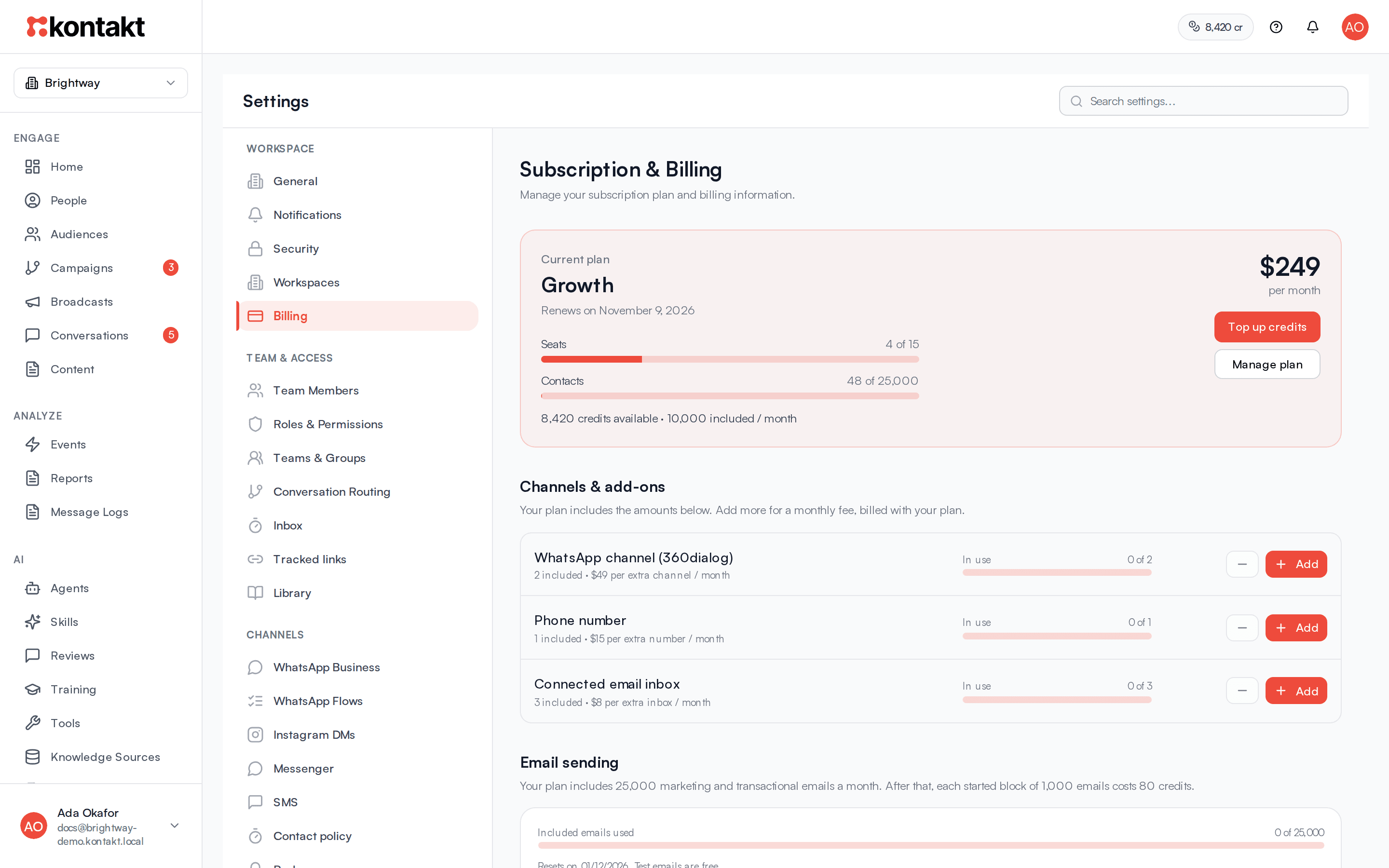
Go to Settings / Billing. Under Current plan you see one of these:
- "Renews on (date) for $X", with "including add-ons" when you have extra units. This is the plan fee plus every add-on unit at its full monthly price.
- "Ends on (date), then moves to Pay as you go" when Auto-renew is off.
- "Switching to (plan) next period (no proration)" when you have scheduled a plan change. The renewal charges the new plan.
When the renewal succeeds, a new 30-day period starts and your plan's included credits for that period are added. Included credits left from the previous period expire. Credits you bought stay. See Credits and top-ups.
Renewal reminders
For plans paid in the app, Kontakt sends a reminder 7 days and again 1 day before the renewal date. Owners and admins get an email, an in-app notification, and a push notification, and any addresses under Also email in Balance alerts get the email too. The reminder depends on your setup:
| Your setup | The reminder says |
|---|---|
| Saved card, Auto-renew on | The date, the amount for the plan and add-ons, and the card that will be charged. Nothing to do. |
| No saved card | The date and amount, and that you'll need to pay with Pay now in Billing on that date, within the grace period. |
| The saved card expires before the renewal date | That the charge will likely fail, and how to pay with a new card. |
| Auto-renew off | That the plan ends on that date and the workspace moves to Pay as you go. |
You get each reminder once per period. Plans set up by Kontakt and plans that renew at no charge don't get reminders. Partner-managed workspaces renew through the partner, who gets a weekly list of upcoming customer renewals instead. To stop the in-app and push reminders for yourself, turn off Billing alerts in Settings / Notifications.
The saved card
The card line shows the brand, last four digits, and expiry date. If there is no saved card, it reads "No saved card. Renewals need a manual payment."
A card is saved when you pay by card for a plan, a renewal, or an add-on. Cards used for credit top-ups are not saved. Local payment methods other than card are not saved either, so renewals on those need a manual payment each period.
Change or remove your saved card
There is no separate form to edit the card. To use a different card:
Remove the current card
Click Remove card next to the card details and confirm "Remove the saved card? Renewals will then need a manual payment."
Pay with the new card
The next time you pay for a plan, renewal, or add-on by card, the new card is saved.
If you remove the card and don't pay with a new one, the next renewal can't be charged and the plan becomes past due. See Failed payments.
Turn off auto-renew
To end a paid plan at the close of the current period, turn off the Auto-renew switch. You see "Auto-renew is off. The plan ends at the close of this period."
At the end of the period, the workspace moves to Pay as you go, add-ons are removed, and the owners and admins get a "(workspace) is now on Pay as you go" email. Turn Auto-renew back on any time before the period ends to keep the plan.
Failed payments
If the renewal charge fails, or there is no saved card, the plan becomes past due.
- A red banner appears at the top of Billing: "We couldn't renew your plan" with the reason, and "Pay by (date) or the workspace moves to Pay as you go and add-ons are removed."
- Owners and admins get a "Payment failed for (workspace)" email with the same date.
- Kontakt retries the saved card about once a day until that date.
- Everything keeps working during this time, including your plan's limits and channels. You can't change add-ons until the renewal is paid.
Pay a past-due renewal
Open the payment dialog
Click Pay $X now in the red banner. The Pay renewal dialog lists the plan and each add-on with a Total.
Choose a payment method
Pick Card or Local checkout. A card used here is saved for future renewals.
Pay
Click Continue and complete the payment. When it clears, the plan is active again and a new 30-day period starts from that day.
If the date passes
If the renewal isn't paid by the date in the banner, the workspace moves to Pay as you go:
- Add-ons are removed.
- Channels already connected keep working, but you can't connect more until you choose a paid plan.
- Credits you bought stay available.
- Owners and admins get a "(workspace) is now on Pay as you go" email.
To get back on a plan, choose one under Available plans. See Plans.
Billing history and receipts
Every successful payment, whether for a plan, renewal, add-on, or top-up, creates a receipt. Receipts are numbered like KKT-(year)-(number).
- Billing history lists each receipt with the amount in USD, the receipt number, the date, and its status. Click Download to open the receipt in a new tab, where you can print or save it.
- Each receipt is also emailed to the workspace's owners and admins.
- A receipt shows the amount in the currency you paid, plus the USD equivalent. Renewal receipts list the plan and each add-on as separate lines.
Tax is not calculated automatically.
If Billing history shows "No invoices yet. Receipts appear after a successful payment.", you haven't made a payment in the app yet.
Credit activity
Credit activity lists the latest 15 credit movements with When, Reason, Delta, and Balance. It shows top-ups, included credits added and expired, and what each AI reply or message used. See Credits and top-ups.
Billing profile
The Billing profile sets the details printed on your receipts.
Fill in the fields
Enter Company name, Billing email, Tax ID, Country, Address, and City.
Save
Click Save changes. You see "Billing profile saved".
Receipts show the company name (or the workspace name if it's empty), the address, city, and country, and the tax ID. Changes apply to receipts issued after you save. The billing email is used for local checkout. Receipts are still emailed to owners and admins.
Troubleshooting
My plan says past due but my card is valid
The charge may have been declined by your bank. The banner shows the reason. Click Pay $X now and pay again, or use a different card.
I paid but the plan still shows past due
Some payments take a few minutes to clear. Refresh Billing after a few minutes. If it still shows past due after 15 minutes, contact support with the receipt or payment reference.
I didn't get the receipt email
Receipt emails go to the workspace owner and members whose role can update settings. Check spam, or open the receipt from Billing history.
Can I get a refund?
The app doesn't issue refunds. Removed add-ons and plan changes aren't refunded for the rest of the period. Contact support about a specific payment.