Library
The Library holds saved replies and links to files, so your team answers common questions the same way every time.
The Library has two parts. Quick replies are saved messages with optional customer variables. Files are links to hosted documents, images, audio, or video that agents can attach to a chat. You manage both in Settings and use them from the composer in Conversations.
Before you start
- Managing the Library uses the template permissions: viewing needs read access, and adding, editing, or deleting needs create, update, or delete access. See Roles and permissions.
- Files are links, not uploads. Host the file somewhere that serves it over
https://and copy its address. - To limit an item to one team, create the team first in Settings / Teams & Groups.
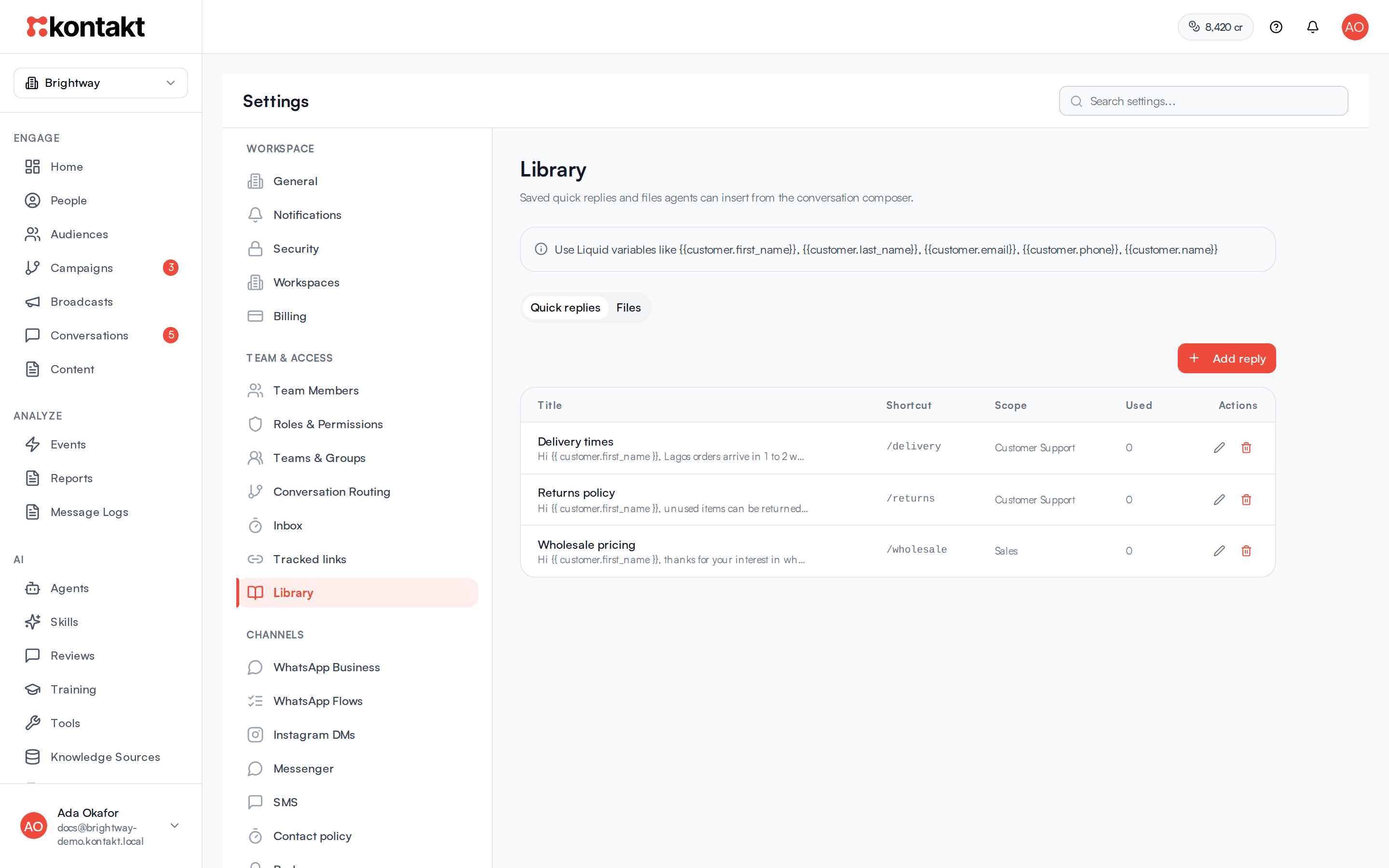
Add a quick reply
Open the Library
Go to Settings / Library and stay on the Quick replies tab.
Create the reply
Click Add reply. In "Add quick reply", fill in:
- Title: what agents see in the picker, for example "Greeting".
- Shortcut (optional): a short word agents can search for, such as
hello. - Body: the message text. Add variables such as
{{customer.first_name}}. - Team scope: Everyone (workspace-wide) or one team.
Save
Click Create. The reply appears in the table with its Shortcut, Scope, and Used count.
Title and body are required. Titles can be up to 255 characters, shortcuts up to 64, and bodies up to 10,000. Shortcuts are saved in lower case, and a leading / is removed.
Personalise with variables
Quick replies use Liquid variables. These are filled in for the customer in the open conversation:
| Variable | Fills in |
|---|---|
{{customer.first_name}} | First name |
{{customer.last_name}} | Last name |
{{customer.name}} | Full name |
{{customer.email}} | Email address |
{{customer.phone}} | Phone number |
{{customer.custom_fields.your_key}} | Any custom field, by its key |
A variable with no value for that customer is left blank, so read the message before sending. Custom field keys are listed in Fields and tags.
Add a file
Open the Files tab
Go to Settings / Library and click Files.
Add the link
Click Add file. In "Add file", enter a Name and the URL, including https://. Optionally add a Description and a MIME type such as image/png or application/pdf.
Choose the kind and scope
Set Kind to File or Link, and pick a Team scope. Click Create.
The MIME type decides how the file is sent. Image, audio, and video types are sent as that media type. Anything else, or a file with no MIME type, is sent as a document.
Use the Library in a conversation
Open the picker
In the composer, click the book icon, or type / in an empty message box.
Find the item
Switch between Replies and Files, and type to search. Replies match on title, shortcut, and body. Files match on name and description. Items are grouped under My team and Everyone, and the most used appear first.
Insert and send
Pick a reply and it is placed in the composer with the customer's details filled in, ready to edit. Pick a file and it is attached to your message. Then send as usual.
How it behaves
- Who sees what: in the picker, each agent sees workspace-wide items plus items scoped to teams they belong to.
- Usage counts go up each time an item is sent from a conversation. Use the Used column to spot replies nobody needs.
- Deleting an item from the table removes it straight away. There is no confirmation step.
- WhatsApp window: when the 24-hour WhatsApp window has closed, the Library button is hidden and you need a template instead. See Conversations.
- Library vs templates: quick replies are free-form text for open conversations. To start or re-open a WhatsApp conversation, use an approved template. See Content and templates.
Troubleshooting
"Enter a valid URL (including https://)"
The URL must be a full address starting with https://.
A variable came out blank
The customer has no value for that field. Check their profile in People, or remove the variable from the reply.
A teammate can't find a reply
The reply may be scoped to a team they are not in. Edit it and set Team scope to Everyone (workspace-wide), or add them to the team.
A file arrives as a document instead of an image
Set the MIME type on the file, for example image/jpeg.