Routing
Routing decides who picks up a chat when it needs a person, and when a chat counts as waiting too long.
Two settings control how chats reach your team. Conversation Routing assigns chats to teammates automatically. Inbox sets when a chat gets a Late badge. Both live in Settings / Team & Access.
Before you start
- You need a role that can update settings to change either page. Anyone who can read settings can view them. See Roles and permissions.
- Invite the teammates you want in the rotation first. Only active members can receive chats. See Team members.
- For the Account Manager strategy, set an account manager on each person. See People.
Turn on auto-assignment
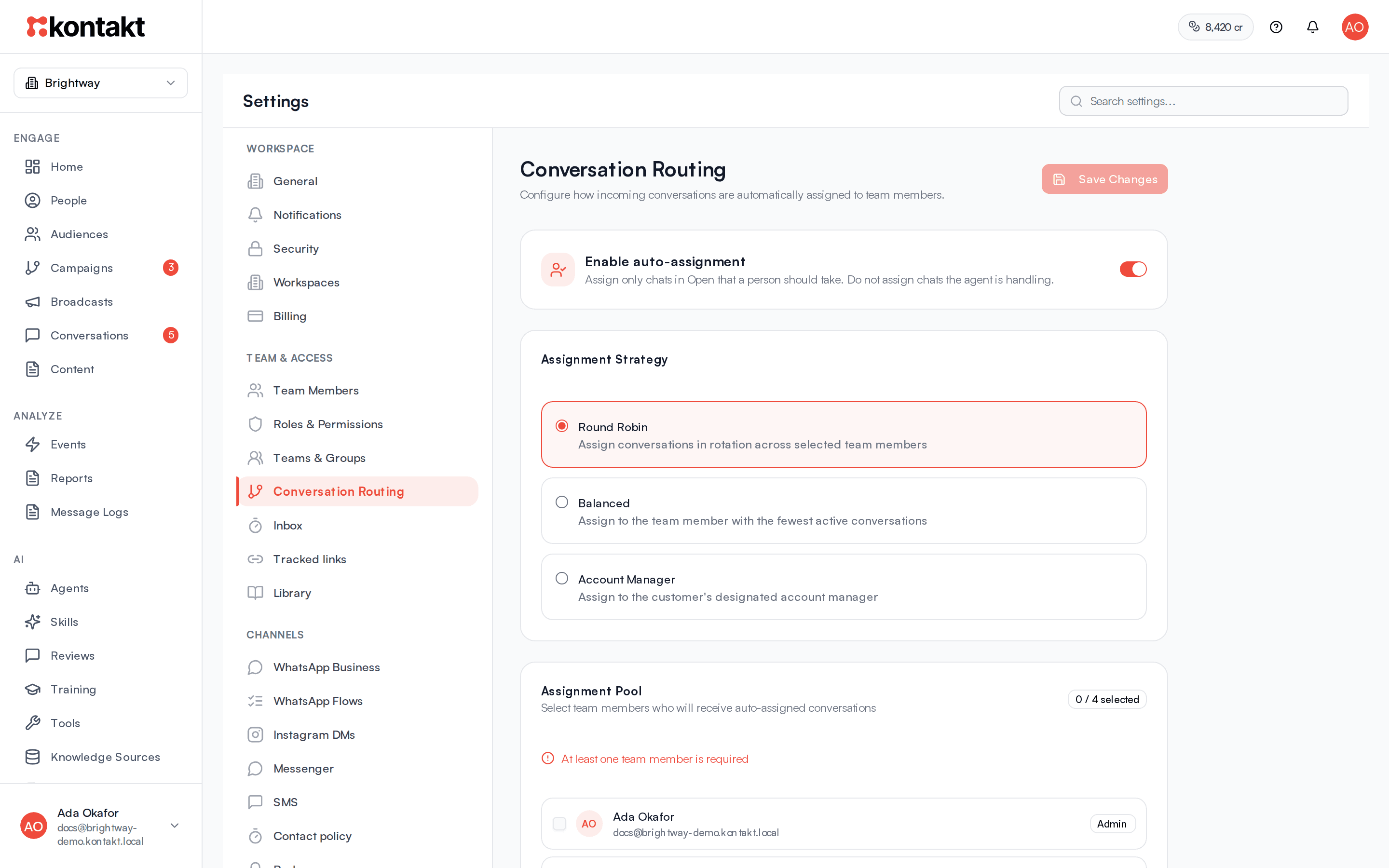
Open Conversation Routing
Go to Settings / Conversation Routing.
Enable it
Switch on Enable auto-assignment. Auto-assignment is off in new workspaces.
Choose a strategy
Under Assignment Strategy, pick one:
- Round Robin: assign conversations in rotation across selected team members.
- Balanced: assign to the team member with the fewest active conversations.
- Account Manager: assign to the customer's designated account manager.
Pick the assignment pool
For Round Robin and Balanced, tick the teammates who should receive chats under Assignment Pool. The badge shows how many are selected. You need at least one.
Save
Click Save Changes. Click Reset to discard unsaved edits.
How auto-assignment works
Which chats get assigned. Auto-assignment only picks up chats a person should take:
- A new conversation, or a resolved one that the customer reopens, lands in Open with no owner.
- An AI agent escalates a conversation to a human.
It does not assign chats an AI agent is handling or is about to answer, and it never replaces an existing owner. If a chat already has an assignee, it stays with them.
Channels. Assignment runs for chats arriving on WhatsApp, Instagram, Messenger, email, and web chat, and for journeys that hand off to the inbox.
Round Robin gives the next chat to the next person in the pool after whoever was auto-assigned last.
Balanced counts each pool member's open conversations, plus conversations they resolved within the Active Conversation Window, and assigns to the person with the fewest. Set the window under "Consider conversations from the last ... hours", from 1 to 720 hours.
Account Manager assigns the chat to the person's account manager. If no account manager is set, or that teammate is no longer active, the conversation stays unassigned.
Notifications. The assignee gets a push notification and an email.
Reopened conversations
Re-assign conversations when reopened is on by default. When it is on, a resolved conversation that is reopened by a new customer message goes through auto-assignment again. When it is off, reopened conversations are skipped.
Kontakt only assigns chats that have no owner, and resolving a chat doesn't remove its assignee. So a reopened chat that still has an owner stays with that owner either way.
Mark chats as Late
The Late badge shows on chats that have been waiting too long, in the list and in the thread header.
Open Inbox settings
Go to Settings / Inbox.
Set the threshold
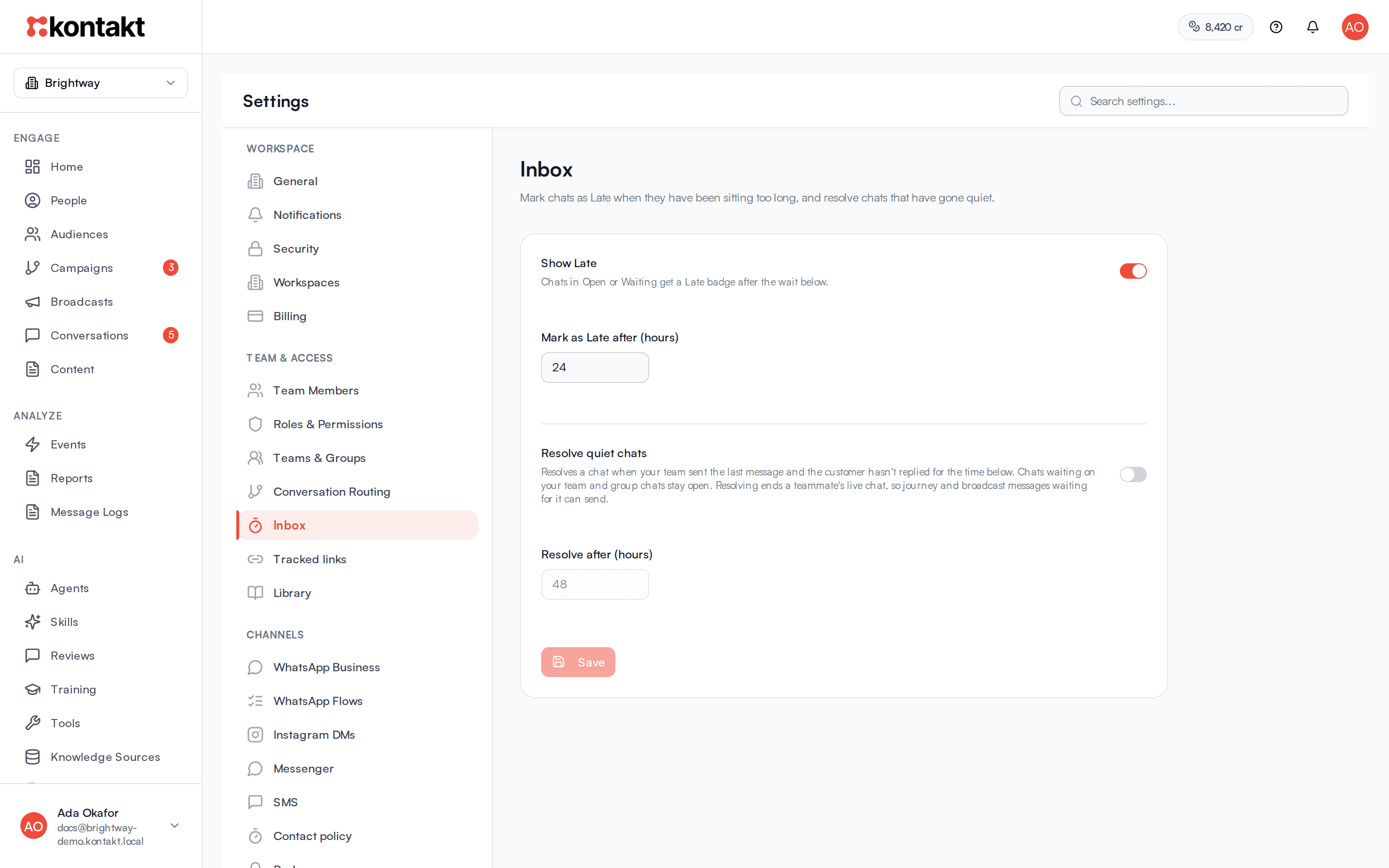
Keep Show Late on, and enter a number of hours in Mark as Late after (hours), from 1 to 720. The default is 24 hours.
Save
Click Save. Turn Show Late off to hide the badge everywhere.
A conversation is Late when all of these are true:
- It is not resolved or archived, and not in Resolved.
- The last message in the thread, from either side, is older than your threshold. A conversation with no messages uses the time it was created.
Because any message resets the clock, a reply from you or an AI agent clears the badge until the threshold passes again.
Resolve quiet chats
Kontakt can resolve chats that have gone quiet, so they don't sit open after the customer has stopped replying. It is off by default.
Open Inbox settings
Go to Settings / Inbox.
Turn it on
Turn on Resolve quiet chats and enter a number of hours in Resolve after (hours), from 1 to 720. It starts at 48 hours.
Save
Click Save. Turn Resolve quiet chats off to stop resolving chats.
A chat is resolved when all of these are true:
- It is open, not resolved or archived.
- Your team, an AI agent, or an automated message sent the last message. A chat where the customer is waiting for an answer stays open.
- Nobody has sent a message in the chat for longer than your setting.
- It is a one-to-one chat. Group chats stay open.
Kontakt checks every 15 minutes, so a chat can be resolved up to 15 minutes after it qualifies. The chat's Activity shows "Resolved automatically" with the number of hours. If the customer writes again, the chat reopens as usual.
Resolving a chat ends a teammate's live chat. Journey and broadcast messages waiting for that chat to end can then send. See Messages held while a teammate is chatting.
Teams
Teams are groups of teammates you set up in Settings / Teams & Groups. See Teams and groups. In the inbox they are used in these places:
- A journey's Handoff to Inbox step can set Assign to Team Member and Assign to Team, plus a Note for Team Member. The note appears in the conversation's notes, signed Journey. See Journeys.
- Quick replies and files in the Library can be limited to one team.
- Reports can group conversations by team. See Reports.
The auto-assignment pool is a list of individual teammates, not teams.
Troubleshooting
New chats are not being assigned
Check that:
- Enable auto-assignment is on and saved.
- The chat is in Open with no owner. Chats an AI agent is handling are assigned only if the agent escalates.
- For Account Manager, the person has an active account manager.
- The pool has at least one active teammate.
A reopened chat went back to the same person
Resolving a chat doesn't remove its owner, so when the customer writes again the chat returns to them. Reassign it from the thread's more menu if someone else should take it.
Everything shows as Late
Your threshold may be too short for your volume. Raise Mark as Late after (hours), or turn Show Late off.