Broadcasts
A broadcast sends one message to many people at once, on WhatsApp, SMS, or email. Use it for announcements, offers, and reminders that go out a single time.
Use a broadcast when one message should go to a list of people once. If the message should go out automatically every time someone does something, build a journey instead.
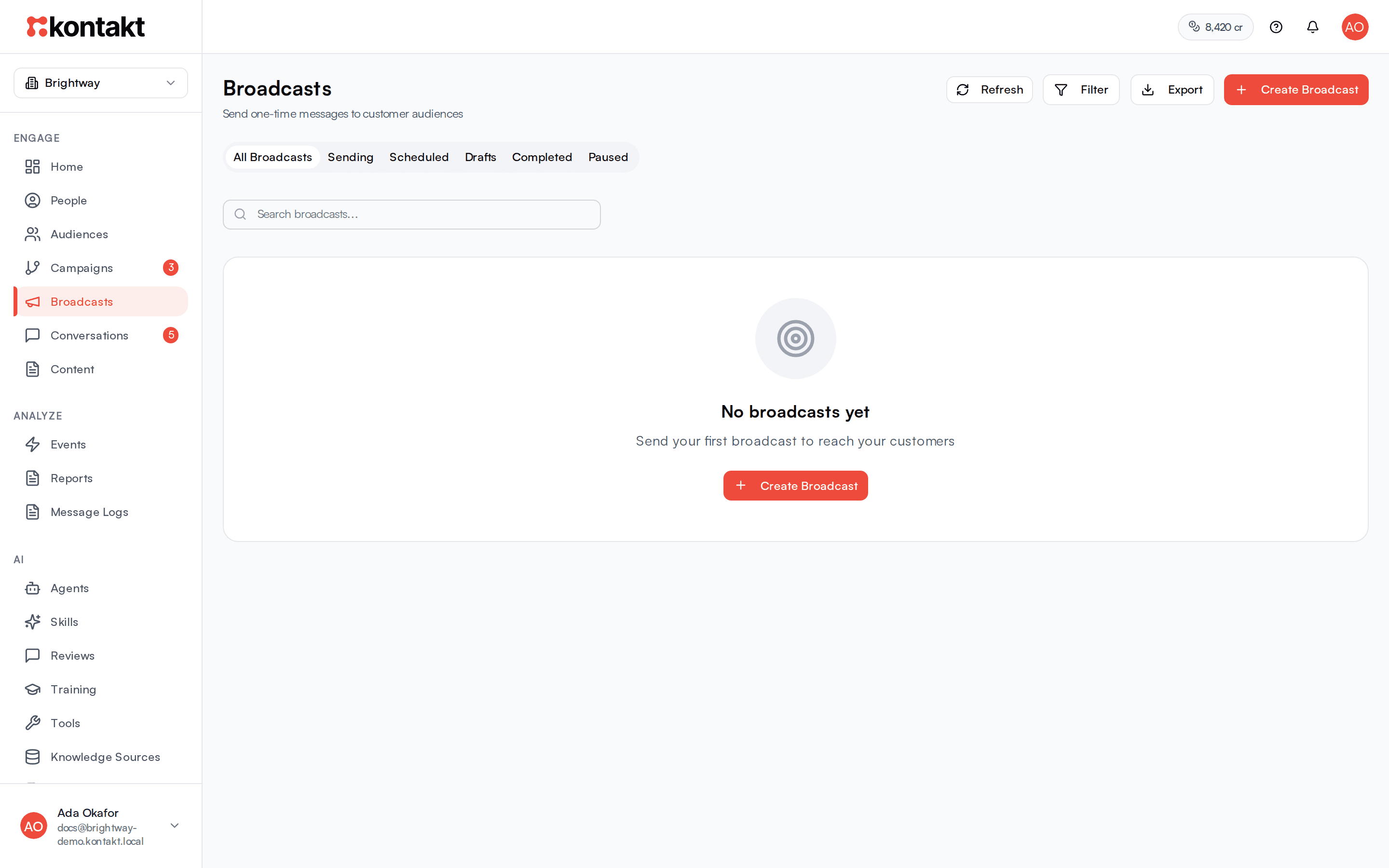
Open Broadcasts in the sidebar. The page lists every broadcast with tabs for All Broadcasts, Sending, Scheduled, Drafts, Completed, and Paused.
Before you start
Broadcasts send on WhatsApp, SMS, or Email. Voice broadcasts are not available.
- WhatsApp: connect a WhatsApp number and have an approved WhatsApp template. Broadcasts only list templates Meta has approved. See WhatsApp and Content and templates.
- SMS: register a sender name and wait until at least one network approves it. See SMS.
- Email: set up Email sending: a verified domain, a sender, and your email brand.
- Decide who receives it: a saved audience, a CSV file, or a few contacts you pick by hand. WhatsApp and SMS need a phone number. Email needs an email address.
- WhatsApp and SMS messages use credits. Email counts against your plan's monthly email allowance first. See Channel pricing and Credits and top-ups.
Send a broadcast
Start a new broadcast
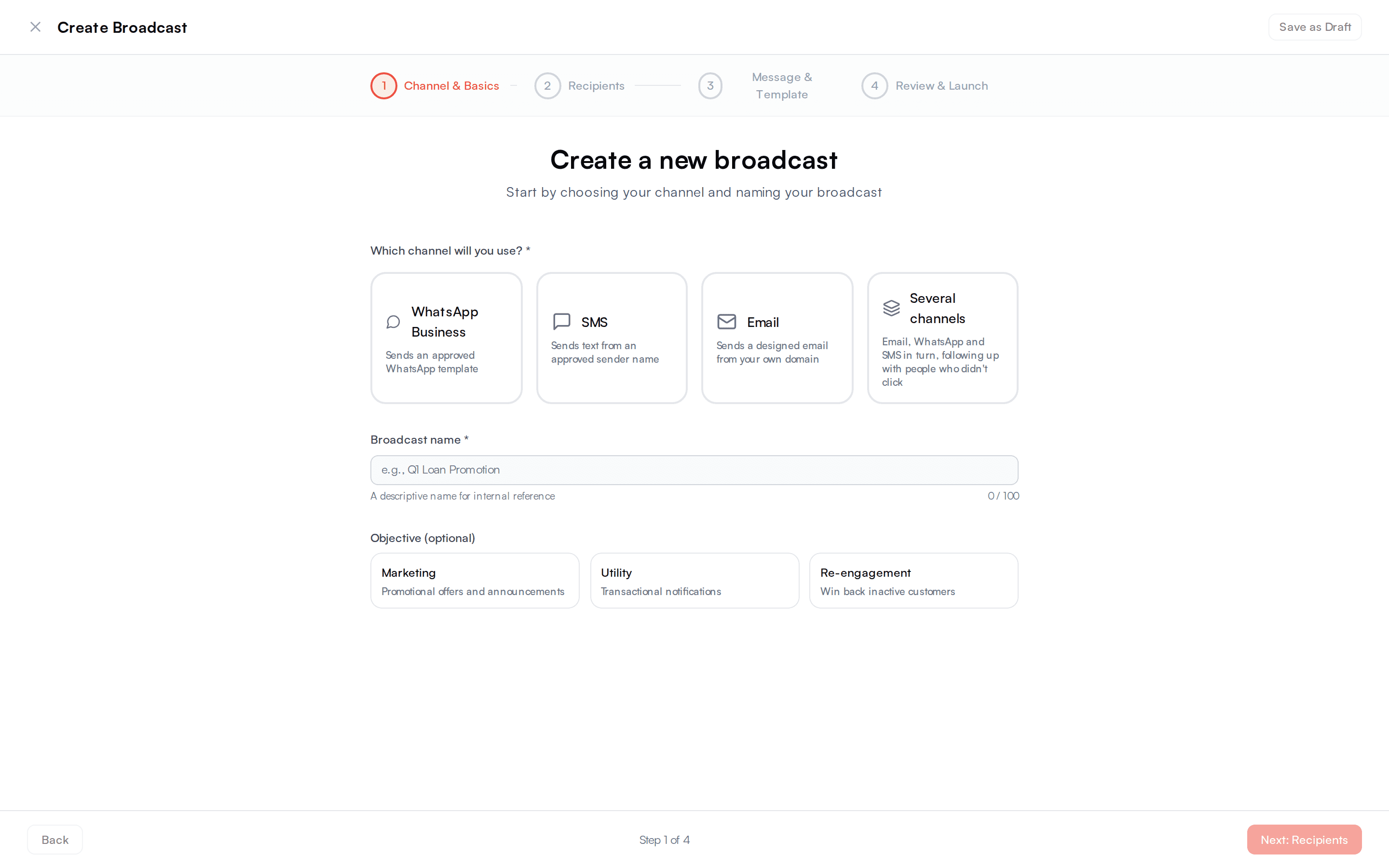
Click Create Broadcast. The page "Create a new broadcast" walks you through four steps: Channel & Basics, Recipients, Message & Template, and Review & Launch.
Channel & Basics
Choose WhatsApp Business or SMS, then pick who it comes from under Send from. For Email or Several channels, enter the Broadcast name and click Next: the email broadcast or the multichannel broadcast opens with that name (see Send an email broadcast and Send across channels).
- WhatsApp: the WhatsApp number the message comes from.
- SMS: one of your sender names. Only names approved on at least one network are listed, each marked Promotional or Transactional. Under the picker, Kontakt shows the networks the name is approved on.
Give the broadcast a Name your team will recognise, for example "Q1 Loan Promotion". The Objective (Marketing, Utility, or Re-engagement) is optional and helps you sort broadcasts later.
Recipients
Pick one source:
- Audience Segment: select a saved audience. Membership is worked out when the broadcast sends, so a scheduled broadcast reaches whoever is in the audience at that time.
- CSV Upload: upload a spreadsheet with a
phonecolumn. Up to 50,000 rows. Click Download CSV Template if you need the layout. Other columns can fill message variables. - Manual / Test: search existing contacts by name, phone, or email, or type a phone number. Use this to send a test to yourself first.
Message & Template
- WhatsApp: search and select an approved template.
- SMS: write the text under Message, up to 900 characters. Click Add variable to insert a numbered slot such as
{{1}}. To reuse saved copy, pick one under Start from an SMS template. Its{first_name},{last_name},{phone}, and{email}placeholders are mapped to those customer fields for you, and any other placeholder becomes fixed text you fill in.
Then fill every variable from a customer field, from fixed text, or from a CSV column. For Customer Field, search the list and pick a field such as First Name. Your custom fields are listed too. Every variable needs a value before you can continue. The Preview shows the message with the mapping applied.
Track link clicks is on by default. Each link in an SMS, or in a WhatsApp template variable, is sent as a short link that opens the same page, so you can see who clicked. WhatsApp link buttons are tracked when Track clicks is on in the template. See Tracked links.
For WhatsApp, tick Failover to SMS to text people whose WhatsApp message fails. Pick an SMS sender and write the SMS text. Kontakt fills it in from the template's body, and {{1}}, {{2}} and so on take the same values as the template's variables. See Failover to SMS.
For WhatsApp, choose under If a teammate is chatting with someone what happens for people your team is talking to: Skip them, Send anyway, or Wait until the chat ends, then send. Marketing templates skip by default and utility templates send. See People a teammate is chatting with.
Review & Launch
Check the summary and the Estimated Cost, which prices each recipient at their own country's rate. With Failover to SMS on, the summary shows the SMS too. The estimate covers the WhatsApp messages only, and each SMS sent instead is charged at the SMS rate for that country. Choose Send Immediately or Schedule and pick a date and time. The time uses your browser's local time. Tick the box confirming the broadcast complies with messaging policies and that you have consent, then click Launch Broadcast or Schedule Broadcast.
You can click Save as Draft at any point. If you leave the page mid-way, Kontakt asks whether to Continue Editing or Save as Draft & Exit.
Send an email broadcast
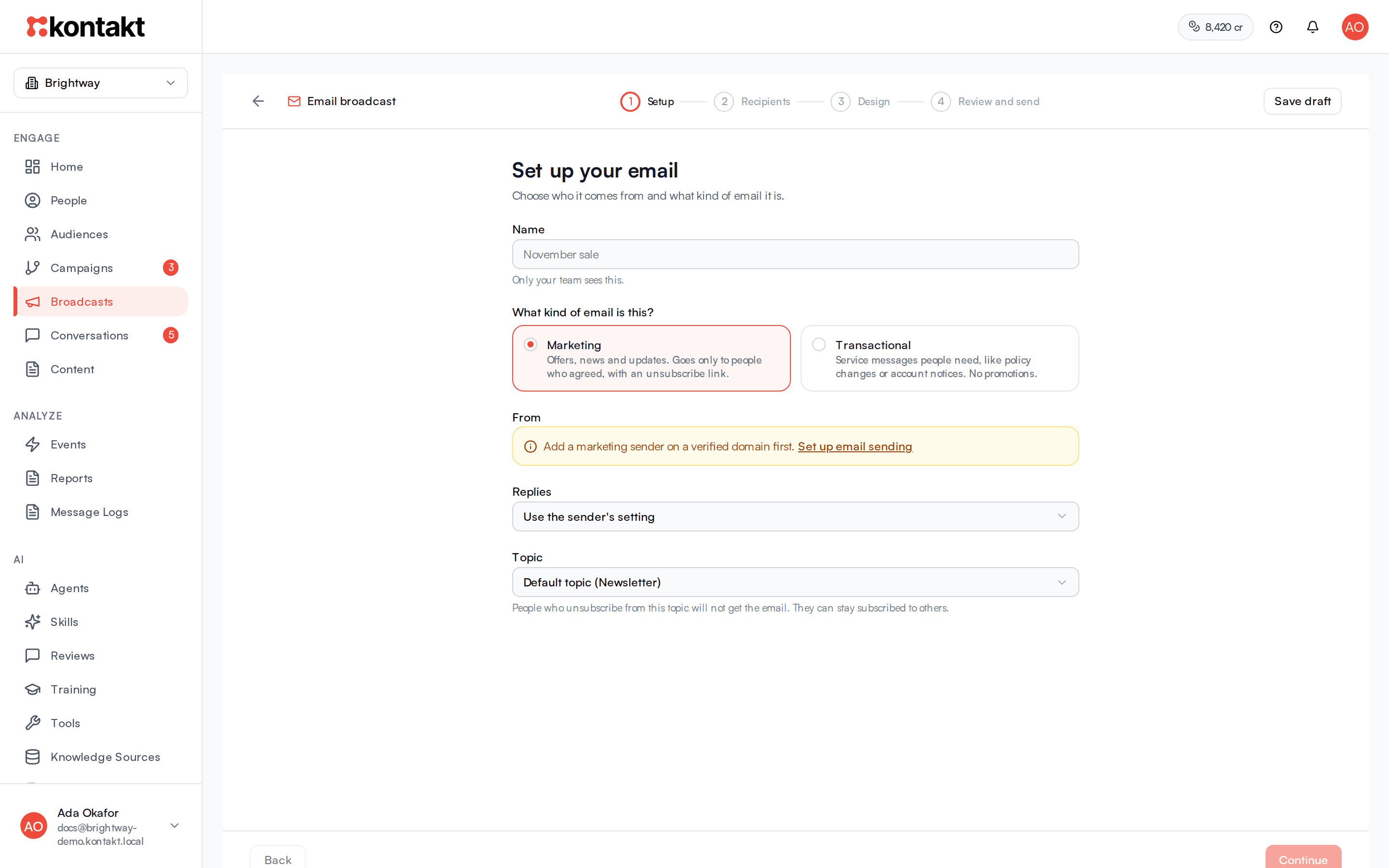
Click Create Broadcast, choose Email under Channel & Basics, enter the Broadcast name, and click Next: Set up the email. The Email broadcast page opens with four steps: Setup, Recipients, Design, and Review and send.
Setup
Give it a Name your team will recognise. Under What kind of email is this? choose:
- Marketing: offers, news and updates. Goes only to people with email marketing consent, with an unsubscribe link.
- Transactional: service messages people need, like policy changes or account notices. No promotions.
Pick the sender under From, where replies go under Replies, and for marketing, the Topic it belongs to. People who unsubscribed from that topic don't get it.
Recipients
Choose An audience or Upload a list. For a list, choose a CSV file, then match the Email address column and, if you have them, First name and Last name. Answer How did these people agree to get email from you? and click Check and upload. Kontakt shows how many people were added and how many addresses it removed because they can't receive email. See Email deliverability.
Design
Pick a starter in your brand, a saved template, or Write it with AI, then edit it. See Design an email.
Review and send
Fix anything under Checks. Errors must be fixed before you can send. The Cost card shows Emails to send, how many are skipped, how many are Covered by this month's allowance, and any credits for emails Beyond your allowance. Click Send a test to see it in your inbox. Choose Send now or Schedule, then click Send to N people or Schedule email.
Click Save draft at any point. Drafts and scheduled email broadcasts show Edit email on their page.
Send across channels
A multichannel broadcast sends one campaign on email, WhatsApp and SMS in turn, and follows up only with people who didn't respond. For example: email first, then WhatsApp two days later to people who didn't click, with SMS for anyone WhatsApp can't reach.
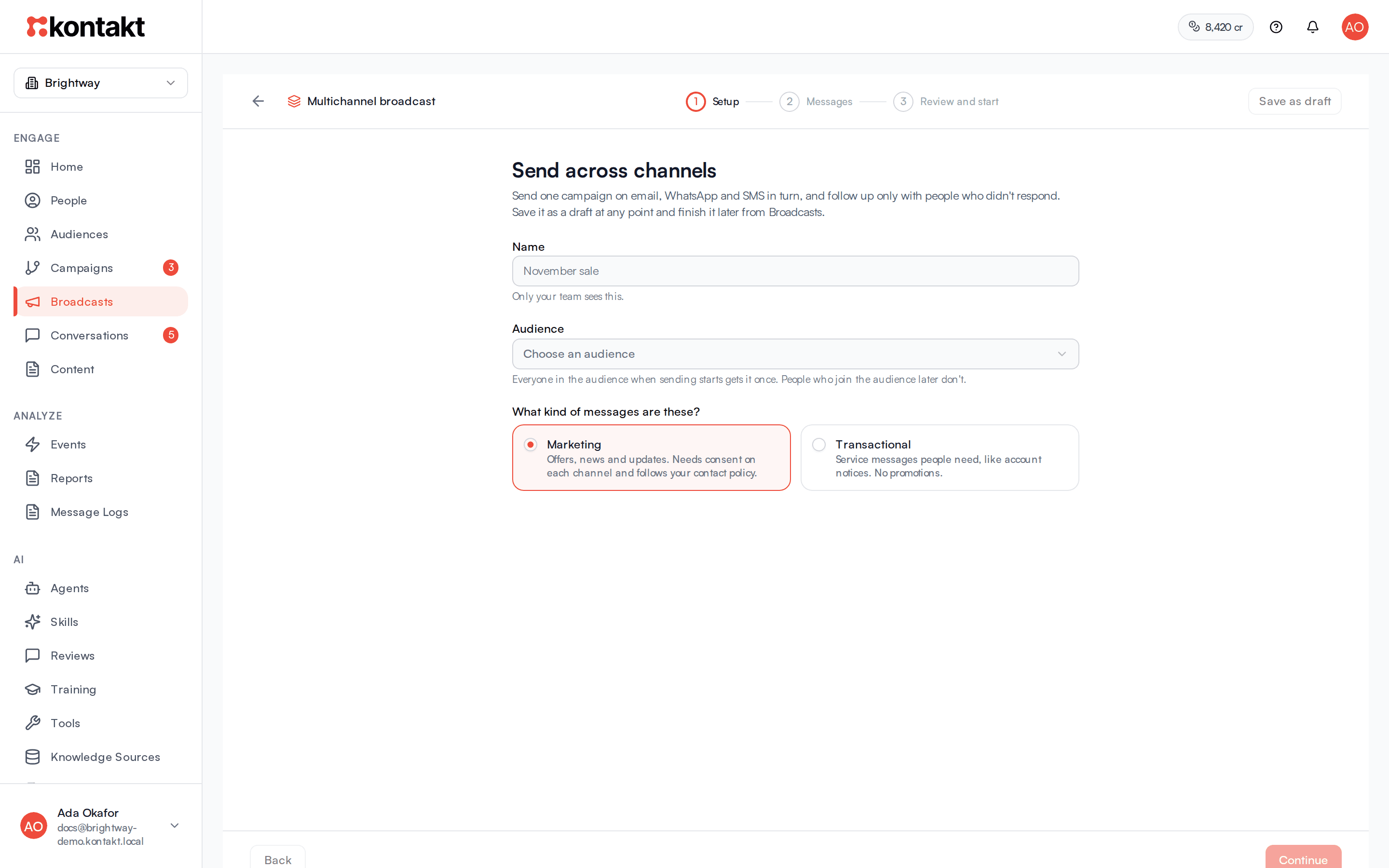
Click Create Broadcast, choose Several channels, enter the Broadcast name, and click Next: Set up the messages. The Multichannel broadcast page has three steps: Setup, Messages, and Review and start.
Setup
Give it a Name and choose the Audience. Everyone in the audience when sending starts gets it once. People who join the audience later don't. Under What kind of messages are these? choose Marketing or Transactional.
Messages
Under Which channels? tick Email, WhatsApp, SMS, or any mix. Each channel you tick gets its own message below. Untick a channel, or click the bin on its message, to stop sending on it. If you had written something, Undo brings it back.
With more than one channel, choose under How should they go out?:
- One after another: the 1st message goes to everyone, and each next one waits and can skip people who already responded. Use the arrows on a message to send it earlier or later.
- All at the same time: every message goes out at once, so people get each channel they can receive.
Write each message the same way as in a journey:
- Email: sender, replies, topic, and the email itself, designed in your brand, from a saved template, or plain text.
- WhatsApp: the number it comes from and an approved template, with each placeholder filled from customer data or fixed text. For Data, search and pick a customer field, including your custom fields and Personal link code. Turn on Failover to SMS to text people whose WhatsApp message fails, then pick the SMS sender and write the SMS text.
- SMS: the sender and the text. Type the Message, or pick a saved one under Start from an SMS template to copy its text in. Its
{first_name},{last_name},{phone}, and{email}placeholders become those customer fields. Fill in any other placeholder under Fill in the template's placeholders, with Data or Fixed text. Click Insert variable to add a customer field where the cursor is.
With One after another, choose who gets each later message under Send to and when under After. The line above it sums it up, for example "Then, 2 days later, to people who haven't clicked a link yet":
- People who haven't clicked a link yet: skips anyone who clicked a tracked link in an earlier message.
- People who haven't opened an email yet: available when an earlier message is an email. Opens are an estimate, because some email apps load images automatically or block them.
- Everyone.
Review and start
Check the summary and the Estimated cost. It lists the credits for each message, priced for the people in the audience who have a phone number or email address for that channel. With One after another, follow-ups that only go to people who haven't clicked or opened, and SMS sent when WhatsApp fails, are shown as up to, so the estimate is a range. It also says when emails are covered by your plan's allowance, or when Meta bills you for WhatsApp directly.
Choose Now or Schedule and pick a date and time, in your browser's time. Click Start sending or Schedule.
Click Save as draft at any point to keep your work. You can save a draft before every message is ready, for example while a WhatsApp template is still waiting for approval. The draft is listed under Broadcasts. Click it to carry on where you left off. Every message is checked when you start sending.
How a multichannel broadcast works
- It is listed under Broadcasts. Click a running or finished one to see its Analytics. Under Messages, each message shows Reached this step, Sent, Delivered, Read for WhatsApp, Opened for email, Clicked, Not delivered, and Skipped, with the reasons people were skipped or couldn't be sent to. It also shows how many were sent by SMS instead of WhatsApp. Credits used shows the credits the broadcast has used so far, by channel. SMS shows delivered once the network confirms it.
- Kontakt runs it as a journey, so it is also listed under Journeys with the type Multichannel broadcast. To change it there, choose Open in Journey Builder from its menu under Broadcasts. After you save a change in the journey builder, the draft opens in the builder from then on.
- To change the audience or start time after it has started, click Pause Campaign on its results page, then Edit. In the journey builder, click the audience step, pick the new audience or a new Start at, save, and click Resume. People in the new audience who weren't sent it yet enter at the start time, or straight away if the time has passed. Nobody gets it twice.
- Each person goes through every message even if one can't reach them. Someone with no phone number is skipped for SMS and WhatsApp and still gets the email, and the skips show under Messages with the reason.
- With One after another, each follow-up waits up to the time you set. People who click a tracked link, or open the email, before then leave and don't get the rest. Only links sent by this broadcast count. Links in SMS and in WhatsApp template variables are tracked when Track link clicks is on. WhatsApp link buttons are tracked when Track clicks is on in the template.
- With Failover to SMS, the SMS goes when WhatsApp can't send the message, or when WhatsApp reports it failed within an hour. With One after another, a WhatsApp message with failover waits up to an hour for that report before the next follow-up's clock starts. With All at the same time, the other messages don't wait for it.
- Each message is charged when it goes out, at that channel's rate. Marketing messages need consent on each channel and follow your contact policy, so people at their limit are skipped and quiet hours delay a message.
- Unlike a single-channel broadcast, there's no CSV upload or hand-picked list: save the people as an audience first.
Manage broadcasts
Each row shows the Status, Name, Channel, Audience, and Performance (sent, delivered, opened, replied). From the row's menu:
- View Details opens the broadcast's page.
- Edit Broadcast is available for drafts and scheduled broadcasts.
- Send Now sends a draft. Before it sends, Kontakt shows the estimated credits.
- Duplicate creates a new draft with the same channel, sender, template or message, variable mapping, and audience. Uploaded and manual recipient lists are not copied.
- Cancel Schedule stops a scheduled broadcast from sending.
- Pause Broadcast, Resume Broadcast, Archive, and Delete (for drafts, cancelled, and archived broadcasts).
Multichannel broadcasts show a layered channel icon, with Running while they send. Their menu has Continue Editing for a draft or View Results once started, plus Duplicate, Open in Journey Builder, and Delete for drafts.
Use Filter to narrow by status and Refresh to reload the list.
Results
The broadcast's page shows Sent, Delivered, Opened, Replied, Clicked, Failed, and Cost, with the number skipped under Failed, and the number waiting for a teammate's chat to end. Clicked counts people who tapped a tracked link, as a share of those delivered. Overview has a delivery funnel and a breakdown by recipient status, and Clicks by link lists each tracked link with the people who clicked it, total clicks, and click rate. Recipients lists every person with their status: pending, sent, delivered, read, failed, or skipped, and when they first clicked. Skipped people show the reason in the Error column. You can filter the list by status and search it.
With Failover to SMS on, a Failover to SMS card shows how many people were sent the SMS instead, how many of those were delivered, and how many were skipped or failed. In Recipients, a failed WhatsApp message shows the SMS outcome under its error, for example "Sent by SMS instead".
An email broadcast's page shows Sent, Clicked, Replied, Revenue, Unsubscribed, and Bounced or spam, with Clicks by link and an estimate of opens. See Reading the results.
WhatsApp broadcast messages also appear in each customer's conversation, so replies land in Conversations like any other chat. SMS is one-way: SMS broadcasts are listed in Message logs and on the broadcast's page, and replies don't reach Conversations. SMS shows delivered once the network confirms it. It never shows read.
How it behaves
Credits
- The estimate and the hold both price each recipient at their own country's rate. WhatsApp uses the template's category (marketing, utility, or authentication). SMS uses the sender's traffic type (promotional or transactional). See Channel pricing and the rate card.
- When a broadcast starts sending, Kontakt holds credits for every recipient with a phone number. If your balance cannot cover it, the broadcast fails and nothing is sent.
- Each message is charged when it goes out. Skipped and failed messages are not charged.
- Credits still held are released when the broadcast finishes, is paused, or is cancelled. Resume Broadcast holds credits again for the people still waiting and fails with a message if your balance is too low.
- WhatsApp numbers connected through Meta directly are billed by Meta, so the estimate says no Kontakt credits apply.
- Email counts against your plan's monthly email allowance first. After that, each started block of 1,000 emails uses credits. Email sent through your own Resend account uses no credits. See Channel pricing.
Who is skipped
Some recipients are marked skipped instead of messaged. They are not charged.
- Every broadcast: no phone number on the profile, or the same number as another recipient.
- WhatsApp:
- a teammate is chatting with them and the broadcast is set to Skip them, which is the default for Marketing templates. See People a teammate is chatting with.
- they opted out of WhatsApp marketing and the template is a Marketing template
- they hit your marketing cap, when WhatsApp is turned on in your contact policy
- SMS:
- the sender name isn't approved on their network, or they are outside the sender's country
- they replied STOP to an earlier SMS. This applies to promotional and transactional senders.
- with a promotional sender: they have no SMS marketing consent, or they hit your marketing cap when SMS is turned on in your contact policy (it is by default)
- the message is empty once variables are filled in
- Email: an invalid address or one on your Do not email list. For marketing email, also no email marketing consent, unsubscribed from the email's topic, or over your marketing cap. See Who is skipped.
If the WhatsApp template stops being approved, recipients are marked failed with the reason template_not_approved.
Failover to SMS
- The SMS goes only to people whose WhatsApp message failed: Kontakt couldn't send it, or WhatsApp reported it failed later, for example because the number isn't on WhatsApp. People who were skipped don't get the SMS.
- Each person gets the SMS at most once. The recipient stays failed for WhatsApp, and the SMS has its own outcome.
- The SMS follows the same rules as an SMS broadcast: the sender must be approved on the person's network, people who replied STOP are skipped, and a promotional sender needs SMS marketing consent and respects your marketing cap and quiet hours.
- The failed WhatsApp message isn't charged and doesn't count toward your marketing cap. The SMS is charged when it goes out and counts as the message that person received.
- SMS replies don't reach Conversations. See SMS.
Quiet hours
A Marketing WhatsApp template or an SMS from a promotional sender that is due inside a recipient's quiet hours waits and sends when quiet hours end, as long as that channel is turned on in your contact policy. The recipient stays pending until then, and the broadcast finishes once every held message has gone out. Transactional SMS senders ignore quiet hours.
People a teammate is chatting with
A teammate is chatting with someone when their conversation is open and a teammate took it over or replied in the last 24 hours. A WhatsApp broadcast does what you chose under If a teammate is chatting with someone:
- Skip them: they are skipped with the reason "A teammate was chatting with them" and not charged. This is the default for Marketing templates.
- Send anyway: the message goes out as usual. This is the default for Utility and Authentication templates, such as payment reminders and codes.
- Wait until the chat ends, then send: they stay pending and show "Waiting for a teammate's chat to end" in Recipients. Kontakt checks again every 10 minutes and sends once the chat ends: the conversation is resolved, or 24 hours pass with no teammate reply. After 24 hours of waiting it sends anyway. The broadcast finishes once every held message has gone out, and the teammate sees the waiting message in the conversation. See Messages held while a teammate is chatting.
When a finished WhatsApp broadcast skipped people because a teammate was chatting with them, its page says how many and offers Resend to skipped. It sends the broadcast to those people now, holding credits for them first. Anyone still in a live chat is handled by the broadcast's setting again. To stop chats staying open after the conversation is over, turn on Resolve quiet chats.
SMS and email broadcasts don't check for live chats.
Pausing and cancelling
- You can pause a broadcast while it is sending. Messages already queued are not sent while it is paused. Those people stay pending and get the message when you resume.
- Cancelling a broadcast marks everyone still waiting as skipped with the reason "Broadcast cancelled".
- Scheduled sends go out when the scheduled time arrives. Until then you can edit the broadcast or cancel the schedule.
Troubleshooting
I cannot pick my template
For WhatsApp, only approved templates appear. Check the template's status in Content. A template still pending approval, rejected, or edited back to draft is not listed. For SMS, any saved SMS template appears under Start from an SMS template.
My SMS sender isn't listed
Only sender names that at least one network has approved appear. Check the sender card under Settings / SMS.
Many recipients are skipped
Open the broadcast's page, go to Recipients, and filter by skipped. The Error column gives each reason. For SMS, "Sender not approved on this network" means the name is still waiting for that network's approval.
Many recipients show failed
Filter Recipients by failed and read the Error column. If most failed straight away, check your credit balance, that the WhatsApp number is still connected, or that the SMS sender is still approved.
People who failed on WhatsApp didn't get the SMS
Failover to SMS must be on before the broadcast sends. In Recipients, filter by failed: the SMS outcome is shown under each error. "SMS skipped" gives the reason, such as "Sender not approved on this network", "Opted out", or "No marketing consent".
The CSV upload is rejected
The file needs a column named phone, and no more than 50,000 rows. Click Download CSV Template under CSV Upload for a file in the right layout.
My email broadcast is paused
Open its page to see why. A broadcast pauses itself when too many people bounce or mark it as spam, and your first marketing email waits for a quick review by the Kontakt team. See When sending pauses itself.
Can I send voice broadcasts?
No. Broadcasts send on WhatsApp, SMS and email.