WhatsApp Flows
A Flow is a form your customer fills in without leaving WhatsApp. Build it in Kontakt, publish it to a number, and decide where each submission goes.
WhatsApp Flows are native forms that open inside the WhatsApp chat. Use them for lead capture, bookings, surveys, verification details, or support requests, when a few typed replies would be slow or error-prone. Answers come back to Kontakt as a submission you can save to the person, use in a journey, or send to your own systems.
Before you start
- A connected WhatsApp number on the Cloud API: a registered Direct Meta number or a 360dialog number. See WhatsApp.
- A role that can change workspace settings.
- Flows sync from your WhatsApp account automatically when you connect a 360dialog number. You can also pull them later with Sync from WhatsApp.
Create and publish a Flow
Open WhatsApp Flows
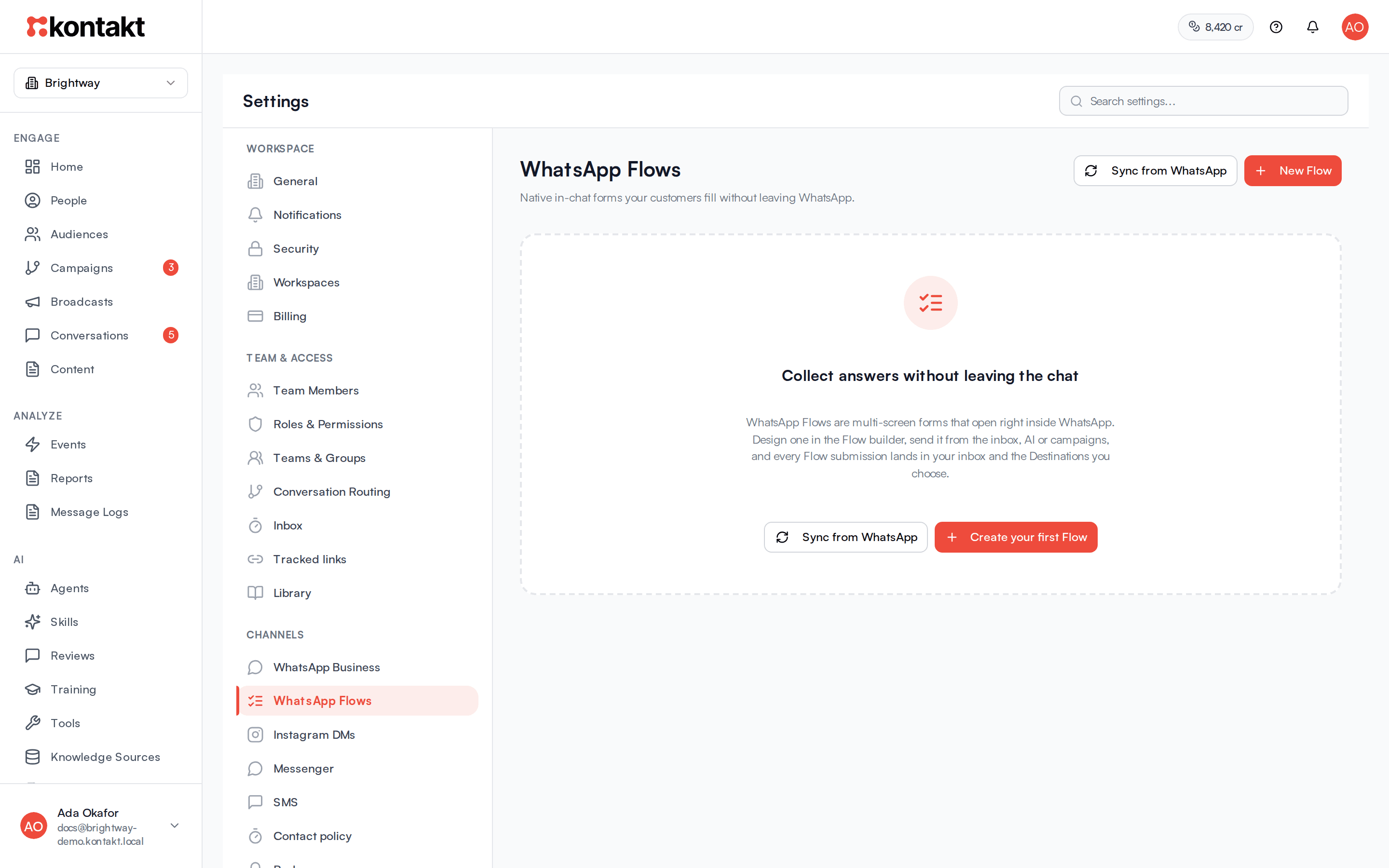
Go to Settings / WhatsApp Flows. Flows are also listed in Content. Click New Flow, or Create your first Flow if the list is empty.
Name it and pick a starting point
In New WhatsApp Flow, enter a name, choose the WhatsApp number, and pick how to start:
- Blank: an empty form.
- Starter: Lead capture, KYC / verification, Appointment booking, Survey, or Support request.
- AI draft: describe the form and click Draft with AI.
- From JSON: paste Flow JSON, click Check JSON, then Import Flow.
You can also ask Copilot on Home to draft a Flow, alone or as part of a journey. It saves the Flow as a draft here, with a template whose button opens it if you need one.
Build the screens
The editor opens on Build. Add screens and fields. Changes save automatically and the editor shows Saved.
Choose where answers go
Open Destinations and turn on what should happen with each submission. See Destinations below.
Publish
Click Publish. The button is disabled while the Flow has errors. After you change a published Flow, click Republish so customers get the new version.
Send a Flow
- From Conversations. In a WhatsApp conversation with an open 24-hour window, click the Send Flow (in-chat form) button in the composer. Pick a published Flow, then set the Message and Button label the customer sees.
- From a journey. Add a Send WhatsApp Flow step. To act on the answers in the same journey, add Wait for Event on WhatsApp flow submitted after it. To start a separate journey from a submission, use the Flow Submitted trigger. See Journeys.
- From a template. A WhatsApp template can have a Flow button. The Flow must be published first. Templates can be sent outside the 24-hour window. When a journey sends the template, submissions are linked to the Flow, so its Destinations, the Flow Submitted trigger, and Wait for Event all work. See Content and templates.
- From the AI agent. An agent can send a Flow during a chat. After the agent sends one, it waits for the customer to fill it in instead of answering the next stray message.
Destinations
Each submission can go to any combination of:
- Save to customer fields: write answers to the person's profile.
- Enroll in campaign: start a journey for the person.
- Send to your API: post the answers to an endpoint you run.
- Let AI follow up: have the AI agent continue the conversation with the answers.
To get submissions into your own systems, use Send to your API. Outbound webhook subscriptions are not available yet. See Webhooks.
Every submission is listed on the Flow's Submissions tab. Answers to password fields and fields with Masked turned on show as •••• there. So do answers to fields named for a PIN, password, secret, token, CVV, BVN, or NIN, such as pin or card_cvv, including in the inbox and the CSV export.
Call API steps
A Flow can fetch data from your systems while the customer fills it in, for example to show available slots. On the Call API tab you can call your API When Flow opens, On Continue, or When field changes. A Flow that calls APIs shows a Calls APIs badge. After you change a Call API step, republish the Flow.
How it behaves
Statuses and badges
- Draft: not yet on WhatsApp. Published: live on the number. Deprecated: retired.
- Synced: pulled from your WhatsApp account. From JSON: imported from JSON.
- Send only: the Flow was synced or imported. You can send it and set Destinations, but Build and Call API stay read-only until you click Edit in Kontakt to take it over.
- Server-filled: one or more screens call a server when the customer taps Continue.
- Can't edit yet: the Flow uses features the Kontakt editor doesn't support.
- Updated on WhatsApp: the version on WhatsApp differs from the one in Kontakt.
Deleting
Deleting a published Flow deprecates it on WhatsApp. Customers can no longer open it.
The 24-hour window
Sending a Flow from the inbox needs an open window, like any free-form message. Outside the window, use a template with a Flow button.
Troubleshooting
Publish is greyed out
The Flow has validation errors. Fix the fields the editor highlights, then publish.
The Flow is marked Send only
It was synced or imported. You can still send it and set Destinations. Click Edit in Kontakt if you want to edit its screens here.
Customers see an old version
You changed the Flow after publishing. Click Republish.
I can't pick my number
Flows need a Cloud API number. A Direct Meta number must be registered first. See WhatsApp.