AI settings
AI settings are the workspace-wide controls that apply to every agent, from the master on and off switch to how the router picks skills.
Most AI behaviour is set per agent and per skill. A few controls apply to the whole workspace: whether AI answers at all, which models it uses, how the router decides, how long to wait for a customer to finish typing, and what media the AI may read and send. You find them in Settings / AI Settings and Settings / Models.
Before you start
You need a role that can change workspace settings. Workspace admins can.
Change AI settings
Open AI Settings
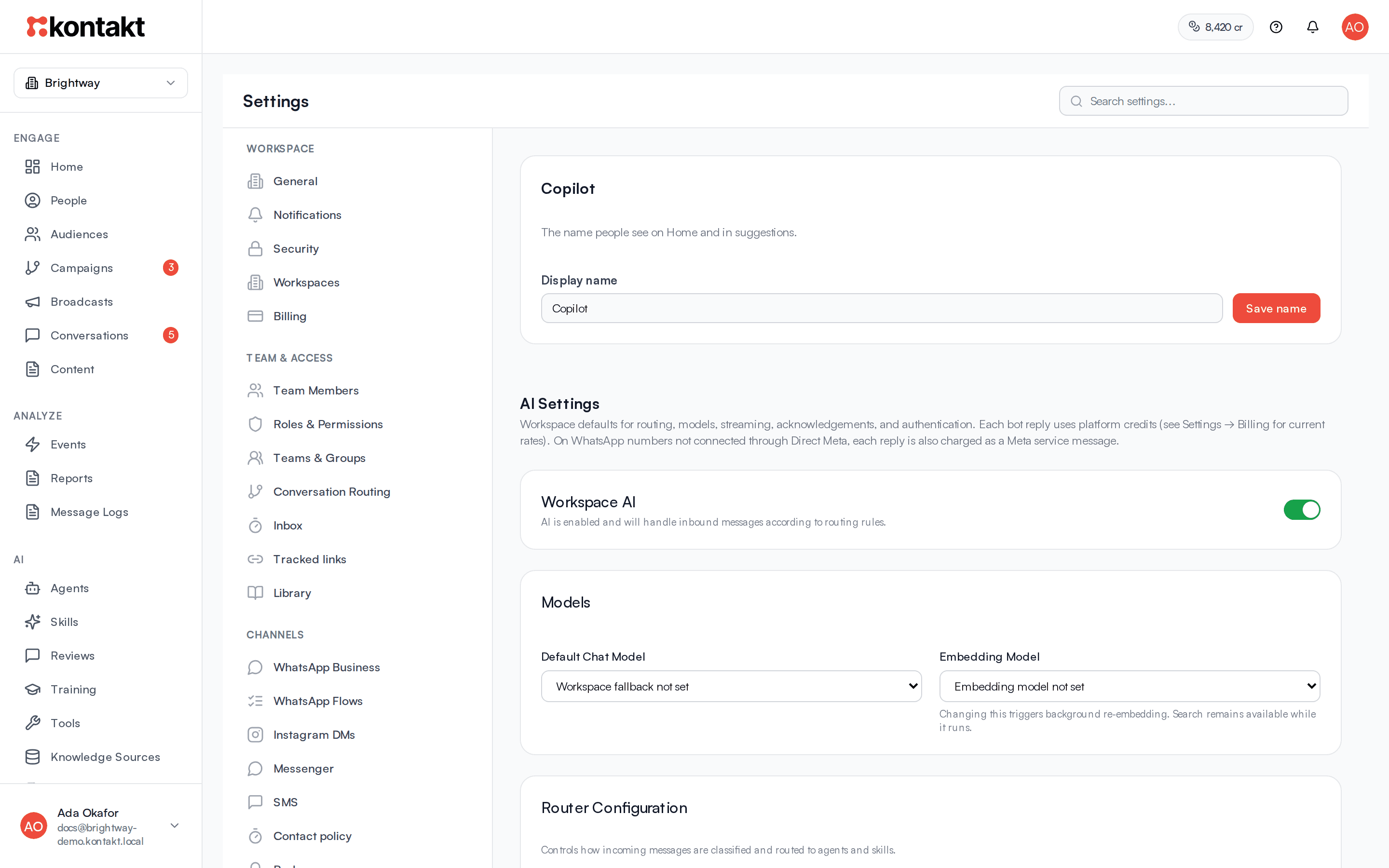
Go to Settings / AI Settings. The Copilot name card is at the top. See Copilot.
Make your changes
Each section is described below.
Save
Select Save Settings. If you changed the router or models, Kontakt shows Router configuration updated and offers Run Quality Suite, Run Scheduler, or Skip. Running the suite checks that replies still route and read well. See Agent health.
Workspace AI
This switch turns AI on or off for the whole workspace. When it is off, customer messages still arrive in your inbox, but the AI does not collect, route, or answer them. Use it to pause AI during an incident or before you go live.
The agent Playground keeps working while workspace AI is off, so you can test before turning it on.
Models
- Default Chat Model is used by any agent or skill that does not pick its own model.
- Embedding Model turns your knowledge into searchable vectors. Changing it asks you to confirm, then reprocesses all knowledge in the background. Search keeps working while it runs.
When a skill runs, Kontakt uses the skill's own model if set, then the agent's Default chat model, then the workspace Default Chat Model, then the first active chat model in your registry.
Router configuration
The router decides which agent and skill should handle a message when more than one could. It is only used when the agents bound to a connection have more than one skill mounted between them.
- Router Model: the model used for routing. Use default chat model uses the workspace default.
- Routing Confidence Threshold: from 0.5 to 0.95, default 0.7. If the router is less confident than this, the conversation goes to a person instead of guessing. Raise it to hand over more often, lower it to let the AI attempt more. The Playground ignores this threshold.
- Routing Instructions: extra guidance in plain English, such as "Prefer billing-support for invoice and payment questions." This is added to Kontakt's own routing prompt, which you cannot edit.
If the router picks the route but cannot tell which skill, the agent's highest-priority skill is used.
Follow-up defaults
These are the workspace-wide limits for agent follow-ups:
- Timezone, Quiet hours start, and Quiet hours end. Leave quiet hours blank to message any time, subject to channel rules. Messages due during quiet hours wait until they end.
- Messages per customer / day and Messages per customer / week.
- If a chat is already open: Skip, Continue that chat, or Start a new topic.
- Don't message if a teammate took over and Don't message unsubscribed customers.
- What to do outside each channel's messaging window. On WhatsApp you can Use an approved WhatsApp template or choose Don't send. Instagram and Messenger follow-ups never send outside their 24-hour window.
An agent's own Messaging rules can be stricter than these defaults but not looser.
Message debounce
Customers often send several short messages in a row. Debounce makes the AI wait a moment after the last message, then answer them all together. The inbox shows AI collecting messages… while it waits.
Set the wait in milliseconds per channel. The defaults are:
| Channel | Default wait |
|---|---|
| 5000 ms | |
| Web | 2000 ms |
| SMS | 5000 ms |
| 0 ms | |
| 4000 ms | |
| Messenger | 4000 ms |
A longer wait means fewer, more complete replies but a slower first response.
Media
- Media vision: lets the AI look at images customers send, and at keyframes from videos. On by default. Replies to an image message cost more than a text reply. See Billing.
- Outbound media (autonomous): lets skills with the Send Media tool send images, video, audio, and documents after a reply. On by default.
- Outbound media on review approve: when you approve a supervised reply that has media attached, also send the media. Off by default.
Model registry
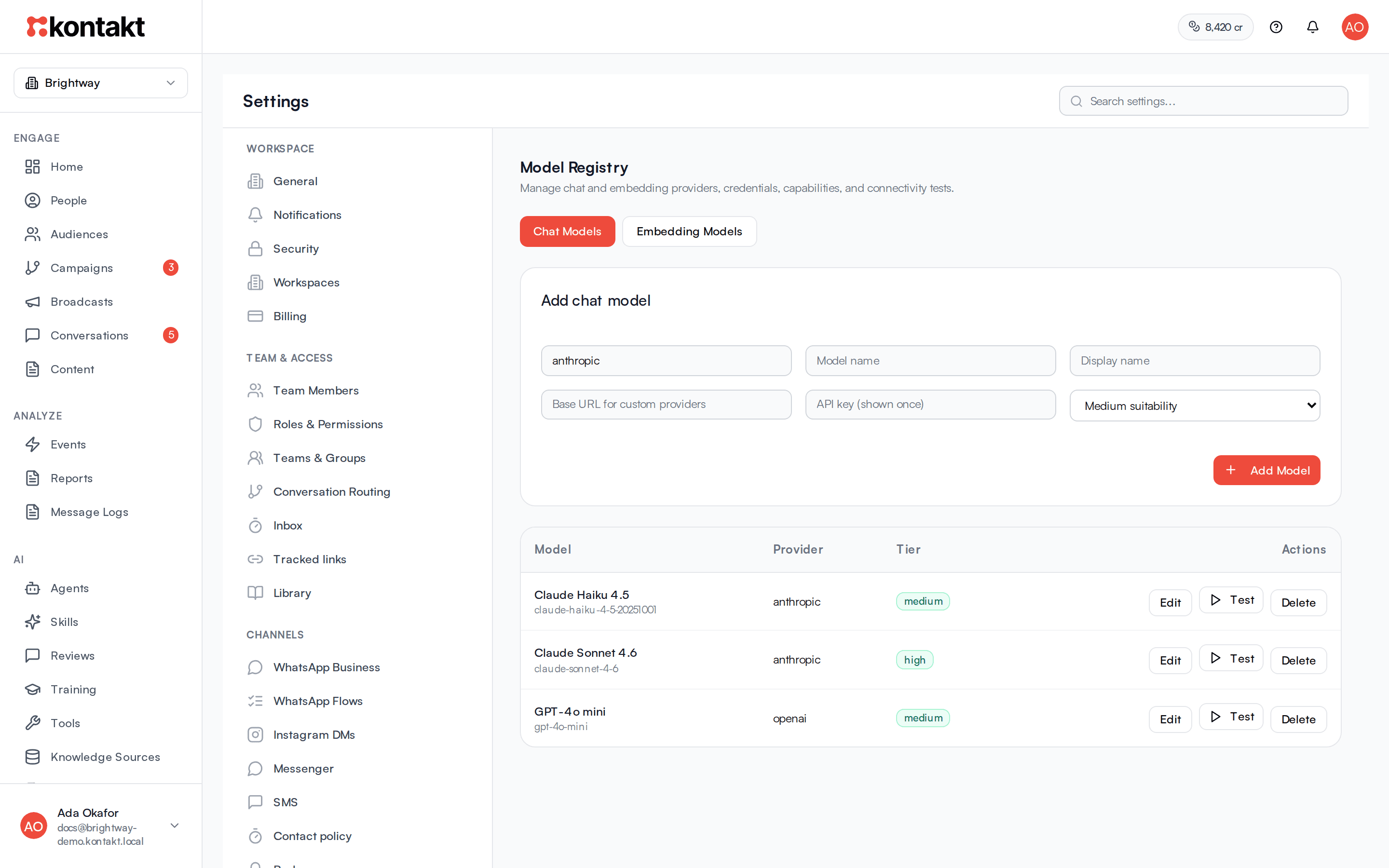
Go to Settings / Models to manage the models your workspace can use. The Model Registry has Chat Models and Embedding Models tabs.
Add a model
Fill in Provider, Model name, and Display name. Add a base URL for a custom provider and an API key. The key is shown once and stored encrypted. Pick a suitability tier, then select Add Model.
Test it
Select Test next to the model to check that Kontakt can reach it.
Use it
Choose it as the Default Chat Model or Embedding Model in AI settings, or as the model for a specific agent.
Use Edit to change a model or replace its key, then Save Model. Delete is disabled while any agent, skill, or setting uses the model.
Troubleshooting
No customer gets an AI reply
Check that Workspace AI is on and that you selected Save Settings. Then check the agent bindings described in Agents.
Too many conversations go to the team
The router is not confident enough. Lower Routing Confidence Threshold a step, make skill descriptions more distinct, or add Routing Instructions. Rerun the quality suite afterwards.
Replies feel slow
Lower the debounce wait for that channel. A slow model can also add delay, so try a faster model as the Default Chat Model or Router Model.