Tour the app
Where everything lives in Kontakt. Use this page to find a screen, then follow the link to its full guide.
The Kontakt app has three fixed areas: the sidebar on the left, a top bar, and the main screen. The sidebar groups screens under ENGAGE, ANALYZE, AI, and MANAGE. Click a group name to collapse or expand it.
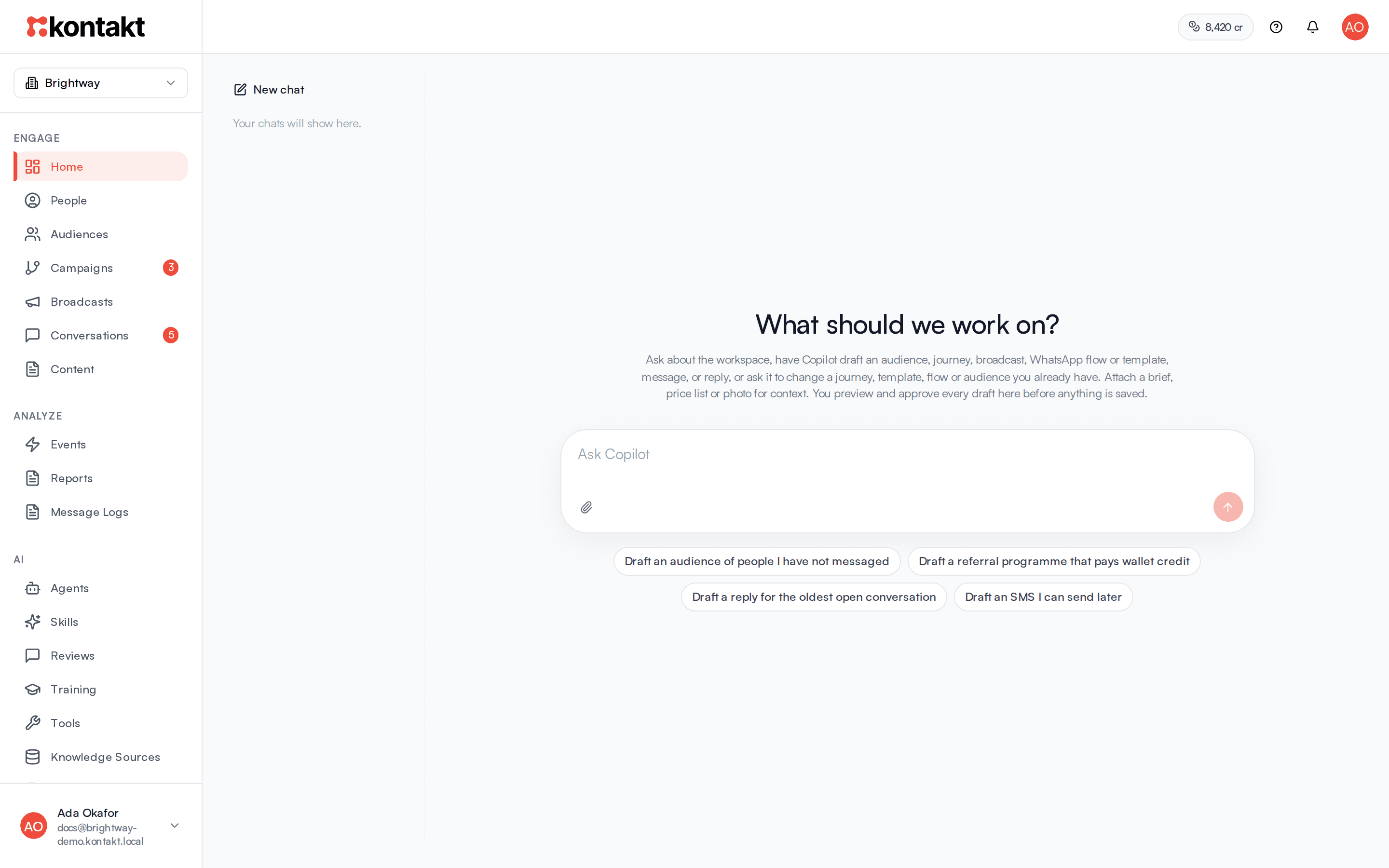
Top of the sidebar: workspace switcher
The name at the top of the sidebar is your current workspace. Click it to see every workspace you belong to, with a check next to the current one. Pick another workspace to switch to it. If you belong to workspaces in more than one firm, each one shows its firm name.
Click Create Workspace at the bottom of that list to add a new, empty workspace. See Workspaces.
Top bar
- Credit balance. Shows how many credits the workspace has left, and warns you when the balance is low or empty. Click it to open Settings / Billing. See Credits and top-ups.
- Help. The question mark icon opens these docs in a new tab.
- Notifications. The bell shows new notifications, such as a conversation assigned to you. Click one to open that conversation. Notification settings takes you to your preferences. See Notifications.
Your name sits at the bottom of the sidebar. Click it and choose Sign Out to sign out.
ENGAGE
| Item | What it's for |
|---|---|
| Home | Ask Copilot about your workspace, have it draft an audience, campaign, broadcast, message, or reply, or have it change a journey, template, Flow, or audience you already have. You approve before anything is saved. See Copilot. |
| People | Every customer and contact, with profiles, fields, tags, and segments. See People. |
| Audiences | Saved groups of people built from filters, used by broadcasts and journeys. See Audiences. |
| Campaigns | Automated journeys and referral programmes. See Journeys and Referrals. |
| Broadcasts | One-time messages to an audience. See Broadcasts. |
| Conversations | The shared inbox for every channel, where your team and AI agents reply. See Conversations. |
| Content | Templates, WhatsApp Flows, SMS, and email content. The number on it counts templates waiting for approval. See Content and templates. |
Some items show a number. On Conversations it counts conversations that need you. On Campaigns and Broadcasts it counts the ones running now.
ANALYZE
| Item | What it's for |
|---|---|
| Events | Every customer event Kontakt received, and the sources that send them. See Events. |
| Reports | Build custom queries and charts from your data. See Reports. |
| Message Logs | The full lifecycle of each message sent and received, across all channels. See Message logs. |
AI
| Item | What it's for |
|---|---|
| Agents | Create agents, set their persona, bind them to channels, and mount skills. See Agents. |
| Skills | Write and version the procedures agents follow, and test them. See Skills. |
| Reviews | Approve, edit, or reject supervised AI replies before they are sent. See Reviews and training. |
| Training | Import past conversations so agents learn your voice, knowledge, and skills. See Reviews and training. |
| Tools | The platform and integration actions skills can call. See Tools. |
| Knowledge Sources | The files, websites, Drive documents, and conversations agents learn from. See Knowledge. |
| Knowledge Wiki | The compiled knowledge, with where each fact came from. See Knowledge. |
| Voice | Real reply examples and voice attributes that shape how agents sound. See Voice. |
| Agent Health | One health score, top issues, and quality runs. See Agent health. |
MANAGE
| Item | What it's for |
|---|---|
| Settings | Workspace, team, channel, AI, and integration settings. See the next section. |
Settings
Open Settings in the sidebar. The left column lists every section, and Search settings... filters it. Most guides in these docs start from a Settings section.
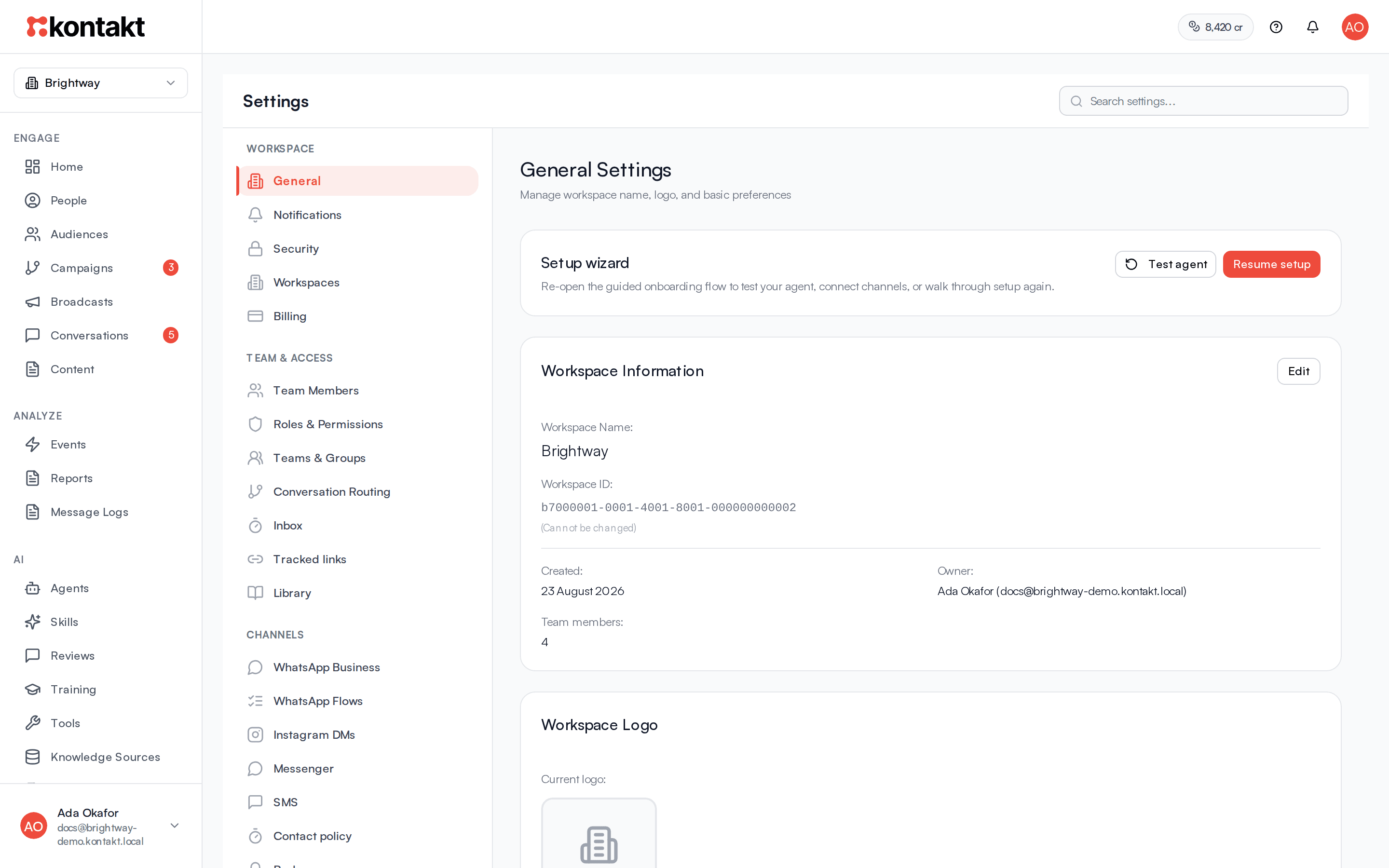
WORKSPACE
- General: workspace name, description, logo, brand colours, the setup wizard, and the option to require MFA for everyone. See Workspaces.
- Notifications: how you personally get notified. See Notifications.
- Security: two-factor authentication for your account. See Security and MFA.
- Workspaces: create, rename, archive, and restore workspaces in your firm. See Workspaces.
- Billing: plan, credits, invoices, and top-ups. See Billing.
TEAM & ACCESS
- Team Members: invite people and manage their access. See Team members.
- Roles & Permissions: define what each role can do. See Roles and permissions.
- Teams & Groups: organise members into teams. See Teams and groups.
- Conversation Routing: auto-assign conversations to your team. See Routing.
- Inbox: how many hours pass before a waiting conversation is marked late. See Conversations.
- Tracked links: URL templates for forms and landing pages. See Tracked links.
- Library: quick replies and shared files. See Library.
CHANNELS
WhatsApp Business, WhatsApp Flows, Instagram DMs, Messenger, SMS, Contact policy, Push, Email, USSD, and Web Widget. Each has its own guide under Channels. Contact policy sets caps and quiet hours for marketing messages. See Contact policy.
AI PLATFORM
- AI Settings: workspace defaults for how agents reply. See AI settings.
- Models: the chat and embedding models available to agents. See AI settings.
ENGAGEMENT ENGINE
- Wallet & Points: how your loyalty wallet is set up. See Loyalty and wallet.
- Computed Fields: customer metrics derived from other data. See Fields and tags.
- Fulfillment Providers: integrations that deliver rewards. See Fulfillment providers.
DATA & INTEGRATIONS
- Connectors: Shopify catalog and custom API tools. See Integrations.
- Webhook sources: turn an incoming payload from another system into an event. See Webhook sources.
- API Keys: keys for the Kontakt API. See Developers.
PARTNER
You only see this group if you work for a Kontakt partner that resells Kontakt to its own customers. See Partners.
Link straight to a section
Each Settings section has its own address, so you can bookmark it or send it to a teammate. For example, /settings?tab=team-members opens Team Members.