Connect one or more WhatsApp Business numbers. Your team and AI agent reply in Conversations, and journeys and broadcasts send approved templates.
WhatsApp is Kontakt's main two-way channel. Each connected number brings its chats into Conversations, can be answered by an AI agent, and can send approved templates from journeys and broadcasts. You choose how each number connects, and that choice decides who bills you for messages.
Before you start
- A role that can change workspace settings.
- A WhatsApp Business account, not a personal WhatsApp account.
- A Meta business portfolio (Business Manager) for your company, where you are an admin. Complete its business info: legal name, address, website, and phone number.
- A verified business phone number.
- Popups allowed in your browser if you connect through Meta.
Choose a provider
When you add a number, you pick one of two providers:
| Direct Meta (Cloud API) | 360dialog (BSP) | |
|---|---|---|
| How it connects | Meta Embedded Signup in a popup | You are redirected to 360dialog to finish setup |
| Plan | Free on every plan | Available on paid plans, and counts toward your WhatsApp channel allowance |
| Message charges | Meta bills you directly | Paid from your Kontakt credits at Meta's rates, including replies inside the 24-hour window |
AI replies cost 3 credits on both. See Channel pricing and the rate card.
Connect a number
Open WhatsApp settings
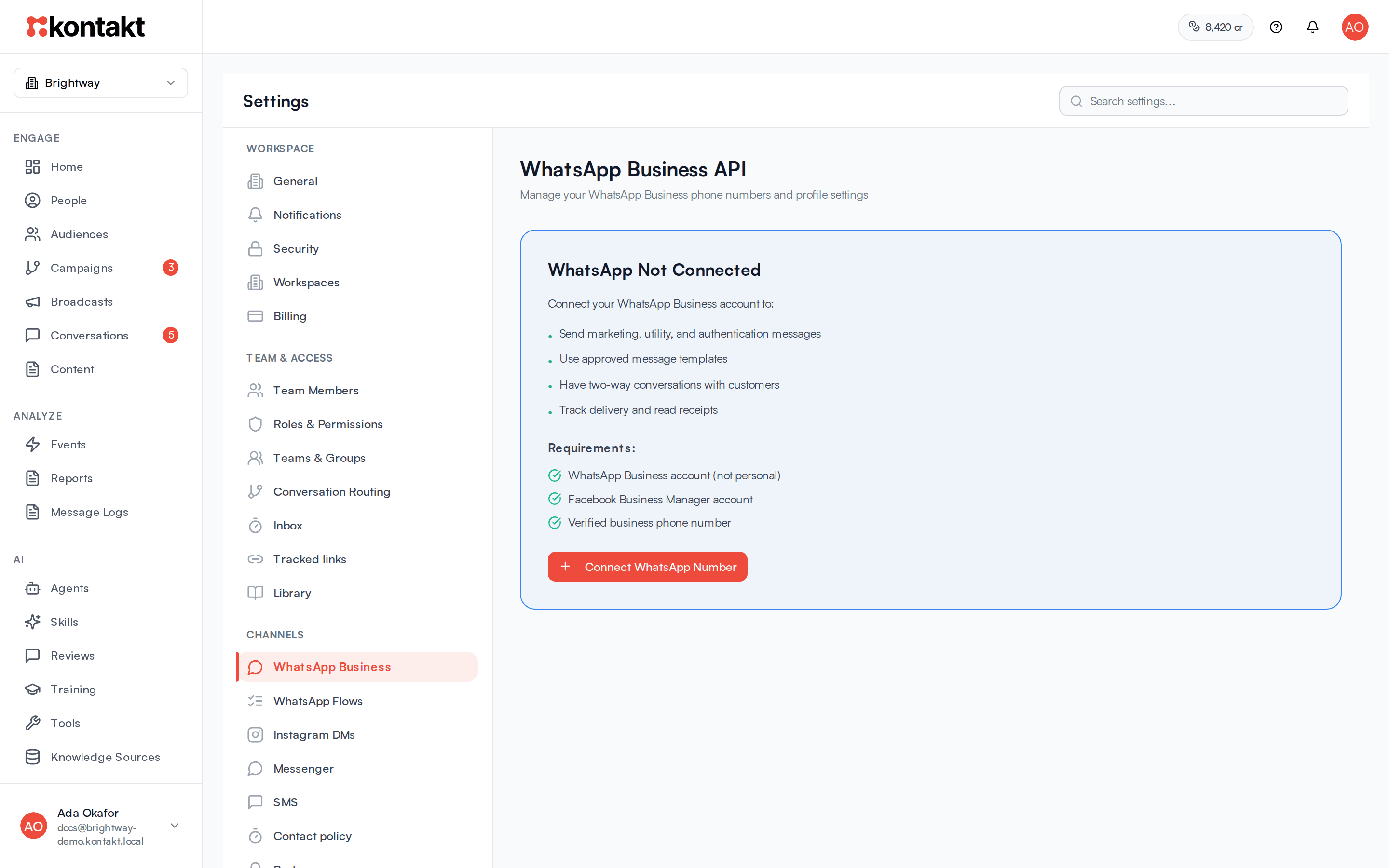
Go to Settings / WhatsApp Business. If no number is connected you see WhatsApp Not Connected. Click Connect WhatsApp Number, or Add Number if you already have one.
Choose a provider
In Add WhatsApp Number, under Choose a provider, pick Direct Meta (Cloud API) or 360dialog (BSP).
If your plan's WhatsApp allowance is full, Kontakt shows what another 360dialog number costs per month. You can accept the add-on or click Use Meta direct instead.
Connect through Meta
For Direct Meta (Cloud API), enter the number's Registration PIN (6 digits) if you have one. This is the WhatsApp two-step verification PIN. You can leave it empty and register later.
Click Connect via Meta and finish Meta's signup in the popup.
Or connect through 360dialog
For 360dialog (BSP), under Which number will you use? choose I'll use a Meta-provided or different number. Click Connect via 360Dialog and finish signup on 360dialog, which opens Meta's signup. When you're done you are sent back to Kontakt and the number syncs automatically.
Pick your business in Meta's signup
Both providers run Meta's signup. You log in with Facebook, then enter and verify the phone number. Meta then shows Select business assets to share. Open the Business portfolio list and choose your company's portfolio, then choose or create its WhatsApp account.
Meta may fill in your own name
The Business portfolio list can start on your personal profile. If you continue without changing it, the number is set up under that profile instead of your company, and you can't move it after it's registered.
Check the number
Kontakt shows Connection Successful and the number appears as a card. Click Show Details to see the account information, quality rating, and messaging limit.
Bind an AI agent
To let an AI agent answer this number, open the agent in AI / Agents and tick the number under Channel connections. See Agents.
Registering a Direct Meta number
A Direct Meta number can only send once it is registered with Meta. If you skipped the PIN, or registration failed, the card shows Registration Required or Registration Failed.
- Click Register Number or Retry Registration.
- Enter the 6-digit Registration PIN.
- Click Register.
Until the number is registered, it shows as Not Registered when you start a new conversation and can't be selected.
What the number card shows
- Status: Verified, Pending, or Unverified. Direct Meta numbers also show Registered, Pending Registration, or Registration Failed.
- Provider: Direct Meta or 360dialog.
- Quality: Meta's rating for the number, shown as high, medium, or low.
- Tier: Meta's messaging limit, the number of unique customers you can message per day, such as 1,000, 10,000, 100,000, or unlimited.
- Sync Status: pulls the latest name, quality, and status from Meta.
How it behaves
The 24-hour window
When a customer messages you, a 24-hour customer service window opens. Inside it, your team and AI agent can send free-form replies. Outside it, WhatsApp only accepts approved templates.
When the window has closed, the conversation shows 24-hour messaging window has expired with a Send a template button. When you start a new conversation with New Conversation and the window isn't open, you pick a template as the first message.
Templates
Templates are messages approved by Meta before you can send them. Create them in Content with Create Template, choose WhatsApp, and submit them with Submit for Approval for one of your numbers. Each template has a category: marketing, utility, or authentication. Templates pending review can't be edited. Use Sync from WhatsApp to pull templates you made in Meta's tools. See Content and templates.
Opt-outs
If a customer sends exactly stop, unsubscribe, stop promo, stop promotions, or cancel as the whole message, Kontakt marks them as opted out of WhatsApp marketing. Sending start, subscribe, or unstop opts them back in. Kontakt also records an opt-out when Meta reports that the person stopped marketing messages.
Opted-out people are skipped for marketing templates in broadcasts and journeys. Utility and authentication templates and normal replies still send. Their profile and conversation show Opted out of marketing. An admin or manager can click Clear to remove it.
Credits and allowances
On 360dialog numbers each message you send uses credits, priced by the recipient's market and the message category. The inbox shows the credit cost under the reply box before you send. Direct Meta numbers use no Kontakt credits for messages. See Channel pricing.
Disconnect a number
Open the number, click Disconnect, type DISCONNECT, and click Disconnect Number. All messaging on that number stops in Kontakt. The number and its WhatsApp Business account stay in your Meta account.
Troubleshooting
A message failed with code 131047
The service window closed before the message was sent. Send an approved template instead.
A message failed with "Message undeliverable (131026)"
WhatsApp couldn't deliver the message and Meta doesn't say why. Possible causes: the number isn't on WhatsApp, the person hasn't accepted WhatsApp's latest terms, or their app is out of date. Check the number on the person's profile. The message charge is refunded.
Other failures
The reason under the bubble is the error Meta sent, with its code. See Common WhatsApp failure codes.
The number shows Registration Failed
Check the PIN. It must be the two-step verification PIN set for that number in WhatsApp Manager. Then click Retry Registration.
My business portfolio is greyed out in Meta's signup
You need to be an admin of the portfolio, and it can't be restricted. Ask an admin to give you full control in Business Manager, and check Account Quality for restrictions. If the number is already on WhatsApp with another provider, Meta locks the portfolio that holds the number. That is expected, so continue.
I can't choose 360dialog
360dialog numbers need a paid plan. Upgrade, or connect through Direct Meta (Cloud API), which is free on every plan. See Plans.