Push notifications
If you have your own mobile app, a journey can send its users a push notification. You bring the Firebase project, and your app tells Kontakt which device belongs to which person.
Push lets a journey notify people on their phone through your own app, for example "Your reward is ready". It works with apps that use Firebase Cloud Messaging. Push is for journeys only. It doesn't appear in Conversations, and customers can't reply to it.
Before you start
- Your own iOS or Android app that uses Firebase Cloud Messaging.
- A Firebase service account JSON file for that app's Firebase project, from the Firebase console.
- A role that can edit campaigns.
- A developer who can add one API call to your app. See Register devices.
Set up push
Open Push settings
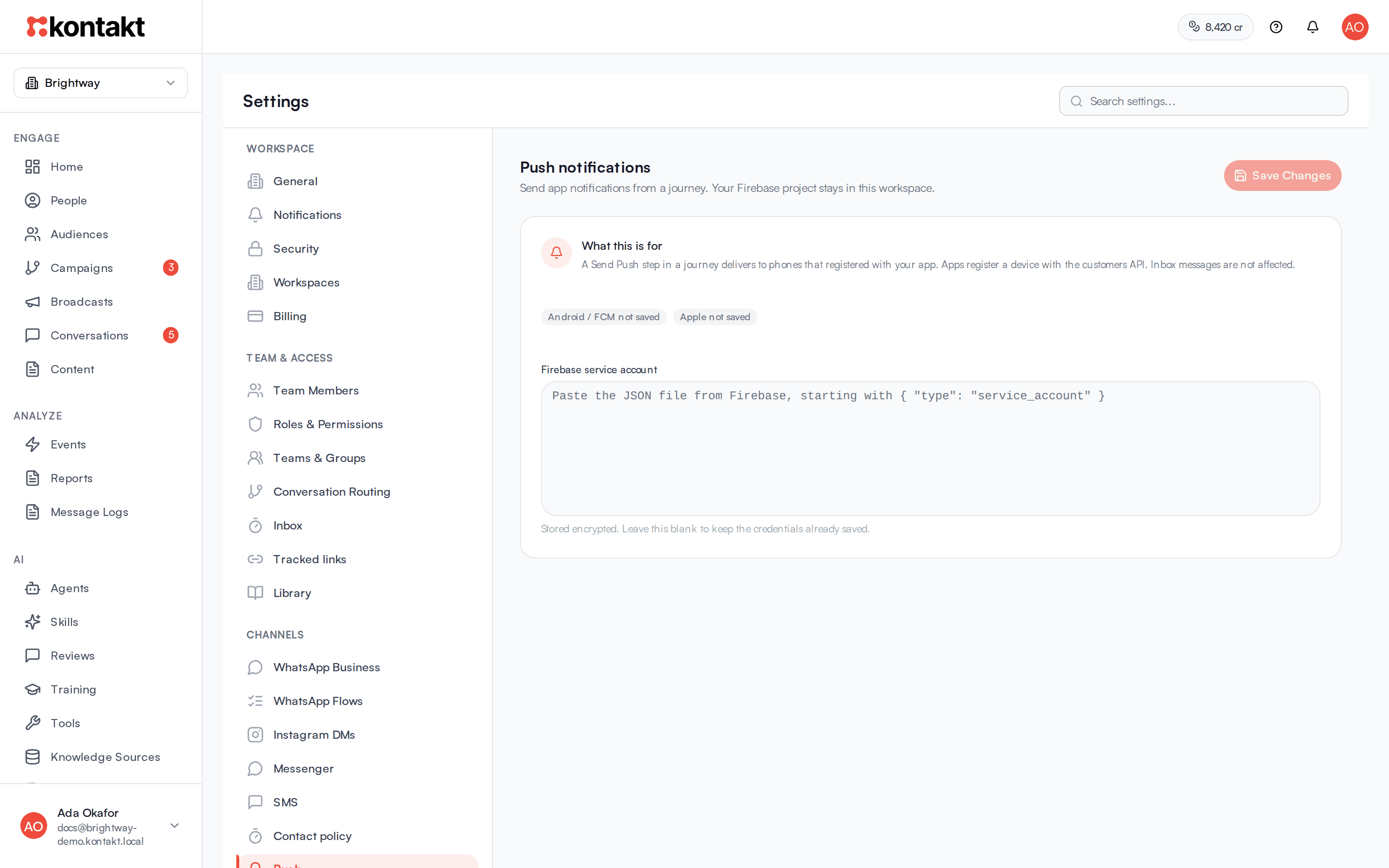
Go to Settings / Push. The page is titled Push notifications.
Paste the service account
Paste the whole JSON file into Firebase service account. It starts with { "type": "service_account" }. Click Save Changes. The badge changes to Android / FCM saved.
The credentials are stored encrypted. To keep the saved credentials, leave the box empty.
Register devices from your app
Your app sends each device's Firebase token to Kontakt for the signed-in person. See Register devices.
Add a Send Push step
In a journey, add a Send Push step. Fill in Notification title (the short line above the message on the lock screen) and Notification text, and set Purpose to Marketing or Transactional. See Journeys.
Register devices
Your app registers a device with the customers API, using a workspace API key from Settings / API Keys:
POST /v1/customers/{id}/devices
Authorization: Bearer <your API key>
Content-Type: application/json

{ "token": "<Firebase registration token>", "platform": "android" }{id}is the Kontakt customer ID. Create or look up the person first withPOST /v1/customers. See Ingestion.platformisiosorandroid. It defaults toandroid.- Send the Firebase registration token, not a raw Apple device token. Kontakt sends every notification through Firebase.
- When someone signs out or turns off notifications, send the same request with
"unregistered": true.
Calling the endpoint again with the same token is safe. It reactivates the device if it was unregistered.
See the API reference for details.
How it behaves
- One device per send. If a person has several registered devices, each Send Push step delivers to one of them, preferring an Android device.
- Skipped sends. The step is skipped for a person with no registered device, or when no Firebase credentials are saved. If Firebase rejects the request, the step is skipped too.
- Contact policy. Marketing push follows your caps and quiet hours only if App push is turned on in Settings / Contact policy. It is off by default. See Contact policy.
- No fallback channels. A Send Push step has no fallback channel setting. If you need a backup message, add another message step to the journey.
- Cost. Notifications go out through your own Firebase project. Kontakt doesn't charge credits for push.
Troubleshooting
The badge still says not saved
The JSON didn't save. Make sure you pasted the whole file, including the opening and closing braces, then click Save Changes again. An error appears if it isn't valid JSON.
Nobody receives the notification
Check that your app registered devices for those people, that it sends Firebase registration tokens, and that the service account belongs to the same Firebase project as the app.
iPhone users don't receive anything
Your Firebase project must be set up to deliver to Apple devices, and your iOS app must register its Firebase token, not its Apple device token.