Home and dashboard
Home is where you ask questions and get drafts. The dashboard gives you the headline numbers for your inbox and contact list.
When you sign in, Home opens. It is a chat with Copilot, your workspace assistant. For charts and counts, open the dashboard, which shows your inbox queues and how people and conversations break down.
Before you start
- The dashboard charts need permission to read analytics. See Roles and permissions.
- Counts only include your current workspace. If you belong to several, switch first. See Workspaces.
Home
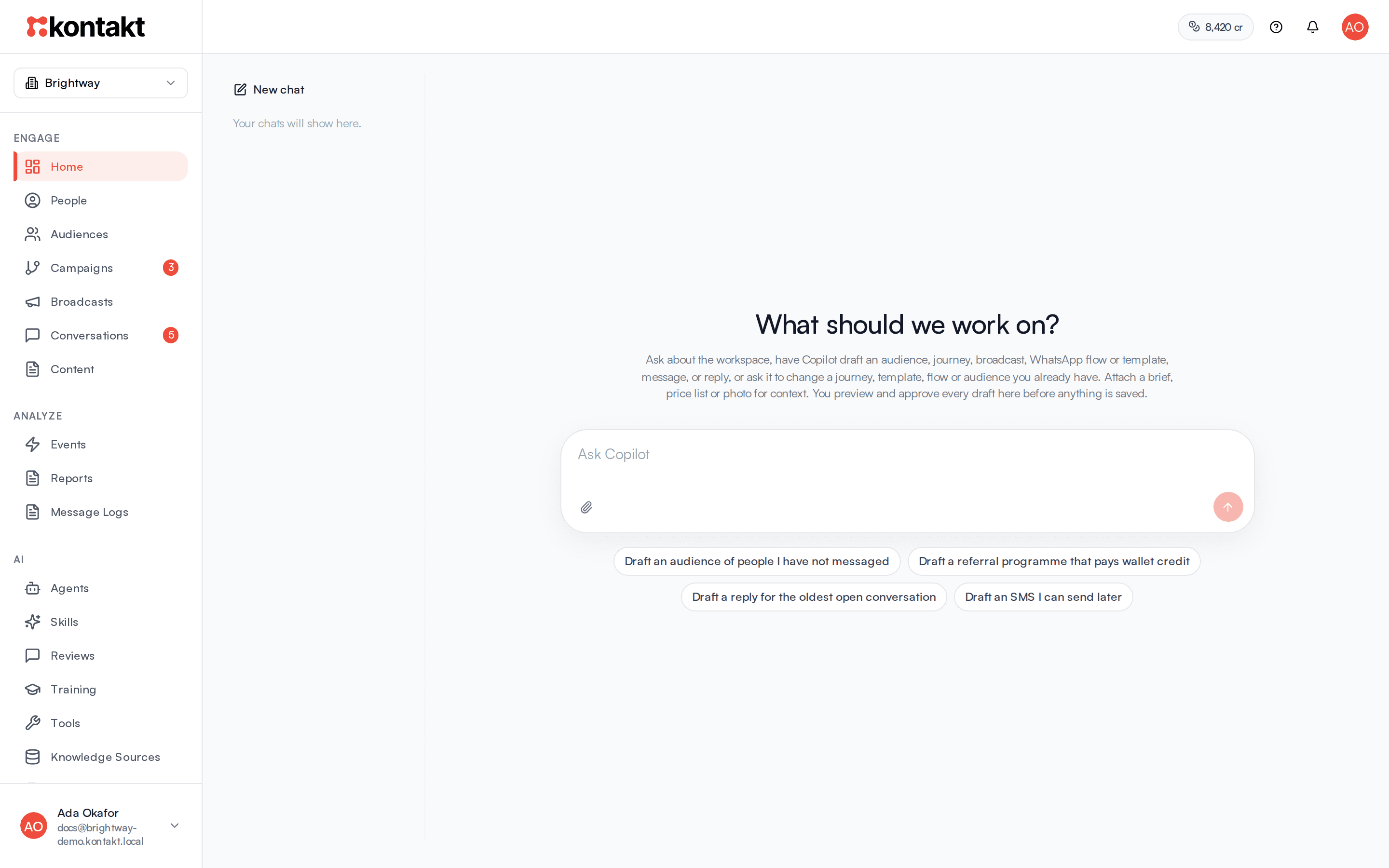
Home asks "What should we work on?". Type a question in the box and press Enter, or click a suggested prompt below it. Copilot can answer questions about your workspace, draft an audience, campaign, broadcast, message, or reply, and draft changes to journeys, templates, Flows, and audiences you already have.
Drafts appear as cards. Nothing is created until you click Approve. Click Dismiss to drop a draft. For an audience draft, View draft opens it in the audience builder first so you can check the rules. After approval, the card links to what was created, such as Open audience or Open campaign.
Your chat stays on Home while you move around the app in the same browser tab. Click New chat to start over. See Copilot for what it can do and how drafts work.
The dashboard
The dashboard is at /dashboard in the app. It is not in the sidebar, so bookmark it.
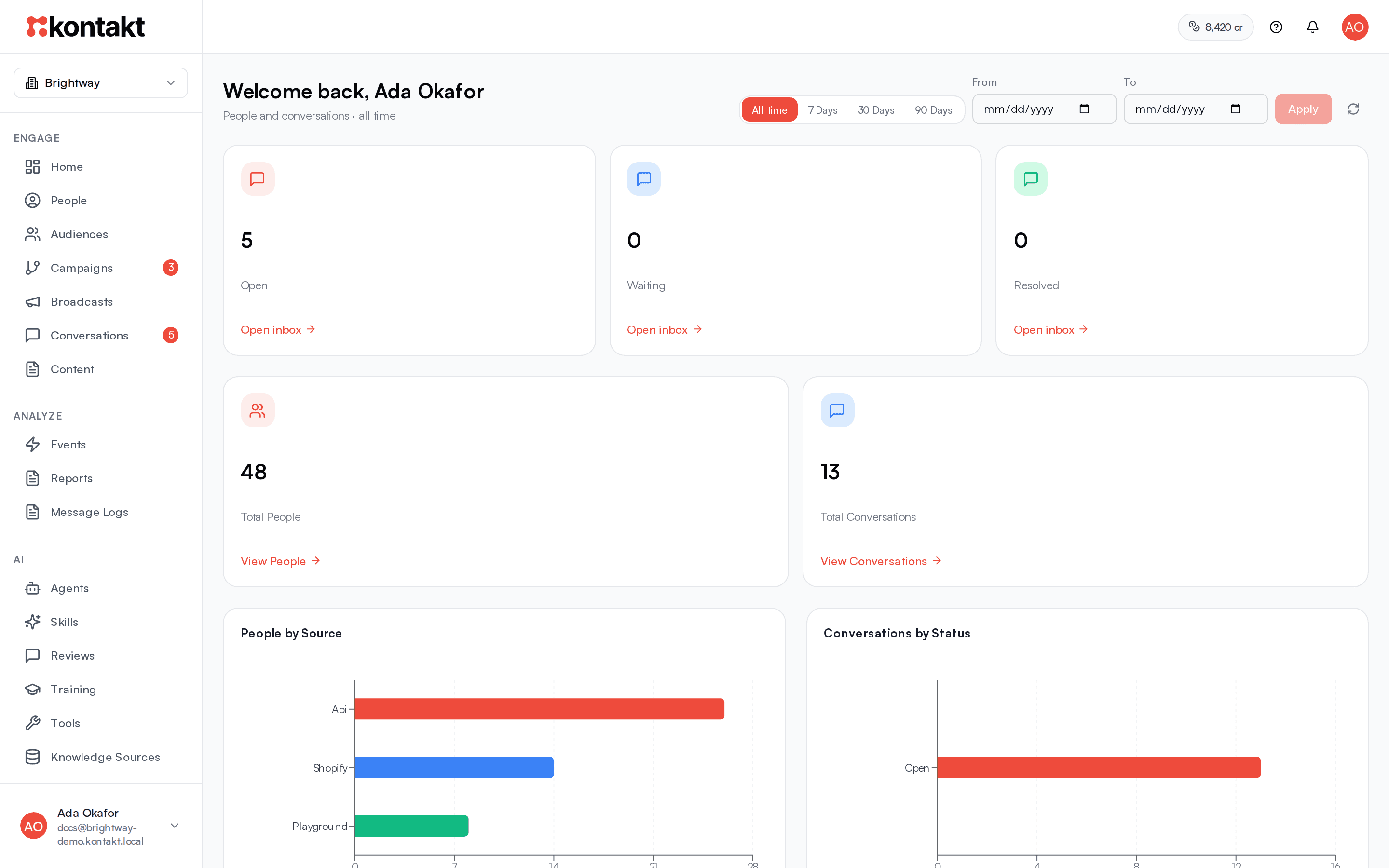
Pick a date range
The page opens on All time. Choose 7 Days, 30 Days, or 90 Days, or enter dates in From and To and click Apply. The line under the greeting shows the range in use. Click the refresh icon to reload the numbers.
Dates are whole calendar days in UTC. If From is later than To, the dates are swapped for you.
What each number means
| Card or chart | What it counts | Follows the date range |
|---|---|---|
| Open | Conversations in the Open tab that a person should handle. Chats an AI agent is handling are left out. | No, always live |
| Waiting | Conversations in the Waiting tab. | No, always live |
| Resolved | Conversations in the Resolved tab. | No, always live |
| Total People | People created in the range, excluding deleted people. | Yes |
| Total Conversations | Conversations started in the range. | Yes |
| People by Source | People created in the range, grouped by how they arrived. | Yes |
| Conversations by Status | Conversations started in the range, by tab: Open, Waiting, Resolved. | Yes |
| Conversations by Assignee | Conversations started in the range, by assigned teammate, with an Unassigned bar. | Yes |
| Conversations by Campaign | Conversations started in the range, by the campaign they were attributed to. | Yes |
Each queue card has an Open inbox link to that tab. View People and View Conversations take you to those pages.
Click through from a chart
- A bar in Conversations by Status opens that tab in Conversations.
- The Unassigned bar in Conversations by Assignee opens the Open tab, where you can filter by Unassigned.
- Other bars open Conversations.
How it behaves
- Ranges use the start date. A conversation that started before your range but had messages in it is not counted. Use Reports to count by other dates, such as resolved time.
- Assignee is the current owner. Reassigning a chat moves it to the new person's bar.
- Campaign comes from attribution. Conversations that arrived with campaign details, for example from an ad, carry that campaign name. Others are grouped as unattributed.
- Source labels are each person's stored source, for example Import, Api, or Reached-out.
Troubleshooting
The Open count is lower than the Open tab
The Open card leaves out conversations an AI agent is handling, which matches the Team owner filter in Conversations. Switch the owner filter to Anyone to see all of them.
The dashboard shows an error
You may not have permission to read analytics. Ask an admin to check your role.
The numbers didn't change after I picked dates
Custom dates apply only after you click Apply. Presets apply straight away.