Credits and top-ups
Credits pay for AI replies and paid messages. Learn how your balance is made up, how to add more, and what pauses when it reaches zero.
Your workspace has one credit balance. Included credits from your plan, credits you buy, and bonus credits all land in it, and every metered charge comes out of it. One credit costs $0.01.
Before you start
- To top up, your role needs the Settings permission set to Update.
- Top-ups are paid in USD by card, or in your local currency through local checkout.
Your balance
Kontakt shows your available credits: the credits you can spend right now.
- Balance is every credit you hold.
- Reserved credits are held for work in progress, such as a reply being delivered or a broadcast that is sending. Kontakt holds the expected cost before a send and charges the real cost once the message is accepted. If a send fails, the held credits are released. If Meta later reports that a WhatsApp message couldn't be delivered, the message charge is refunded. See Undelivered WhatsApp messages.
- Available is your balance minus reserved credits. This is the number that decides whether a send can go ahead.
You see available credits in two places:
- The Current plan card in Settings / Billing, as "N credits available", next to your plan's included credits per month.
- The credits chip in the header of every page, shown as "N cr". Click it to open Billing.

Included, purchased, and bonus credits
| Type | Where it comes from | Expires |
|---|---|---|
| Included credits | Added at the start of each plan period | At the end of that period. Unused included credits don't roll over. |
| Top-up credits | Credits you buy | Never |
| Signup bonus | A one-time grant when a workspace is created | Never |
Kontakt spends credits that expire first, soonest expiry first, then credits that never expire, oldest first. In practice, usage comes out of your included credits before your top-ups.
When included credits expire, Credit activity shows an Included credits expired entry for the unused amount.
Top up credits
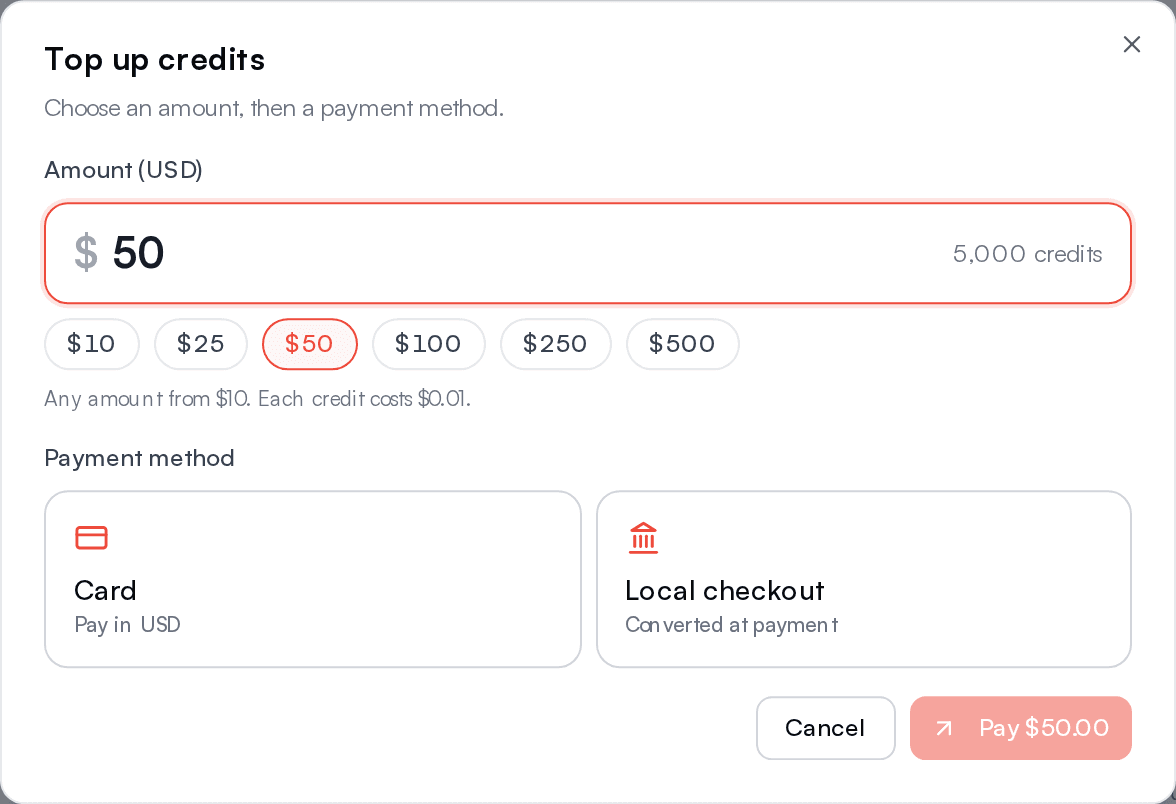
Open the top-up dialog
Go to Settings / Billing and click Top up credits in the Current plan card. You can also click the header chip when it shows Top up, or the Top up button on a "Not enough credits" message.
Enter an amount
Type any amount in Amount (USD), or pick a preset. The field shows how many credits the amount buys. The minimum top-up is $10. There are no packs or volume discounts: every dollar buys credits at the same price, rounded down to whole credits.
Choose a payment method
Pick Card to pay in USD, or Local checkout to pay in your local currency. The dialog confirms what you are buying, for example "You are purchasing N credits for $X." With local checkout it also shows the exact local amount you will be charged and the exchange rate behind it, for example "(1,390 per $1)". The rate follows the market exchange rate, adjusted to what it costs to buy US dollars locally, is checked once a day, and is fixed when checkout opens.
Pay
Click Pay $X. You go to a secure checkout page. When payment completes you return to Billing, the credits are added to your balance, and a receipt appears in Billing history.
A card used for a top-up is not saved. Only cards used for a plan, a renewal, or an add-on are saved for future charges.
Low balance
When your available credits drop below your alert level:
- The header chip turns amber and shows Low.
- Billing shows "Low balance (N credits). Top up to avoid interruptions."
- The workspace owner and members whose role can update settings get a "Low credit balance" email, plus an in-app notification and a push notification. Clicking the notification opens Billing.
If credits run out completely, the same people get an "out of credits" alert.
Balance alerts
Choose when you're alerted in the Balance alerts card in Settings / Billing.
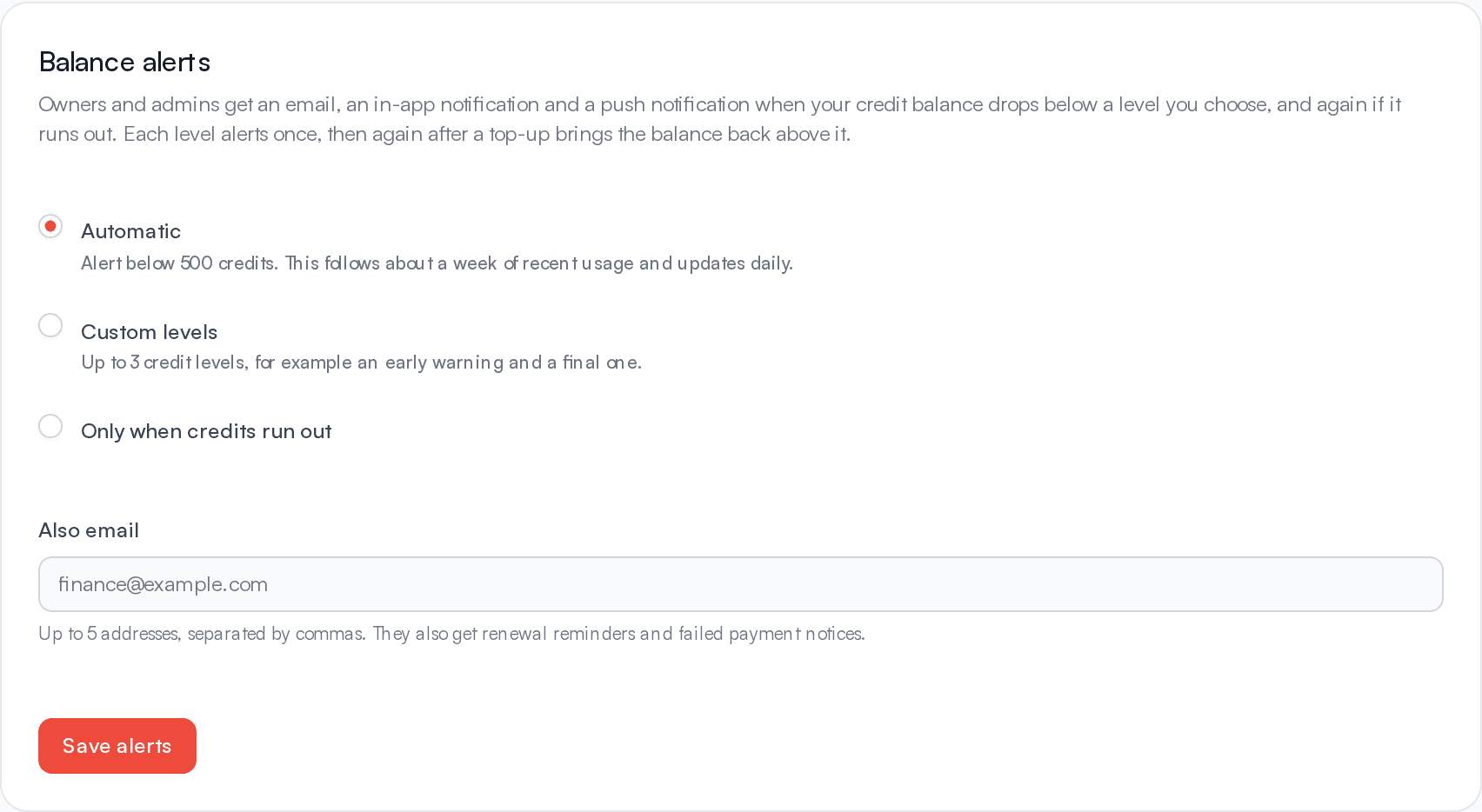
- Automatic (the default) alerts you below about a week of your recent usage, based on what you spent over the last 14 days. It updates daily, and it never drops below the platform's standard low-balance level.
- Custom levels lets you set up to 3 credit levels, for example an early warning and a final one. You get one alert as you pass each level.
- Only when credits run out sends no low-balance alert, only the out-of-credits one.
Each level alerts once. It alerts again only after a top-up brings your balance back above it, so a busy day doesn't send repeat alerts. Saving new levels doesn't send an alert by itself, even if your balance is already below one of them.
To send alerts to people who aren't in the workspace, such as your finance team, add up to 5 addresses under Also email, separated by commas. Those addresses also get renewal reminders and failed payment notices. Click Save alerts to apply your changes.
To stop in-app and push billing alerts for yourself, turn off Billing alerts in Settings / Notifications. See Notifications. Billing emails still go to owners and admins.
In a workspace managed by a partner, the partner sets the alert levels and decides whether you're emailed. See Partners.
What happens at zero credits
When your available credits can't cover a charge, that action stops. Nothing else is affected.
- The header chip turns red and shows Top up.
- Billing shows "Credits exhausted. AI replies and paid channel sends are paused until you top up."
- AI replies stop. Your AI agent stops replying, and conversations stay in the inbox for your team.
- WhatsApp messages on 360dialog numbers fail, including your team's replies, template sends, and journey messages. In the app you see "Not enough credits. Top up to continue." with a Top up button.
- SMS from journeys fails for destinations that have a price.
- Broadcasts need enough available credits for the whole audience when they start. If there aren't enough, the broadcast is marked as failed and nothing is sent. See below.
These keep working at zero because they don't use credits: Direct Meta WhatsApp numbers, Instagram, Messenger, email, and inbound messages from customers.
As soon as a top-up is confirmed, new AI replies and sends go ahead again.
Broadcasts and credits
Before you launch a broadcast, the Review & Launch step shows the Estimated Cost: each recipient priced at their own country's rate for the WhatsApp template's category or the SMS sender's traffic type. Send Now in the broadcast list shows the same estimate, for example "Estimated N credits (about $X) for N recipients". On a WhatsApp number connected through Meta directly, it says Meta bills those messages instead.
When the broadcast starts, Kontakt reserves credits for every recipient with a phone number. Each message is then charged at the rate for that recipient. People who are skipped, for example because they opted out, are not charged. Credits left over are released when the broadcast completes, is paused, or is cancelled, and resuming a paused broadcast reserves again for the people still waiting. If your available credits can't cover the reservation, the broadcast fails before any message is sent. Top up, then use Duplicate on the failed broadcast and send the copy. See Broadcasts.
Tip
Check your available credits against the estimate before a large send. Other sends running at the same time also hold credits, which lowers what is available.
Credit activity
Settings / Billing lists your most recent ledger entries under Credit activity, with When, Reason, Details, Delta, and Balance after each entry. For a charge, Details shows the channel, the message category, the country or market the price came from, and who received it, for example WhatsApp · Marketing · NG · +2348012345678. Common reasons:
| Reason | Meaning |
|---|---|
| AI replies | An AI reply was sent |
| Messages | A paid channel message was sent, including each broadcast message |
| Top-up | Credits you bought |
| Included credits | Your plan's credits for a new period |
| Included credits expired | Unused included credits removed at period end |
| Signup bonus | Your one-time welcome credits |
| Adjustment by Kontakt | A manual change made by Kontakt support |
Knowledge and training tasks show under their own names, such as Compile source or Crawl page.
See every charge
Credit activity shows the latest entries only. Click See every charge in Reports to open the Credit charges template on the Reports page. Pick From and To and click Create Report to list every charge in that range. The other Billing templates are next to it, where you can total credits by channel, journey, broadcast, or day, and export to CSV. See Billing reports.
Charges made before 26 October 2026 show the channel, category, and country. The recipient, customer, and journey are recorded from that date on, except for AI replies and broadcast messages, which have them for earlier charges too.
Troubleshooting
I paid but my credits haven't appeared
Credits are added once the payment is confirmed. This is usually immediate. Kontakt also rechecks pending payments every 15 minutes. If the credits are still missing after that, check Billing history for a receipt and contact support with the receipt number.
Why can't I top up less than $10?
$10 is the minimum for a single top-up.
Why did my balance drop at the start of a new period?
Unused included credits expire at the end of each period, and the new period's included credits are added. Purchased credits are never removed.