Skills
A skill is a written procedure for one kind of customer request, plus the list of tools it may use. Agents mount skills to decide what they can do.
Each skill covers one job, such as answering delivery questions, checking a wallet balance, or booking an appointment. The skill's description tells the router when to use it. Its procedure tells the model how to handle the conversation. Its permitted tools limit what it can do. Every save creates a new version, so you can compare and roll back.
Before you start
- You need a role that can change workspace settings.
- Add the knowledge the skill should answer from under Knowledge.
- If the skill should call your own systems, register them first under Tools.
Create a skill
Open Skills
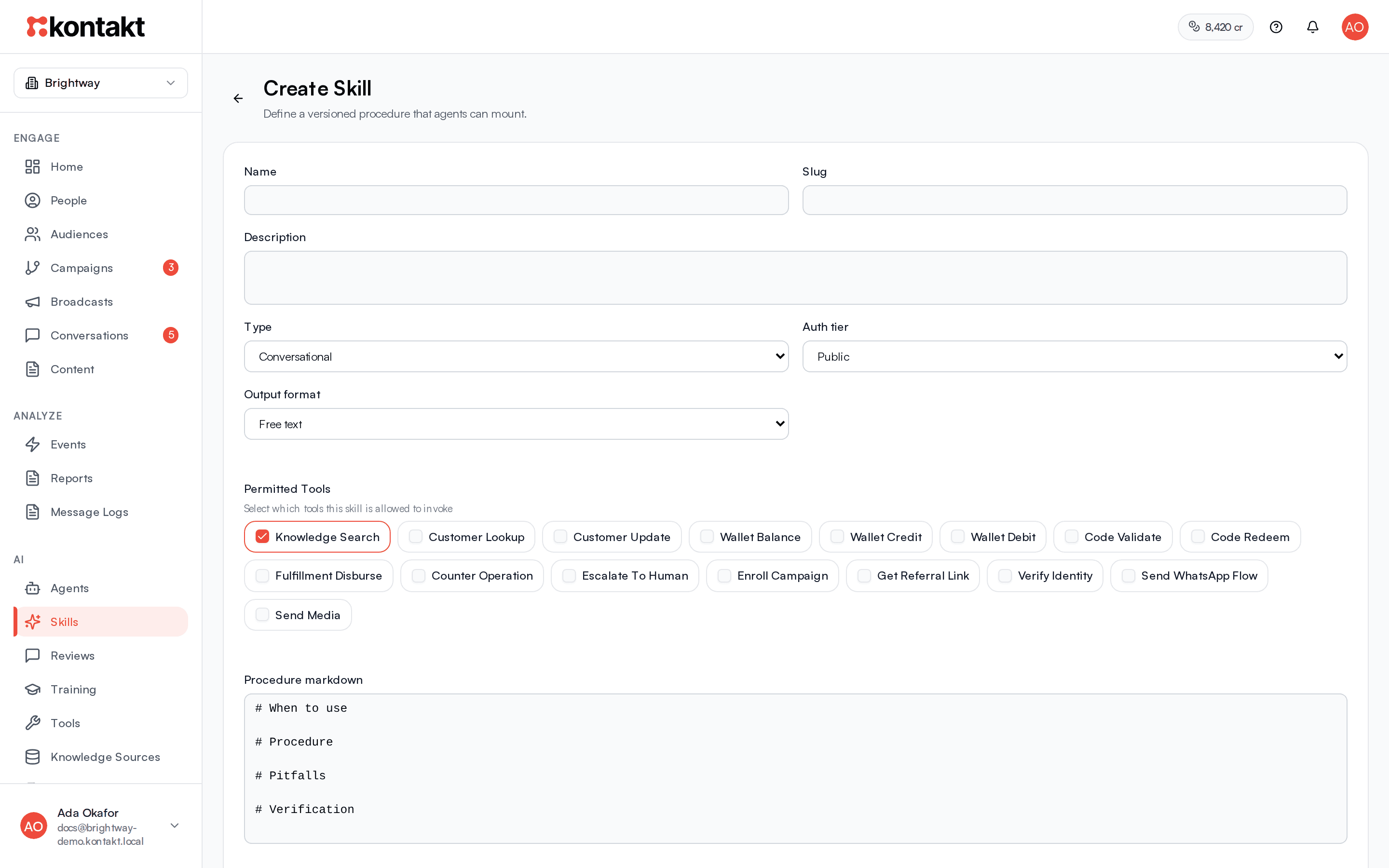
Go to AI / Skills and select Create Skill.
Name and describe it
Fill in Name. The Slug fills in from the name. Write a Description that says what the skill handles, for example "Answers delivery, returns, and product questions, and hands over to a person when needed." When an agent has more than one skill, the router compares this description against the customer's message, so make it specific.
Choose type, auth tier, and output
Leave Type on Conversational for skills that talk to customers. Leave Output format on Free text for normal replies.
Choose an Auth tier:
- Public: anyone can use it. Use this for general questions.
- Authenticated: the customer must be a known contact in your workspace. If they are not, the AI replies asking them to verify their identity and does not run the skill.
- Advisory: replies get an advisory disclaimer and always go to AI / Reviews for a person to approve, even when the agent is autonomous.
Pick permitted tools
Under Permitted Tools, tick the tools this skill may call. Knowledge Search is ticked by default. Keep it ticked for any skill that answers questions from your knowledge. Tick Escalate To Human if the skill should be able to hand a conversation to your team. See Tools for the full list.
Write the procedure
Procedure markdown starts with four headings: When to use, Procedure, Pitfalls, and Verification. Fill them in as instructions to a new team member. Be concrete about what to ask, which tool to call, and when to hand over.
Save
Select Create Skill. The skill is active and can be mounted on an agent. It does not answer customers until it is mounted on an active agent. See Agents.
Write a good procedure
A procedure works best when it reads like a short checklist.
# When to use
Customer asks where their order is, when it will arrive, or how to return an item.

# Procedure
1. If they give an order number, search knowledge for delivery times for their area.
2. Give the delivery window in one or two sentences.
3. For returns, explain the 14-day policy and offer to arrange a pickup.

# Pitfalls
- Do not promise a delivery date. Give the window.
- Do not invent order statuses.

# Verification
- If the customer is upset or asks for a refund outside policy, call escalate_to_human.
Keep facts like prices, policies, and opening hours in Knowledge, not in the procedure. Facts change, and knowledge is easier to update. Keep tone and style in Voice, which applies to every skill.
Edit, test, and roll back
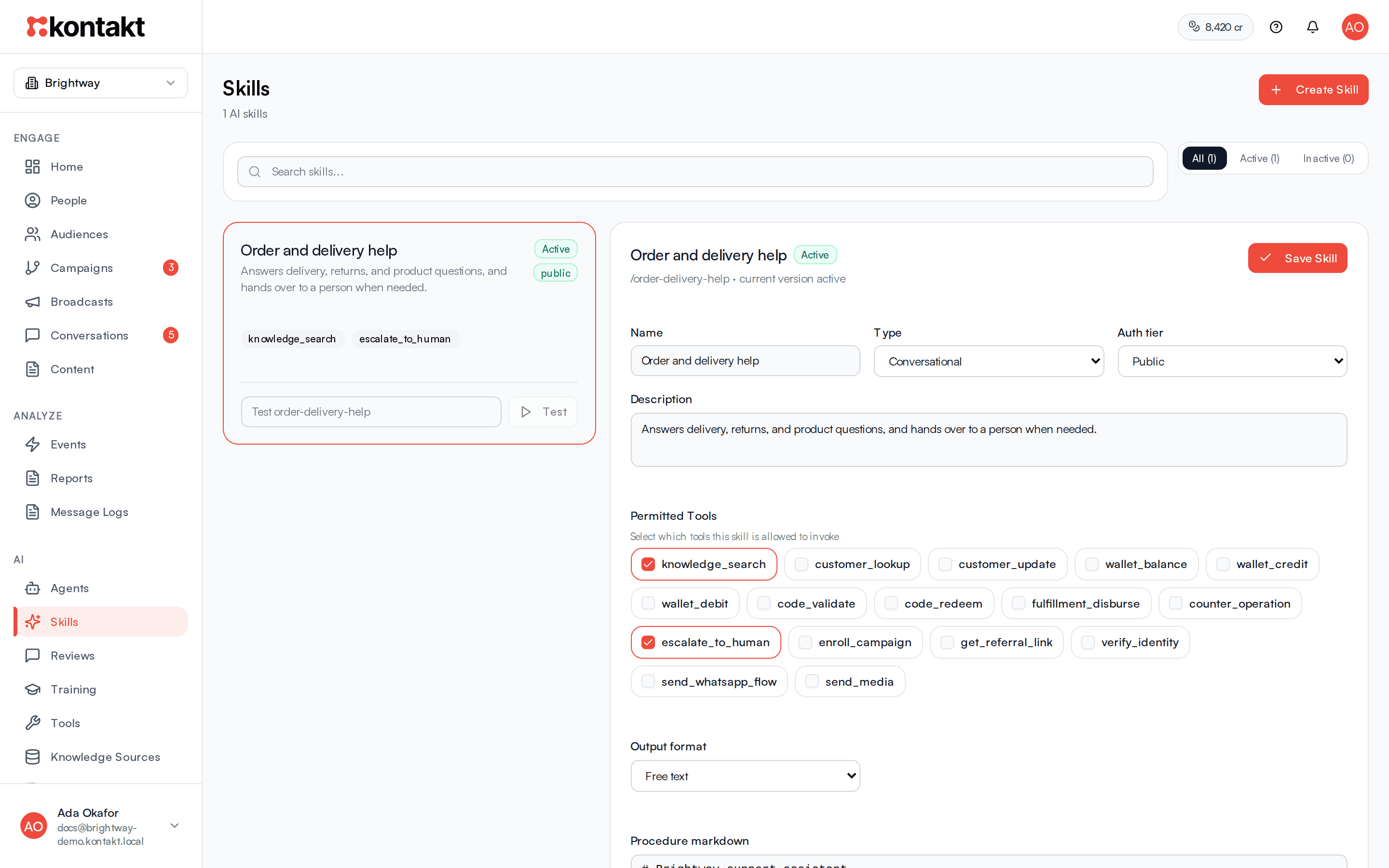
Select a skill on the Skills page to open its editor. The header shows the slug and the current version number.
- Save Skill saves your changes and creates a new version.
- Each skill card also has a quick Test box on the Skills page.
- In the Test console, type a Customer-style message, optionally an Optional customer ID to test as a real contact, and select Run Test. The skill runs directly, without routing, and shows the reply. Nothing is sent to a customer.
- Under Versions and rollback, choose a version in Compare with version... and select Compare to see the two side by side. Select Rollback to selected and confirm to restore that version's procedure and description. The rollback is saved as a new version, so you can undo it the same way.
Rollback restores the procedure and description only. Check Permitted Tools and Auth tier separately after a rollback.
How skills run
When a customer message is routed to a skill:
- Kontakt checks the auth tier.
- If the skill may use Knowledge Search, the three best matching knowledge passages are retrieved up front.
- The model gets the agent persona, your voice settings, the procedure, the last 40 messages of the conversation, and saved notes about the customer.
- The model may call the skill's permitted tools, up to six steps in one turn. Tools that are not ticked are not offered.
- The reply is checked against guardrails. Replies are capped at 900 characters on WhatsApp, Instagram, and Messenger, and 1,200 characters on the web widget and hosted chat. Longer replies are shortened, and Markdown formatting is removed on messaging channels.
The customer stays in the skill until the agent's session timeout passes, unless they change topic.
Deactivate or delete a skill
In the skill's Danger zone, Deactivate hides it from routing without deleting anything. Reactivate brings it back.
Delete skill first shows what will be affected: agents it will be unmounted from, campaign steps that still reference it, active sessions that will end, saved versions, quality scenarios, pending reviews, and improvement suggestions. Campaign steps that reference the skill are not fixed automatically, so update them after deleting.
Troubleshooting
The skill never gets picked
Check the skill is active and mounted on an active agent bound to the right connection. Make its description clearly different from the agent's other skills. You can also add Routing Instructions in AI settings and raise its priority on the agent.
The skill answers without using my knowledge
Make sure Knowledge Search is ticked under Permitted Tools. Then check that the knowledge has finished syncing and is visible in the Knowledge Wiki.
Customers are asked to verify their identity
The skill's auth tier is Authenticated or Advisory and the customer is not a known contact. Switch to Public if the skill does not need to know who the customer is.