Quickstart
Create an account, teach an AI agent about your business, test it, and connect your first channel. Most people finish in one sitting.
When you sign up, Kontakt creates your workspace and opens a setup wizard titled Get your first agent live. The wizard has six steps: Your profile, Teach your agent, Review your agent, Connect tools, Test your agent, and Go live. This page follows the wizard in that order and then covers what to do next.
Before you start
- Use a work email address. Kontakt suggests your website from the domain of your email.
- Have your website address ready. If you don't have a website, you can describe your business by hand instead.
- To go live on WhatsApp, Instagram, or Messenger, you need admin access to that business account. You can skip this and connect channels later.
Create your account
Sign up
Open the sign-up page. On Create your account, either click the Google button or fill in First name, Last name, Email address, Password (at least 8 characters), and Confirm password. Tick I agree to the Terms of Service and Privacy Policy, then click Create account.
Verify your email
If you signed up with email, Kontakt shows Check your email and sends you a verification link. The link works for 24 hours. Click it, wait for Email verified!, and Kontakt takes you to the sign-in page.
If the email doesn't arrive, check your spam folder, then click Resend verification email. Google sign-ups skip this step.
Sign in
On Welcome back, enter your email and password and click Sign in. A new workspace opens the setup wizard automatically.
Follow the setup wizard
The wizard saves your progress. You can leave and come back, and you can click any completed step in the left column to revisit it.
Your profile
Enter your First name and Last name. How did you hear about us? is optional. Click Continue.
Teach your agent
Under Website & profile, check the Website URL and click Analyze website. Kontakt reads your pages and shows its progress as Reading your pages, then Understanding your business, then Ready. Click Continue to profile.
Review the profile it drafted: Business name, What you do, Industry, Tone, and Products / services. Fix anything that's wrong and click Save profile.
No website? Click I don't have a website and fill in the profile yourself.
Once the profile is saved, you can add more knowledge. All of these are optional:
- Upload a file: PDF, Word, spreadsheets, or text.
- Paste text: a name and the content, for example your returns policy.
- Google Drive: pick documents from your Drive.
- Past chats: import conversations from Instagram or Messenger, or upload transcripts. Kontakt uses them to learn how you answer and may suggest skills under Skill ideas from your chats.
Click Continue.
Review your agent
Kontakt drafts an agent from what you gave it. This shows Building your agent… for a short while. If it takes too long, click Try again.
Check the draft:
- Agent name and Persona: who the agent is and how it behaves.
- Skills: what the agent can do, up to 8. Each skill has a Name, a Description, a Procedure (the steps it follows), and the Tools it may use. Searching your knowledge and handing over to a person are always on.
Use Add skill and Remove skill to change the list, or Regenerate to start the draft again. Click Save edits to keep changes, then Approve & continue.
Connect tools
On Connect your tools, you can connect Shopify so the agent can answer from your live catalog, or add a custom API tool so it can call your own systems.
- Shopify: click Connect, enter your
*.myshopify.comdomain and a Storefront API token, and click Connect store. The token comes from Shopify's Headless sales channel. - Custom API: click Connect, then fill in Tool name, Method, Endpoint URL, and Authentication, and click Add tool.
This step is optional. Click Skip for now or Continue without connecting to move on. You can connect Shopify later under Settings / Connectors.
Test your agent
Chat with your agent the way a customer would. Type in the message box and read each reply. Under each reply, answer Sounds like us? with Yes or No, add an optional Critique, and click Save. When you answer No, Kontakt may ask you to pick what went wrong from a list.
Tick Show reasoning to see why the agent answered as it did. Click Reset to start a fresh chat.
To change the agent, use Adjust your agent on the right. Edit the Persona or the skill instructions, then click Save & retest. When the replies sound right, click the button to go live.
Go live
On Put your agent to work, connect at least one channel:
- WhatsApp: click Set up to open the WhatsApp settings. See Connect WhatsApp.
- Web widget: set an accent colour, welcome message, and logo, then click Enable web widget. Copy the snippet with Copy snippet and paste it before the closing
</body>tag on your site. - Hosted chat page: give the page a title and welcome message and click Create chat page. Kontakt gives you a public link you can share anywhere.
- Instagram DMs: click Connect Instagram and sign in with Meta. You need an Instagram professional account.
- Messenger: click Connect Messenger and choose your Facebook Page.
Click Finish setup. If you're not ready, click I'll do this later.
You land on Your agent is ready. Click Go to dashboard to open the app.
Skipped the wizard?
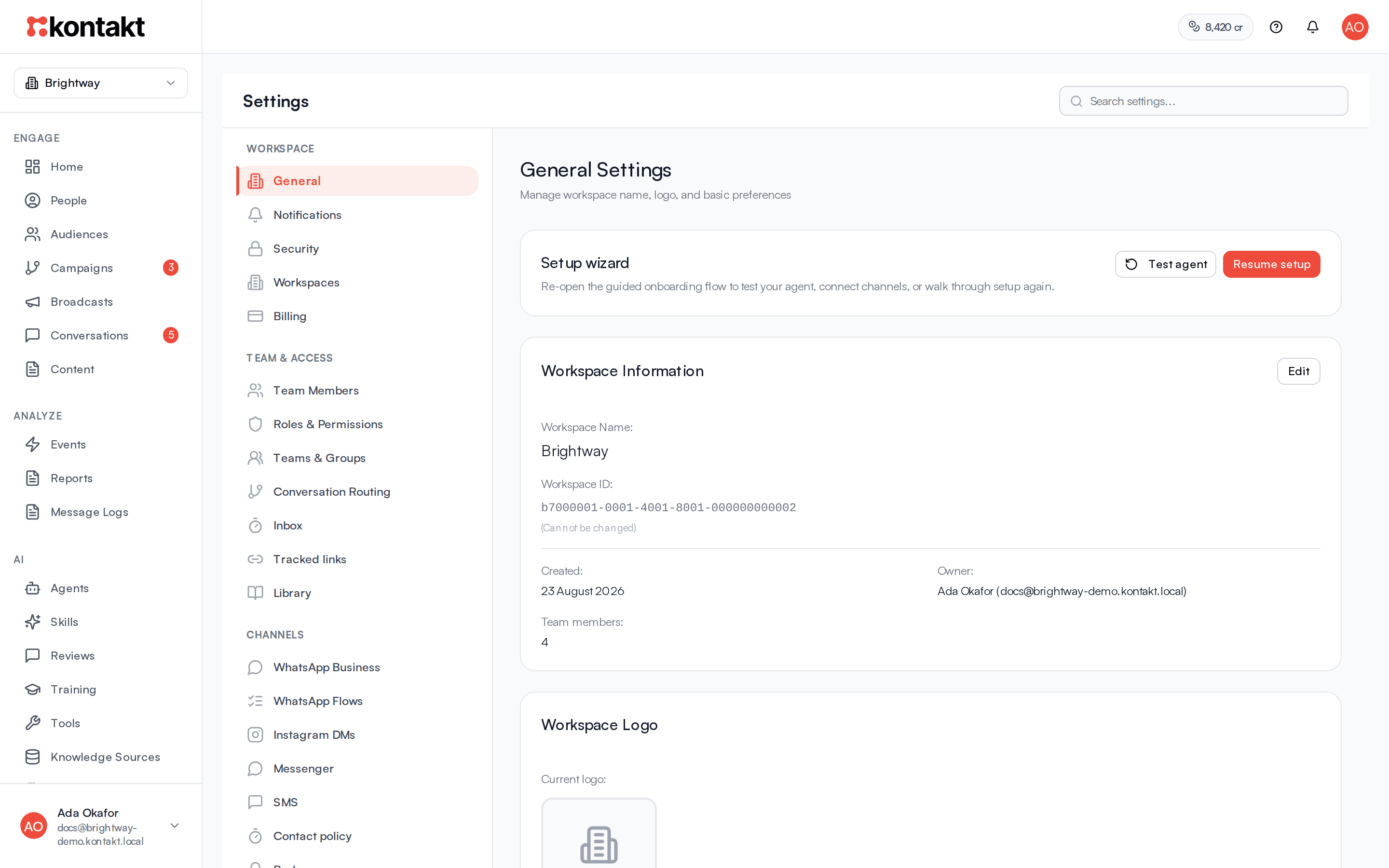
Skip setup for now in the wizard takes you straight into the app. To come back later, open Settings / General and use Test agent or Resume setup on the Setup wizard card.
What to do next
- Watch your first conversations. Open Conversations in the sidebar to see customer messages and the agent's replies as they arrive. See Conversations.
- Invite your team. Go to Settings / Team Members and click Invite Team Member. Give people who answer customers the Agent role, and people who run the workspace with you the Admin role. See Team members.
- Add more knowledge. Add files, website pages, and Google Drive documents under Knowledge Sources so the agent can answer more questions. See Knowledge.
- Bring in your contacts. Import a CSV into People. See Importing contacts.
- Check your credits. AI replies and some messages use credits. Each AI reply costs $0.03. Your balance shows in the top bar. See Credits and top-ups.
- Turn on two-factor authentication. Protect your account under Settings / Security. See Security and MFA.
Troubleshooting
I didn't get the verification email
Check spam and promotions folders. On the Check your email screen, click Resend verification email. The link expires after 24 hours, so use the newest one.
Sign-in says my email is not verified
You see an Email not verified banner. Click Resend verification email in that banner and open the new link.
The agent draft is stuck
If Building your agent… runs for a long time, Kontakt shows This is taking longer than usual. Click Try again. If you see We couldn't generate a draft, go back to Teach your agent and check that your profile is saved.
The website analysis got my business wrong
Edit the profile fields directly and click Update profile, or click Use a different website and analyse another address.