Design an email
Every email starts in your brand. Pick a starting point, change the words and pictures, and Kontakt checks it before you send.
The email designer is the same everywhere you write email: a broadcast's Design step, a journey's Send Email step, and email templates in Content. Your logo, colours, fonts and footer come from your email brand, so you don't set them per email.
Before you start
Set up email sending: a verified domain, a sender, and your email brand with a postal address. You can design without them, but you can't send or test.
Choose a starting point
When you start a new email, pick one of these:
- Write it with AI: describe the email in a sentence and get a branded draft with a subject. You can add where the button should go and up to six products to feature.
- Start blank: your brand header and footer, ready for your content.
- Yours: your most recent email and your saved email templates.
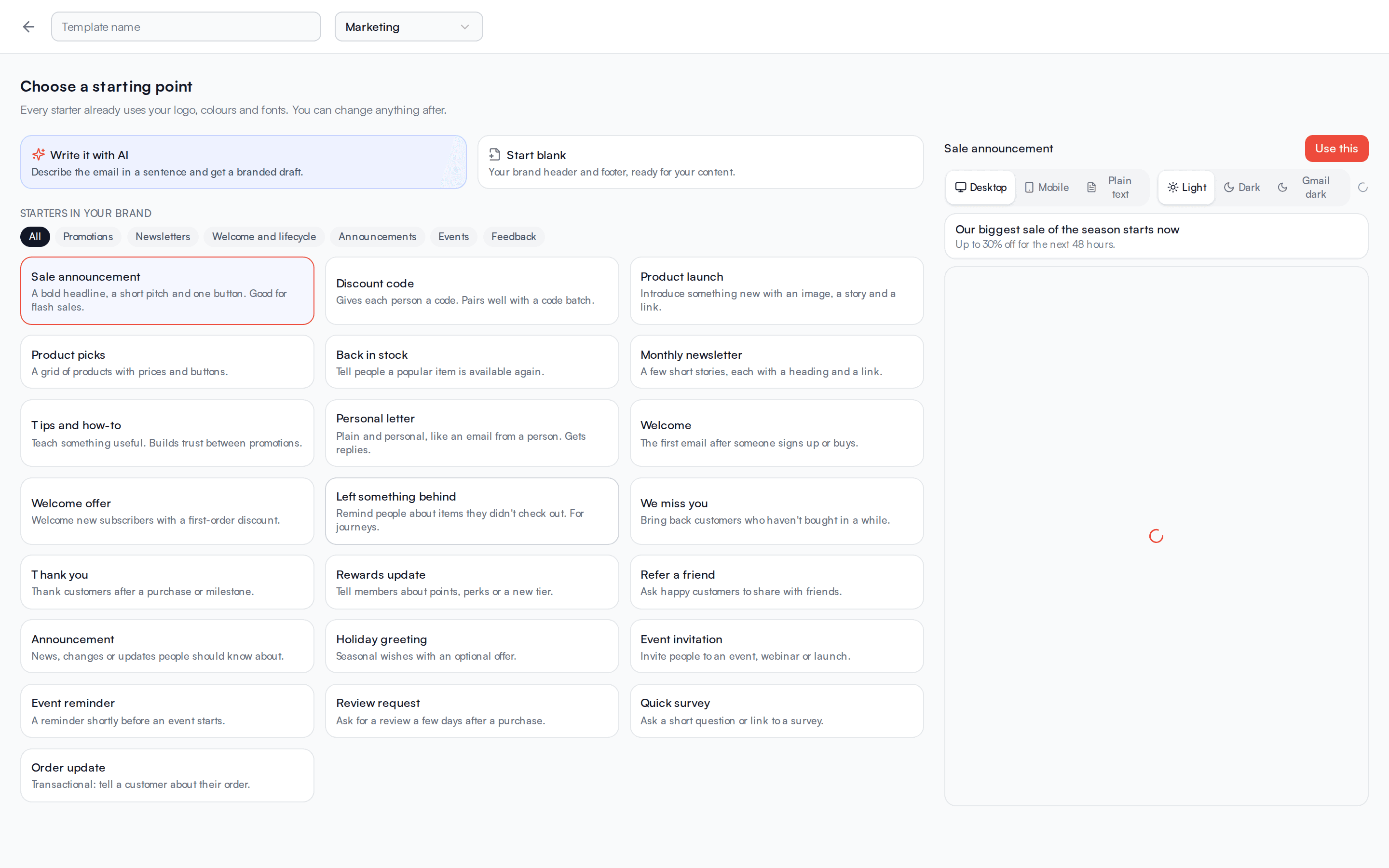
- Starters in your brand: about 20 ready-made emails, grouped as Promotions, Newsletters, Welcome and lifecycle, Announcements, Events, and Feedback.
Click a design to preview it on the right, then click Use this.
Edit the email
Subject and preview text
Write the Subject and the Preview text, the line most inboxes show after the subject. Click Ideas next to the subject for AI suggestions based on your content.
Blocks
The email is a list of blocks. Click a block to edit it. Use the arrows to move it, and the icons to duplicate or remove it. Add blocks from four groups:
- Content: Heading, Text, Image, Image group, Button.
- Shop: Product, Product grid, Discount code.
- Layout: Two columns, Divider, Space, Custom HTML.
- Brand: Brand header, Social links, Brand footer.
Two columns holds headings, text, images and buttons. Brand footer carries your address, social links and the unsubscribe link, so every marketing email keeps one.
Text
Text blocks support bold, italic, strikethrough, bulleted and numbered lists, quotes and links. Click Personalise to insert a person's details, such as their first name, or your custom fields. A first name falls back to "there" when it's missing.
Click Rewrite on a text block to have AI make it shorter, friendlier, more formal, more urgent or clearer, or to fix spelling and grammar. Choose Tell AI what to change… to describe the change yourself.
Products
If you connected a Shopify store, Product and Product grid blocks let you search your catalogue and pick products. Their names, prices, images and links come from the store. Without a store, type the details into the block.
Images
Upload an image or paste an image link. Fill in Describe the image. It shows when images are off and is read by screen readers.
Use an Image group to show up to four images next to each other, such as screenshots of a new feature. Click Upload several to add them in one go, or Add image to add one at a time. Each image can have a caption and a link.
- With three images, choose All in one row or Two per row. Four images sit two per row unless you choose All in one row.
- On phones, the images stack one above another so each stays readable. Turn on Side by side on phones to keep them in a row; they show smaller there.
- Images of the same size line up best.
Before you send flags an empty image slot. Add an image or remove the slot.
Style
Use Style at the top to give one email a different look from your brand's default: Classic, Bold, Minimal, Editorial, or Letter.
Custom HTML
A Custom HTML block takes your own markup. Scripts and forms are removed. Custom HTML may look different across email apps, so send yourself a test.
Preview and test
The preview next to the editor switches between Desktop, Mobile and Plain text. Kontakt builds the plain-text version for you. If the email is larger than 102 KB, you see a warning, because Gmail cuts off larger emails and hides the rest behind a link.
Dark mode
Next to the preview, choose Light, Dark or Gmail dark to see how the email looks when someone reads it in dark mode.
- Dark shows what Apple Mail and Outlook for Mac show. Kontakt gives every email a dark version there: a dark background, light text, and your brand colours. Your logo for dark backgrounds replaces your logo. Without one, your logo sits on a small white backing.
- Gmail dark is close to what the Gmail and Outlook apps show. They darken the email themselves and never change images. If your logo has dark lettering on a see-through background, Kontakt sends it on a white backing that matches the email in light mode, so it stays readable in these apps.
On phones, the email starts at the top of the screen, with no strip of background colour above it.
Click Send a test to send it to up to five addresses. Personal details use sample values. Test emails are free, up to 20 a day.
Checks
Before you send lists anything to fix. Click a check to jump to the block it's about.
- Errors stop a broadcast from sending. For example a missing subject, a button without a link, a link still pointing to
example.com, an image with no picture, or no postal address in your email brand. - Warnings are worth fixing. For example a subject over 70 characters or in capitals, an image without a description, an email that is mostly images, more than 25 links, or a personalisation field Kontakt doesn't recognise.
- Tips improve results. For example adding preview text, a logo, a button, or sending yourself a test.
Save an email as a template
In Content, open the Email tab and create a template. Pick a starting point, name it, choose Marketing or Transactional, design it and save. Saved templates appear under Yours when you start an email, and journeys can use them directly. See Content and templates.