Security and MFA
Add a second step to signing in with an authenticator app, and decide whether everyone in your workspace must do the same.
Two-factor authentication (MFA) asks for a 6-digit code from an authenticator app after your password or Google sign-in. Kontakt supports any app that uses time-based codes (TOTP), such as Google Authenticator, Microsoft Authenticator, 1Password, or Authy. You turn it on for yourself under Settings / Security, and an admin can require it for the whole workspace under Settings / General.
Before you start
- Install an authenticator app on your phone or password manager.
- Have somewhere safe to keep your backup codes, such as a password manager.
Turn on MFA for your account
Open Security
Go to Settings / Security. On the Authenticator app card, turn the switch on.
Add Kontakt to your authenticator app
Scan the QR code with your app. If you can't scan it, type the Secret into the app by hand.
Save your backup codes
Kontakt shows 10 Backup codes. Click Copy all and store them somewhere safe. Each code works once, and Kontakt doesn't show them again.
Confirm
Enter the current 6-digit code from your app in Confirmation code and click Confirm and enable.
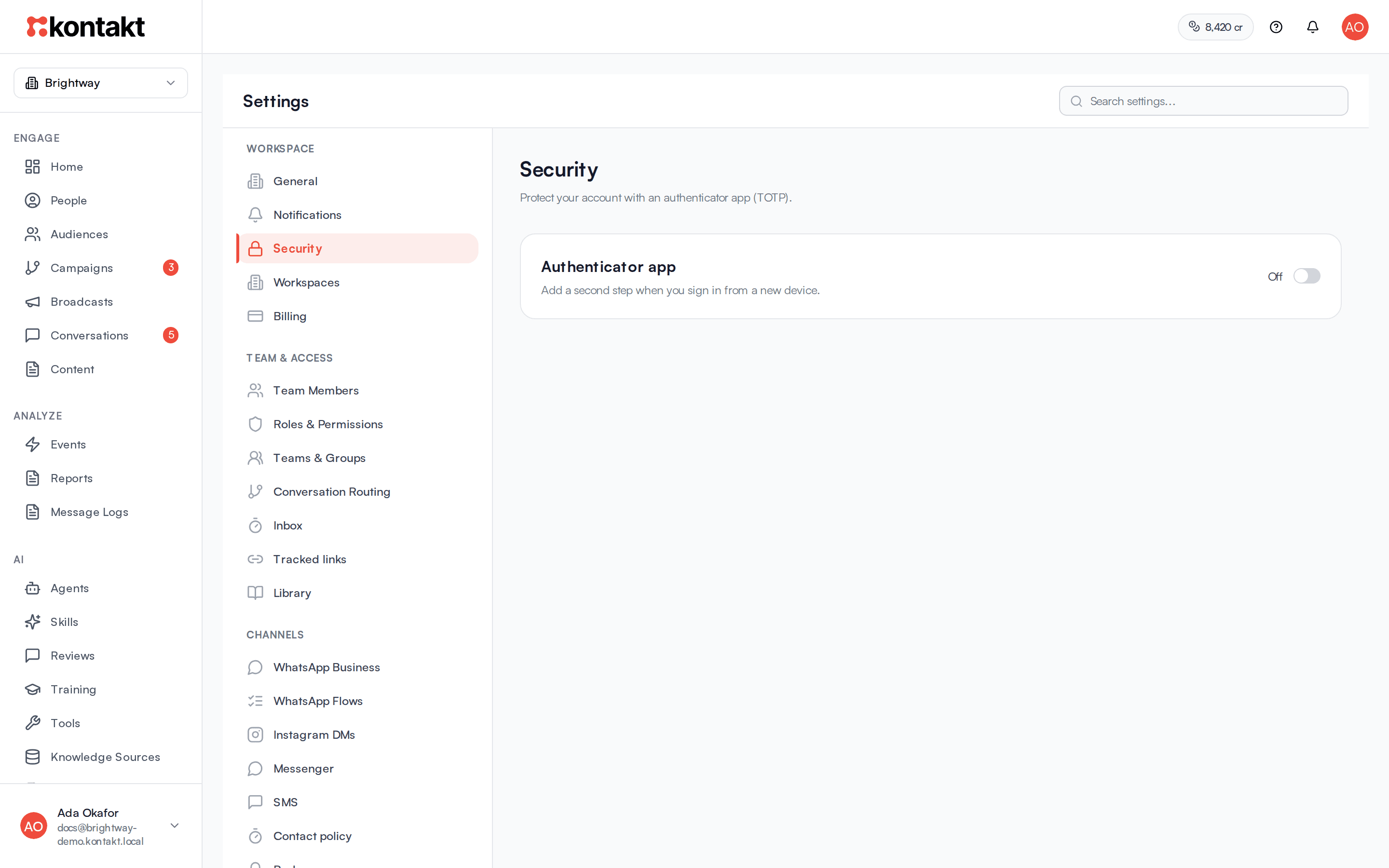
The card now says MFA is enabled for your account. MFA belongs to your Kontakt account, so it applies in every workspace you sign in to.
Signing in with MFA
After you sign in with your email and password, or with Sign in with Google, Kontakt shows Two-factor authentication.
- Leave Authenticator selected, type the code from your app, and click Continue.
- Lost your phone? Click Backup code, enter one of your saved codes, and click Continue. That code can't be used again.
You have 10 minutes to enter a code. If you take longer, click Back to sign in and sign in again.
Turn off MFA for your account
On the Authenticator app card, turn the switch off. In Disable two-factor authentication, enter your current Password and click Disable MFA. If you sign in only with Google and have no Kontakt password, enter an Authenticator or backup code instead.
You can't turn MFA off while your workspace requires it. The Security page shows a notice when that's the case.
Require MFA for everyone
Anyone whose role has Manage workspace, team, and billing under Settings can make MFA mandatory for every member of the workspace.
Open General settings
Go to Settings / General and find the Require MFA for everyone card.
Turn it on
Turn the switch on. In Require MFA for all members?, click Require MFA.
Set up your own MFA first
Once this is on, anyone who hasn't set up MFA is sent to set it up the next time they sign in, and can't use the app until they do. Turn on MFA for your own account before you require it for everyone.
What members see
A member without MFA who signs in, with their password or with Google, goes straight to Scan and verify. They scan the QR code (or use Manual entry), save their Backup codes, enter an Authenticator code, and click Finish and sign in. They have 15 minutes to finish. Members who sign in only with Google don't need a password to set up MFA.
If they open the setup page directly instead of signing in first, Kontakt shows Set up two-factor authentication and asks for their Work email and Password. Members who use Google should go back to the login page and click Sign in with Google instead.
MFA is checked for the workspace you sign in to. If you belong to several workspaces and only one requires MFA, setup happens when you sign in to that one.
People who accept an invite to a workspace that requires MFA go through the same setup before they get in. People who already have MFA on their account enter a code instead.
To stop requiring MFA, turn the Require MFA for everyone switch off. Members who already set up MFA keep it until they turn it off themselves.
How MFA behaves
- Codes are 6 digits and change every 30 seconds. Kontakt accepts the code just before and just after the current one, to allow for small clock differences.
- You get 10 backup codes. Each one works once.
- Too many wrong codes in a short time triggers Too many attempts. Please wait a moment and try again. Wait briefly before you try again.
Troubleshooting
My codes are rejected
Check that your phone's clock is set automatically. Authenticator codes depend on the time, and a clock that's a minute or more out produces wrong codes.
I lost my phone and my backup codes
There's no way to show backup codes again, and workspace admins can't reset MFA for you. Email support@usekontakt.com from the address you sign in with.
I can't turn off MFA
Your workspace requires it. Ask an admin to turn off Require MFA for everyone in Settings / General, or keep MFA on.