AI agents overview
Kontakt AI agents answer customers on your connected channels, using your knowledge and approved actions, and hand over to your team when a person is needed.
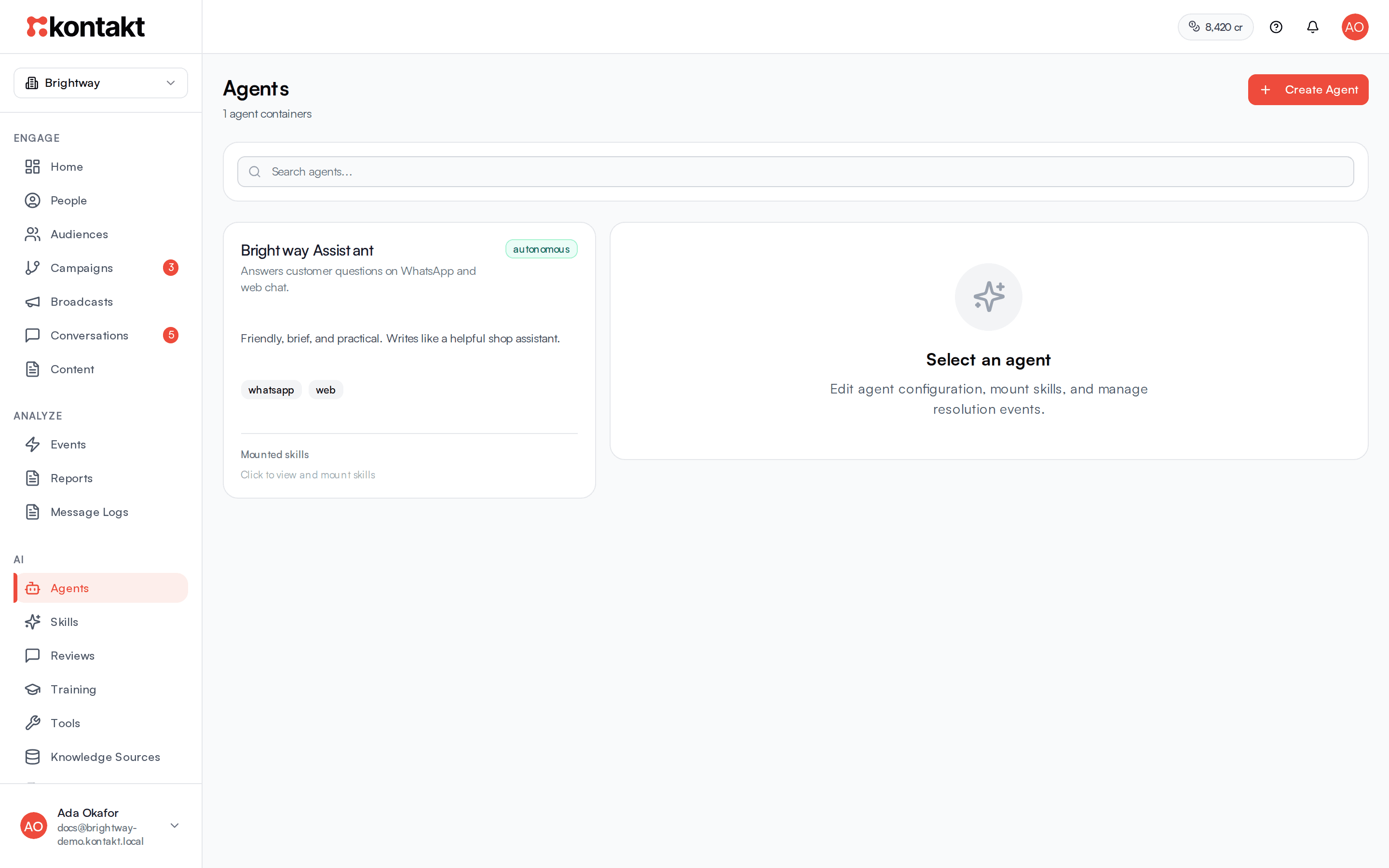
An AI agent in Kontakt is a container that you bind to one or more channel connections, such as a WhatsApp number or your web widget. The agent holds a persona and a set of mounted skills. When a customer writes in, Kontakt picks the right skill, the skill drafts a reply using your knowledge and any tools it is allowed to call, and the reply is sent or held for review.
Everything for AI lives in the AI section of the sidebar: Agents, Skills, Reviews, Training, Tools, Knowledge Sources, Knowledge Wiki, Voice, and Agent Health. Workspace-wide AI controls are under Settings / AI Settings and Settings / Models.
The building blocks
| Piece | What it does |
|---|---|
| Agent | Binds to channel connections, sets the persona and mode, and holds mounted skills. |
| Skill | A versioned procedure written in Markdown, with a list of tools it may use and an auth tier. |
| Tool | An action a skill can call, such as searching knowledge, reading a wallet balance, or calling your own API. |
| Knowledge | Files, text, websites, Google Drive files, and past conversations, compiled into a searchable wiki. |
| Voice | Real reply examples and style attributes that shape how every agent sounds. |
Autonomous and supervised modes
Each agent has a Mode.
- Autonomous: the agent sends its replies straight to the customer.
- Supervised: every reply the agent drafts goes to AI / Reviews first. A teammate approves, edits, or rejects it, and nothing reaches the customer until it is approved. The conversation is placed in the Open tab of Conversations with a Pending review badge.
Some replies go to review even when the agent is autonomous: replies from skills with the Advisory auth tier, and replies where the AI fell back to a safe answer. See Reviews and training.
Proactive follow-ups, where an agent messages a customer first, only run for agents in Autonomous mode.
How a message is handled
- Wait and collect. Kontakt waits briefly so that several quick messages from the same customer are answered together. The inbox shows AI collecting messages… and then AI thinking….
- Check that AI may answer. AI does not reply when workspace AI is turned off, when the conversation has been handed to a person, or when a teammate has replied and the conversation has not been resolved since. See Agents.
- Route. Kontakt looks at the active agents bound to the connection the message arrived on, and the active skills mounted on them. With one skill it uses that skill. With several, a router model picks one using each agent's Router description, each skill's description, and your Routing Instructions. If the router is not confident enough, the conversation goes to a person.
- Run the skill. The skill's prompt combines the agent Persona, your voice, the skill procedure, recent conversation history, and what Kontakt knows about the customer. If the skill may use Knowledge Search, the best matching knowledge is retrieved first. Sources marked Draft, Archived, or Confidential are never used for customers. The model can call the skill's permitted tools, up to six steps per turn.
- Check and send. The reply is checked against guardrails, shortened if it is too long for the channel, and then sent or queued for review. If the skill calls Escalate To Human, the conversation is handed to your team instead.
What AI costs
Each AI reply sent to a customer costs $0.03 (3 credits), taken from your workspace credits. A few things to know:
- Replies are charged when they are sent. A supervised reply is charged when it is approved and sent, not when it is drafted.
- Playground replies and quality suite runs go through the same pipeline and are charged like live replies.
- Replies that read an image cost extra.
- Website crawls you start, knowledge compiles you start, and training imports also use credits. Scheduled refreshes of knowledge sources are not charged.
- Channel message fees, such as WhatsApp conversation charges, are billed separately from AI.
- If your workspace runs out of credits, AI replies stop until you top up.
See Billing and Credits and top-ups for the full rules.
Set up your first agent
Add knowledge
Go to AI / Knowledge Sources and select Add Source. Upload your FAQ, paste text, or crawl your website. See Knowledge.
Create a skill
Go to AI / Skills and select Create Skill. Write the procedure and keep Knowledge Search in Permitted Tools. See Skills.
Create an agent and bind it
Go to AI / Agents, select Create Agent, and choose the connections it should answer under Channel connections. See Agents.
Mount the skill and test
Open the agent, add the skill under Mounted Skills, then use the Playground tab to chat with it as a customer.
Check that workspace AI is on
Go to Settings / AI Settings and make sure Workspace AI is turned on. Then send a real message to a bound connection.