Fields and tags
Custom fields hold the details you collect, computed fields work out numbers from events, and tags are quick labels you can filter on.
Every person has the same core details: name, email, phone, status, and source. Anything else you want to know, such as a loan tier, a plan name, or a birthday, goes in a custom field. Computed fields are worked out for you from the events a person triggers. Tags are short labels like "VIP" that you can add to people and conversations.
All three can be used in audience rules, so you can target people by them. See Audiences.
Before you start
- Adding custom fields and tags uses the customer permissions. See Roles and permissions.
- Computed fields have their own read and write permissions.
- Computed fields need events. See Events and Ingestion.
Custom fields
A custom field is a named value stored on a person, such as loan_tier: gold. Each workspace keeps a list of its fields, which appears on every person's Custom Attributes tab and in audience rules.
Add a custom field
You can add fields in three ways:
- On a person. Open Add Person or Edit Person, go to Custom Attributes, and click Add Field. Pick a suggested field, or click Create New Field, enter a Field Name such as "Loan Amount", choose a Field Type, and click Create Field. Fill in the value and save the person.
- From an import. Any CSV column you map to Custom field (auto-created) becomes a field. See Importing contacts.
- From your systems. Properties sent through the API that are not core profile details are stored as custom fields. See Ingestion.
The field is added to your workspace list the first time a person is saved with it.
Field keys
Each field has a key, used in audience rules, Liquid variables, and the API. Kontakt makes the key from the field name in lower case, with spaces replaced by underscores. "Loan Amount" becomes loan_amount. From an import, the key is the CSV header exactly as written, so a header Loan Tier gives the key Loan Tier. Use lower-case headers with underscores to keep keys consistent.
Use the key in a quick reply as {{customer.custom_fields.loan_amount}}. See Library.
Field types
When you create a field on a person, choose how the value is entered on the form: Text, Number, Email, Phone, Date, Dropdown, Multi-Select, Currency, Textarea, or Boolean. For Dropdown and Multi-Select, enter the choices in Options (comma-separated).
In audience rules, the conditions you can pick depend on how the field is stored. Number fields can be compared with greater than and less than, date fields with on or after and on or before, and text fields with equals, not equals, contains, and exists.
Computed fields
Computed fields are numbers and dates Kontakt works out from each person's events, such as total spend or the last time they ordered. They show on the person's Overview tab under Computed Fields and can be used in audience rules under Engagement & Wallet.
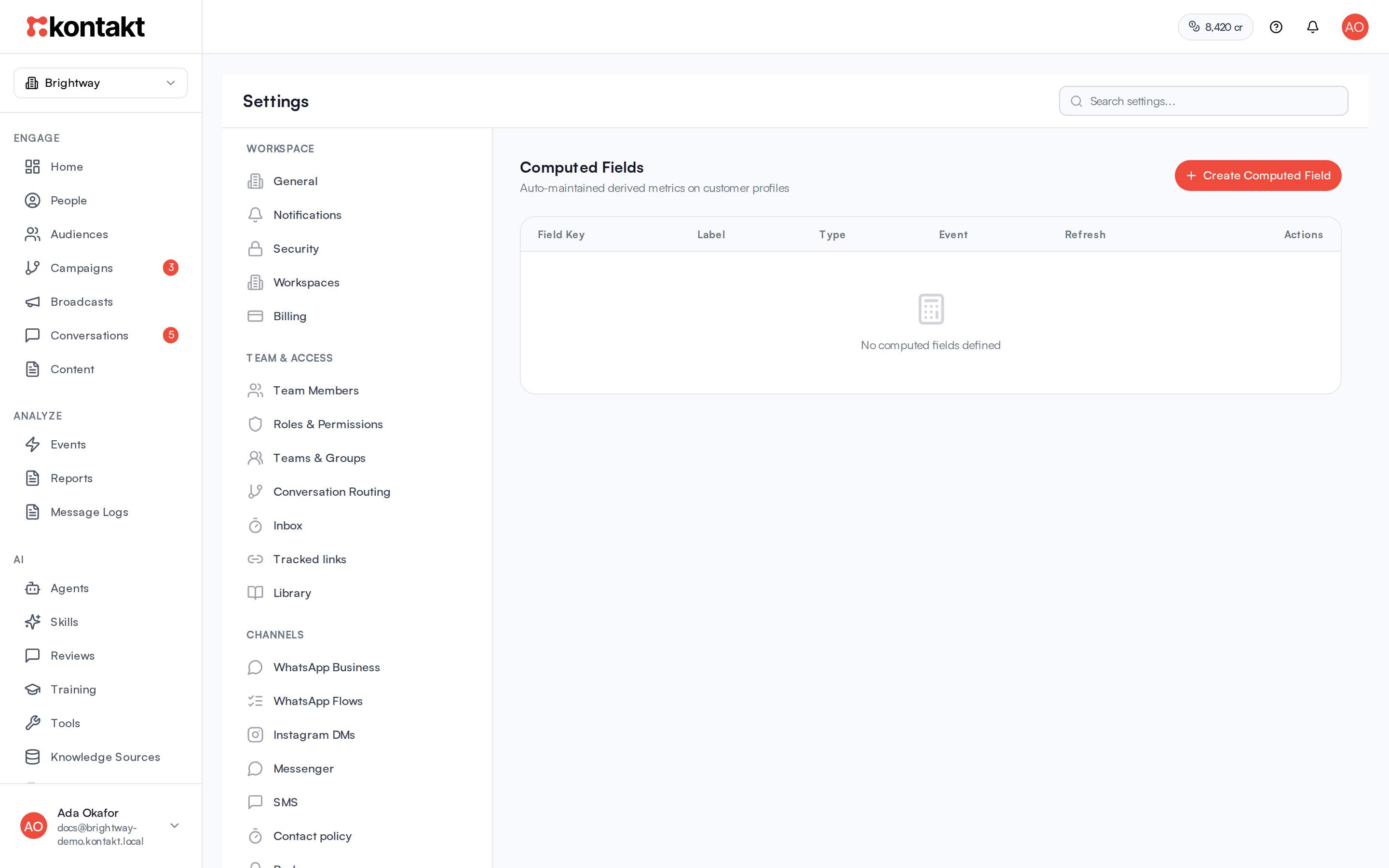
Open Computed Fields
Go to Settings / Computed Fields and click Create Computed Field.
Name it
Enter a Label, for example "Total Spend". The Field Key fills in from the label. Keys can use lower-case letters, numbers, and underscores.
Choose what to calculate
Enter the Event Name to count, for example purchase, and pick a Computation Type:
| Type | Result |
|---|---|
| Count | How many times the person triggered the event. |
| Last Occurred | When they last triggered it. |
| Avg. Interval (days) | Average days between occurrences. Needs at least two. |
| Days Since Last | Days since they last triggered it. |
| Sum of Property | Total of a number in the event, such as amount. |
| Avg. of Property | Average of a number in the event. |
| Calculated date | A date stored on the person plus a number of days. |
For Sum of Property and Avg. of Property, enter the Event Property to Aggregate. For Calculated date, enter the Starting date field (the key of a date custom field), Days to add (negative to go back), and optionally Plus days from another field.
Choose the refresh mode
Pick Real-time or Nightly, then click Create.
How computed fields update
- Real-time fields are recalculated for a person each time a matching event arrives through the API or a connected store.
- Nightly fields are not recalculated as events arrive.
- Click Recalculate on a field's row to work it out again for everyone who has triggered its event. Do this after creating a field, so people with past events get a value.
- Days Since Last only changes when it is recalculated, so a real-time value reflects the day of the last event, not today.
- Deleting a field removes it straight away, with no confirmation.
Tags
Tags are labels from one shared workspace list. The same tags can go on people and on conversations, but the two are separate: tagging a conversation doesn't tag the person.
Create tags
There is no separate tag settings page. New tags are created when you:
- Type a new tag on a person's Tags & Segments tab and save. The suggestion shows Create "name".
- Type a name under Tag Imported People on the last step of a CSV import and click Create.
Tag names can be up to 100 characters.
Tag people
- One person: edit the person and add tags on Tags & Segments.
- Many people: in People, tick the people, click Add Tags, tick tags, and click Apply Tags.
- An import: use Tag Imported People on the Review & Import step.
Tag conversations
In a conversation, open the more menu and click Add Tags, then tick existing tags. Remove a tag with the X in the Tags panel. The first tag shows as a chip on the conversation in the list. When every tag is already on the conversation, you see "No more tags available".
Troubleshooting
My field doesn't appear in audience rules
The field is added to your workspace list when a person is first saved with it. Save at least one person with a value, then reopen the audience builder.
A computed field shows no value
Check that the person has events with exactly that Event Name, then click Recalculate. Event names are case-sensitive. Avg. Interval (days) needs at least two events.
"No tags available" when tagging people
Your workspace has no tags yet. Create one on a person's Tags & Segments tab, then try again.