Roles and permissions
Roles decide what each team member can see and change. Use custom roles to give agents, marketers, and managers only the access they need.
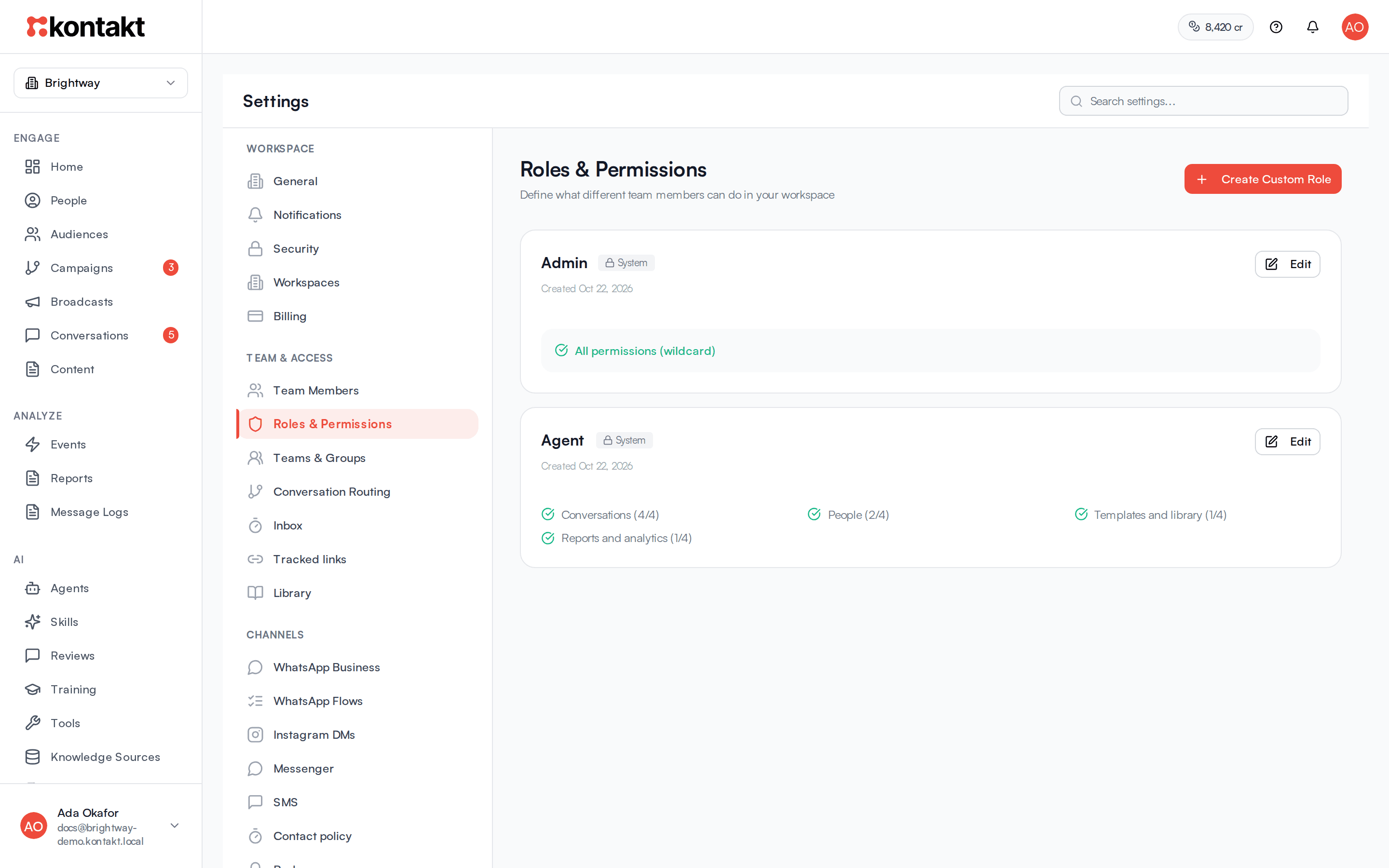
Every team member has exactly one role in each workspace they belong to. A role is a named set of permissions, such as "read people" or "create broadcasts". You manage roles under Settings / Roles & Permissions.
Before you start
- You need Manage workspace, team, and billing under Settings to create, edit, or delete roles.
- Each workspace has its own roles. A role you create in one workspace isn't available in another.
The roles every workspace starts with
Every new workspace comes with three roles:
- Owner is a system role. It has the System badge and shows All permissions (wildcard), which means it can do everything in the workspace, including billing and settings. The person who signs up or creates a workspace gets this role. You can't rename or delete a system role.
- Admin has every permission the role editor offers.
- Agent works the inbox. It can view, reply to, start, and manage conversations, view, add, and edit people, and view templates.
Admin and Agent are ordinary roles, so you can edit, rename, or delete them like any role you create. Workspaces created before these roles existed, and that had only Owner, got Admin and Agent added.
Create a custom role
Open Roles & Permissions
Go to Settings / Roles & Permissions and click Create Custom Role.
Name the role
Enter a Role name, for example "Support agent" or "Marketing".
Choose permissions
Under Permissions, expand each group and tick what this role may do. Use Select All or Select None under Quick presets to start from everything or nothing. The count at the bottom shows how many permissions are on.
Save
Click Create Role. The role is now available when you invite someone or change a member's role.
Permissions you can set
The role editor groups permissions by area. Each permission shows a short description under its name.
| Group | Permission | What it allows |
|---|---|---|
| Conversations | View | See conversations, messages, notes, and call history. Also lets the member see the team member and team lists, so they can assign conversations. |
| Reply and call | Send messages and WhatsApp flows, and start calls. | |
| Start conversations | Start new conversations and WhatsApp groups, and invite people to groups. | |
| Manage | Assign, tag, pin, resolve, reopen, and archive conversations, add notes, and approve or reject AI replies. | |
| People | View, Create, Update, Delete | See, add, edit, and delete people, their tags, and custom fields. Update also allows sending events. |
| Audiences | View, Create, Update, Delete | See, create, edit, and delete audiences. |
| Broadcasts | View, Create, Update, Delete | See broadcasts and results, create and send them, edit, schedule, pause, or cancel them, and delete them. |
| Journeys | View, Create, Update, Delete | See, create, edit and publish, and delete journeys. View and Update also cover referrals, push settings, and webhook sources. |
| Templates and library | View, Create, Update, Delete | See, create, edit, and delete message templates, WhatsApp flows, and saved replies. |
| Reports and analytics | View, Create, Update, Delete | See reports, analytics, channel performance, and the dashboard, and create, edit, or delete reports. |
| Loyalty, wallets, and codes | View wallets, Adjust wallets, Wallet settings | See wallet balances and transactions, add to or take from a balance, and change wallet settings. |
| View codes | See code batches and validate codes. | |
| View counters, Change counters | See counters, and create, change, or reset them. | |
| View computed fields, Change computed fields | See computed fields, and create, edit, delete, or recalculate them. | |
| View fulfillment providers, Change fulfillment providers | See fulfillment providers, and add, edit, test, or remove them. | |
| Manage disbursements | See, retry, and complete disbursements. | |
| Settings | View | See workspace settings, AI agents, channels, integrations, and billing. |
| Manage AI and integrations | Change AI agents, skills, knowledge, and voice, connectors, event sources, SMS senders, email domains, the chat page, and commerce settings. | |
| Manage workspace, team, and billing | Change workspace details, security, team members, roles, teams, billing, and Instagram, Messenger, email, and Google Drive connections. | |
| Manage USSD | Add, edit, and remove USSD connections. |
Broadcasts and Journeys permissions count for each other. A role with Broadcasts: View can also see journeys, and a role with Journeys: Create can also create broadcasts.
Custom roles created before these permissions were added were updated so they keep working the way they used to:
- A role with Conversations: Manage also got Reply and call and Start conversations.
- A role that could create templates, broadcasts, or journeys also got Update in the same group.
- A role with Manage workspace, team, and billing also got Manage AI and integrations.
Delete permissions weren't added to any existing role. Tick them yourself if a role needs them.
Edit or delete a role
Click Edit on a role card to change its name or permissions, then click Save Changes. Kontakt checks permissions on every request, so changes apply to everyone with that role right away.
To delete a custom role, click the bin icon on its card and confirm with Delete Role. Move members to another role first. Kontakt won't delete a role that is still assigned to someone.
How roles behave
- A member has one role per workspace. If they belong to several workspaces, they can have a different role in each.
- Roles are checked by the server. Hiding a screen isn't how access is controlled, so a teammate without a permission may still see a page but gets an error when they try the action.
- Permissions are per workspace. Billing is part of settings, so anyone with Manage workspace, team, and billing under Settings can change the plan and buy credits.
Troubleshooting
My teammate gets a permission error
Check their role under Settings / Team Members, then open that role under Roles & Permissions and tick the missing permission. For example, a teammate who can see conversations but can't send messages needs Conversations: Reply and call.
Deleting a role fails
Someone still has that role. Change their role under Team Members, then try again.