Loyalty wallet
The loyalty wallet keeps a balance for each customer in a unit you name, such as points or stars. Journeys, referral programmes, AI agents, and your team can add to it or take from it.
Use the wallet for points-for-purchase schemes, scan-a-code rewards, referral rewards, and anything else where customers build up a balance and spend it later. Every change is recorded as a transaction, so you can see how each person's balance was reached.
Before you start
- You need a role that can configure the wallet. Adjusting a customer's balance by hand needs its own permission. See Roles and permissions.
- To mirror balances to store credit, connect a Shopify store first.
Set up the wallet
Open the settings
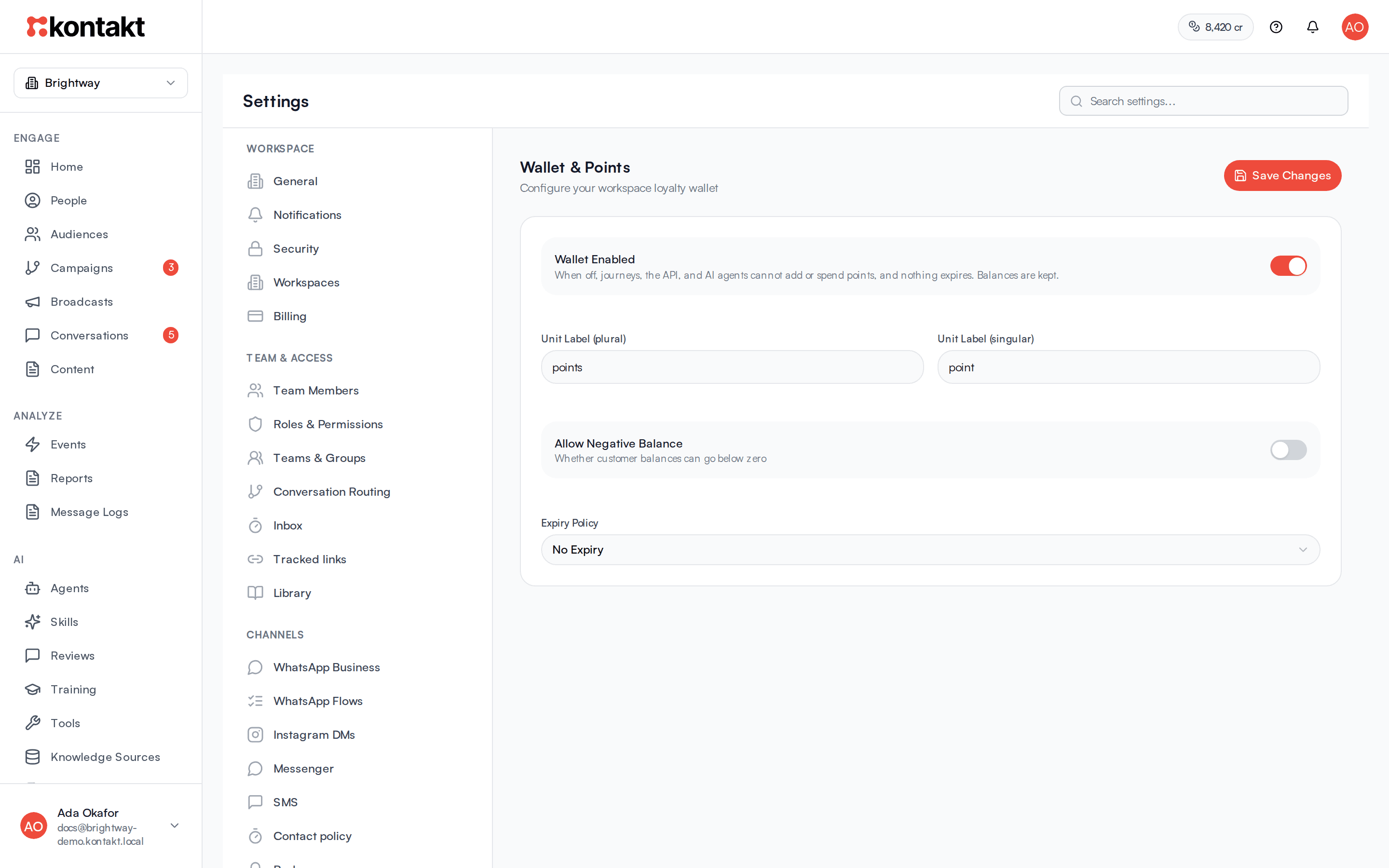
Go to Settings / Wallet & Points. If the wallet has never been set up, you see Wallet Not Configured. Click Set Up Wallet.
Name your unit
Enter Unit Label (plural) and Unit Label (singular), for example "points" and "point", or "stamps" and "stamp". Kontakt uses these wherever balances are shown, including referral programmes.
Decide on negative balances
Allow Negative Balance controls whether a balance can go below zero. Leave it off for most schemes, so a customer cannot spend points they do not have.
Choose when points expire
Under Expiry Policy, pick No Expiry, After N days of inactivity, or On fixed date (day of year), then enter the number of days or the day of the year. See Expiry.
Save
Click Save Changes.
Turn the wallet off
Wallet Enabled is the on and off switch for the whole wallet. When it is off and saved:
- Journeys: a Credit Wallet step is skipped with the reason wallet_disabled and the journey carries on. A Debit Wallet step takes neither path, and the run stops there as failed.
- The API returns
409withcode: wallet_disabledfor credits, debits, and manual adjustments. - AI agents' Wallet Credit and Wallet Debit tools tell the agent the wallet is off instead of changing the balance.
- Referral rewards paid in wallet credit are not paid.
- Nothing expires.
Balances are kept, and customers' Wallet tabs still show them. Turn the switch back on to carry on where you left off. If you mirror to store credit, spending store credit in Shopify still lowers the wallet balance so the two stay in step.
Expiry
Expiry is checked every hour. Each expired balance is set to zero and recorded in the customer's transaction history as an expire transaction. Negative balances are never changed.
- After N days of inactivity: a balance expires once the customer has had no wallet activity (no credit, debit, or adjustment) for that many days.
- On fixed date (day of year): once a year, on that day in your workspace timezone, every positive balance expires. Day 1 is 1 January and day 365 is 31 December in most years; in a leap year, days after 59 land one calendar day earlier. Expiry runs once per year. If it could not run on the day, it catches up within the following seven days. Points earned after the yearly expiry are kept until the next one.
Set your workspace timezone so a fixed-date expiry happens on the day you expect. Expiry is not mirrored: if you mirror to store credit, expired points stay on the customer's Shopify store credit.
Earn and spend in journeys
Two blocks in the journey builder's Actions section work with the wallet. See Journeys for building the rest of the flow.
Credit Wallet adds to the customer's balance.
- Amount: a number, or a value from earlier in the journey such as
{{ code.merged_custom_fields.point_value }}from a validated code. - Type: Earn or Bonus.
- Description: shown in the customer's transaction history.
Debit Wallet takes from the balance and has two paths: Success and Insufficient Balance.
- Amount: a number or a value from the journey. Rounded to whole points.
- Type: Redeem or Adjustment.
- Description: shown in the transaction history.
Use the Insufficient Balance path to tell the customer how many more points they need.
Each step pays out once per journey run, so a retry never credits or debits twice.
Show the balance in messages
WhatsApp message steps can include {{ wallet.balance }} and {{ wallet.unit }}. Condition Check steps can branch on wallet.balance, for example to send a "you can now redeem" message once someone passes a threshold.
Adjust a balance by hand
Open the customer
Open the person in People and click the Wallet tab. It shows Current Balance, Lifetime Earned, Lifetime Burned, Last Activity, and the Transaction History.
Adjust
Click Adjust Balance. Enter an Amount (positive to add, negative to take away), pick the Type (Bonus or Adjust), and write a Description such as "Manual correction". Click Confirm Adjustment.
Other ways the balance changes
- Referral programmes pay both sides in wallet credit. See Referrals.
- AI agents can read, credit, and debit a customer's wallet with the Wallet Balance, Wallet Credit, and Wallet Debit tools. See Tools.
- Your own systems can credit and debit through the API. See API reference.
Mirror the balance to store credit
If you connect a Shopify store, the settings page shows Mirror balance to store credit. Pick the Store to mirror to, or Don't mirror, then click Save Changes.
When mirroring is on:
- Turning it on pushes each customer's current balance to the store once.
- After that, every credit and debit in Kontakt is also applied to the customer's Shopify store credit.
- If Shopify refuses a debit, Kontakt puts the points back with the note "Shopify store credit could not be spent. Balance restored."
Requirements for mirroring
Only a wallet in the store's currency can mirror. The store must have customer accounts turned on, and the customer must have a Shopify customer record. Guest checkouts cannot redeem store credit.
Troubleshooting
A Debit Wallet step always takes the Insufficient Balance path
The customer's balance is lower than the amount, and Allow Negative Balance is off. Check the balance on their Wallet tab. If the amount comes from a variable, open the run in the journey's Executions and check the value it resolved to.
A Credit Wallet step failed with an invalid amount
The amount resolved to something that is not a positive number, often because a variable was empty. Check the variable name, for example that the code was validated before the credit step.
A wallet step was skipped with wallet_disabled
Wallet Enabled is off in Settings / Wallet & Points. Turn it on and click Save Changes. Runs that already passed the step are not credited or debited afterwards.
Balances did not expire
Check that Wallet Enabled is on, and that Expiry Policy is not No Expiry. For a fixed date, check the day of the year and your workspace timezone. For inactivity, any credit, debit, or adjustment resets the customer's clock.
The store credit does not match the wallet
Mirroring only applies to customers linked to a Shopify customer in that store, and only when the wallet and store use the same currency.