Content and templates
WhatsApp only lets businesses start a conversation, or write after 24 hours of silence, with a template Meta has approved. This page covers creating, submitting, editing, and managing those templates.
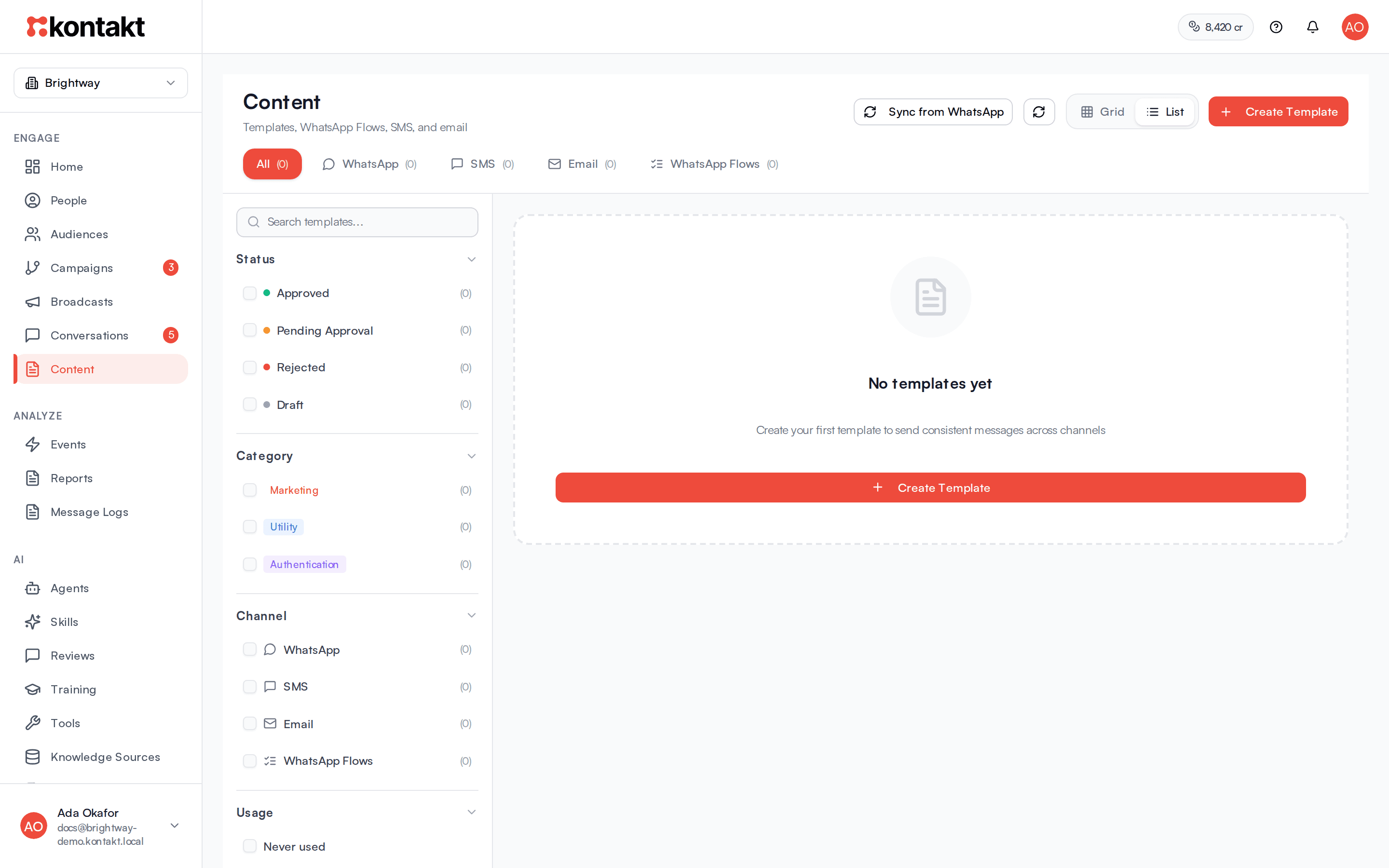
Templates live under Content in the Engage section of the sidebar, in one library with tabs for All, WhatsApp, SMS, Email, and WhatsApp Flows.
You need an approved WhatsApp template to:
- send a WhatsApp broadcast
- send a WhatsApp message from a journey to someone who has not messaged you in the last 24 hours
- click Send template in Conversations when the 24-hour window has closed
Before you start
- Connect a WhatsApp number. Templates are submitted to Meta through that connection. See WhatsApp.
- You need a role that can manage templates. See Roles and permissions.
- Meta charges for template messages by category. See Channel pricing.
Create a WhatsApp template
Open the creator
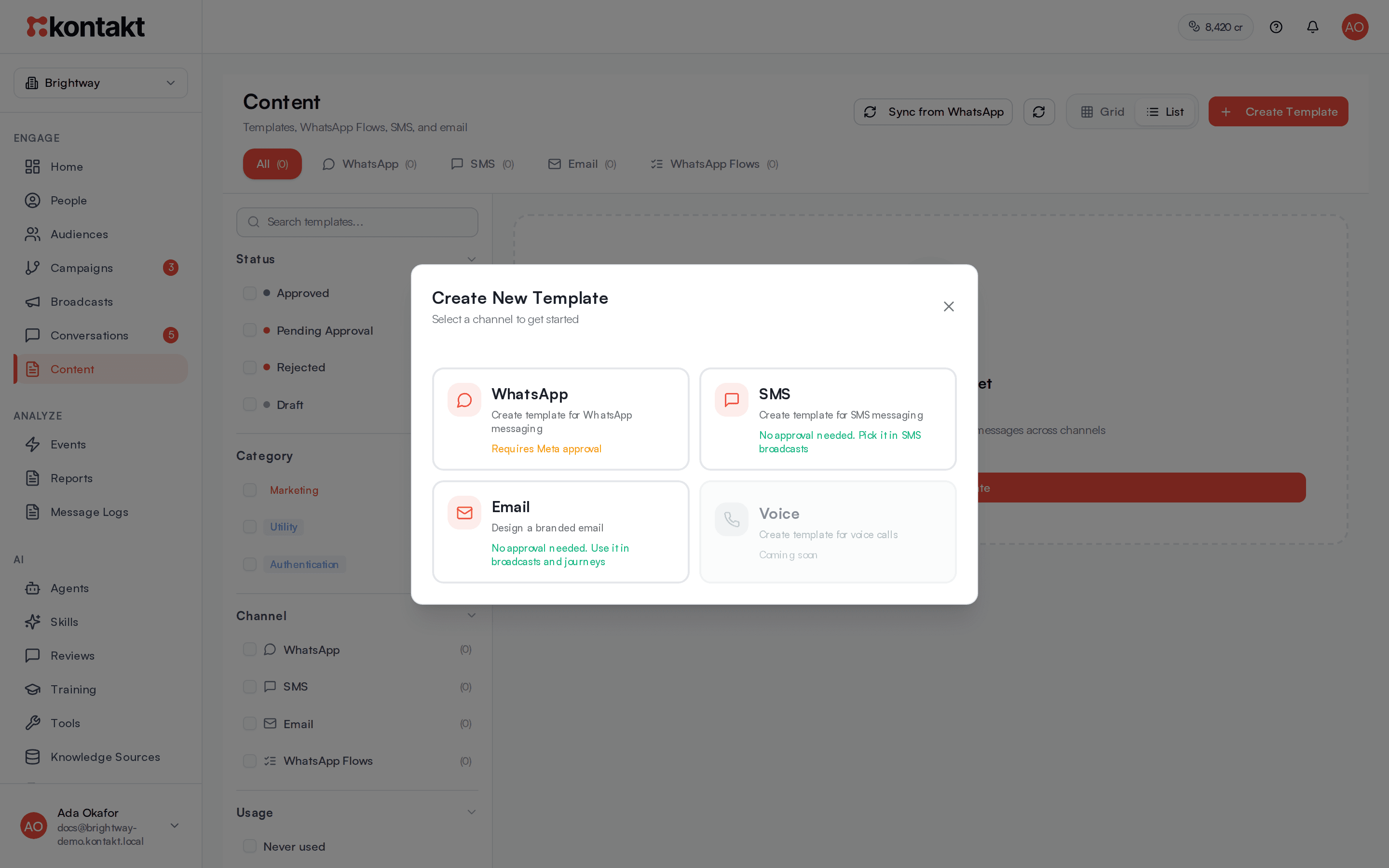
Click Create Template, then pick WhatsApp. The page "Create WhatsApp Template" opens with a Live Preview on the right.
Name, language, and category
Enter a Template Name using lowercase letters, numbers, and underscores only, at least 3 characters, for example order_shipped_v2. Pick the Language and a Category: Marketing, Utility, or Authentication. Marketing templates get a closer review and need opt-in. Utility is for transactional updates.
If you have more than one WhatsApp number, choose it under Submit to Connection.
Header, body, and footer
Tick Add header for an optional header: text (up to 60 characters), or an image, video, or document. Write the Message Body, up to 1,024 characters. Tick Add footer for a short plain-text line, up to 60 characters, with no variables.
For an image, video, or document header, drag the file onto the upload box or click it to choose one: a JPG or PNG image up to 5MB, an MP4 video up to 16MB, or a PDF up to 25MB. The Live Preview shows it straight away. Use Replace or Remove to change it. WhatsApp reviews the template with this file, and every send of the template uses it as the header.
Add variables
Use numbered placeholders such as {{1}} and {{2}} for values that change per person, like a name or an order number. Meta rejects named placeholders such as {{first_name}}, and the creator warns you if it finds one. Enter a sample value for every placeholder. Meta requires them for review. The body can't start or end with a placeholder, even with only punctuation after it, so Use it before {{3}}. is rejected while Use it before {{3}}. Happy shopping! is accepted. The creator warns you before you submit.
Add buttons
Tick Add buttons and choose a type:
- Call to Action: up to 2 buttons. Each opens a URL (must start with
https://), calls a Phone number, opens a Flow you have published, or is a Copy code button. - Quick Reply: up to 3 buttons the customer taps to reply.
A Copy code button shows as Copy offer code in WhatsApp and copies the Code you enter, up to 15 letters or numbers, such as a discount code. A template can have one.
Tick Track clicks under a URL button to see who taps it. The button then opens a short Kontakt link that sends each person on to your URL, and every send of the template fills that link in for you. A tracked button's URL can't contain a placeholder. Turning Track clicks on or off for an approved template changes it, so WhatsApp reviews it again. See Tracked links.
Submit
Click Submit for Approval. The template moves to Pending Approval. Meta usually replies within minutes, and the status changes to Approved or Rejected. Kontakt also checks pending templates every 10 minutes, so the new status shows up even if Meta's notice is missed. Sync from WhatsApp checks straight away.
Manage templates
Click any template to see its preview, variables, and usage. From there you can Edit Template, Duplicate, delete it, or click Submit for Approval for a WhatsApp template that is a draft or was rejected. A rejected template shows Rejected by Meta with the reason.
Use Search templates... and the filters on the left to narrow the list by status (Approved, Pending Approval, Rejected, Draft), category, or how often a template has been used.
Sync from WhatsApp pulls in templates that already exist on your WhatsApp Business account, for example ones created in Meta's tools, and updates their status. A message tells you how many were new and how many were updated.
How it behaves
- Editing an approved template. Meta does not allow direct edits to an approved template. When you click edit, Kontakt offers Create New Version (change this template and resubmit it) or Duplicate Template (make a copy with a new name). A new version goes back to draft and must be approved again before it can send. When you submit it, Kontakt updates the same template on WhatsApp, keeping its name and language. Meta allows one edit to an approved template per day and 10 in 30 days.
- Pending templates cannot be edited or archived until Meta responds.
- Templates in use. You cannot delete a template that a scheduled or sending broadcast, or an active journey, still uses. Pause or change those first.
- Names are unique per channel within a workspace.
- Duplicates are named "(Copy)", then "(Copy 2)", "(Copy 3)" and so on. A copy of a WhatsApp template starts as a draft, so it needs Meta's approval before it can send. A copy of an email template is ready to use straight away.
- The 24-hour window. Inside an open conversation, free-form replies are fine. Outside it, only approved templates are delivered.
SMS templates
SMS templates need no approval. A template is only the text: you choose the sender when you send it, in a broadcast or a journey step. Use {first_name}, {last_name}, {phone}, or {email} for values that change per person, up to 900 characters. These are plain names: a fallback for a missing value, such as {{ customer.first_name | default: "there" }}, only works in a journey step's message, which uses double braces.
The creator shows how many SMS parts the text sends as. One part holds 160 standard characters, or 153 each when the message needs more than one. Emoji and some symbols switch the whole message to 70 per part (67 when longer), and the creator lists the characters that caused it. Each part is charged.
Opt-out wording such as "Reply STOP to opt out" is recommended, not required. It only works when your sender can receive replies, such as a short code or a phone number. In many countries, including Nigeria, alphanumeric sender IDs are one-way. Whichever sender you use, people who opted out don't get marketing messages.
To change a saved SMS template, open it and click Edit Template, change the name or text, and click Save Changes. Broadcasts you already set up from it keep their own copy of the text.
You can start an SMS broadcast from a saved SMS template: pick it under Start from an SMS template on the Message & Template step. Its placeholders become numbered variables you map there. The sender is chosen on the broadcast, not the template.
Journey SMS steps hold their own text, so write it in the step, or paste an SMS template's text into it, when you build a journey.
Email templates
Email templates need no approval. On the Email tab, create a template and choose a starting point: Write it with AI, Start blank, or one of the starters in your brand. Name it, choose Marketing or Transactional, design it, and save. See Design an email.
Your email brand is applied when the email is sent, so changing your logo or colours updates every template.
Use a saved email template:
- in a broadcast: it appears under Yours on the Design step. The broadcast gets its own copy, so later edits to the template don't change it.
- in a journey: choose Use a saved email template under How the email is built. The step always sends the latest version, so editing the template changes every journey that uses it.
WhatsApp Flows
The WhatsApp Flows tab lists the forms you can send inside WhatsApp. See WhatsApp Flows to build one.
Troubleshooting
My template was rejected
Open it and read the reason under Rejected by Meta. Common causes are a mismatched category (promotional wording in a Utility template), missing or unrealistic sample values, and named placeholders. Fix the template and click Submit for Approval again.
Submitting says to upload the header image
A template with an image, video, or document header needs the file before WhatsApp can review it. Open the template, click Edit Template, upload the file under Add header, and click Submit for Approval. This is the usual next step for a template Copilot drafted with an image header.
My template does not appear when I build a broadcast or journey
For WhatsApp, only Approved templates are offered. Check its status, and click Sync from WhatsApp if you created it outside Kontakt. SMS broadcasts list every saved SMS template.
I cannot delete a template
It is still used by an active journey or a scheduled or sending broadcast. Change or pause those, then try again.