Email sending
Send designed, branded email to many people from your own domain. Set it up once under Settings, then use it in broadcasts and journeys.
Email sending is for one-to-many email: broadcasts and journey emails that come from your own address, such as hello@yourbusiness.com, and carry your logo, colours and footer. It is separate from Email, which connects mailboxes so your team can answer email in Conversations.
Before you start
- A role that can change workspace settings.
- Access to the DNS settings for your domain, or someone who can add records for you.
- Your business's postal address. Marketing email needs one in the footer.
Set up email sending
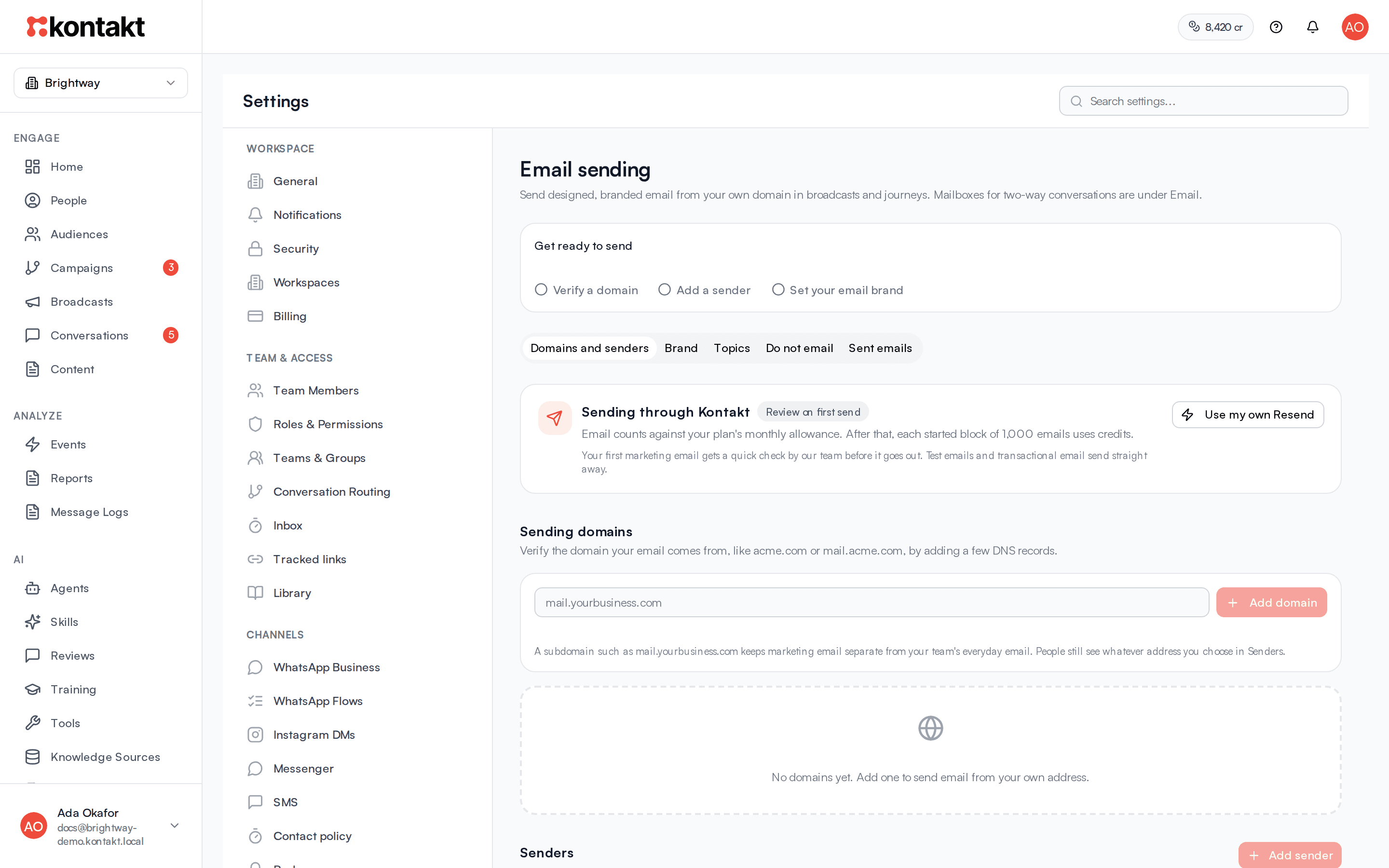
Go to Settings / Email sending. Until you finish, a Get ready to send checklist at the top shows three steps: Verify a domain, Add a sender, and Set your email brand. Click a step to open the tab where you finish it. The brand step is only done once your brand is saved with a postal address. If you saved it without one, the step reads Add your postal address to your brand.
Add your domain
On the Domains and senders tab, type the domain under Sending domains and click Add domain. A subdomain such as mail.yourbusiness.com keeps marketing email separate from your team's everyday email. People still see whatever address you choose for the sender.
Add the DNS records
Click DNS records on the domain. Add each record at your DNS provider. The table shows its Purpose, Type, Name and Value, with a copy button on each.
- DKIM (signs your email) and SPF (allows sending) are required.
- Bounce handling lets Kontakt see bounced email.
- DMARC (recommended) is optional, but Gmail and Yahoo expect a DMARC record for bulk email. Add the suggested one if you don't have one.
Kontakt checks every few minutes and emails you when the domain is verified. Click Check now to check straight away. DNS changes can take up to a day to show up. Add the records within 7 days, or the domain is released and you need to add it again.
Add a sender
Under Senders, click Add sender and fill in:
- From name: the name people see, usually your business name.
- Address: the part before the @, and the domain.
- Used for: Marketing, Transactional, or Marketing and transactional.
- When people reply: see Where replies go.
Turn on Default sender to pick it automatically for new emails. A sender on a domain that isn't verified yet shows Domain not verified and can't send until the domain verifies.
Set your email brand
On the Brand tab, click Import under Import from your website to pick up your logo, colours, font, social links and address from your site. Kontakt shows what it found at the top of the tab. Click Use it to save it as your brand, or set everything by hand. Fill in Postal address (required for marketing), then click Save brand. See Your email brand.
Where replies go
Each sender has a When people reply setting:
- To the sending address: replies go to the address the email came from. Fine for an address someone reads. Replies to a no-reply address are lost, and the sender shows a warning.
- To an inbox in Conversations: replies go to a mailbox you connected under Email and open in Conversations, linked to the broadcast or journey email they answer.
- To another address: replies go to an address you type, such as
support@yourbusiness.com.
A broadcast or journey email can change this for one send under Replies: Use the sender's setting, Send replies to a connected inbox, Send replies to another address, or No replies (no-reply).
Your email brand
Everything on the Brand tab applies to every template, broadcast and journey email, so you set it once.
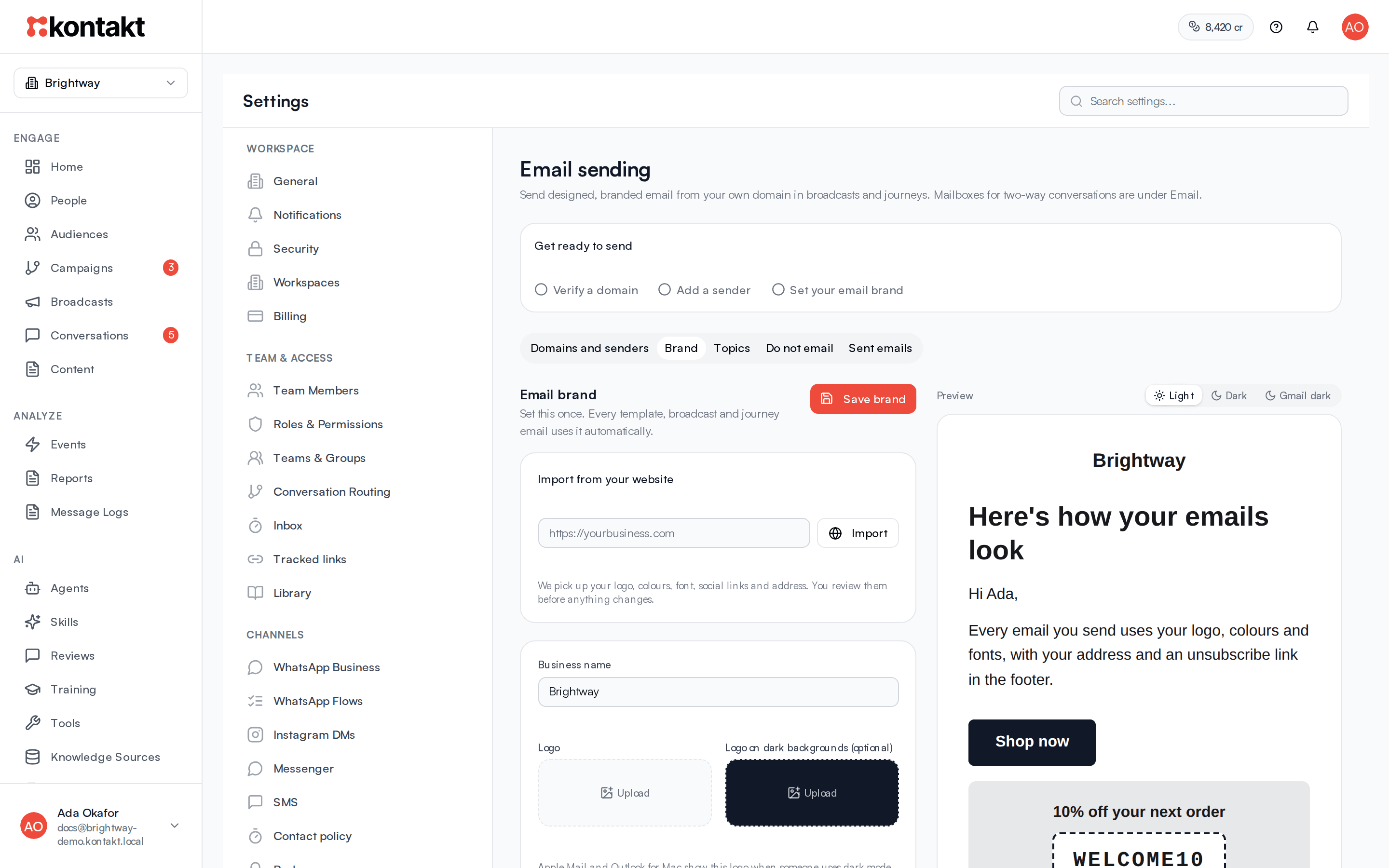
- Business name, Logo, and an optional Logo on dark backgrounds, with the logo width. Apple Mail and Outlook for Mac show the dark-background logo when someone uses dark mode. Upload your own, or click Make one for me: Kontakt turns black and grey lettering light, keeps your brand colours, and removes a plain white background. Check it in the preview, then save. The Gmail and Outlook apps don't use it, so if your logo has dark lettering on a see-through background, Kontakt also adds a white backing to it there. In light mode the backing matches the email and doesn't show.
- Header: Logo in the middle, Logo on the left, or Business name only.
- Font and Colours: Primary for buttons and links, Secondary for headings, Accent for discount codes and highlights, Background, and Text. Text on buttons switches between black and white automatically so it stays readable.
- Style: Classic, Bold, Minimal, Editorial, or Letter. Each email can pick a different style.
- Footer: Postal address (required for marketing), Extra footer text (optional), and Show social links in the footer.
The preview next to the settings updates as you change them. Switch it to Dark or Gmail dark to check your logo and colours in dark mode.
Topics
On the Topics tab, create topics such as Offers or Newsletter. People can unsubscribe from one topic and keep getting the others. Every workspace starts with a default topic. Each marketing email belongs to one topic, chosen under Topic when you send.
Click the eye icon to hide a topic from the preference page. Removing a topic moves emails that used it to the default topic.
Do not email
The Do not email tab lists addresses Kontakt never emails:
- Bounced: the address doesn't exist or permanently rejected email.
- Marked as spam: the person reported your email as spam.
- Spam trap: an address used to catch senders who mail lists without permission.
- Address doesn't exist.
- Blocked by your team: added under Do not email by a teammate.
Only addresses your team added can be removed. Unsubscribes are kept on each person's profile and in Topics, not on this list.
Sent emails
The Sent emails tab lists every email sent from the workspace with its subject, recipient and what happened: Queued, Sent, Delivered, Opened, Clicked, Replied, Bounced, Marked as spam, or Failed. Filter by source and search by address.
Review before your first marketing email
The card at the top of Domains and senders shows your account's status:
- Review on first send: your first marketing email gets a quick check by the Kontakt team before it goes out. Test emails and transactional email send straight away.
- In review: the team is checking it. This usually takes a few hours, and you get an email when it's done.
- Approved: marketing email sends without waiting for review.
- Paused: marketing email is paused for this workspace, usually after too many bounces or spam reports. See Email deliverability.
- Turned off: email sending is turned off for this workspace. Contact support.
Troubleshooting
My domain shows "Records not found"
Kontakt couldn't find one or more records. Open DNS records and look for Not yet in the status column. Check the name and value were pasted exactly, without your domain added twice at the end. Some DNS providers add the domain for you, so enter only the part before it.
My domain shows "Used by another workspace"
Another Kontakt workspace already verified that domain. Use a different subdomain, such as mail2.yourbusiness.com, or remove it from the other workspace first.
I can't add a sender
Add a domain first. Add sender is available once at least one domain is added.
Replies aren't reaching Conversations
Set the sender's When people reply to To an inbox in Conversations and pick a mailbox. If the list is empty, connect one under Settings / Email.