Codes
Codes let you run on-pack promotions, scan-to-win campaigns, and one-time discount codes. Each journey can have its own batches of unique codes.
Use codes when each customer, product, or prize needs its own single-use identifier. Two common patterns:
- Customers send you a code. A code printed on a pack or receipt is sent in on WhatsApp. The journey checks it, marks it used, and pays a reward.
- You send customers a code. Each message picks the next unused code from a batch, for example a one-time discount code.
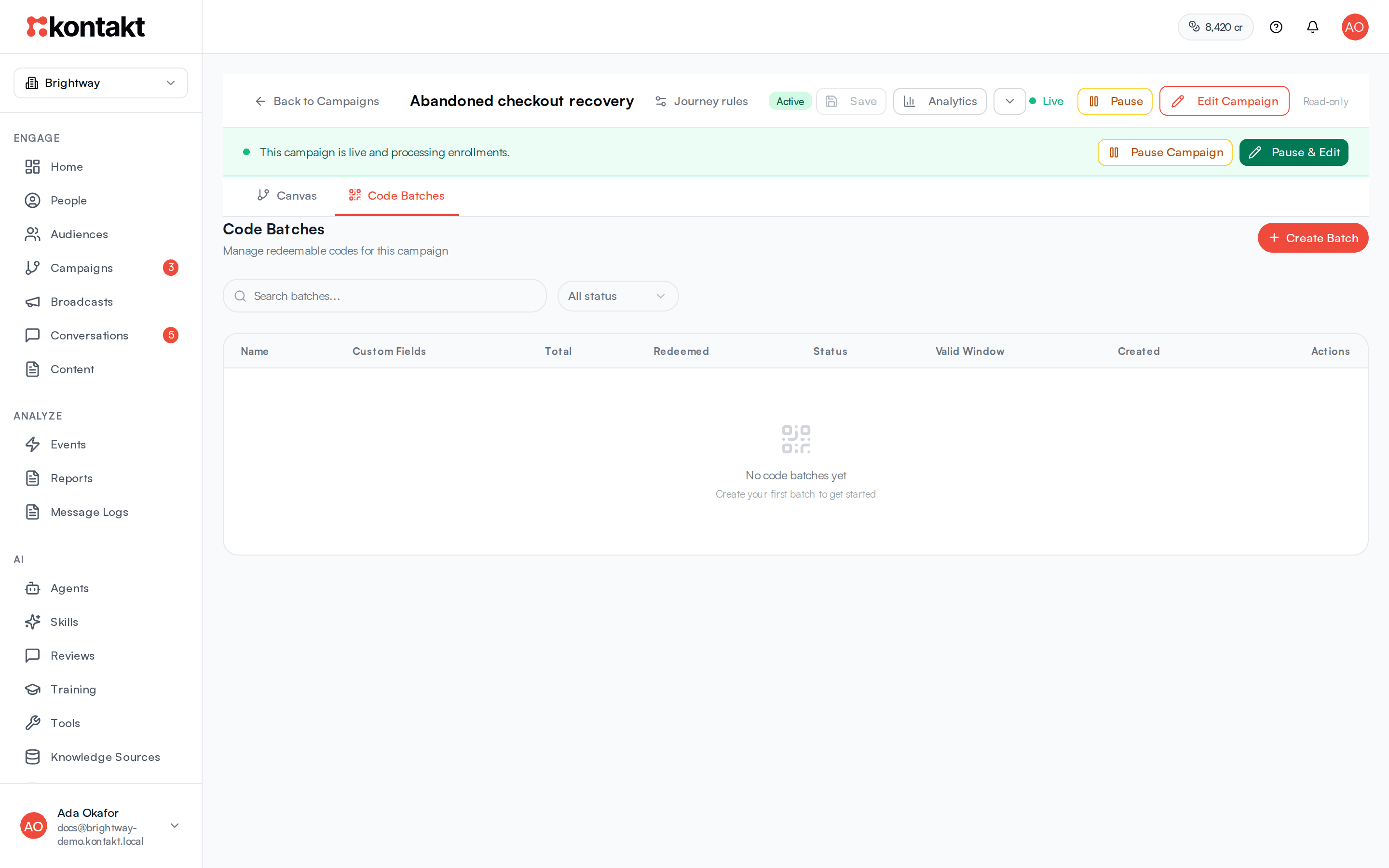
Code batches belong to a journey. Open the journey in the builder and click the Code Batches tab next to Canvas.
Before you start
- Create and save the journey first. See Journeys.
- To award points, set up the loyalty wallet. To pay airtime, mobile money, or other rewards, set up a provider in Fulfillment providers.
- To make codes work as Shopify discounts, connect a Shopify store.
Create a batch
Open the batch form
In the journey, click Code Batches, then Create Batch.
Name and format
Enter a Batch Name, for example "Detergent 500g - March 2026". Under Code Format, choose Alphanumeric or Numeric, a Length between 4 and 20, and an optional Prefix. The Preview shows what a code looks like.
Validity and limits
Set Valid From and Valid Until, or leave them blank for no expiry window. Max Redemptions Per Code is how many times one code can be used, usually 1. Add Tags if you want to group batches.
Custom fields
Under Custom Fields, click + Add Field to attach values to every code in the batch, such as product_name or point_value. Mark each as Text or Number. Journeys can read these after a code is validated.
Optional: create the codes in your store
If a store is connected, pick it under Also create these codes in a store and set the Discount as a Fixed amount or Percent off. Shopify then accepts the same codes as discounts. Leave it on Don't sync to keep the codes only in Kontakt.
Create, generate, and activate
Click Create Batch. The batch opens in draft. Click Generate Codes and enter how many you need, up to 100,000. Batches over 10,000 codes are generated in the background. Then click Activate Batch. Codes cannot be redeemed until the batch is active.
Manage a batch
The batch page shows Total Codes, Redeemed, and Available, and a list of codes with Status, Redeemed By, and Redeemed At. Filter by Available, Redeemed, or Voided, and search for a code.
- Click Void on an available code to cancel it, for example if it was printed by mistake.
- From the menu, Edit changes the name, validity, limits, tags, and custom fields. The code format cannot change after creation.
- Pause stops codes in the batch from validating until you Resume. Archive retires the batch.
Validate codes customers send in
Add a Validate Code step from the Actions section of the builder. It has two paths: Valid and Invalid.
- Code Source: Inbound message text (for journeys started by Inbound WhatsApp), Event property (set the Property Key, empty uses
code), or A journey value (set a Value path such asnodes.lookup.response.code). - Find the code with a pattern (optional): a regular expression such as
([A-Z0-9]{8,})to pull a code out of a longer message, with a Capture Group. - Redeem on Valid: marks the code as used and records a
code_redeemedevent. Turn it off to check a code without using it up.
How validation works:
- Only codes from this journey's batches are accepted. Upper and lower case are treated the same.
- A code is invalid if it does not exist, belongs to another journey, was voided, was already used up, is outside its valid dates, or its batch is not active. A message with no code also goes to Invalid.
- After a valid code, later steps can use
{{ code.value }},{{ code.batch.name }}, and{{ code.merged_custom_fields.point_value }}(or any custom field you added).
The code_redeemed event carries the code, the batch, and its custom fields, so another journey can start from it with Event Occurs.
Example: scan to earn points
- Trigger: Inbound WhatsApp, Message Match set to Regex pattern.
- Validate Code from Inbound message text, with Redeem on Valid on.
- Valid path: Credit Wallet with amount
{{ code.merged_custom_fields.point_value }}, then a Send WhatsApp message with{{ wallet.balance }}. - Invalid path: a Send WhatsApp message asking the customer to check the code.
Send a unique code in a message
In a Send WhatsApp, Send SMS, or Send Email step, choose a batch under Unique code to include. Each person gets the next unused code from that batch. Write {{ code.value }} in the message where the code should appear. Only batches on the same journey are listed, so save the journey and create the batch first.
Orders that use the code are credited to that message in journey results. See Tracked links for how orders are credited.
Limit prizes with counters
A Counter Operation step keeps a shared number for the whole workspace, such as prizes left or redemptions today. Pick a Counter or click the + button to create one with a starting value, then choose Increment, Decrement, or Set to and an Amount. It has two paths: Success and Limit Reached. A decrement that would take the counter below zero goes to Limit Reached, so you can stop handing out prizes when stock runs out. An increment never reaches Limit Reached. To cap a reward at, say, the first 2,000 people, start a counter at 2,000 and decrement it by 1 just before the reward.
Condition Check steps can also branch on a counter's value.
Pay a reward
A Disburse Reward step sends real-world value through a provider:
- Reward Type: Airtime, Mobile Money, Data Bundle, Bank Transfer, Custom Webhook, or Manual (a teammate fulfils it). A tick shows when a provider is set up for that type.
- Amount: a number or a value such as
{{ code.merged_custom_fields.reward_amount }}. - Currency: for example NGN, KES, or USD. Empty uses the provider's currency: NGN for Sochitel, USD for the others.
- Recipient: defaults to
{{ customer.phone }}. - Label (optional): saved on the disbursement record.
It continues on Success or No Provider or Failed. The journey's Analytics has a Disbursements tab listing each payout.
Troubleshooting
Every code goes to Invalid
Check that the batch is Active, that the code belongs to a batch on this journey, and that today is inside the batch's valid dates. If the code is inside a longer message, add a pattern. Open the run in the journey's Executions to see the code that was read and the reason.
A customer says their code was already used
Open the batch, search for the code, and check Redeemed By and Redeemed At. If Max Redemptions Per Code is 1, a second attempt is invalid.
Unique code to include shows no batches
Batches are per journey. Save the journey, create a batch on its Code Batches tab, and generate codes.
A batch ran out of codes
Each send takes one unused code. Click Generate Codes on the batch to add more.